SYSTEM_SERVICE_EXCEPTION BSOD Fix for Windows 11 PCs
For SYSTEM_SERVICE_EXCEPTION on Windows 11, use this rule: if 2 or more dumps point to the same .sys driver, fix that driver first; if dumps are missing or blame system files, run SFC before DISM. Skipping that order can waste hours and keep the blue screens coming back. I use dump data first, then repair work. This guide shows how to read dumps, separate driver, file-system, and Windows-image faults, and choose the right fix.
What SYSTEM_SERVICE_EXCEPTION means in Windows 11
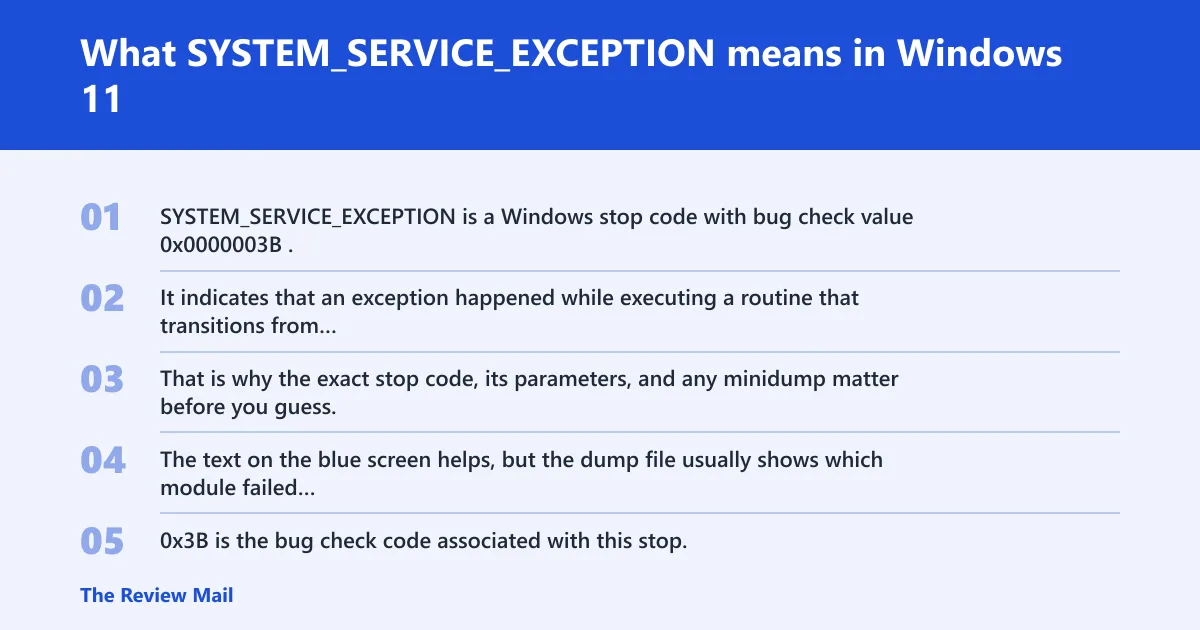
SYSTEM_SERVICE_EXCEPTION is a Windows stop code with bug check value 0x0000003B. It indicates that an exception happened while executing a routine that transitions from non-privileged code to privileged code, and the thread involved is a system thread.
That is why the exact stop code, its parameters, and any minidump matter before you guess. The text on the blue screen helps, but the dump file usually shows which module failed and whether the crash points to one driver, a Windows file, or a broader image problem.
Why 0x3B is the number to match
0x3B is the bug check code associated with this stop. Common exception codes include 0x80000003 and 0xC0000005, which can help when a dump shows the exception detail rather than only the text stop code.
What Microsoft says about the failure
Microsoft’s bug check page frames this as an exception in system thread code. It also notes that analyzing the fault often requires debugger work such as .cxr, kb, and !analyze on the dump.
📊 The error can appear in Windows 10 or 11. Source: Tomshardware.
What causes SYSTEM_SERVICE_EXCEPTION stop code 0x3B?
The answer is usually in the dump, not the guess. A driver can be involved, a Windows file can be damaged, or the crash can come from a repeatable fault in the code shown in the stack. The practical goal is to find the same module, path, or exception pattern across dumps before changing settings.
When the same module appears across multiple dumps, that module gets priority. When the dumps show different modules, the path shifts toward Windows file integrity and component-store repair.
Likely causes
- A repeatable module failure visible in several minidumps.
- Corruption in Windows system files or the Windows Component Store.
- A file-system clue in the dump.
- A driver fault shown by a repeated .sys file.
Use this triage table first
Start here before running repair commands at random. Match the symptom pattern to the next best action, then collect the dump evidence after each change so you do not overwrite the real clue.
| Symptom pattern | Likely cause | Next best action | Run first? |
|---|---|---|---|
| Crash after a recent driver change | Driver regression or bad package | Device Manager > device > Properties > Driver tab > Roll Back Driver; if rollback is unavailable, choose Uninstall device and install the last known stable vendor package | Driver rollback |
| Crash after update or repair failure | Windows file or image damage | Run SFC /scannow; if corruption remains, run Dism /online /cleanup-image /restorehealth | SFC first |
| A file-system clue appears in the dump | File-system path needs inspection | Check the disk with chkdsk, then run SFC and review the dump for the module stack | File-system checks |
| Repeated crashes with a minidump available | Same module may be recurring | Open the dumps in WinDbg, compare them for one repeated module, and act on the repeated .sys file before changing unrelated settings | Dump review |
How do I decide whether to run DISM or SFC first?
Run SFC first when the crash seems related to Windows file damage or when the dump is not available. Run DISM when SFC reports corruption it cannot fix, or when a repair failure suggests you need to repair the Windows Component Store first.
- Open Windows Terminal (Admin) or Command Prompt (Admin).
- Run
sfc /scannowand wait for it to finish. - If SFC reports corruption it could not repair, run
Dism /online /cleanup-image /restorehealth. - Run
sfc /scannowagain after DISM. - If SFC still does not report clean health, stop guessing and move to dump review.
sfc /scannow
Dism /online /cleanup-image /restorehealth
sfc /scannow
Repeat SFC after DISM when needed
SFC may need to be repeated until it reports clean health. That second pass matters because DISM repairs the store SFC pulls from, so a single SFC run can miss files that become fixable only after the component store is repaired.
How do I rule out a bad driver in Windows 11?
Use the dump first, then change the driver. If two or more minidumps point to the same module, that is stronger evidence than a guess. When the change affects a specific device, the safest path is to revert the last package or install the last known stable vendor package.
- Open Device Manager.
- Find the device that changed most recently.
- Right-click it and open Properties > Driver.
- Select Roll Back Driver if it is available.
- If rollback is unavailable, choose Uninstall device.
- Install the last known stable driver package from the device vendor.
- Reboot and check whether the same stop code returns.
If the dump shows a different module every time, do not keep swapping drivers blindly. Review the stack text and module list in the minidump first, because the same blue screen text can hide different fault paths.
How do I tell if the crash is a file system or device driver issue?
Look at what the blue screen names and what the dump repeats. A named driver that appears in multiple dumps points toward the driver path. A file-system clue points you toward disk and file-integrity checks first, but it is not proof of a bad disk on its own.
- Write down the exact stop code and parameters shown on screen.
- Open
C:\Windows\Minidump\and save the latest .dmp file. - Check whether the same .sys file appears in more than one crash.
- If a file-system clue appears, run
chkdskand thensfc /scannow. - If a device driver repeats, go to Device Manager and roll it back or reinstall the stable package.
What to inspect in the dump
Use WinDbg commands such as !analyze, .cxr with parameter 3, kb, and lm t n to identify the module and stack. Microsoft also notes that comparing multiple dumps can expose common code in the stack, which is far more useful than the blue screen text alone.
How do I isolate third-party software and startup conflicts?
Clean boot is the safest way to remove extra software from the equation without uninstalling everything. It does not prove a driver is bad, but it can separate a third-party service or startup item from a Windows-only crash path and keep the test repeatable.
- Press Win + R, type msconfig, and press Enter.
- Open the Services tab.
- Check Hide all Microsoft services.
- Select Disable all.
- Open the Startup tab and choose Open Task Manager.
- Disable startup items, then restart the PC.
- Turn items back on one group at a time after each test boot.
What if the crash still happens after repairs?
If the stop code keeps returning, move from software repair to evidence collection and escalation. The key step is to collect the exact stop code, all parameters, and the C:\Windows\Minidump\*.dmp files before more changes overwrite the pattern.
- Save the stop code and parameters from the blue screen.
- Copy the latest files from
C:\Windows\Minidump\. - Compare the dumps for one repeated module.
- If the same driver appears, install the last known stable package or remove the device software.
- If the crash survives that, test with a known-good device path, update firmware through the vendor utility, or replace the failing part.
Prevention: After the system is stable, keep a local copy of the last known good driver package for the device you just fixed. That makes rollback faster if the same stop code returns after a future update.
What do the debugger commands show?
Microsoft says to use the .cxr command with parameter 3, then kb to display the stack backtrace. The !analyze extension can help identify the root cause, and dx KiBugCheckDriver can display the driver name associated with the bug check. Use u, ub, and uu to inspect assembly when needed, and !error to display information about the exception code in parameter 1.
Common questions
Does SYSTEM_SERVICE_EXCEPTION happen in Windows 10 and 11?
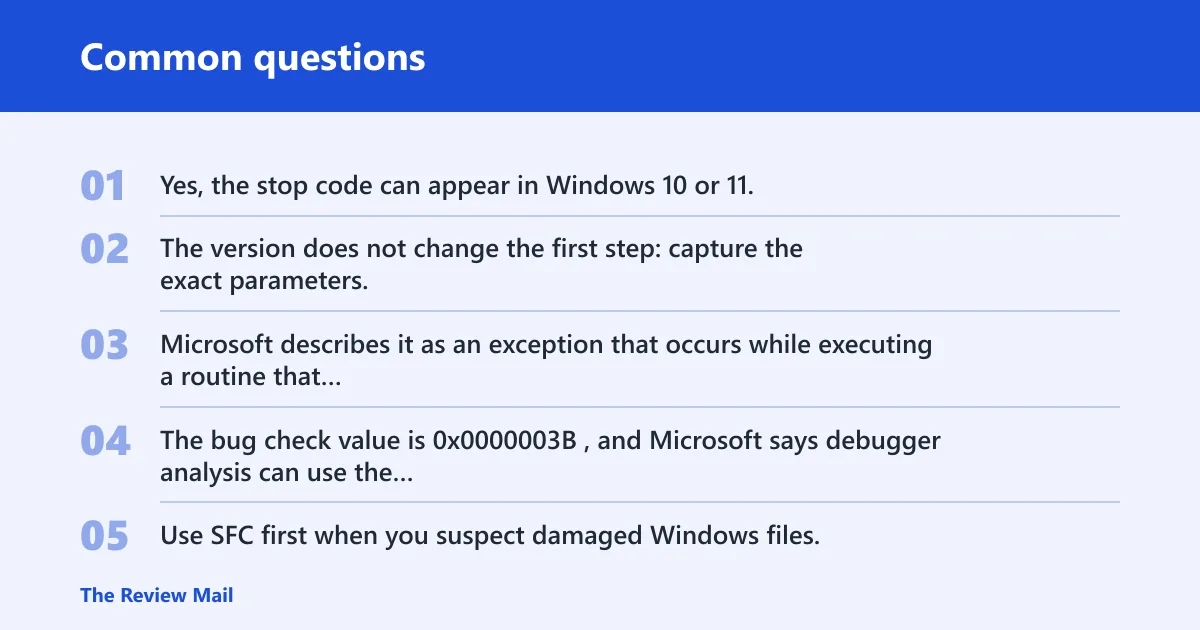
Yes, the stop code can appear in Windows 10 or 11. The version does not change the first step: capture the exact parameters, save the minidump, and use that evidence to separate driver, file-system, and Windows-image causes before running broad repair steps.
What does Microsoft say SYSTEM_SERVICE_EXCEPTION means?
Microsoft describes it as an exception that occurs while executing a routine that transitions from non-privileged code to privileged code. The bug check value is 0x0000003B, and Microsoft says debugger analysis can use the stack, the context record, and the module list to identify the faulting code.
Should I run DISM or SFC first for this BSOD?
Use SFC first when you suspect damaged Windows files, then run DISM if SFC cannot fix what it finds. If a repair failure or component-store corruption is already clear, run Dism /online /cleanup-image /restorehealth and then repeat sfc /scannow.
How do I know if a file-system clue is present?
Check the repeated module in the minidump and the name shown on the blue screen. A repeated .sys file points toward a driver path; a file-system clue points toward file-integrity checks; several unrelated modules or corruption messages point toward Windows file integrity and component-store repair.