RDR FILE SYSTEM BSOD: Causes, Fixes, and Fast Checks
RDR FILE SYSTEM BSOD usually points to a storage, driver, or network-redirector fault; if it appears during sign-in or file copies over a share, start with SMB and network drivers, not generic BSOD fixes. Wrong fixes waste time and can leave the real fault, disk, NIC, VPN, or redirector driver, active, so the crash returns at boot, login, or transfer. This guide shows how to separate storage, driver, and network causes, then match each one to the fastest Windows 10/11 fix.
This guide is part of our Windows BSOD stop codes: full list and fixes series.
What RDR FILE SYSTEM means
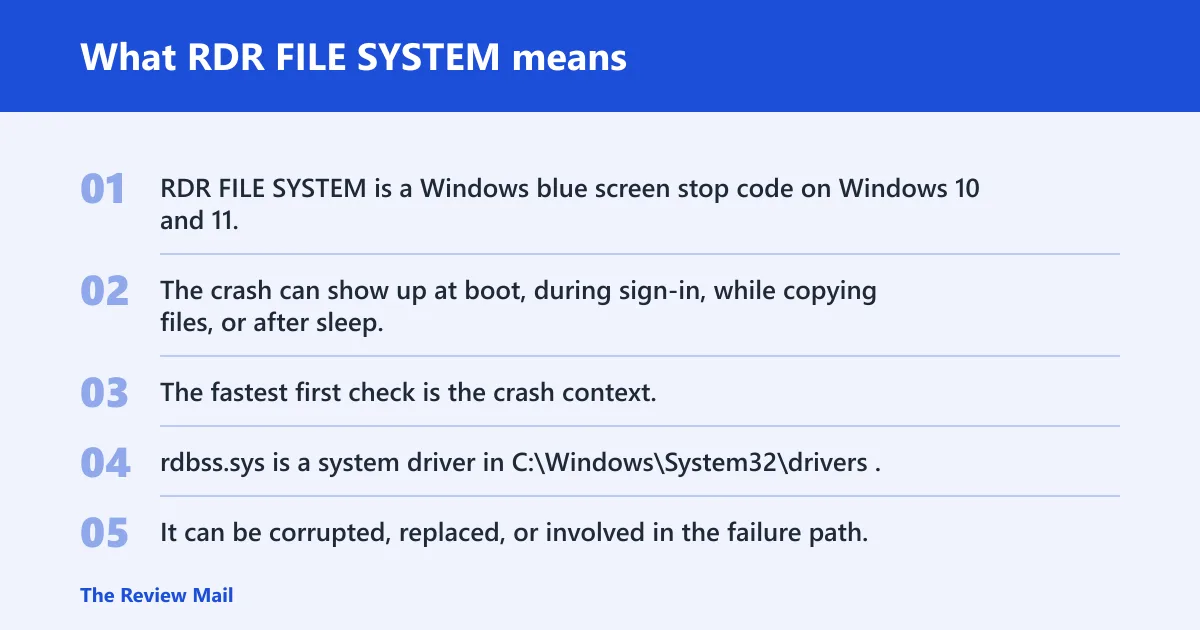
RDR FILE SYSTEM is a Windows blue screen stop code on Windows 10 and 11, and it often appears with rdbss.sys named in the error path. The crash can show up at boot, during sign-in, while copying files, or after sleep. The fastest first check is the crash context.
Why rdbss.sys matters
rdbss.sys is a system driver in C:\Windows\System32\drivers. It can be corrupted, replaced, or involved in the failure path, but that does not mean replacing it from another PC is the right move. Treat it as a clue to the layer beneath it, not the first fix.
What the stop usually points to
A crash during a network share copy may point to the redirector or SMB path. A crash during local disk activity may point more toward storage or file-system checks. A crash on wake points to driver or hardware stability. That split saves time.
📊 The error is described as a BSoD on Windows 10/11. Source: How to Fix RDR FILE SYSTEM BSoD Error on Windows 10/11? [8 Ways].
What should you check first after the crash?
Start by matching the crash timing to the most likely layer, because the right fix changes with the trigger. A BSOD during a file copy over a share points elsewhere than one that appears on login or wake. That first clue should decide whether you check SMB, storage, drivers, or hardware.
Troubleshooting decision table
| Crash context | Most likely layer | First two checks |
|---|---|---|
| File copy over network | Network redirector / SMB | Check VPN, antivirus, or network filter software; confirm the NIC driver in Device Manager |
| Local disk activity | Storage / file system | Run CHKDSK; review SFC for corrupted system files |
| Boot or sign-in | Driver or recent update | Open Windows Update history; roll back a recent driver in Device Manager |
| Wake from sleep | Hardware stability / driver | Check the display adapter driver; test memory with Windows Memory Diagnostic |
Fast triage checklist
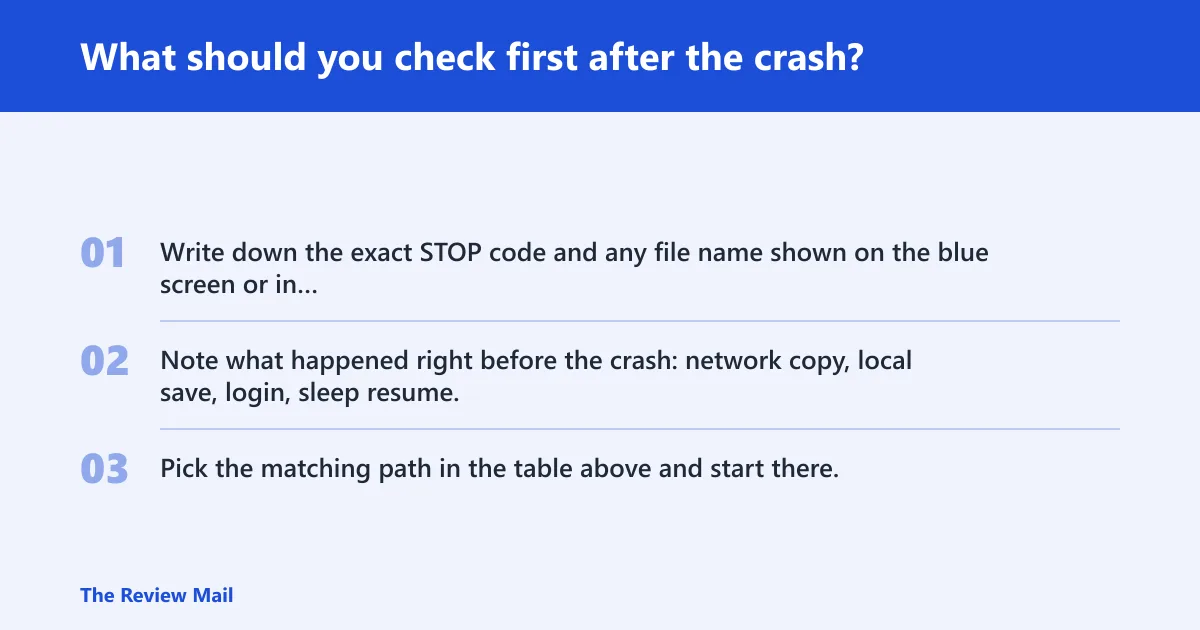
- Write down the exact STOP code and any file name shown on the blue screen or in
C:\Windows\Minidump\*.dmp. - Note what happened right before the crash: network copy, local save, login, sleep resume, or gaming.
- Pick the matching path in the table above and start there.
Two quick examples
Say your PC crashes only when copying a 12 GB folder to a shared drive at work. That timing points first to the SMB or network driver path, not the disk.
Suppose the blue screen appears right after sleep resumes and the screen flashes once. That pattern puts the display adapter driver and memory stability higher on the list than a share issue.
Likely causes of RDR FILE SYSTEM
Most often, the trigger is an outdated or incompatible driver, a bad update, or a conflict with third-party software such as VPN, antivirus, or overclocking tools. Less commonly, the cause is a faulty hard drive or memory problems. Corrupted system files can also keep the crash coming back.
Corrupted or mismatched system files
If Windows files are damaged, the redirector path can fail even when the hardware is fine. That is where SFC and, if needed, DISM belong. Do not skip straight to reinstalling Windows.
Driver problems or a bad update
MiniTool notes outdated or incompatible drivers as a frequent cause, and it also references a problematic update such as KB2823324. Recent driver changes and recent patches deserve a look before more invasive steps.
Disk errors or failing storage
A faulty hard drive can trigger the stop code, especially if the crash happens during saves, copies, or boot file access. CHKDSK can repair some file-system errors, but repeated bad sectors point to a drive that needs closer attention. (Microsoft Learn)
Faulty RAM or unstable hardware
Memory problems can surface as random blue screens, not just this one. If the crash is erratic, moves between apps, or appears after wake, memory testing belongs in the plan.
Can outdated drivers cause RDR FILE SYSTEM BSOD?
Yes. Outdated or incompatible drivers are a common trigger, and Device Manager is the right place to check recent changes. Do not start with display adapters unless the crash lines up with graphics activity, wake-from-sleep, or screen switching. Match the driver to the timing.
- Right-click Start and open Device Manager.
- Check the device category that fits the crash. For graphics-related timing, open Display adapters first.
- Right-click the device, choose Properties, then open the Driver tab.
- Select Roll Back Driver if the option is available, or choose Uninstall device and restart.
- If the timing points to network copy issues, check the network adapter the same way.
Why driver timing matters
A display driver is not the first suspect for a file-share crash. A VPN filter, NIC driver, or storage controller is more plausible there. That distinction keeps you from fixing the wrong layer.
Is RDR FILE SYSTEM related to a disk or file system problem?
Yes, it can be. If the crash happens during local disk activity, CHKDSK is the first storage check, and SFC is the first system-file check. Use CHKDSK when the symptom follows reads, writes, or boot file access, then look at the drive’s health if errors keep returning.
- Open Command Prompt as administrator.
- Run
chkdsk /f /r /x. - If Windows says the volume is in use, type Y to schedule the repair on the next restart.
- Restart and let the scan finish before judging the result.
- If
CHKDSKfinds repeat errors on the same volume, back up data and suspect the drive.
When disk errors point to failing hardware
One repairable file-system error is not the same as a drive on the way out. Repeated bad-sector reports, long boot delays, or fresh corruption after repairs are warning signs. At that point, storage testing matters more than more Windows cleanup.
Will SFC or DISM fix the RDR FILE SYSTEM error?
Sometimes. SFC can repair damaged protected system files, and DISM can fix the Windows image if SFC does not clear the corruption. These are good steps when the crash appears during boot, login, or after a failed update, but they are not a cure for bad RAM or a failing drive. (Microsoft Support)
- Open Command Prompt as administrator.
- Run
sfc /scannow. - If SFC reports that it could not fix everything, run
DISM /Online /Cleanup-Image /ScanHealth. - Then run
DISM /Online /Cleanup-Image /RestoreHealth. - Restart and test the same trigger that caused the crash.
Open Command Prompt as administrator
sfc /scannow
DISM /Online /Cleanup-Image /ScanHealth
DISM /Online /Cleanup-Image /RestoreHealth
When corruption comes back
If SFC and DISM repair the system and the stop code still returns after a reboot, suspect a driver, update, or hardware layer underneath. File repair alone will not hold if the root trigger is still active.
Can bad RAM or a failing drive trigger RDR FILE SYSTEM?
Yes. Bad RAM can corrupt data in memory and cause blue screens that change from one boot to the next, while a failing drive can trigger crashes during file access or startup. Windows Memory Diagnostic is the first pass; MemTest86 is the stronger follow-up if memory still looks suspect.
- Open the Start menu and run Windows Memory Diagnostic or
mdsched.exe. - Choose Restart now and check for problems.
- After the test, review the result in the notification or Event Viewer.
- If memory errors appear, run MemTest86 next for a deeper pass.
- If memory is clean and storage errors continue, return to
CHKDSKand drive checks.
RAM symptoms versus storage symptoms
RAM faults often look random and can hit different apps. Storage faults are more repeatable around copies, saves, and boot access. That pattern helps you avoid swapping the wrong part.
Still not working?
If the crash survives driver rollback, SFC, DISM, CHKDSK, and memory testing, move to escalation rather than repeating the same checks. A recent restore point, offline repair from Advanced startup, or a full backup followed by reinstall may be the next step. If the data matters, back it up first.
Escalation ladder
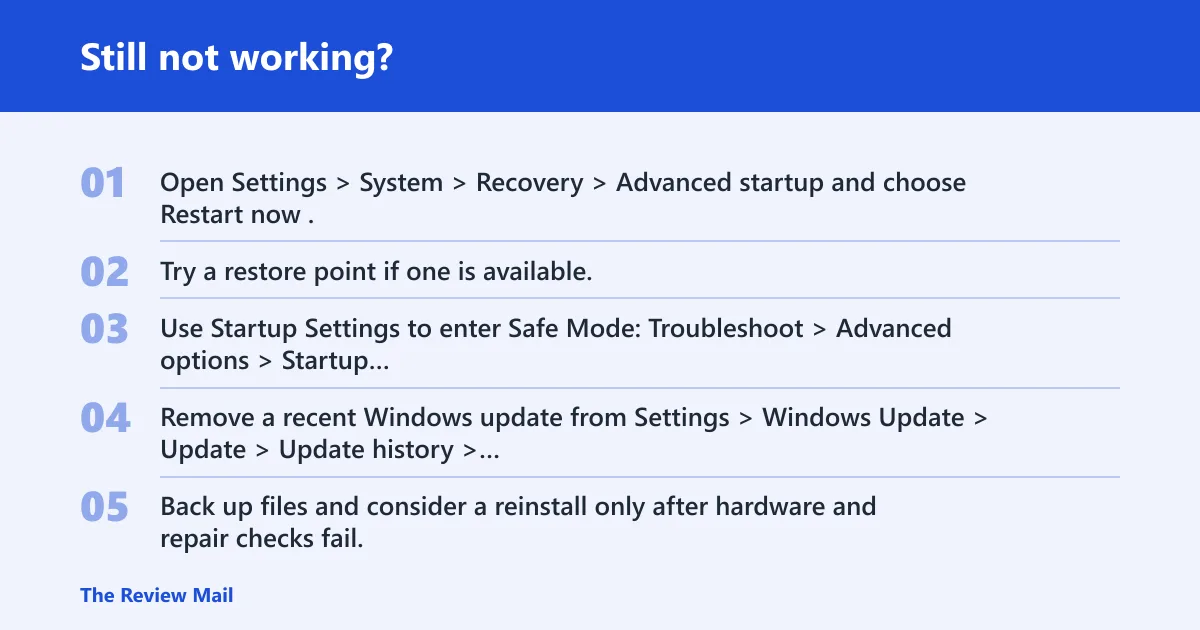
- Open Settings > System > Recovery > Advanced startup and choose Restart now.
- Try a restore point if one is available.
- Use Startup Settings to enter Safe Mode: Troubleshoot > Advanced options > Startup Settings.
- Remove a recent Windows update from Settings > Windows Update > Update history > Uninstall updates if the timing fits.
- Back up files and consider a reinstall only after hardware and repair checks fail.
Review Windows Update history
Recent patches can matter, especially if the crash started right after Patch Tuesday or another update cycle. Open Windows Update history, note the install date, and remove only the update that lines up with the crash window.
Prevention
Keep device drivers and Windows updates current, and avoid stacking VPN, antivirus, and overclocking tools on the same machine unless you need them. That reduces the odds of another redirector or driver conflict.
Frequently asked questions
Why do I keep getting a RDR FILE SYSTEM BSOD?
Repeated crashes usually mean the same trigger is still active: a bad driver, a corrupt system file, a failing drive, or unstable RAM. The fastest way to narrow it down is to match the crash timing to network copy, local disk activity, boot, or wake-from-sleep.
How do I fix stop code RDR FILE SYSTEM on Windows 11?
Start with the layer that matches the crash. For file copies, check the network adapter and VPN or antivirus software. For local-disk crashes, run chkdsk /f /r /x. For system corruption, run sfc /scannow and then DISM if needed.
Is RDR FILE SYSTEM caused by rdbss.sys?
rdbss.sys is the file named in the error path, and it sits in C:\Windows\System32\drivers. That does not prove the file itself is the original cause. It can be involved because of corruption, a conflicting driver, or a redirector problem upstream.
How do I recover from a BSOD?
After the restart, write down the stop code, open Windows Update history, and check what changed most recently. If Windows keeps looping into the crash, use Advanced startup to reach Safe Mode, then remove the most likely driver or update.
What should I check first after an RDR FILE SYSTEM crash?
Check what you were doing when the blue screen hit. Network copy points to SMB or redirector issues, local save points to storage, sign-in points to drivers or a recent update, and wake-from-sleep points to hardware stability or a display adapter problem.
Do I need to reinstall Windows for RDR FILE SYSTEM?
Usually not at first. Reinstall only after you have checked drivers, updates, SFC, DISM, CHKDSK, and memory. If the crash survives those checks and the data is backed up, a clean reinstall becomes a reasonable last step.
does linux have bsod
No. Linux systems usually do not show a Windows-style blue screen stop code. If a Linux machine fails, the symptom is more often a kernel panic or a frozen display, and the recovery path is different from Windows stop-code troubleshooting.