Device Manager Error Code: Causes and Fast Fixes Guide
A Device Manager error code usually points to a device problem that needs attention. When Device Manager marks a device with a yellow exclamation point, it also provides an error message. Start by matching the code in the device’s properties before changing anything else, because guessing wrong can waste time or hide the real issue. This guide shows you how to read the code quickly and pick the safest next fix.
This guide is part of our Windows driver errors: full list and fixes series.
What does my Device Manager error code mean?
The code is Windows’ short status label for a problem found on a specific device entry in Device Manager. It appears in the device’s Properties dialog box and helps you decide whether to update a driver, check resources, or look for a connection or hardware problem.
Think of it as triage, not a final diagnosis. A yellow warning icon tells you a device needs attention; the code narrows the next safe step so you do not reinstall every driver on the machine.
A common first mistake is treating every code like a driver problem. A device that disappears after a cable wiggle needs a different first move than a device that still appears but does not start correctly.
Likely causes, ranked
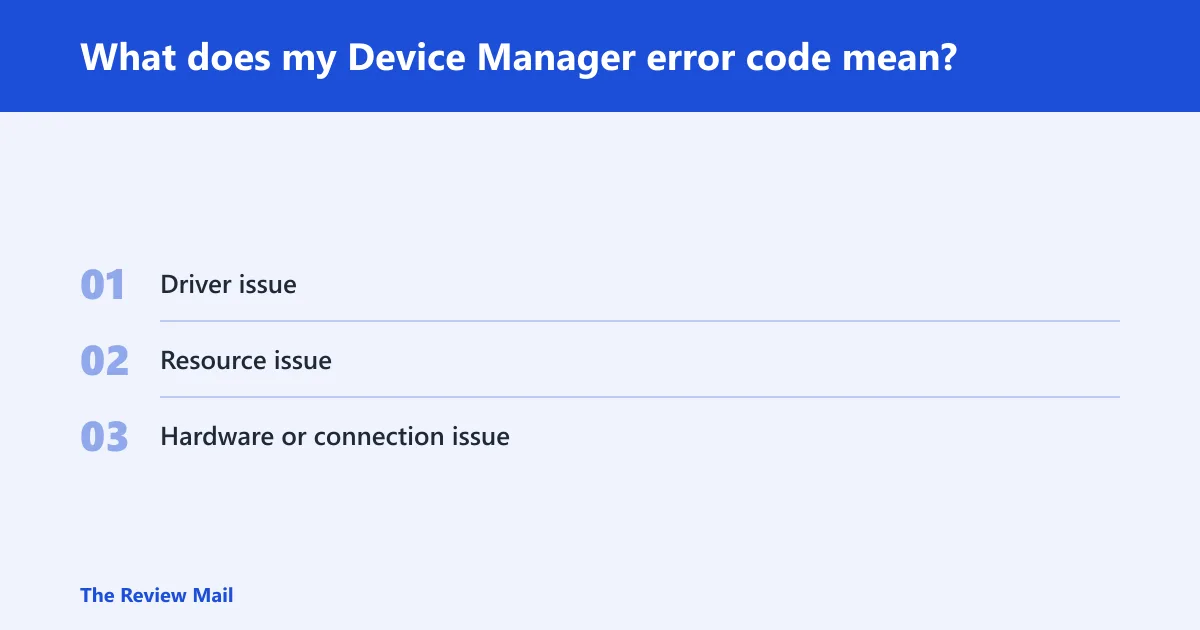
- Driver issue: the device may need a driver update or reinstall.
- Resource issue: Windows may need more free memory or system resources.
- Hardware or connection issue: a loose cable, disabled device, or device that is not responding.
📊 Microsoft says Device Manager error codes are listed in its table of reported errors. Source: Microsoft.
How do I find the error code in Device Manager?
Open Device Manager from the Start menu search, then open the problem device’s Properties window and read the Device status box.
- Open Start and search for Device Manager.
- In Device Manager, double-click the device category with the warning icon.
- Right-click the specific device and choose Properties.
- Read the Device status area.
- Write down the code before changing anything else.
Say your Bluetooth adapter shows a code after a Windows update. The code in Properties tells you where to start, while the device name tells you whether to check the driver, a power setting, or the connection first.
Which fixes should you try first?
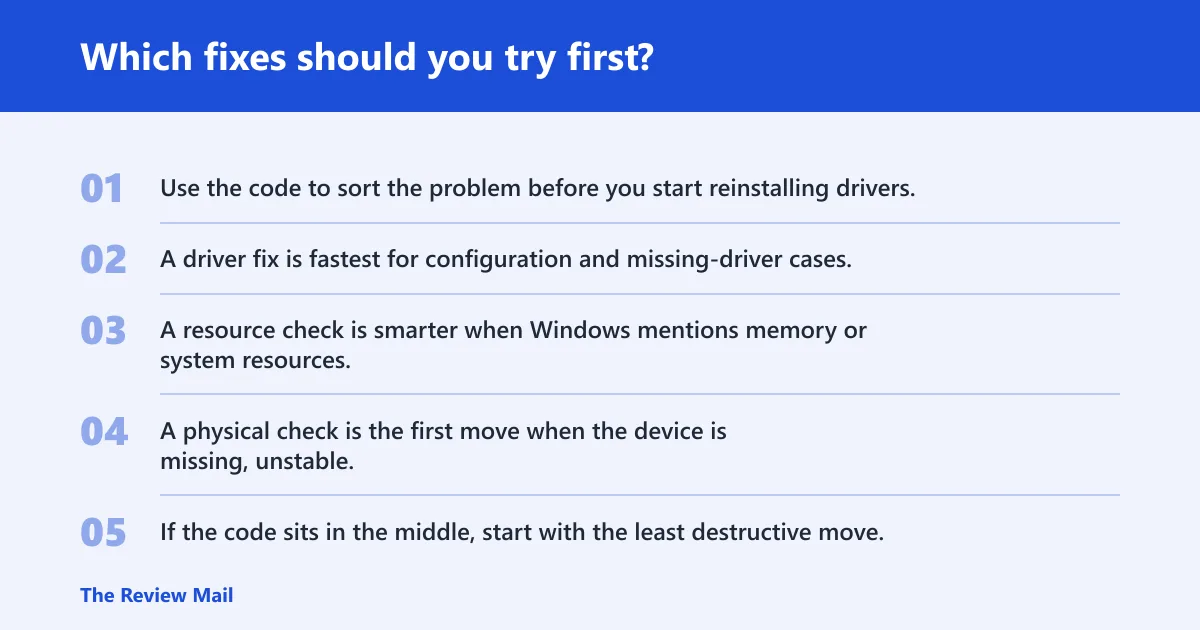
Use the code to sort the problem before you start reinstalling drivers. A driver fix is fastest for configuration and missing-driver cases. A resource check is smarter when Windows mentions memory or system resources. A physical check is the first move when the device is missing, unstable, or reported as unavailable.
| Common Device Manager code | Likely cause | Fastest safe first action |
|---|---|---|
| Code 1 | Driver-related problem | Open the Driver tab and choose Update Driver |
| Code 10 | Device not starting correctly | Update the driver, then check whether the device starts after a restart |
| Code 12 | Resource-related problem | Check memory and system resources before changing the driver |
| Code 19 | Driver-related problem | Uninstall the device, then reinstall the driver package |
| Code 28 | Driver-related problem | Install or update the missing driver |
| Code 31 | Driver-related problem | Update the driver from the Driver tab |
| Code 43 | Device or connection problem | Check the cable, port, power, or device seating before reinstalling anything |
If the code sits in the middle, start with the least destructive move. Update first. Uninstall later. Reseat hardware only when the code and symptoms point there.
How do I fix a driver-related Device Manager error code?
Driver-related codes usually respond to the Driver tab first. Use Update Driver before uninstalling, and use Uninstall device only when the update does not clear the problem.
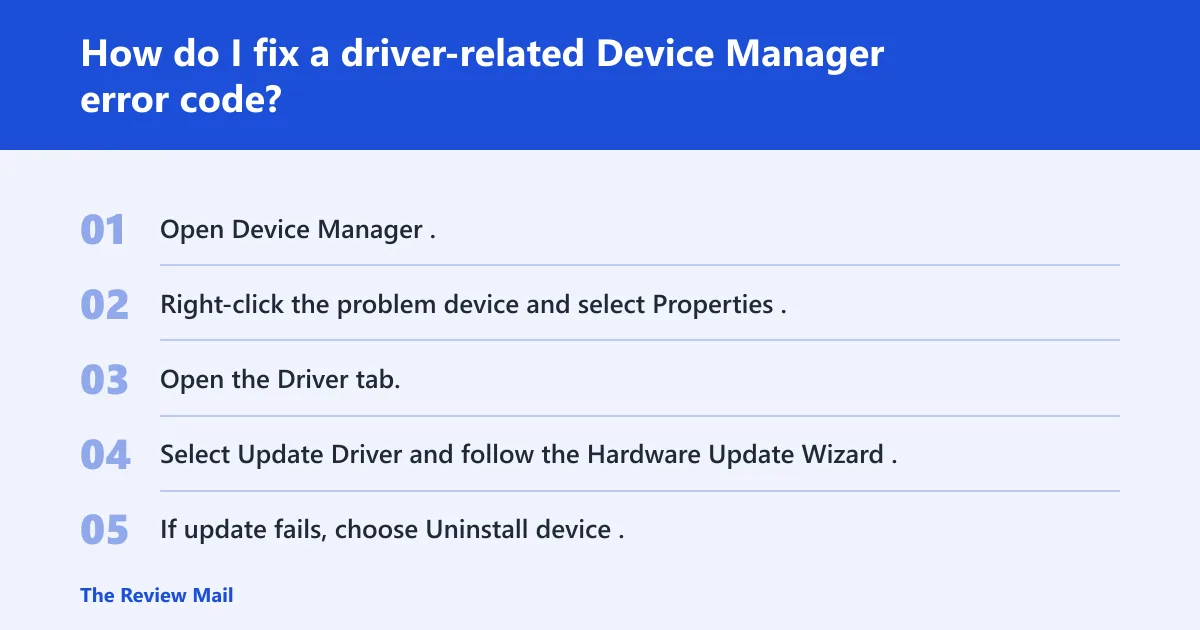
- Open Device Manager.
- Right-click the problem device and select Properties.
- Open the Driver tab.
- Select Update Driver and follow the Hardware Update Wizard.
- If update fails, choose Uninstall device.
- Restart Windows, then reinstall the driver package from the OEM or chipset vendor if Windows does not restore it.
- If available, try Roll Back Driver after a recent update caused the problem.
Win+X > Device Manager > device > right-click > Properties > Driver tab
Actions to try in order:
1. Update Driver
2. Roll Back Driver
3. Uninstall device
4. Reinstall the driver package from the OEM or chipset vendor
Code 1 usually means the device is not configured correctly, including cases where no driver is installed or the driver is configured incorrectly; Microsoft recommends updating the driver for that code. Code 10 often behaves like a driver or startup problem, so a clean update is a better first step than repeated uninstalling.
Can low memory or system resources cause a Device Manager error code?
Yes. Some codes point to resource pressure instead of a broken driver. Close open applications and check memory and system resources before making deeper changes.
- Press CTRL+ALT+DELETE and open Task Manager.
- Check the Performance view for memory pressure.
- Close apps that are using a lot of memory.
- Open System Properties.
- Go to the Advanced tab and open Performance settings.
- Review virtual memory settings.
- Try the device again after Windows has more free resources.
Suppose a laptop with 8 GB of RAM has a problem while opening a USB audio interface and a browser with many tabs is already using most of the memory. Freeing memory first is faster and safer than reinstalling a driver that may still be fine.
What if the device still fails after driver fixes?
If driver updates and reinstalls do not help, check whether the device is actually present and connected. A missing entry can mean the device is unplugged, disabled, not seated correctly, or absent from the system.
- Open Device Manager and check whether the device appears under View > Show hidden devices.
- Inspect cables, USB ports, power, and any on/off switch on the device.
- For internal hardware, confirm the device is seated correctly and enabled in firmware or BIOS/UEFI if relevant.
- Restart once after the hardware check.
- If the code is not listed in Microsoft’s Device Manager tables, contact the device manufacturer’s technical support.
Why is my device missing from Device Manager? Because Windows may not detect it at all. That is different from a device that appears with an error code, and it usually shifts the first fix toward connection, power, hidden-device views, or vendor support.
Prevention: after a working driver update, keep the OEM or chipset vendor package noted so you can restore it quickly after a future Windows update.
What does Code 10 mean in Device Manager?
Code 10 means Windows could not start the device properly. Start with Update Driver, then use uninstall and reinstall if the update does not clear the status.
What does Code 43 mean in Device Manager?
Code 43 means Windows stopped the device after it reported a problem. Check the cable, port, power, or device seating first, because a physical issue is common with USB and external devices.
Should I update or reinstall the driver for a Device Manager error?
Start with update. If the device still shows the code after a driver update, uninstall the device from the Driver tab and reinstall the package, ideally from the OEM or chipset vendor site. That order avoids wiping a usable driver before you know whether a simpler fix works.
Frequently asked questions
How do I fix a Device Manager error code?
Use the Driver tab first for driver problems: Update Driver, then Uninstall device if the update fails, then reinstall the OEM package. If the code suggests resources, open Task Manager with CTRL+ALT+DELETE and free memory before trying again. If it suggests hardware, inspect the connection.
Why does Device Manager show Code 10?
Code 10 means Windows could not start the device cleanly. The fastest next step is Driver tab > Update Driver. If that does not help, uninstall the device, restart, and reinstall the vendor driver package. That sequence is safer than repeated random settings changes.
Can low memory cause a Device Manager error code?
Yes. Open Task Manager with CTRL+ALT+DELETE, close memory-heavy apps, then review virtual memory in System Properties under the Advanced tab and Performance settings. Retry the device after Windows has more room to work.