Inaccessible Boot Device 0x7B Windows 11 Fix Steps
On Windows 11, 0x7B often points to a boot storage path change or a similar storage-related issue. Restore the last BIOS or storage-mode change first, then match the controller driver or cloning layout. If the drive is unreadable, test the disk before any repair step. That order avoids wasted work and can keep a failing SSD from dropping out for good.
What inaccessible boot device 0x7b means
INACCESSIBLE_BOOT_DEVICE is the Windows BSOD stop code commonly associated with 7B / 0x7B. Windows cannot reach the normal boot drive during startup, so the handoff from firmware to the operating system breaks before the desktop appears.
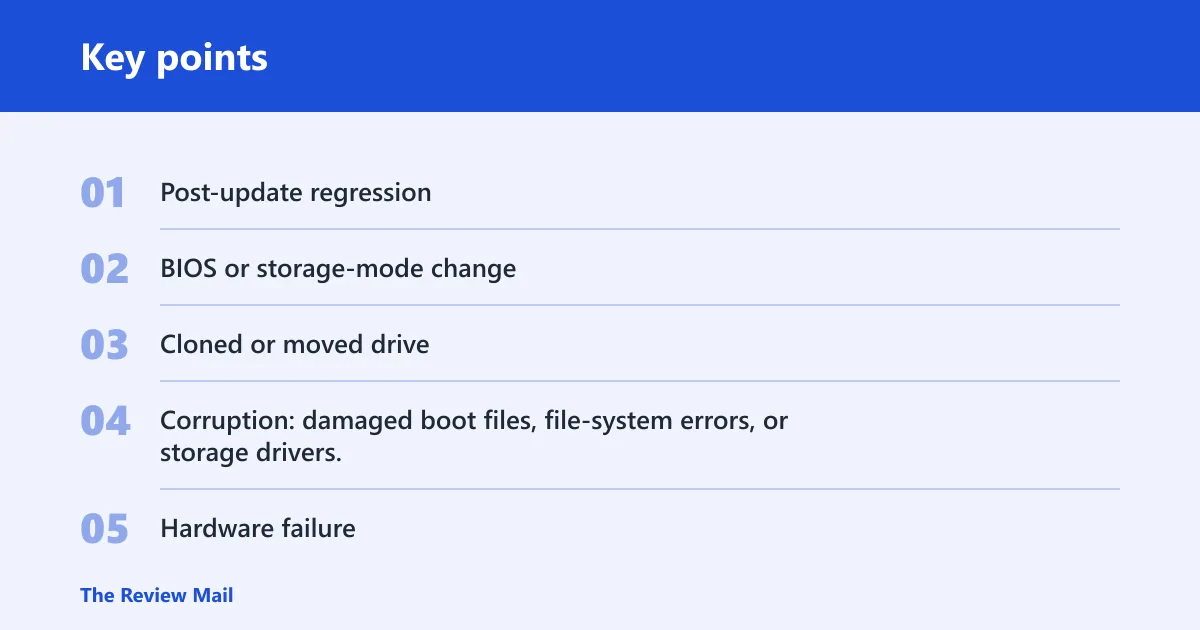
The first question is simple: what changed right before the failure? A Windows update, BIOS storage setting, disk clone, or drive move points to a different fix than file-system damage or a failing SSD.
Likely causes, ranked by trigger pattern
- Post-update regression: a recent quality or feature update broke boot.
- BIOS or storage-mode change: SATA mode, AHCI, RAID, IDE, or Intel VMD no longer matches the Windows install.
- Cloned or moved drive: the disk boots on a different controller than before.
- Corruption: damaged boot files, file-system errors, or storage drivers.
- Hardware failure: the SSD, motherboard, or storage controller is failing.
Which fix should you try first?
Start with the trigger pattern, not a long repair list. If the problem started right after an update, roll that update back first. If you changed BIOS settings or moved the drive, restore the original controller mode before running commands. If the disk seems healthy but Windows still will not boot, use WinRE repairs next.
Trigger pattern to shortest safe fix path
| Trigger pattern | Likely cause | Shortest safe fix path |
|---|---|---|
| Boot failed right after a Windows update | Update regression or component store corruption | WinRE > Troubleshoot > Advanced options > Uninstall Updates; remove the latest quality update first |
| Boot failed after BIOS changes, firmware reset, or storage setting edits | SATA, AHCI, RAID, IDE, or VMD mismatch | Enter BIOS/UEFI, restore the original storage mode, save, and retry boot before repairs |
| Boot failed after cloning or moving the drive | Controller mismatch or boot record damage | WinRE Command Prompt > bootrec /scanos, /rebuildbcd, then Startup Repair if needed |
| Drive is noisy, missing, or intermittently detected | Possible disk or controller failure | Stop deeper repairs, confirm the drive in BIOS/UEFI, back up data, then run vendor diagnostics |
How do I fix it after a Windows update?
If the PC booted before a recent update and failed right after, remove that update first. Microsoft’s recovery flow points you to WinRE, and Windows Central reports that uninstalling the latest quality update is the fastest rollback path for affected devices.
- Enter WinRE. If needed, force recovery by starting the PC, then holding the power button to shut it down after the Windows logo appears. Repeat until recovery opens.
- Go to Troubleshoot > Advanced options > Uninstall Updates.
- Select Uninstall latest quality update, then choose Uninstall quality update.
- If prompted, sign in with administrator credentials.
- Restart and test boot before trying deeper fixes.
If rollback helps but the machine still hesitates on startup, run Startup Repair from the same recovery menu. Use that before bootrec when the failure follows an update.
How do you fix it after a BIOS or storage-mode change?
Changes to the storage controller mode in BIOS can trigger this stop error, especially when Windows was installed under a different controller. On some systems, that means AHCI, RAID, IDE, or Intel VMD no longer matches the original install.
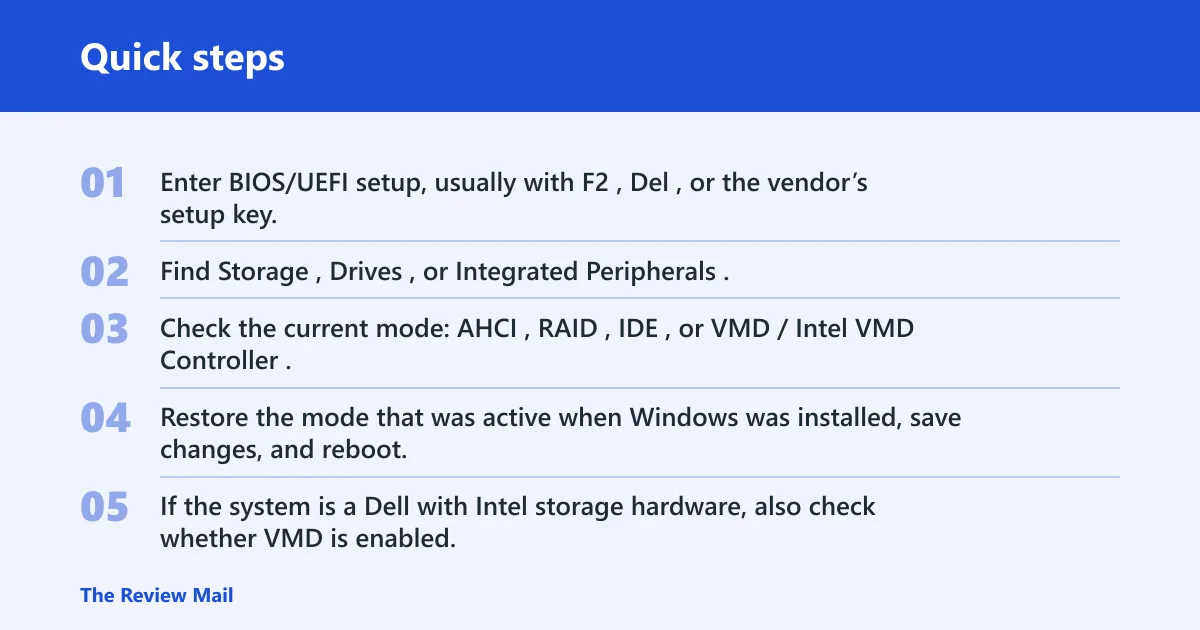
- Enter BIOS/UEFI setup, usually with F2, Del, or the vendor’s setup key.
- Find Storage, Drives, or Integrated Peripherals.
- Check the current mode: AHCI, RAID, IDE, or VMD/Intel VMD Controller.
- Restore the mode that was active when Windows was installed, save changes, and reboot.
- If the system is a Dell with Intel storage hardware, also check whether VMD is enabled. Some Dell systems boot only when that controller setting matches the original install.
Do not assume AHCI is always the fix. If Windows was installed on RAID or VMD, switching to AHCI can create the same stop code in a different form.
If a Dell laptop shipped with Intel VMD enabled and a firmware reset switched the controller to AHCI, restore VMD in BIOS first, then boot again. Running bootrec before fixing the controller mode only burns time.
How do you repair an inaccessible boot device from Safe Mode or recovery USB?
Use Safe Mode only if Windows can still reach the recovery path. If it cannot, boot from a Windows 11 installation USB, open WinRE, and use Command Prompt. Microsoft’s recovery steps start there, and a Windows installation USB gives you a clean path into Startup Repair and the command line. (Microsoft Learn)
- Boot from the Windows installation USB.
- On the Install Windows screen, select Next > Repair your computer.
- Choose Troubleshoot > Advanced options > Command Prompt.
- Run diskpart, then list disk to confirm the OS drive is visible.
- If disks appear correctly, run list vol to identify the boot and Windows volumes.
Use the drive letters shown in WinRE from this point. They often differ from the letters inside Windows, so confirm them before you run offline repair commands.
When should you use bootrec commands for stop code 7B?
Use bootrec when the drive is visible in WinRE, but boot records or the BCD look damaged after a clone, move, or controller change. Tom’s Hardware lists BCD damage as a possible cause, and Microsoft Q&A includes bootrec as a repair path.
- Open WinRE Command Prompt.
- Run bootrec /fixmbr.
- Run bootrec /fixboot.
- Run bootrec /scanos.
- Run bootrec /rebuildbcd.
- Restart and test.
Results vary by system layout. If /fixboot or /rebuildbcd does not fully restore the boot path, follow with Startup Repair. On some UEFI systems, a blank GPT entry before the boot partition can also be part of the problem.
When bootrec is not enough
If bootrec finds the installation but the PC still stops at 7B, the boot partition or file system may also be damaged. Move to offline SFC, DISM, and CHKDSK instead of repeating the same bootrec loop.
How do I run offline SFC or DISM for an inaccessible boot device?
Run offline SFC and DISM when Windows files or the component store may be corrupt, but the disk is still readable in WinRE. Next of Windows points to offline SFC, and Microsoft support lists storage-stack and file-system corruption as valid causes.
- In WinRE Command Prompt, identify the Windows volume letter with diskpart and list vol.
- Run
sfc /scannow/OFFBOOTDIR=C:\ /OFFWINDIR=C:\Windows, replacing C: with the Windows volume letter shown in WinRE. - If SFC reports damage it cannot fix, run
DISM /Image:C:\ /Cleanup-Image /RestoreHealth. - If DISM asks for a source, add a valid repair source path from installation media.
- Afterward, run
chkdskC: /f to correct file-system errors.
Use CHKDSK carefully. It can help when the file system is damaged, but repeated read errors, clicking, or vanishing drives point more to hardware trouble than repairable corruption.
Picture a cloned 1 TB SSD that appears in BIOS but refuses to boot after migration. If WinRE can see the partition and the clone copied cleanly, offline SFC plus bootrec is the right branch. If the drive keeps dropping out of diskpart, stop and check hardware instead.
Still not working?
If none of the software repairs stick, confirm that the boot drive still appears in BIOS/UEFI. A drive that disappears there, or shows a capacity far below normal, is a hardware problem until proven otherwise.
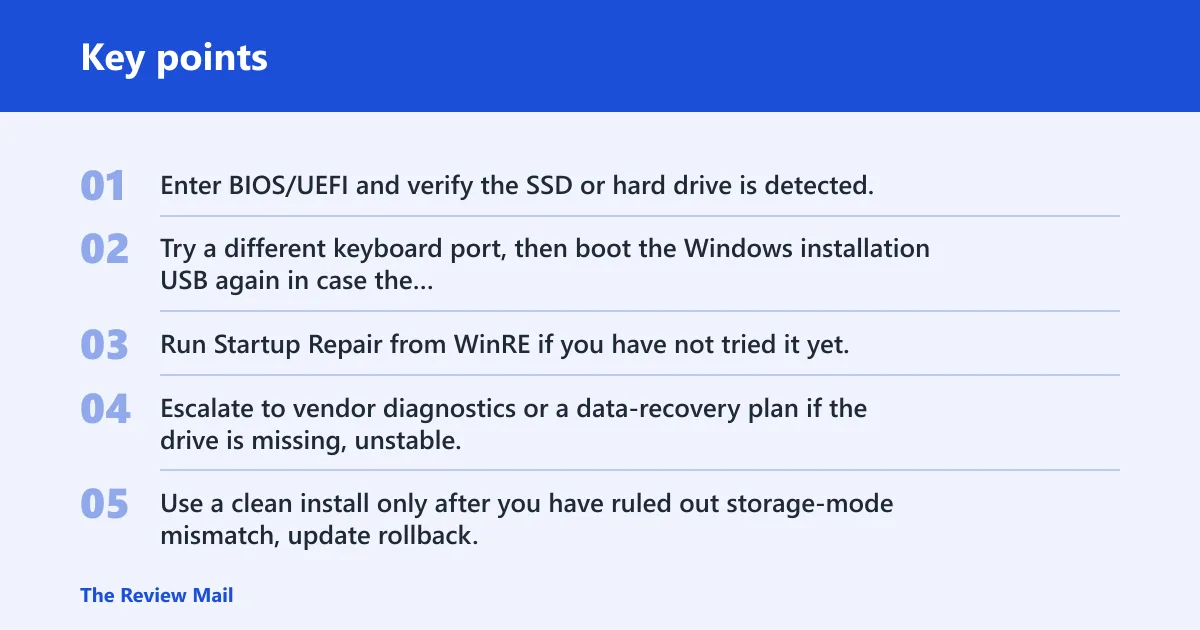
- Enter BIOS/UEFI and verify the SSD or hard drive is detected.
- Try a different keyboard port, then boot the Windows installation USB again in case the first path failed.
- Run Startup Repair from WinRE if you have not tried it yet.
- Escalate to vendor diagnostics or a data-recovery plan if the drive is missing, unstable, or reports repeated errors.
- Use a clean install only after you have ruled out storage-mode mismatch, update rollback, and disk health problems.
Prevention: before changing SATA mode, VMD, RAID, or IDE settings, note the current value in BIOS so you can restore it if Windows stops booting.
Frequently asked questions
How do I fix stop code inaccessible_boot_device 0x7b windows 11?
Start with the last change that affected boot: roll back the recent update, restore the original BIOS storage mode, or repair the cloned drive path. If Windows cannot boot, open WinRE from an installation USB, then use Startup Repair, bootrec, offline SFC, and CHKDSK in that order.
What causes an inaccessible boot device on Windows 11?
Common causes include storage-mode changes in BIOS, missing or damaged storage drivers, file-system corruption, bad boot files, and failing hardware. Tom’s Hardware also lists BCD damage and unsupported disk controller installs as triggers, so the cause often depends on what changed before startup failed.
How do I fix inaccessible boot device after a Windows update?
Open WinRE, choose Troubleshoot > Advanced options > Uninstall Updates, then remove the latest quality update first. If the PC still will not boot, run Startup Repair. Use Safe Mode only if the machine can reach it without crashing.
Should I change SATA mode to AHCI for the 0x7B error?
Only if AHCI was the original controller mode used when Windows was installed. If the system originally used RAID or Intel VMD, switching to AHCI can create the same boot failure. Check BIOS first, then match the controller setting to the install history.
Is a clean install the last resort for inaccessible boot device?
Yes. Use it only after WinRE repair, BIOS storage checks, bootrec, offline SFC, DISM, CHKDSK, and update rollback have all failed or the disk is too damaged to trust. A clean install needs installation media and can erase data unless you back it up first.