This Device Is Disabled Windows 10 Fix
Open Device Manager, show hidden devices, and check the device status: if it says disabled, re-enable it; if it is missing, fix the driver, policy, or hardware path instead. Skip that order, and you can waste time on the wrong repair and leave the device unusable after reboot. This guide shows how to tell hidden, blocked, broken, and absent devices apart in Windows 10.
What the message means
The fastest first move is to check Device Manager, then read the device’s own status line before you touch drivers or reinstall anything. A disabled device is present in Windows but not active; the cause is often user action, a driver failure, policy, hardware conflict, or hardware that is no longer being detected.
If the device is a network adapter, audio device, or GPU, the same logic still applies. Start with status, then decide whether you are looking at a user-disabled entry, a hidden or non-present device, or hardware that is actually absent.
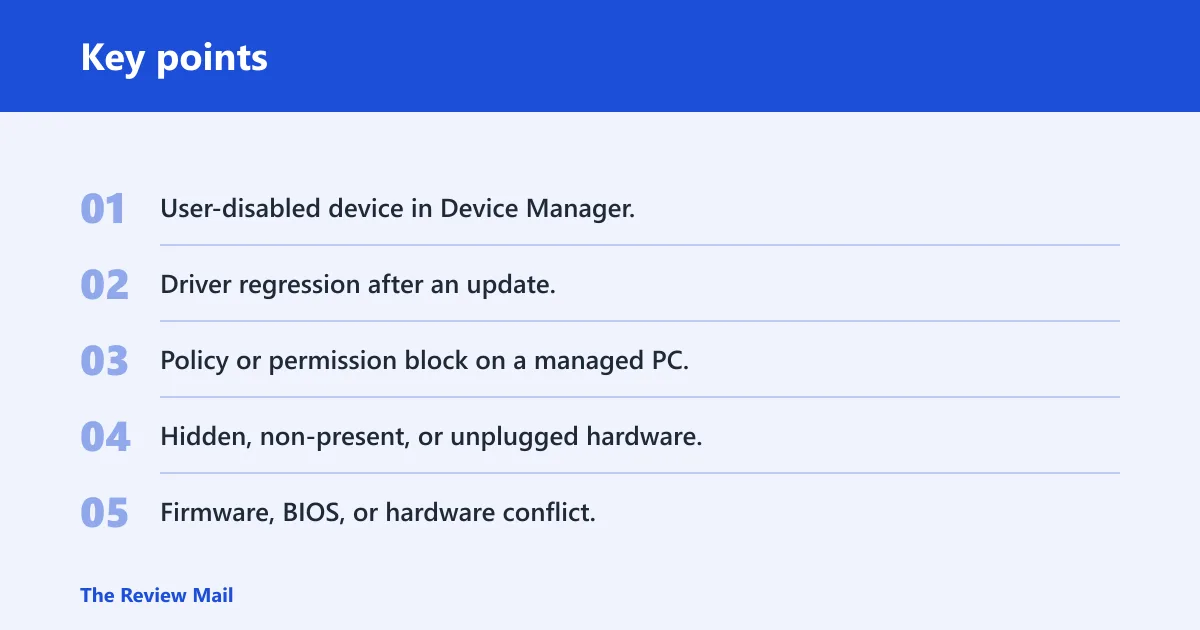
Likely causes, from most to least common
- User-disabled device in Device Manager.
- Driver regression after an update.
- Policy or permission block on a managed PC.
- Hidden, non-present, or unplugged hardware.
- Firmware, BIOS, or hardware conflict.
📊 Device Manager is the Windows 10 tool Microsoft tells users to open for hardware management. Source: Open Device Manager.
Disabled device triage
This table is the shortest path from symptom to next step. Use it before you reinstall a driver or reset Windows.
| Symptom | Likely cause | Where to check in Device Manager | Next action |
|---|---|---|---|
| Visible disabled device | User-disabled or policy-disabled | Right-click the device under its hardware category | Choose Enable device |
| Hidden device | Non-present or previously disabled entry | View > Show hidden devices | Reveal the entry, then check status |
| Grayed-out device | Non-present, unplugged, or not currently detected | Category list after Show hidden devices | Confirm whether the hardware is attached, powered, or enabled in firmware |
| Enable option missing | Permissions, policy, or the wrong device node | Device’s context menu | Check admin rights, then look for management policy or another node in the tree |
| Yellow warning icon | Driver or resource problem | Device entry in the correct category | Open Properties, then try rollback or update |
| Device returns after reboot | Driver conflict or policy reapplying on startup | Same hardware category after restart | Use driver rollback, then check policy or startup management |
| Device absent after update | Driver regression or hidden entry | View > Show hidden devices and the device category | Roll back the driver first |
| Device absent on one hardware bus only | Bus-specific firmware, connector, or controller issue | The affected bus category only | Check BIOS/UEFI settings, cabling, and bus-specific drivers |
How do you find the device?
Press Start, type Device Manager, and open it from search. That is the main Windows 10 system tool Microsoft points users to for hardware management, and Microsoft’s steps for Windows 10 begin with Start menu search for Device Manager.
If the device is not visible, use View > Show hidden devices. That option is the key difference between absent hardware and a hidden or non-present entry. A hidden entry may be disabled, stale, or unplugged, while a truly absent device will not appear even after you reveal hidden items.
- Press Start, type Device Manager, and open it.
- Expand the correct hardware category, such as Network adapters, Sound, video and game controllers, or Display adapters.
- Select View > Show hidden devices.
- Look again for the device name, gray text, or a warning icon.
Say your Wi‑Fi adapter vanished after a restart. If it shows up only after View > Show hidden devices, the issue is not the same as a missing card. If it never appears, move to the bus, firmware, or driver path instead.
How do you re-enable it?
Use the Enable device command from the device’s context menu first. If that option is available, it is the cleanest fix and should be checked before reinstalling drivers. If it is missing, you may be blocked by permissions, policy, or the wrong device node.
- In Device Manager, right-click the device.
- Choose Enable device.
- If a warning icon remains, open Properties and read the device status.
- Restart the PC and return to the same device category.
- Confirm that the status is normal and the feature works again, such as sound output, network access, or display output.
A common first-timer mistake is to reinstall the driver before checking whether the device is simply disabled. That can turn a quick fix into a longer one, especially on a laptop where the system re-detects the same hardware after every reboot.
What the yellow warning icon means
A yellow warning icon often points to a driver or resource problem rather than a plain disabled state. Open Properties first, then check the device status message and error code. If the device can be enabled but still shows a warning, the next step is usually driver rollback or reinstall, not a blind hardware reset.
Did a driver update cause it?
If the problem started right after an update, use Driver rollback before you try a new download. Rollback helps separate a driver regression from a hardware fault: if the device works again after rollback, the update is the likely cause; if it does not, look harder at hardware detection or policy.
- Open Device Manager.
- Right-click the affected device and open Properties.
- Open the Driver tab.
- Select Roll Back Driver if it is available.
- Restart the PC and check the same device category again.
If rollback is unavailable or does nothing, update or reinstall the driver next. Microsoft advises checking the PC manufacturer’s website for updated drivers and hardware compatibility. That matters more than a generic download when the device is tied to a specific model, such as an integrated audio codec or laptop GPU.
If that did not work
Use the manufacturer’s driver package, then reboot and verify the device status in Device Manager. If the device keeps failing after a known-good driver, the fault is less likely to be a simple regression and more likely to be policy, firmware, or hardware.
How do you tell if it is policy, permissions, or hardware?
If Enable device is missing, or it returns disabled after every reboot, treat policy or management as a serious possibility. Microsoft states that some managed devices may need to be enabled through the Entra Portal or the organisation’s MDM solution. On a managed PC, local Device Manager changes may not stick.
- Open Device Manager and confirm you are signed in with an administrator account.
- Right-click the device and look for Enable device.
- If the option is missing or grayed out, check whether the PC is managed by work or school policy.
- Look for a device status message that mentions policy, permissions, or management.
- If the PC is managed, ask the administrator to enable it in the organisation’s management portal.
If the hardware is physically absent, no amount of policy changes in Device Manager will create it. That is where hidden devices, unplugged hardware, powered-off peripherals, and BIOS or firmware settings matter more than driver work.
Still not working?
When enabling fails, move to Windows troubleshooting and then to broader repair only if several devices are affected. Start with the Windows Troubleshooter path, because it can expose a wider hardware or configuration problem that Device Manager alone will not show. For a single device, that is often the better next step than reinstalling Windows.
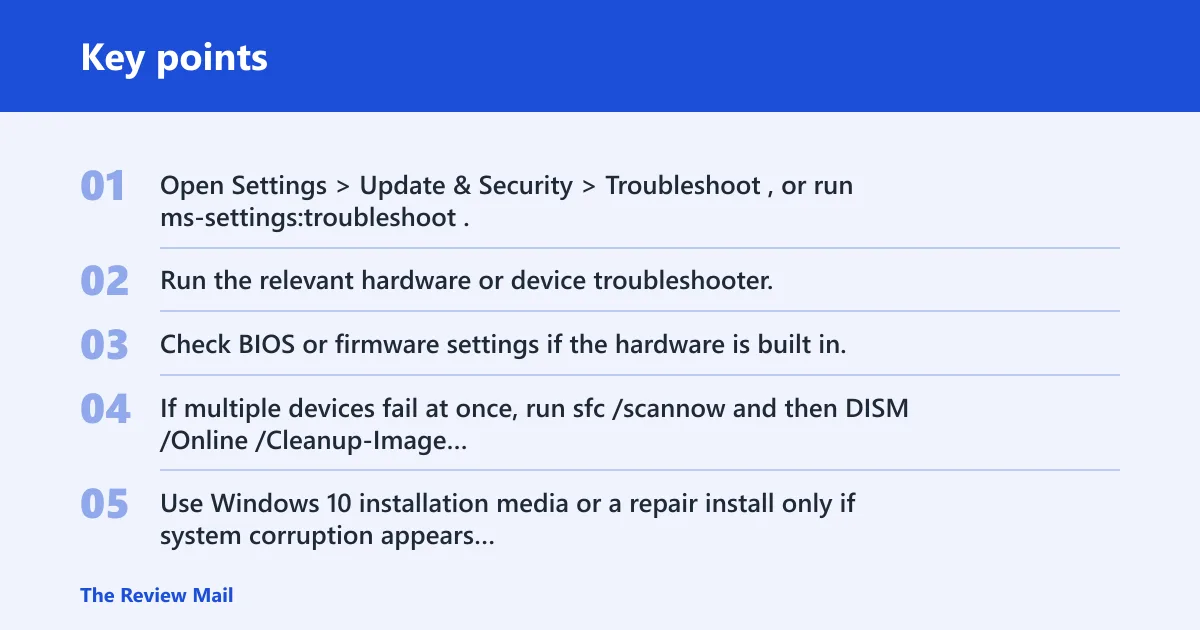
- Open Settings > Update & Security > Troubleshoot, or run ms-settings:troubleshoot.
- Run the relevant hardware or device troubleshooter.
- Check BIOS or firmware settings if the hardware is built in.
- If multiple devices fail at once, run
sfc /scannowand thenDISM /Online /Cleanup-Image /RestoreHealth. - Use Windows 10 installation media or a repair install only if system corruption appears to affect several devices.
If the issue keeps happening, Windows 10 support status matters too. Microsoft says Windows 10 will stop getting free software updates after October 14, 2025, and recommends Windows 11 as the upgrade path for continuing security updates and support. If repairs keep stacking up, weigh the time spent on the old install against moving forward. (Microsoft)
Microsoft also offers a Windows 10 Update Assistant through the Download Windows 10 page, and a Windows 10 installation-media download option for clean installs or reinstalling Windows 10. Use those only after Device Manager states, driver rollback, and device troubleshooting have all failed.
Suppose a desktop GPU disappears after a driver update, then returns after rollback, but the audio device stays disabled. That split result usually points to two different issues, not one bad repair. Treat each device separately and check the matching category in Device Manager.
Prevention
For devices that keep returning disabled, note the driver version before any update and keep the manufacturer package handy. That makes rollback faster and makes it easier to tell a bad driver from a hardware problem.
Frequently asked questions
How do I open device Manager in Windows 10?
Press Start, type Device Manager, and open it from search. That is the path Microsoft uses for Windows 10 hardware management. Once it opens, expand the relevant category and check the device’s own status before changing drivers.
How do I show disabled devices in Device Manager?
In Device Manager, choose View > Show hidden devices. This can surface hidden, non-present, and some disabled entries that do not show in the normal list. After that, return to the device’s category and check whether the entry is gray, disabled, or missing entirely.
How do I fix a disabled device after a driver update?
Open the device’s Properties, go to the Driver tab, and select Roll Back Driver if it is available. Restart the PC, then return to the same category in Device Manager and confirm that the device is enabled and the related feature works again.
How do I tell if a device is disabled by policy or by hardware?
If Enable device is missing or changes do not stick after reboot, policy or management is likely. If the device never appears even with Show hidden devices, or if only one hardware bus is affected, the problem points more toward hardware, firmware, or a connector path.
Should I reinstall Windows 10 if a device stays disabled?
No, not first. Try Enable device, driver rollback, driver reinstall, and Windows troubleshooting before any repair install. Use Windows 10 installation media only when multiple devices fail or sfc /scannow and DISM /Online /Cleanup-Image /RestoreHealth point to broader corruption.
Does this also apply on Windows 11?
Yes, the same Device Manager logic often applies on Windows 11, but menu paths can differ. Check the same hardware category, use Show hidden devices, and try Enable device first. If your search says “this device is disabled” on Windows 11, the diagnostic path is still the same.