Network Adapter Not Showing in Device Manager
If a network adapter isn’t showing in Device Manager, check three things in order: hidden devices, missing drivers, then hardware detection; if it appears under hidden devices, Windows sees it, if not, suspect a driver or NIC problem. Start in Device Manager, because it shows whether Windows detects the adapter at all. Ignoring the wrong branch wastes time and can leave Wi‑Fi or Ethernet down. This guide walks you through the checks for Windows 10, Windows 11, and Windows 7.
This guide is part of our Windows driver errors: full list and fixes series.
What the missing adapter usually means
A missing network adapter in Device Manager often falls into one of four common buckets. Windows may be hiding it, the driver may be missing or damaged, firmware may have disabled the NIC, or the network card itself may be failing.
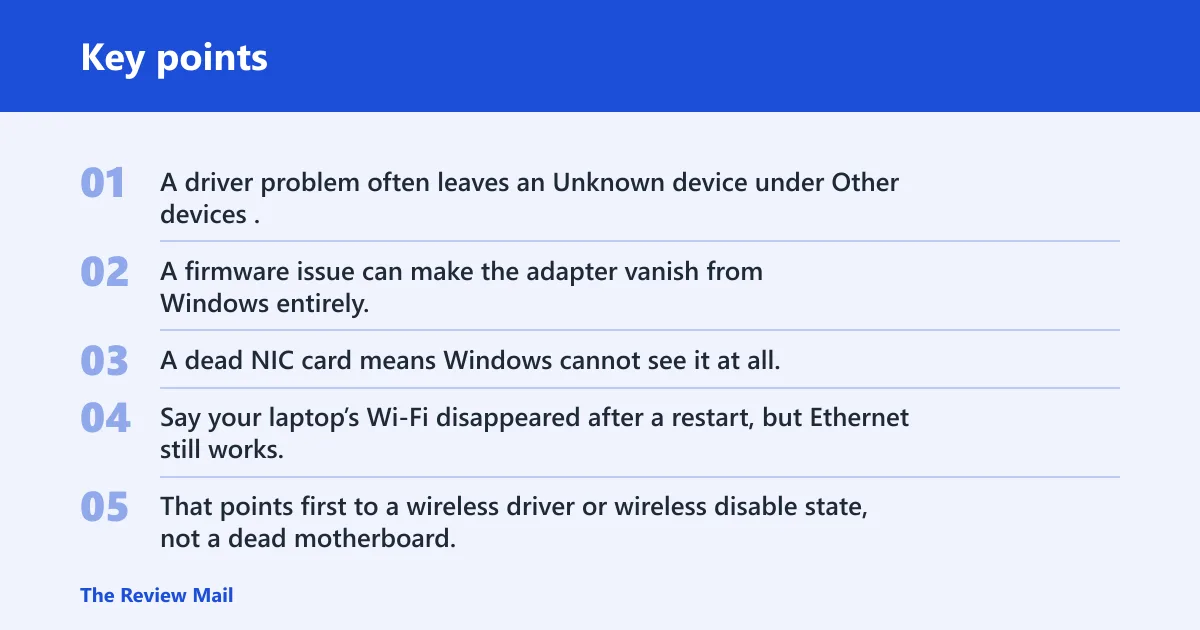
That order matters. A hidden adapter is still detected. A driver problem often leaves an Unknown device under Other devices. A firmware issue can make the adapter vanish from Windows entirely. A dead NIC card means Windows cannot see it at all.
Say your laptop’s Wi‑Fi disappeared after a restart, but Ethernet still works. That points first to a wireless driver or wireless disable state, not a dead motherboard. Suppose both Wi‑Fi and Ethernet vanish after a BIOS change. That shifts the check toward firmware settings before Windows repair.
Device Manager checks that come first
Start in Device Manager, because it shows whether Windows sees the adapter in any form. Driver Easy’s first recommended fix is to show hidden devices, then scan for hardware changes afterward. It also notes that an Unknown device may appear under Other devices when the driver is missing.
Open View and show hidden devices
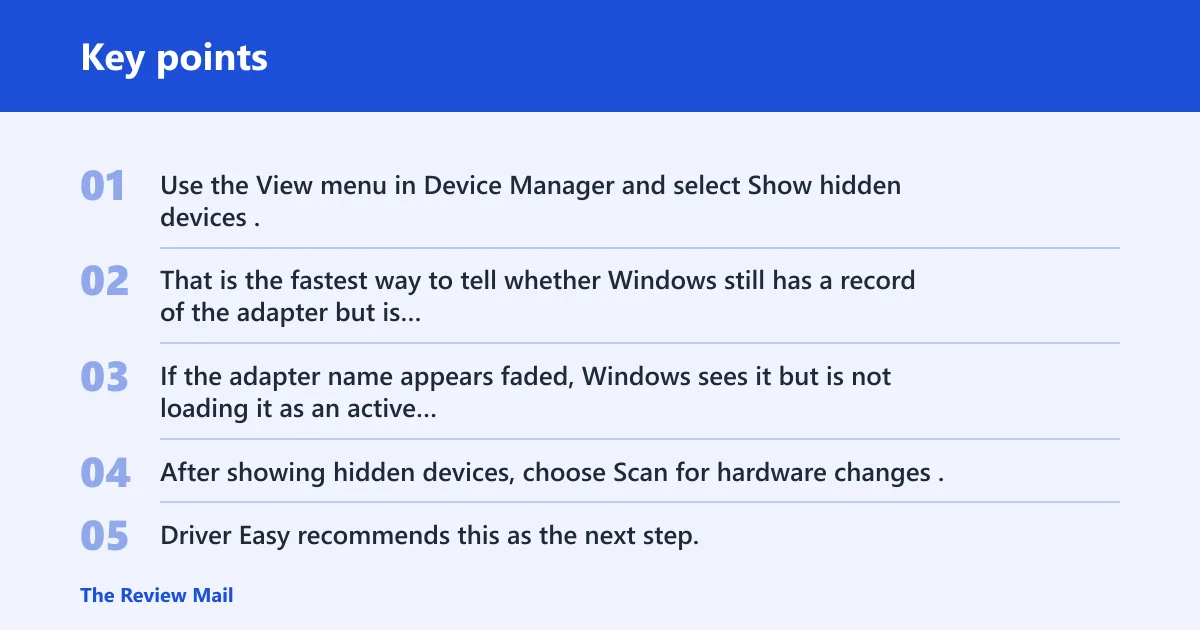
Use the View menu in Device Manager and select Show hidden devices. That is the fastest way to tell whether Windows still has a record of the adapter but is not displaying it normally. If the adapter name appears faded, Windows sees it but is not loading it as an active device right now.
Scan for hardware changes
After showing hidden devices, choose Scan for hardware changes. Driver Easy recommends this as the next step. If the adapter returns, Windows has re-detected the NIC and may only need a driver refresh or enable action.
Check Other devices for an Unknown device
Look under Other devices for Unknown device. That signal often means Windows has detected hardware but lacks the correct driver. A wireless adapter that appears there is usually a driver issue. An Ethernet adapter that disappears entirely may be more likely to be disabled in firmware or physically absent.
Look for wireless and Ethernet entries separately
Do not lump Wi‑Fi and Ethernet together. Wireless adapters can be blocked by airplane mode, a hardware key, or a vendor utility. Ethernet adapters are more often affected by BIOS disable settings, a damaged port controller, or a missing chipset or LAN driver.
What should you check if the adapter is hidden?
If the adapter is hidden, Windows already has some evidence that the device exists. That usually means the problem is state, not absence. The goal is to bring the device back into normal view, then verify that the driver loads and the network stack can use it.
When the adapter name appears faded
A faded adapter entry in Device Manager means the device is present but not active. Right-click it and look for enable-related options. If the adapter reappears, confirm that it is no longer faded and that it sits under Network adapters, not Other devices.
What to do after the device reappears
Once the adapter returns, check whether Windows also restores connectivity. If not, confirm that airplane mode is off, that any physical wireless switch is on, and that network services are running. A visible adapter can still fail to connect if the stack is blocked elsewhere.
Network adapter troubleshooting matrix
This matrix separates the common failure modes so you can stop guessing. Use the symptom to choose the fastest check, then follow the next action that fits your Windows version. The same source lists four fixes for this issue, and the order below follows the same logic: hidden device, hardware scan, driver recovery, then firmware or hardware fallback.
| Symptom | Likely cause | Fastest check | Expected Device Manager signal | Next action for Windows 10, 11, and 7 |
|---|---|---|---|---|
| Adapter missing from Network adapters, but visible after Show hidden devices | Hidden device state | Open View and reveal hidden items | Faded adapter entry appears | Enable it, then scan for hardware changes and verify connectivity |
| No adapter under Network adapters, but Unknown device appears under Other devices | Missing driver | Check Other devices | Unknown device with warning icon | Download the driver from the PC manufacturer and install the version that matches your Windows release |
| Wireless adapter missing in Windows 11 after sleep or restart | Driver issue, airplane mode, or wireless disabled state | Check airplane mode, then Device Manager | Adapter may be hidden, faded, or absent | Reinstall the wireless driver, confirm the radio is enabled, and reboot |
| Ethernet adapter not showing in Device Manager after BIOS change | Firmware disabled onboard LAN or NIC | Open BIOS or UEFI setup | Nothing in Network adapters; no useful Device Manager entry | Restore onboard LAN, then load setup defaults if needed |
| Adapter still missing after driver install and hardware scan | Firmware block or NIC failure | Check BIOS enable state | No adapter, no Unknown device, no hidden entry | Reset BIOS defaults, then suspect the NIC card and replace it only after the other checks fail |
| Offline machine cannot reach the internet for driver download | No network path for update | Use another PC to prepare media | Unknown device or missing adapter remains | Use an offline driver package from the PC manufacturer on USB, then install locally |
How do you reinstall the right driver?
Reinstalling the right driver means matching the adapter model and the Windows version, not picking the first result. The same source says to get drivers from the PC manufacturer’s website, and to choose drivers compatible with Windows 10 or 7. That same rule applies to Windows 11, where vendor support may use a different package name.
Download from the PC manufacturer
Use the support page for the computer maker, not a random driver bundle. Look for the exact notebook or desktop model, then match the network adapter entry. A Realtek wireless card, for example, often has a vendor-specific package that also pulls in chipset support.
Use the correct OS version
Windows 10, Windows 11, and Windows 7 do not always share one installer. If the support page lists multiple builds, choose the one that matches your system architecture and release. Windows 7 systems especially need version-specific driver compatibility, because newer packages may refuse to install.
Use an offline package on a USB drive
If the machine has no network access, download the driver on another computer and copy it to USB. Driver Easy also mentions an offline scan feature for no-internet situations. That matters when the adapter is gone and the system cannot fetch a driver on its own.
Run the update after reboot
After installation, reboot and return to Device Manager. Then run Scan for hardware changes again. If the adapter still does not appear, the problem is no longer a simple driver miss and you should move to firmware or hardware checks.
What if Device Manager shows an Unknown device instead?
An Unknown device under Other devices usually means Windows sees hardware but cannot identify it. That is a strong clue that the driver is missing, wrong, or incomplete. It is better news than a totally blank Device Manager entry, because the system has at least found something.
Check the device’s hardware ID details if available, then compare that with the support page for the PC. If the network adapter still does not name itself after a driver install, install the chipset package next. Some Ethernet controllers will not identify cleanly until the chipset or board-level support package is in place.
Could BIOS settings be blocking the adapter?
Yes. If the adapter never appears in Device Manager, BIOS or UEFI settings may have disabled it. Driver Easy’s fallback is to load setup defaults or similar options. That is a fallback, not the first move, because it can change more than one hardware setting at once.
Load Setup Defaults
Use Load Setup Defaults or the factory default reset option if you suspect firmware changes. This can restore onboard LAN or wireless hardware that was disabled in firmware. After saving and rebooting, return to Device Manager and check whether the adapter appears.
Check onboard LAN or wireless enable settings
Some systems let you disable onboard Ethernet or wireless separately. If the adapter is missing after a BIOS change, look for an enable or disable control for LAN, WLAN, or onboard network devices. If that setting is off, Windows cannot list the adapter at all.
When firmware matters more than Windows
If both Wi‑Fi and Ethernet are absent, and no Unknown device appears, firmware becomes the stronger suspect. That pattern is common after a BIOS update, a default reset, or a manual toggle in setup. At that point, Windows repair alone will not bring the adapter back.
Network adapter recovery checklist
Use this short checklist after the main branch you chose. It prevents false wins, where the adapter appears but networking still fails because another layer is blocked.
- Turn off airplane mode, and check any laptop wireless key or switch.
- Confirm the adapter is not hidden in Device Manager.
- Run Scan for hardware changes after any driver change.
- Look for Unknown device under Other devices.
- Open network-related services and confirm they are running.
- Reset the network stack if the adapter is present but traffic still fails.
- Check BIOS or UEFI only if Windows never sees the device.
- Consider NIC card replacement only after every software and firmware check fails.
That can waste time on a laptop with a disabled radio. Another common miss is to assume Ethernet and Wi‑Fi fail for the same reason; in practice, Ethernet more often points to firmware or board-level issues, while wireless often starts with driver or radio-state checks.
Frequently asked questions
Why is my network adapter not showing up in device manager?
Usually it means Windows is hiding the adapter, lacks the right driver, or cannot detect the NIC at all. Check Show hidden devices first, then look for Unknown device under Other devices, then move to BIOS if nothing appears. That order avoids chasing the wrong fix.
How do I get my network adapter back in Device Manager?
Start with View > Show hidden devices, then use Scan for hardware changes. If the adapter still does not return, install the correct driver from the PC manufacturer and reboot. If it remains missing after that, check BIOS enable settings or a possible NIC failure.
Why is my wireless adapter missing in Windows 11?
Windows 11 wireless adapters often disappear because of a driver issue, airplane mode, or a disabled radio. Check Device Manager, then airplane mode, then the vendor driver for the exact model. If an Unknown device appears, that is a strong sign the wireless driver is missing.
Why is my Ethernet adapter not showing in Device Manager?
Ethernet often disappears when onboard LAN is disabled in BIOS, when the LAN driver is missing, or when the NIC hardware fails. If Device Manager shows nothing and no Unknown device, check firmware settings first. A BIOS reset may restore the port if it was turned off there.
How do I know if the NIC card is actually bad?
Suspect a bad NIC card only after hidden-device checks, driver reinstall, BIOS checks, and hardware scans fail. If no adapter appears, no Unknown device shows up, and BIOS settings are correct, the hardware may be dead. Replacement is the last resort, not the first assumption.
Does this happen on Windows 10, 11, or 7?
Yes, the same missing-adapter pattern can happen on Windows 10, Windows 11, and Windows 7. The checks are similar, but the driver package must match the operating system. Windows 7 is the strictest about compatibility, while Windows 11 may place more weight on vendor-specific support tools.
What driver should I reinstall if the adapter is missing?
Install the network driver from the PC manufacturer’s support page, matched to the exact adapter and Windows release. If the adapter is wireless, choose the Wi‑Fi package; if it is wired, choose the Ethernet or LAN package. When in doubt, install the chipset package too.