No Internet Secured Windows 11
On Windows 11, “No internet, secured” usually means Wi‑Fi is connected, but the internet path is failing. Start by checking whether only one device is affected, then move to DNS, DHCP, driver, or hotspot tests before any reset. Skipping the wrong branch wastes time and can hide the real fault.
What No Internet, Secured means
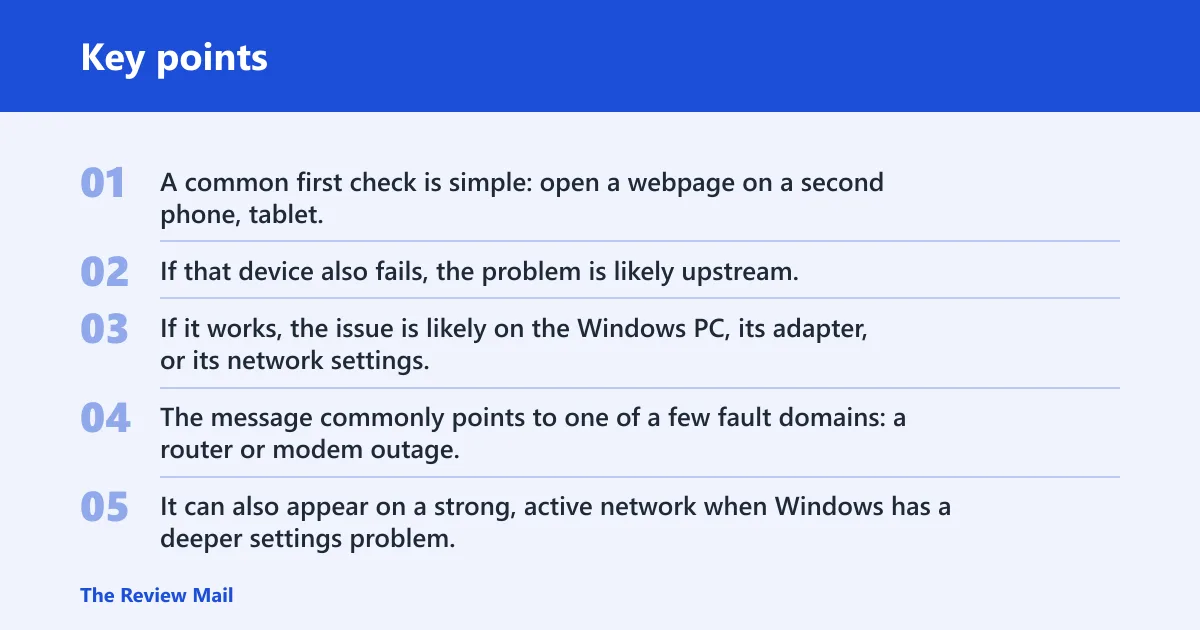
A common first check is simple: open a webpage on a second phone, tablet, or laptop on the same Wi‑Fi. If that device also fails, the problem is likely upstream. If it works, the issue is likely on the Windows PC, its adapter, or its network settings.
Likely causes, ranked
The message commonly points to one of a few fault domains: a router or modem outage, a DNS failure, bad DHCP or IP assignment, a Wi‑Fi driver problem, a Windows networking service issue, or a hotspot/VPN mismatch. It can also appear on a strong, active network when Windows has a deeper settings problem. That is why the first validation step matters.
Say your laptop shows the warning, but two phones and a tablet browse normally on the same Wi‑Fi. That pattern points away from the ISP and toward the laptop’s adapter, driver, DNS, or IP settings.
Suppose the PC joins a phone hotspot immediately, but home Wi‑Fi still fails. That usually separates a local Windows issue from a router-side or ISP-side issue, and it makes VPN or DNS a better next check than a full reset.
| Symptom pattern | Likely cause | Quick check | Best fix |
|---|---|---|---|
| Other devices work; only this PC fails | PC-only driver, DNS, DHCP, or Windows settings problem | Test the same Wi‑Fi on a second device | Restart Network Setup Service, then check adapter and IP/DNS settings |
| All devices fail on the same Wi‑Fi | Router, modem, or ISP outage | Check a phone on mobile data, then another device on the Wi‑Fi | Power-cycle modem and router, then wait for ISP recovery if needed |
| Wi‑Fi connected but captive portal never appears | Captive portal or DNS blocking the sign-in page | Open a plain HTTP page or a captive portal URL on the PC | Disable VPN, fix DNS, then reconnect to the network |
| Connected on Wi‑Fi, but pages never load | DNS failure | Try another site name and compare with a raw IP connection | Set DNS to Automatic or use a public DNS server |
| Wi‑Fi link is up, but the PC has no valid IP | DHCP / IP assignment issue | Check Wi‑Fi properties for Automatic IP assignment | Set IP assignment to Automatic, then renew the address |
| Error started after a Windows update | Wi‑Fi driver corruption or adapter initialization issue | Check Device Manager for warnings or a missing adapter | Update, reinstall, or roll back the Wi‑Fi driver |
| Works on mobile hotspot but not home Wi‑Fi | Router, DNS, or home-network configuration issue | Compare hotspot success with home-network failure | Check router/modem first, then DNS and DHCP on the PC |
| Hotspot fails only while VPN is on | VPN interference | Turn VPN off and reconnect to the hotspot | Leave VPN off during testing or adjust its split-tunnel settings |
Is the router or modem the problem?
If every device on the same network fails, start outside Windows. A router or modem fault is a common reason for the message, and a quick power cycle can clear a temporary lockup. If only one PC fails, skip this after the comparison test and move to Windows networking fixes.
- Check one other device on the same Wi‑Fi and confirm whether it can reach the internet.
- Unplug the modem and router from power for thirty seconds.
- Plug the modem back in first, wait for it to reconnect, then power on the router.
- Reconnect the Windows 11 PC and test a site you have not opened before.
- If all devices still fail, check for an ISP outage before changing anything on the PC.
9to5Windows recommends power cycling the modem and router for thirty seconds, and the Silicon Underground notes that the network can work while internet access does not. That split is the clue that the problem may sit between the router and the wider internet, not on the laptop itself.
Could Windows networking services or the adapter be broken?
If only one device is affected, Windows services or the Wi‑Fi adapter are strong suspects. The Network Setup Service helps the PC connect to a network, and Device Manager can reveal a disabled adapter, warning symbol, or driver that needs repair. Run the built-in troubleshooter first, then move to the service and adapter.
- Go to Settings > System > Troubleshoot > Other troubleshooters, then run Internet Connections and Network Adapter.
- Press Win + R, type
services.msc, and open Network Setup Service. - Set Startup type to Automatic, then select Start or Restart.
- Open Device Manager > Network adapters, then check the Wi‑Fi adapter for a warning symbol or missing entry.
- Right-click the adapter and choose Update driver. If that fails, choose Uninstall device, restart, and scan for hardware changes.
How-To Geek recommends restarting the Network Setup Service and updating the network driver, and 9to5Windows recommends resetting the network adapter through Device Manager. If the adapter disappears or shows an error symbol, that narrows the problem to driver-level or hardware initialization issues instead of router failure.
Are DHCP or DNS settings blocking access?
If Wi‑Fi connects but websites do not load, DHCP and DNS are the next branches to check. DHCP should usually stay Automatic, because a manual or conflicting address can block internet access. DNS can fail even when the Wi‑Fi link itself is valid, which leaves the status message in place while pages stall.
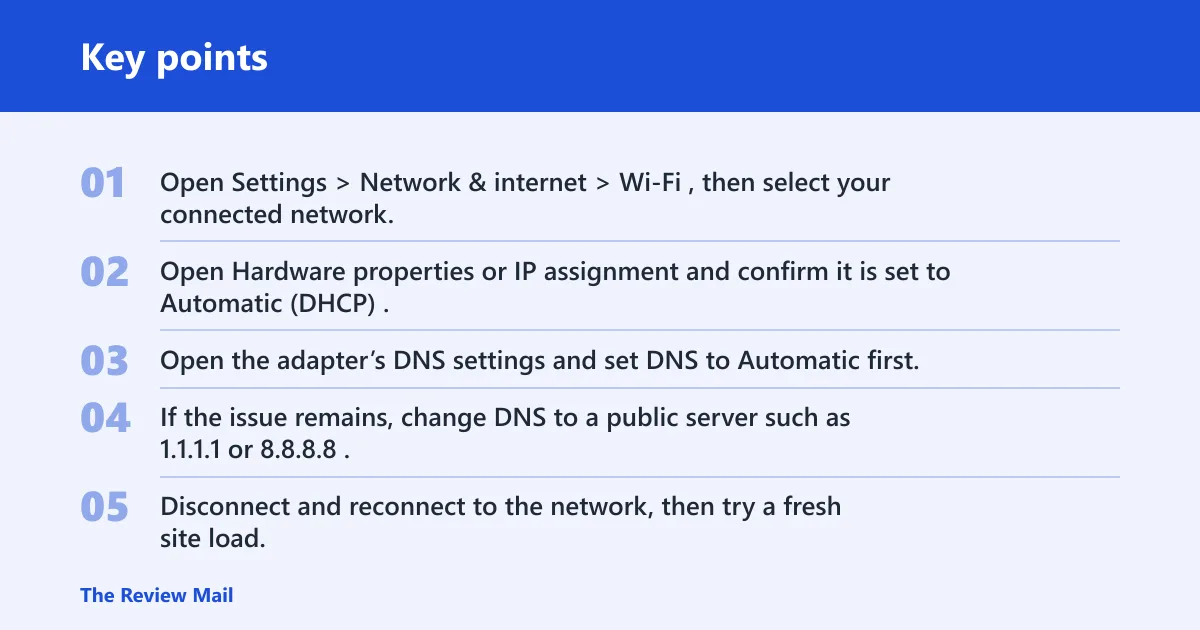
- Open Settings > Network & internet > Wi‑Fi, then select your connected network.
- Open Hardware properties or IP assignment and confirm it is set to Automatic (DHCP).
- Open the adapter’s DNS settings and set DNS to Automatic first.
- If the issue remains, change DNS to a public server such as 1.1.1.1 or 8.8.8.8.
- Disconnect and reconnect to the network, then try a fresh site load.
- If Windows still keeps the old address, open Command Prompt as administrator and renew the lease.
ipconfig /release
ipconfig /flushdns
ipconfig /renew
9to5Windows says to keep IP assignment Automatic, and it also recommends resetting DNS and TCP/IP with command-line commands. That is the right branch when the Wi‑Fi signal exists but name resolution or address assignment keeps the browser from leaving the local network.
Reset the TCP/IP stack or network settings
If the adapter, DHCP, and DNS checks do not fix it, the next step is a stack reset. This is still less drastic than a full network reset. Start with the DNS cache and Winsock, then move to TCP/IP. Use a full network reset only after the other repairs fail, because it removes saved Wi‑Fi profiles.
- Open Command Prompt as administrator.
- Run
ipconfig /flushdns. - Run
netsh winsock reset. - Run
netsh int ip reset. - Restart the PC and retest the same network.
- If the problem remains, go to Settings > Network & internet > Advanced network settings > Network reset.
- Confirm the reset, restart again, and reconnect to Wi‑Fi.
ipconfig /flushdns
netsh winsock reset
netsh int ip reset
How-To Geek includes resetting the network settings, and 9to5Windows includes resetting DNS and TCP/IP with command-line commands. Microsoft’s network reset path in Windows 11 is commonly treated as a last resort because it clears adapters and removes saved Wi‑Fi profiles.
What if it only fails on hotspot or after an update?
Hotspot failures and post-update failures often point to a different branch than home-router problems. VPNs can block hotspot access, phone-side hotspot settings can limit device connections or data, and a Windows update can leave the Wi‑Fi driver corrupted or mismatched. Treat each pattern separately before you reset the whole network.
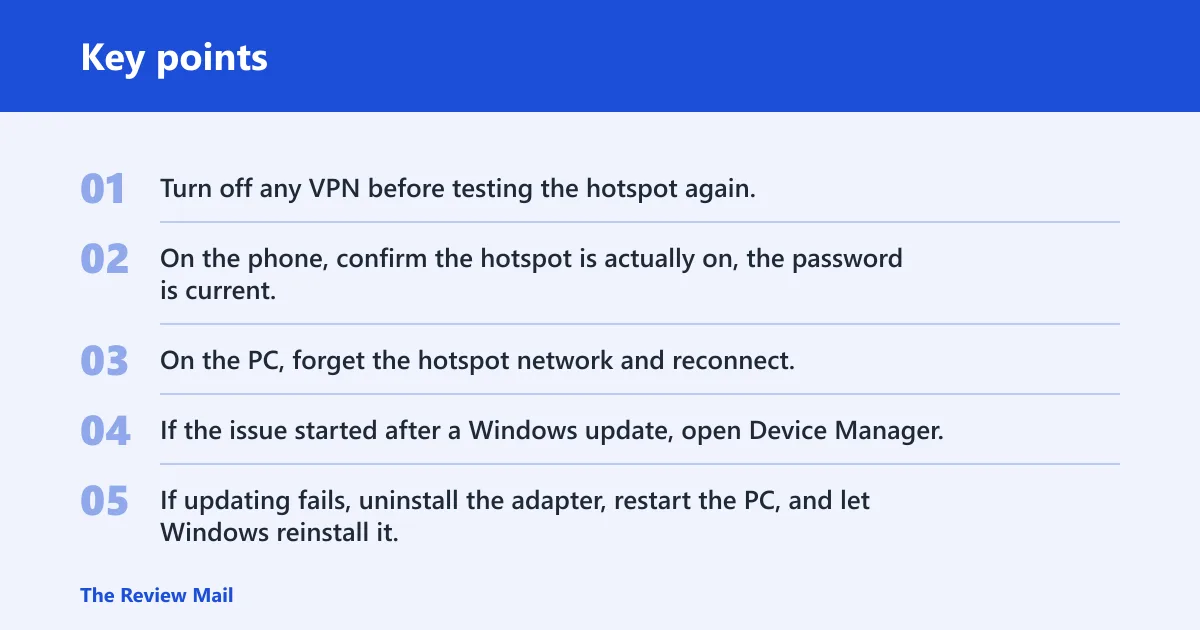
- Turn off any VPN before testing the hotspot again.
- On the phone, confirm the hotspot is actually on, the password is current, and any data-saver or device-limit setting is not blocking the PC.
- On the PC, forget the hotspot network and reconnect.
- If the issue started after a Windows update, open Device Manager, then update the Wi‑Fi driver.
- If updating fails, uninstall the adapter, restart the PC, and let Windows reinstall it.
- If the problem is still limited to the hotspot, test the same phone with another laptop or tablet to rule out carrier restrictions.
How-To Geek specifically recommends disabling VPN, and 9to5Windows also includes forgetting and reconnecting to the network. For hotspot cases, that is the cleanest branch because VPN routing, the phone’s hotspot policy, and the carrier’s limits can each block traffic even when Wi‑Fi shows connected.
Frequently asked questions
What does no internet secured mean on windows 11?
It means the PC is joined to Wi‑Fi but cannot reach the internet. Start with another device on the same network, then check DNS, DHCP, and the Wi‑Fi driver before using Settings > Network & internet > Advanced network settings > Network reset. That keeps you from wiping settings too early.
Why does windows 11 say no internet secured?
Windows 11 can show the message when the network is weak, down, or active but misconfigured. The quickest branch is to compare another device on the same Wi‑Fi, then check whether the problem stays on one PC or follows the whole network. That distinction tells you where to work next.
How do I fix no internet secured on windows 11 wifi?
Run the Windows Network Troubleshooter first, then check Settings > Network & internet > Wi‑Fi for IP assignment and DNS. If the adapter looks healthy, restart Network Setup Service in services.msc. If those fail, run netsh winsock reset and netsh int ip reset.
How to fix no internet secured windows 11 after update
Open Device Manager and inspect the Wi‑Fi adapter for a warning symbol, then update or reinstall the driver. A post-update failure often points to driver corruption rather than router trouble. If the adapter still misbehaves, use Network reset after the driver step, not before it.
How to reset network settings in windows 11
Go to Settings > Network & internet > Advanced network settings > Network reset. That restores network components to defaults and removes saved Wi‑Fi profiles, so use it after router, service, driver, DHCP, DNS, and command-line fixes have failed. Reconnect to the network immediately afterward.