Windows 11 Not Allowing Change Irq
Windows 11 usually does not let you manually change IRQs, and the Resources tab is often read-only or hidden on modern systems. If you chase the wrong setting, you can waste hours in Device Manager or mistake a BSOD for an IRQ conflict. This guide shows how to tell a real interrupt problem from a driver or IRQL crash, and what to check instead.
How automatic IRQ assignment works in Windows 11
Windows 11 normally assigns hardware interrupts automatically. On most PCs, that is intentional, not a fault. Legacy manual IRQ reassignment helped on older systems with strict ISA-style limits, but modern chipsets, ACPI, and Plug and Play routing usually handle interrupt numbering without user intervention.
How automatic hardware resource management works
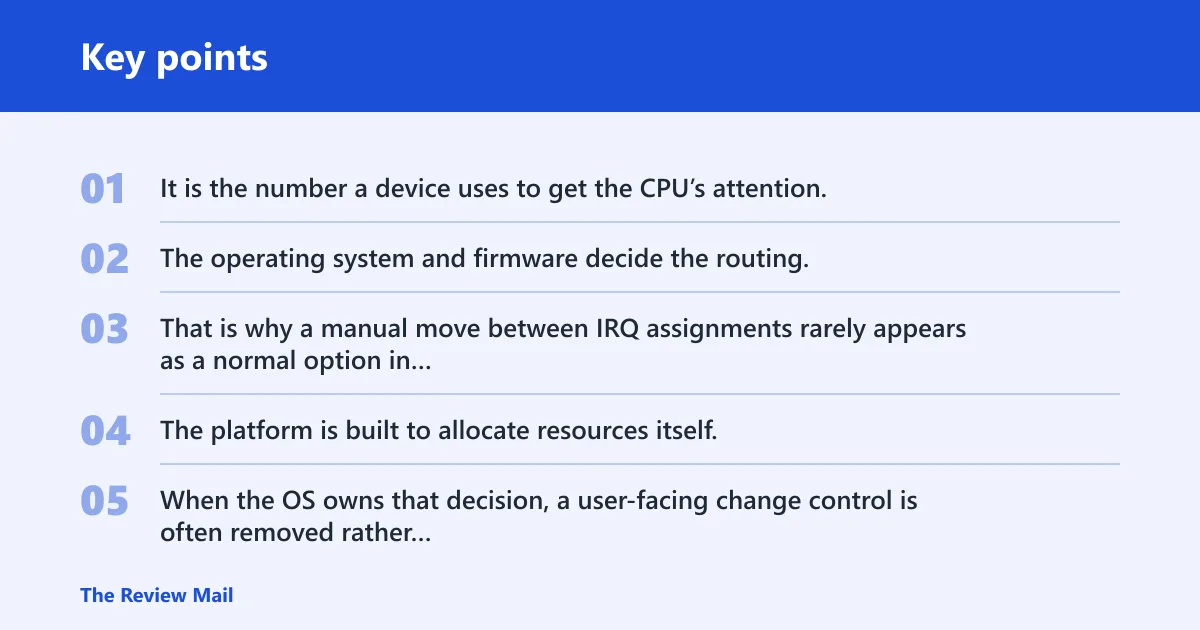
IRQ means Interrupt Request. It is the number a device uses to get the CPU’s attention, but on current systems the number is often only part of the story. The operating system and firmware decide the routing, and multiple devices can share an interrupt line without breaking anything.
That is why a manual move between IRQ assignments rarely appears as a normal option in Windows 11. The platform is built to allocate resources itself. When the OS owns that decision, a user-facing change control is often removed rather than merely disabled.
Why legacy manual IRQ fixes no longer fit most PCs
Older advice assumed a conflict meant two devices could not coexist on the same interrupt number. On Windows 11, shared assignments are common and often expected. A shared IRQ by itself is not evidence of a defect, and a grayed-out control does not mean the system is failing.
Suppose Device Manager shows two devices on IRQ 16 and one appears to be a network adapter while the other is a storage controller. That alone does not prove conflict. The useful question is whether either device errors, disconnects, or drives a crash.
📊 Microsoft says Windows 10 support ended on October 14, 2025. Source: Microsoft.
Why is the Resources tab grayed out?
The Resources tab is often grayed out because Windows is managing the device automatically, or because the device driver does not expose manual resource controls. In other words, the lock usually reflects normal Windows 11 behavior, not a broken menu.
Where Device Manager hides interrupt details
Open Device Manager, then the device’s Properties dialog, and look for the Resources tab. If the tab is available but the settings are read-only, Windows is telling you that the device’s resources are not meant to be edited by hand on that setup.
Microsoft Q&A includes a case where the Resources tab was grayed out while the user tried to move a device from IRQ 16 to IRQ 18. That is a good example of the modern limit: the interface may show interrupt information, but not allow legacy-style reassignment.
What automatic settings and locked controls usually mean
Grayed-out controls usually point to automatic resource management, not corruption. If a device works and there are no crash symptoms, stop treating the lock as the problem. The more likely issue is elsewhere, especially in the driver stack or in software that runs in kernel mode.
IRQ change decision table
| Symptom | What it usually means | What to check next | When to stop troubleshooting IRQs |
|---|---|---|---|
| Resources tab is grayed out | Windows 11 is managing the device automatically, or the driver does not allow manual resource edits | Open Device Manager, inspect the device’s Properties, then check driver provider, driver status, and whether the device is working normally | Stop if the device is stable and no crash or error is present |
| Two devices share IRQ 16 with no crash | Normal shared interrupt routing on modern hardware | Look for actual symptoms such as disconnects, freezes, or device errors | Stop if both devices function correctly |
STOP 0x0000000A | Kernel-mode code accessed memory without permission | Check drivers, security software, backup tools, and recent updates | Stop chasing IRQs unless a specific driver log or hardware error points there |
| Repeat BSODs after driver updates | Driver incompatibility is more likely than an IRQ assignment issue | Roll back the vendor driver, install a newer vendor-supplied driver, or replace it; test in Safe Mode | Stop once the same crash follows the driver, not the interrupt number |
Are shared IRQs a real problem?
Usually no. Shared IRQs are common on modern hardware, and Device Manager may show several devices using the same interrupt number without any conflict. The important distinction is between a shared assignment and an actual fault.
Shared assignments on modern chipsets
A shared IRQ means the platform routes more than one device through the same interrupt pathway. That is routine. It becomes a problem only if a device misbehaves, drops off the bus, logs errors, or contributes to a crash.
A common first-timer mistake is to assume that any duplicate number is a collision. In Windows 11, that assumption is usually wrong. Check behavior first, then decide whether a driver, BIOS setting, or failing device deserves attention.
When sharing is normal and when it points to trouble
If the device works, sharing is normal. If a printer stops responding every time a certain controller wakes up, or if a USB adapter disappears during heavy activity, the issue may be driver compatibility, power management, or hardware rather than the interrupt number itself.
Do crashes point to IRQs or drivers?
Most BSODs are not proof of an IRQ conflict. When the system crashes after a driver change, the timing matters more than the interrupt number. In Windows 11, repeated crashes after a driver update often point first to driver incompatibility.
How to read BSOD timing after a driver update
If the machine starts crashing right after a new vendor driver is installed, that is a stronger clue than a shared IRQ entry in Device Manager. Microsoft’s STOP 0x0000000A notes describe a kernel-mode process or driver accessing memory without permission, and list incompatible device drivers as a common cause during an upgrade.
Microsoft also names a system service, a virus scanner, and a backup tool as possible causes. That matters because these failures often look like hardware problems from the outside while actually being software faults in kernel space.
What STOP 0x0000000A usually means
STOP 0x0000000A is not “IRQ conflict” by default. It is a memory access violation in kernel mode. That is why the fix path is usually driver review, security software review, and Safe Mode testing before anyone starts changing BIOS settings or reinstalling Windows. (Microsoft Learn)
How to fix driver_irql_not_less_or_equal in Windows 11
Start with the driver that changed most recently. Update it from the device maker if a newer Windows 11 build is involved, or roll it back if the crash started after an update. If the crashing driver is from a peripheral vendor, do not assume the Microsoft-supplied fallback will behave the same way.
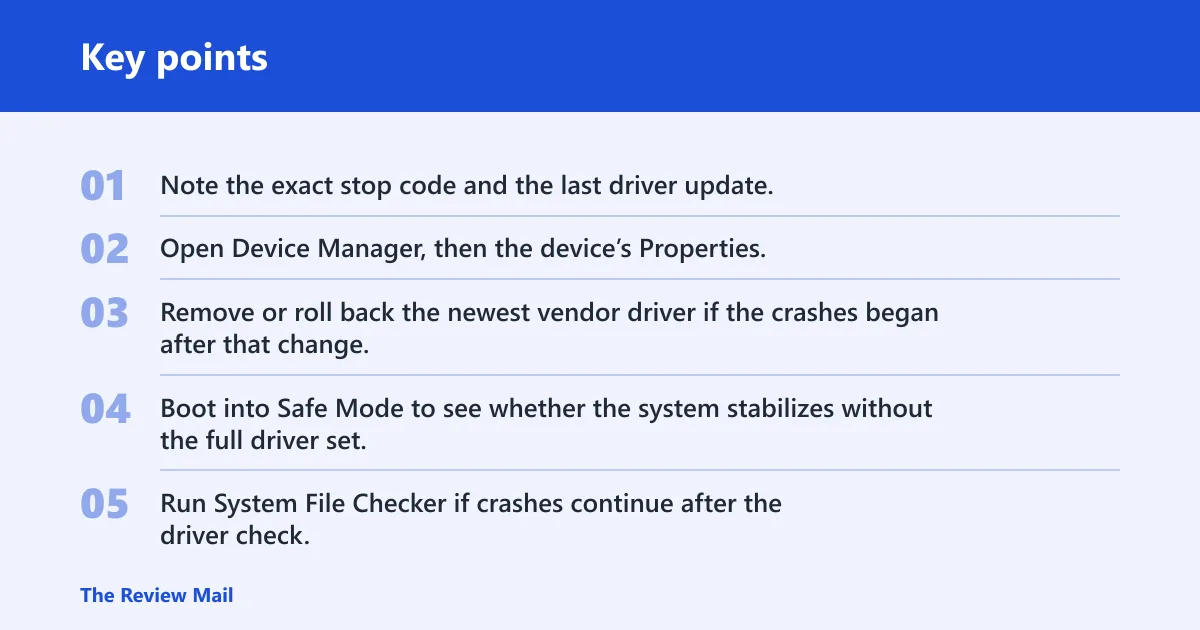
- Note the exact stop code and the last driver update.
- Open Device Manager, then the device’s Properties, and check the driver provider and driver status.
- Remove or roll back the newest vendor driver if the crashes began after that change.
- Boot into Safe Mode to see whether the system stabilizes without the full driver set.
- Run System File Checker if crashes continue after the driver check.
What to check before changing anything
Before you chase IRQ settings, separate driver faults from Windows file corruption and from hardware problems. Safe Mode and System File Checker are useful because they isolate software issues without pretending the interrupt number itself is the root cause.
Vendor drivers versus Microsoft-supplied drivers
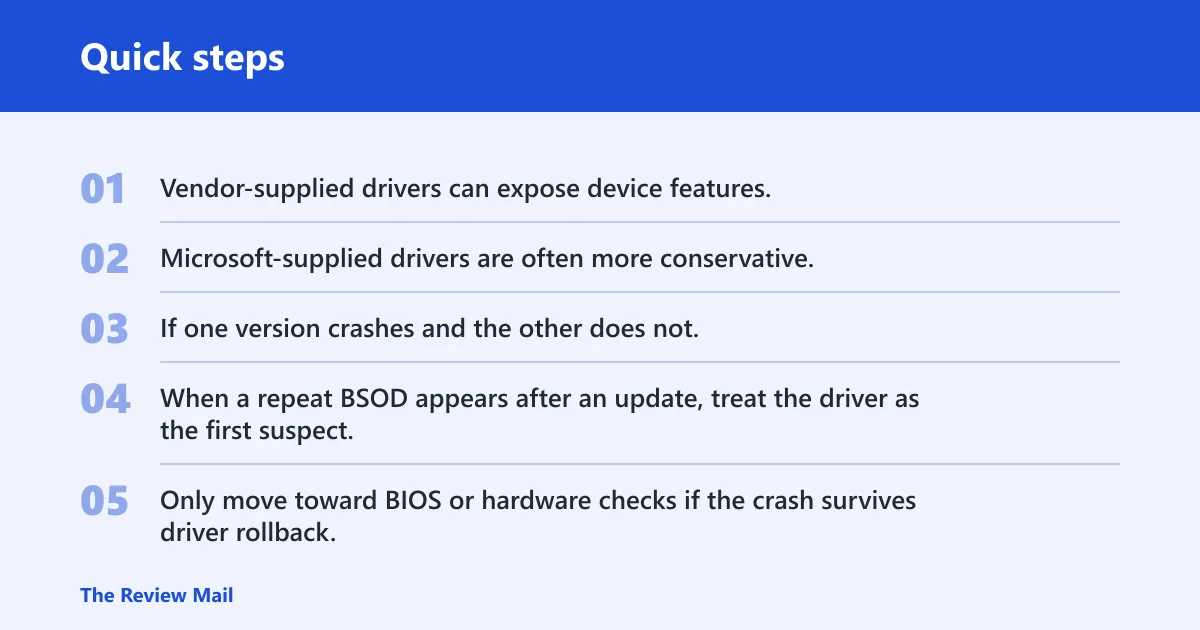
Vendor-supplied drivers can expose device features, but they can also break after a Windows version change. Microsoft-supplied drivers are often more conservative. If one version crashes and the other does not, that difference is more useful than the IRQ number shown in Device Manager.
When a repeat BSOD appears after an update, treat the driver as the first suspect. Only move toward BIOS or hardware checks if the crash survives driver rollback, Safe Mode, and file repair.
Safe Mode and system File Checker
Safe Mode helps by loading a reduced set of drivers and services. If the crash stops there, the problem is probably in software that normally starts with Windows. System File Checker can then repair protected Windows files that may have been damaged during repeated crashes.
Do not expect SFC to fix a bad vendor driver. It can repair corruption, not incompatibility. It is a useful diagnostic step after a crash, but it is not a substitute for updating or removing the driver that triggers STOP 0x0000000A.
When BIOS settings matter more than Device Manager
If a device is absent, unstable, or tied to a board-level setting such as onboard audio, storage mode, or a disabled expansion slot, BIOS or UEFI is the more relevant place to check. Device Manager only shows Windows’ view of the hardware; it does not override firmware choices.
Frequently asked questions
Why is Windows 11 not allowing me to change IRQ?
Windows 11 usually blocks manual IRQ changes because it manages interrupts automatically through ACPI and driver-controlled routing. A read-only or hidden control usually means the platform expects the setting to stay automatic, not that the device is broken.
Can I change IRQ settings in Device Manager on Windows 11?
Usually no. Device Manager may show interrupt information, but manual reassignment is typically unavailable on modern systems. If the Resources tab is locked, treat that as expected behavior unless there is a specific hardware guide from the device maker saying otherwise.
Why is the Resources tab grayed out for my device?
The most common reason is that Windows is managing resources automatically. Another reason is that the driver does not expose manual editing. If the device works and there is no error, the gray tab is usually informational, not a sign of a problem.
Do IRQ conflicts still cause crashes in Windows 11?
Rarely as a direct cause. Shared IRQs are normal on modern hardware, so a duplicate number in Device Manager is not enough to explain a crash. If you have BSODs, look first at drivers, security software, backup tools, and recent updates.
How do I fix driver_irql_not_less_or_equal in Windows 11?
Start with the newest driver change, especially a vendor driver. Roll it back or install the vendor-supplied driver again if a later build is available, then test in Safe Mode. If the crash persists, run System File Checker and review any security or backup software that installs kernel-level components.
Can safe mode or System File Checker help with this error?
Yes, but for different reasons. Safe Mode helps you test whether a third-party driver or service is causing the crash. System File Checker helps if Windows system files were damaged after repeated failures. Neither one fixes a real interrupt-routing issue by itself.
Should I reinstall Windows if IRQ settings are locked?
No, not as the first move. Locked IRQ settings usually reflect normal Windows 11 behavior. Reinstall only after driver rollback, Safe Mode testing, and SFC have failed, or if Microsoft’s STOP 0x0000000A troubleshooting path points to a repair or reset.