Whea Uncorrectable Error Windows 11 Fix
For WHEA_UNCORRECTABLE_ERROR on Windows 11, separate hardware, firmware, driver, and update causes first. Check the dump code path, then test storage, memory, CPU, and BIOS/UEFI in that order before changing settings. Skipping that order often leads to random part swaps, repeat blue screens, and wasted time. This guide shows how to triage each source and apply the right Windows 11 fix.
What the error means
WHEA_UNCORRECTABLE_ERROR is a hardware-related stop error that can appear as a blue screen when Windows hits a low-level fault it cannot recover from. It may also appear with 0x00000124. The quickest first move is to check whether the crash happens at boot, under load, or after sleep.
Windows Hardware Error Architecture, or WHEA, records hardware error events for later analysis. On Windows, those entries can appear in the system event log, and each record includes an error record that helps narrow the failing layer.
📊 Microsoft says the fix applies to both Windows 11 and Windows 10. Source: Microsoft.
Likely causes by crash pattern
The crash pattern usually points to the right layer faster than random part swapping. Boot-time failures often point to firmware, memory training, storage, or a bad recent change. Load-time crashes more often point to CPU, GPU, memory timing, power, or overclock settings. Sleep and resume crashes often point to BIOS, chipset, power management, or device firmware.
Say your PC blue-screens before the sign-in screen after a BIOS change. That points much more strongly to firmware or memory training than to a normal app issue. Suppose a crash appears only during a long game session; then CPU/GPU load, power delivery, or unstable RAM settings move up the list.
WHEA triage checklist
| Symptom pattern | Likely subsystem | Safest first test | Escalation step |
|---|---|---|---|
| Boot-time crash | BIOS/UEFI, memory training, storage | Enter BIOS and load default settings | Check SSD and RAM, then use Startup Repair |
| Gaming or heavy-load crash | CPU, GPU, RAM timing, power, tuning | Disable overclocking, XMP, and EXPO | Update chipset and GPU drivers, then test memory |
| Idle or sleep/resume crash | BIOS, chipset, power management, device firmware | Turn off fast startup and test a cold boot | Update BIOS and chipset drivers |
| After recent hardware change | New RAM, SSD, GPU, cabling, seating | Remove the new part or reseat it | Test with one device at a time |
| After recent BIOS update | Firmware, microcode, memory settings | Reset BIOS to defaults | Roll back BIOS if the board supports it |
| After recent driver update | Storage, chipset, GPU, network driver | Roll back the newest driver in Device Manager | Use System Restore or uninstall the driver package |
How do I tell if it is hardware or software?
Check the Windows Hardware Error Architecture records first. Hardware and firmware faults usually show recurring WHEA entries in the system log around the crash time, while ordinary software faults usually do not. If the same device field repeats across crashes, that is a stronger clue than the stop screen alone.
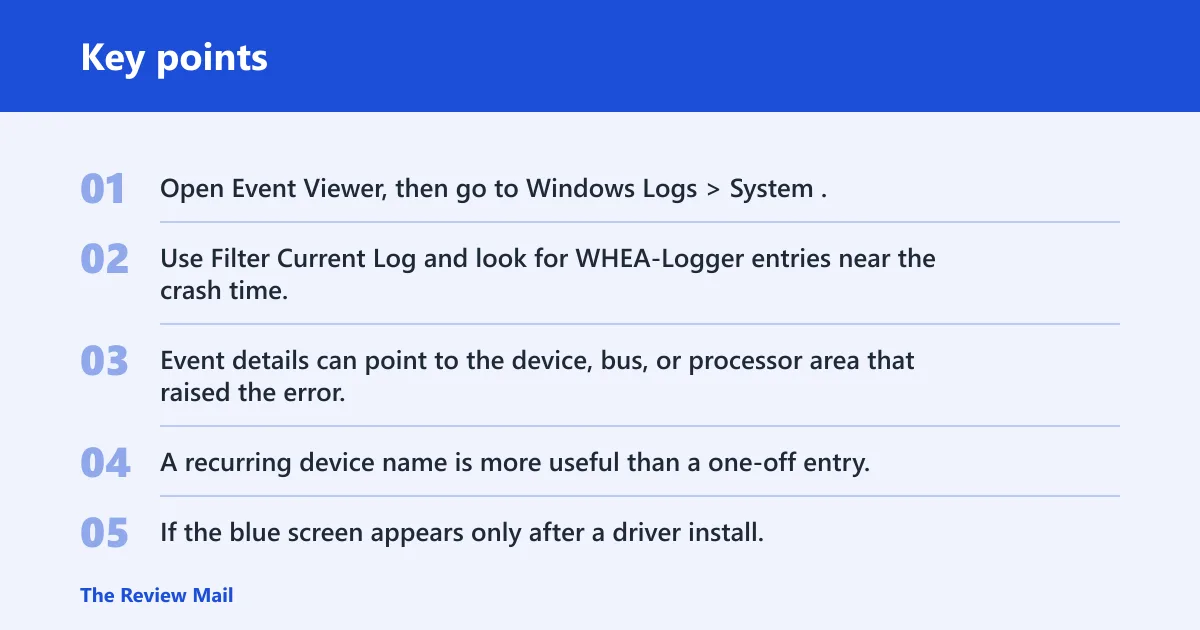
Open Event Viewer, then go to Windows Logs > System. Use Filter Current Log and look for WHEA-Logger entries near the crash time. Common event IDs include 17, 18, and 19. Event details can point to the device, bus, or processor area that raised the error. A recurring device name is more useful than a one-off entry.
If the blue screen appears only after a driver install, that change may still be the trigger, but the underlying fault is often lower-level. The key question is whether the error keeps appearing after a clean reboot cycle and the same workload.
How do I fix WHEA_UNCORRECTABLE_ERROR on Windows 11?
Start with the safest reversible changes: undo overclocking, XMP, EXPO, and other tuning; then install the latest Windows Update and vendor-approved drivers. Microsoft recommends Windows Update first, and it also includes manual driver updates as a troubleshooting step. If the issue began after a recent change, use System Restore or Startup Repair next.
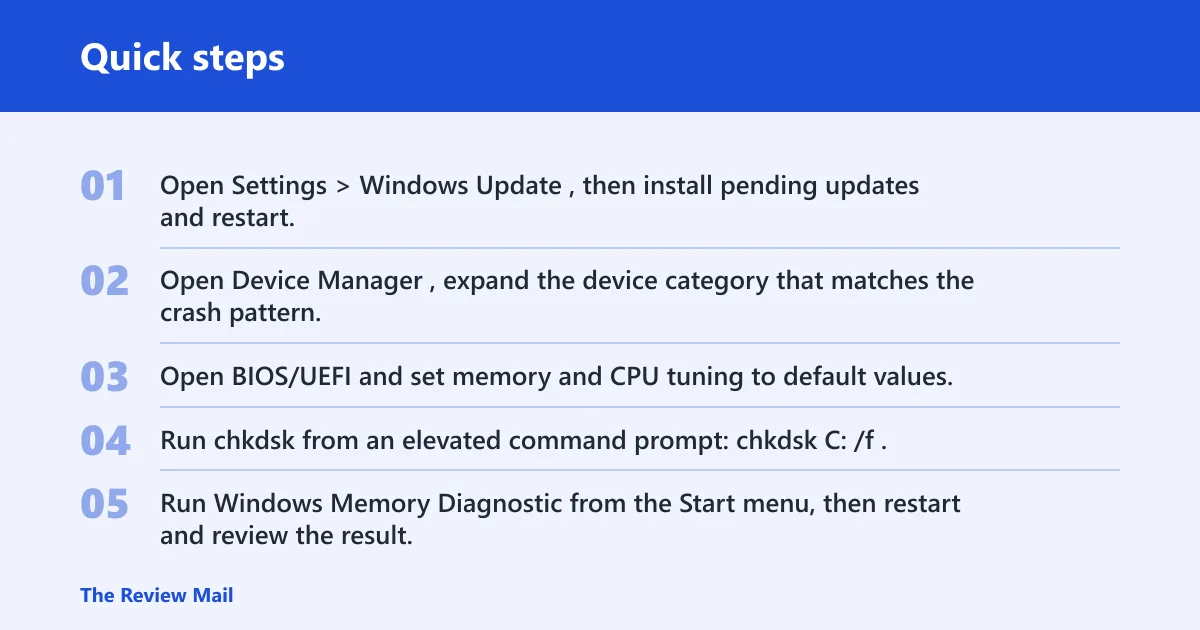
- Open Settings > Windows Update, then install pending updates and restart.
- Open Device Manager, expand the device category that matches the crash pattern, and use Update driver or Roll Back Driver if a recent driver stands out.
- Open BIOS/UEFI and set memory and CPU tuning to default values. Turn off XMP, EXPO, and any manual overclock.
- Run
chkdskfrom an elevated command prompt:chkdskC: /f. It checks the C: drive for file system errors and schedules repairs if Windows is using the volume. - Run Windows Memory Diagnostic from the Start menu, then restart and review the result. A clean result does not fully clear RAM as a cause.
- If the crash started after a change, open Advanced startup and use System Restore or Startup Repair.
Can drivers cause WHEA_UNCORRECTABLE_ERROR?
Yes, but usually as a trigger rather than the root layer. A bad chipset, storage, GPU, or firmware-related driver can expose an unstable device path, especially after an update. Use Device Manager to roll back the newest driver first, then install the vendor’s current package if rollback helps.
Should I run chkdsk for WHEA_UNCORRECTABLE_ERROR?
Yes, especially when the crash happens at boot or after storage activity. Run chkdsk C: /f from an elevated command prompt, or schedule it for the next restart if the system drive is in use. If disk events, NTFS errors, or controller warnings appear alongside WHEA, storage moves higher on the list.
Should you update BIOS or firmware?
Yes, when the crash pattern points to boot-time failure, sleep/resume failure, or repeated instability after tuning changes. A BIOS update can fix compatibility issues and microcode problems, but it is a higher-risk step than Windows Update or driver rollback. Use the motherboard or system vendor’s own tool, not a generic updater.
Reset BIOS settings before flashing if the issue began after a manual setting change. If the board has a safe recovery path, note it before updating. After any BIOS change, reboot twice, then check whether WHEA entries stop appearing in the system log.
- Enter BIOS/UEFI and load default settings.
- Save and restart once before changing anything else.
- If crashes continue and the vendor lists a newer BIOS for your exact model, update with the vendor tool.
- After reboot, check Event Viewer again for fresh WHEA-Logger entries.
What should I do if WHEA_UNCORRECTABLE_ERROR keeps coming back?
If the stop code returns after Windows Update, driver rollback, disk checks, memory testing, and BIOS defaults, suspect a failing CPU, RAM kit, SSD, motherboard, or power delivery path. At that point, the best next step is to isolate one part at a time and stop escalating software changes that do not match the symptom pattern.
- Test with one memory stick at a time, if the system has more than one.
- Disconnect extra storage devices and boot from the main drive only.
- Remove any newly added card or accessory.
- Collect the Event Viewer WHEA-Logger entries, the exact stop code, and the crash timing before contacting the vendor or a repair shop.
Keep memory and CPU tuning at default unless stability is proven after a full reboot cycle and repeated workload test.
Frequently asked questions
What causes WHEA_UNCORRECTABLE_ERROR on Windows 11?
Common triggers include firmware instability, memory timing problems, storage controller faults, CPU instability, and recent BIOS, driver, or update changes. The crash pattern matters: boot-time, load-time, and sleep/resume failures usually point to different layers, so the same fix does not fit every case.
Will updating BIOS fix WHEA_UNCORRECTABLE_ERROR?
Sometimes, especially when the crash appears after sleep/resume, a memory setting change, or a board compatibility issue. Update BIOS only after loading defaults and confirming the exact motherboard model. If the machine is already unstable at boot, a BIOS reset may be safer than flashing first.
How do I tell if WHEA_UNCORRECTABLE_ERROR is hardware or software?
Check Event Viewer > Windows Logs > System for WHEA-Logger entries near the crash time. Recurring event IDs and the same affected device field point toward hardware or firmware. A one-off driver change can still trigger the fault, but repeated WHEA records are the stronger clue.
Can overclocking cause WHEA_UNCORRECTABLE_ERROR?
Yes. CPU, GPU, RAM, XMP, and EXPO settings can push a machine into instability and produce this stop code. Return all tuning to default in BIOS/UEFI before trying deeper repairs. If the system becomes stable afterward, the tuning profile was the likely trigger.