Windows 11 Bsod Kernel Security Check Failure
For Windows 11 KERNEL_SECURITY_CHECK_FAILURE, use a 3-way triage: if it started after an update, remove the update; if Safe Mode works, suspect a driver; if it still loops there, treat it as system-file or hardware corruption. Picking the wrong branch wastes time and can make a boot loop harder to recover. This guide walks you through that decision tree and the exact fixes for each path.
Understanding stop code 0x139 causes
Start with a fast check: if Windows still reaches the desktop, grab the dump file and note the last change; if it does not boot, go straight to Safe Mode or WinRE. This stop code points to corruption in critical kernel data structures, so the first job is separating a one-off desktop crash from a repeated boot failure.
The Windows kernel manages memory, processes, device drivers, and hardware access checks. When those integrity checks fail, Windows halts with bug check code 0x139 instead of trying to continue in a broken state. (Microsoft Docs)
That failure is often tied to incompatible drivers or faulty hardware, and it can also follow corrupted system files, malware, overclocking, or storage trouble. The right fix depends on which branch produced the crash.
Stop code 0x139 in plain terms
Windows is reporting that a structure the kernel trusts has been altered, corrupted, or read back in an unexpected state. That does not point to one single part. It narrows the search to drivers, memory, disk corruption, and software that changed the system at the wrong time.
Why does Windows 11 keep blue screening with kernel security check failure?
Most repeated crashes come from a recent driver change, bad RAM, storage errors, or a Windows update that landed just before the loop started. Less commonly, malware or overclocking can destabilize the kernel enough to trigger the same stop code. The pattern of when it fails tells you where to start.
Likely causes, ranked
- Most often: a driver conflict or bad driver update.
- Next: corrupted system files or a damaged component store.
- Next: faulty RAM or a failing storage device.
- Less commonly: malware, overclocking, or another software conflict.
Say your laptop blue screens only after logging into the desktop and launching a graphics-heavy app. That pattern points more toward a driver than a dead SSD. Suppose the machine crashes before login and Safe Mode will not stay up; that puts hardware and offline repair much higher on the list.
Driver problems and software conflicts
If Safe Mode works, start with drivers. Safe Mode loads a minimal set of drivers and services, so a crash that disappears there usually means a third-party driver or startup component is involved. Driver Verifier can help, but only when the crash pattern is stable enough to reproduce.
- Open Settings > System > Recovery > Advanced startup > Restart now, then choose Troubleshoot > Advanced options > Startup Settings.
- Press 4 or F4 for Safe Mode. If the desktop opens, uninstall or roll back the most recent driver in Device Manager > device > Properties > Driver.
- If the problem device is unclear, check
C:\Windows\Minidump\for recent dump files and note the driver name that appears repeatedly. - If the crash keeps pointing to one driver, reinstall that device package from the vendor or use Roll Back Driver first.
Device Manager > (device) > Properties > Driver tab > Roll Back Driver
Device Manager > (device) > Properties > Driver tab > Uninstall device
Windows update issues after a reboot
If the loop began right after Patch Tuesday or a feature update reboot, treat the update as suspect before anything else. A recent KB can trigger a boot loop even when the rest of the system was stable. In that case, remove the update first and only then return to driver or file repair. (Microsoft Support)
- In full Windows, open an elevated Command Prompt and run wusa /uninstall /kb:<number> /quiet /forcerestart.
- If Windows will not boot normally, use WinRE from advanced startup or installation media and try Troubleshoot > Advanced options > Uninstall Updates.
- If that fails, note that limited WinRE shells may not include wusa. Use Windows installation media if the built-in removal path is missing or fails.
That difference matters. On a normal desktop crash, the update removal command can be the fastest fix. In a boot loop, WinRE may offer the uninstall option, but a limited recovery shell may not have the command available at all.
Can faulty RAM cause this crash?
Yes. Faulty RAM can corrupt data in memory before Windows writes anything useful to disk, which is why random file corruption and unstable crashes can both point back to memory. If the machine fails in different places each time, memory testing moves up the list.
- Run Windows Memory Diagnostic by pressing Win+R, typing mdsched.exe, and choosing Restart now and check for problems.
- If Windows cannot boot, run the test from recovery or use memtest86 from bootable media.
- If errors appear, test one DIMM at a time and then test each slot separately.
- If a single stick fails in multiple slots, replace the module. If all sticks fail in one slot, the slot or board is suspect.
What random corruption can tell you
A clean SFC run followed by new corruption is a memory clue, not a clean bill of health. If SFC keeps finding damaged files after repairs and the same stop code returns, RAM or storage corruption deserves direct testing rather than another round of the same software fix.
Disk errors and corrupted system files
Run CHKDSK when the disk has been throwing errors, the system became unstable after a power loss, or other repair tools keep finding the same damaged files. Do not make it the first default for every BSOD.
- If Windows still boots, open an elevated Command Prompt and run
chkdskC: /f. Add /r only when you specifically suspect bad sectors and can spare the time. - In WinRE, identify the Windows volume letter first, then run offline repairs against that installation.
- Use
sfc /scannow/offbootdir=C:\ /offwindir=C:\Windows with the correct letters for your system. - Then run
DISM /Image:C:\ /Cleanup-Image /RestoreHealthagainst the installed Windows image, again replacing C: if needed.
sfc /scannow /offbootdir=C:\ /offwindir=C:\Windows
DISM /Image:C:\ /Cleanup-Image /RestoreHealth
If SFC and DISM succeed but the machine still cannot boot, the repair did part of the job and still missed the cause. At that point, focus on drivers, a bad update, or hardware. Do not keep repeating the same scans on the same image and expect a different result.
Windows 11 bsod kernel decision table
Use this table to choose the fastest next step. It separates desktop crashes, Safe Mode failures, update-related boot loops, and cases where file repair finishes but Windows still will not start. That saves time and avoids running the wrong command in the wrong environment.
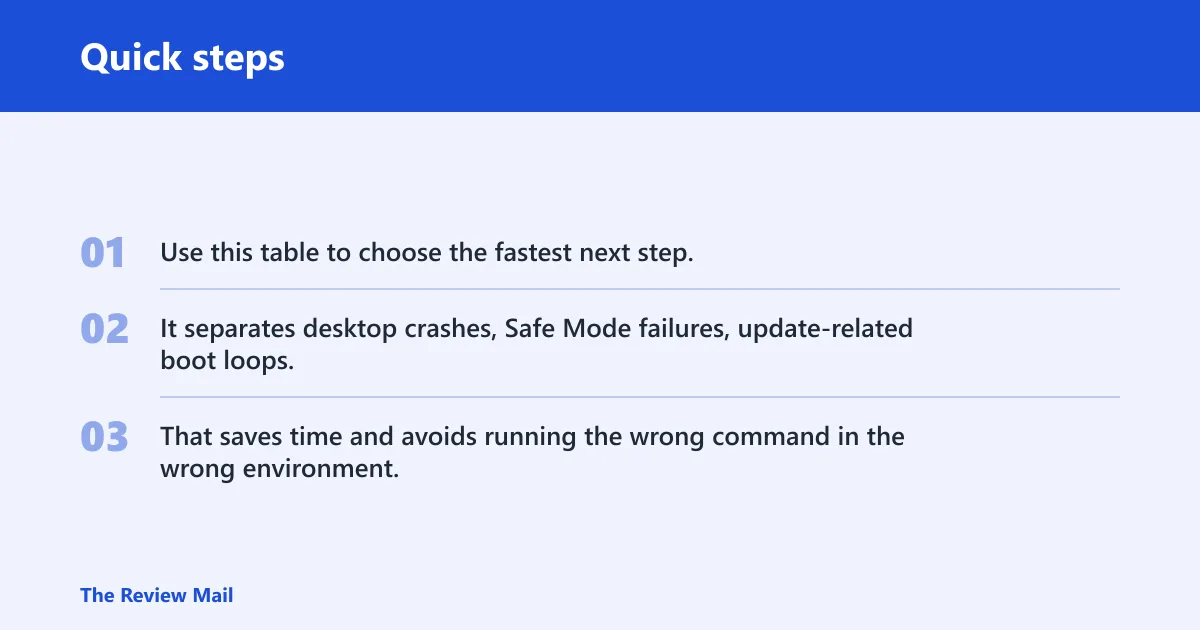
| Symptom pattern | First command or tool | Fallback if it fails |
|---|---|---|
| Normal desktop crash, then Windows still boots | Check C:\Windows\Minidump\ and roll back the newest driver in Device Manager | Run mdsched.exe, then update or remove the suspect driver |
| Safe Mode works | Device Manager > Driver tab > Roll Back Driver | Uninstall the device, restart, and reinstall a clean vendor package |
| Safe Mode fails | WinRE > Command Prompt, then offline sfc and DISM | Test RAM with memtest86 and inspect storage with chkdsk |
| SFC/DISM succeed but boot still fails | Try System Restore from WinRE or remove the newest update | Boot from Windows 11 installation media and start Repair your computer |
| Crash started after a Windows update | wusa /uninstall /kb:<number> /quiet /forcerestart | Use Uninstall Updates in WinRE, or remove the KB from installation media if WinRE is limited |
Still not working?
If the built-in repair path runs out, switch to Windows 11 installation media and choose Repair your computer. That gives you a more complete recovery environment than the on-disk one, which matters when WinRE is missing tools or cannot reach the installed Windows image.
- Boot from a Windows 11 installation USB and select Repair your computer instead of Install now.
- Try System Restore if a restore point exists and the crash followed a recent change.
- If the machine still fails after offline SFC, DISM, driver rollback, and update removal, an in-place repair install is the next sensible step.
- If the hardware tests fail, or the system keeps corrupting files after repair, stop recycling software fixes and move to vendor support or a clean install.
Keep overclocking off while you trace this stop code. That removes one instability source while you work through the boot path, driver path, and hardware path in order.
Frequently asked questions
What is kernel security check failure windows 10?
It is the same stop code family used on Windows 10 and Windows 11. The code is 0x139, and it means the kernel found corruption in a data structure it depends on. The fix path is the same: check recent drivers, then test memory and storage, then repair Windows files offline if needed.
Why does windows 11 keep blue screening with kernel security check failure: the repeated pattern usually means?
The repeated pattern usually means the same bad driver, memory fault, or storage problem is still present after reboot. Start with the last major change, then inspect C:\Windows\Minidump\ and look for one repeating driver name. If Safe Mode also fails, move quickly to offline repairs and hardware testing.
How do I fix kernel_security_check_failure after a windows update?
Use wusa /uninstall /kb:<number> /quiet /forcerestart in full Windows, or Troubleshoot > Advanced options > Uninstall Updates in WinRE. If WinRE is too limited to run the removal cleanly, boot from Windows 11 installation media and use Repair your computer to reach the update tools.
Can faulty ram cause kernel security check failure?
Yes. Bad memory can corrupt kernel data before Windows finishes loading, which can look like a driver problem at first. Run mdsched.exe for a quick pass, then use memtest86 if the crash repeats or the built-in test finds errors. Test one stick and one slot at a time if needed.
Is kernel_security_check_failure a driver problem or hardware problem?
It can be either. If Safe Mode works and the crash began after a device change, drivers move to the top of the list. If Safe Mode fails, SFC and DISM complete but boot still fails, or random files keep corrupting again, hardware becomes more likely, especially RAM or storage.
How do I boot windows 11 if safe mode also fails?
Boot from Windows 11 installation media and choose Repair your computer. From there, use System Restore, offline sfc /scannow /offbootdir=C:\ /offwindir=C:\Windows, and DISM /Image:C:\ /Cleanup-Image /RestoreHealth. If those do not hold, move to an in-place repair install or clean install.
What does stop code 0x139 mean?
It is the bug check code tied to kernel integrity failure. In practical terms, Windows found corrupted critical data structures and stopped to avoid continuing in an unstable state. The next step is not a random repair; it is to identify whether the trigger is a driver, an update, RAM, or disk corruption.
Should I use sfc dism chkdsk for kernel security check failure?
Yes, but in the right order and from the right environment. On a working desktop, run SFC and DISM /Online /Cleanup-Image /RestoreHealth. In WinRE, use offline parameters for SFC and DISM /Image:.... Use chkdsk /f when storage corruption is plausible, and reserve /r for suspected bad sectors.