Attempted Switch From Dpc Windows 11
ATTEMPTED_SWITCH_FROM_DPC in Windows 11 usually points to a driver problem first, then heat or hardware if it repeats after Safe Mode testing, driver rollback, and checking Event Viewer plus Minidump files. Ignore it, and a boot loop can cost you work while you chase the wrong fix. This guide shows a recovery-first way to sort driver, thermal, and hardware causes before you try standard repairs.
What ATTEMPTED_SWITCH_FROM_DPC means
ATTEMPTED_SWITCH_FROM_DPC is a Windows stop code, also known as bug check 0xB8 and reference code 0x000000B8. Microsoft ties it to an invalid DPC operation, which means the kernel hit a bad Delayed Procedure Call transition. It can appear on Windows XP through Windows 11. (Microsoft Learn)
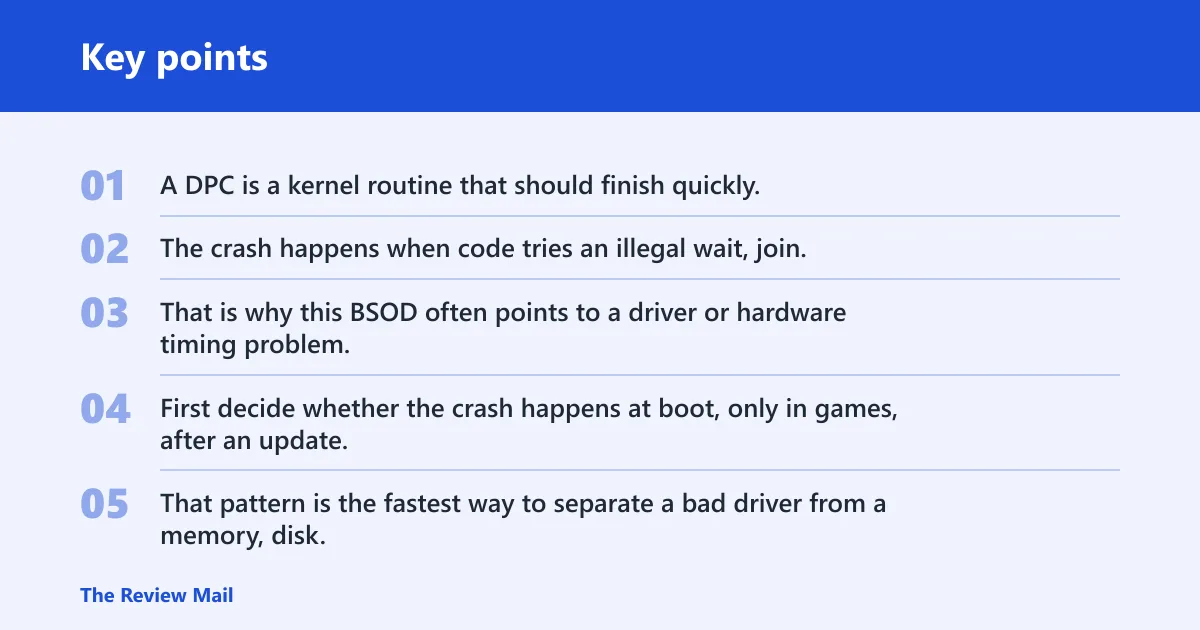
A DPC is a kernel routine that should finish quickly. The crash happens when code tries an illegal wait, join, or yield at the wrong time inside that kernel path. That is why this BSOD often points to a driver or hardware timing problem, not a random file error alone.
What this means for recovery
Do not start with random repairs. First decide whether the crash happens at boot, only in games, after an update, or after new hardware or software. That pattern is the fastest way to separate a bad driver from a memory, disk, or thermal issue.
Why does ATTEMPTED_SWITCH_FROM_DPC keep happening on my PC?
It usually keeps repeating because the same trigger keeps loading. The common branches are driver conflicts after a Windows update or device install, damaged system files, bad RAM, disk problems, and thermal or power instability. Third-party antivirus tools and recent startup apps can also push the system into the same fault path.
Stellar’s fault pattern list includes a faulty application, driver, or damaged memory. Howtoedge specifically notes outdated drivers as a trigger. That lines up with Microsoft’s invalid DPC context: if one kernel component keeps entering the wrong state, the same stop code can return on every reboot.
Decision table for symptom patterns
| Symptom pattern | Likely cause | Fastest check | Next action |
|---|---|---|---|
| Boot-time crash before desktop | Driver conflict, corrupted boot driver, or failing startup software | Try Safe Mode; note whether the crash stops there | Roll back recent drivers in Device Manager, then run SFC /scannow |
| Crash only while gaming | GPU driver, heat, power draw, overlay, or unstable overclock | Launch a light app instead of a game and watch whether the system stays stable | Update or roll back the GPU driver, remove overlays, and check temperatures |
| Crash after a Windows update | Bad update interaction or driver mismatch after patching | Check whether the issue began right after the last update | Install the latest Windows updates or remove the last one, then repair files with DISM /Online /Cleanup-Image /RestoreHealth |
| Crash after new hardware or software | Conflicting driver, incompatible device, or startup app | Unplug or uninstall the newest change | Re-test without that device or program, then update the related driver in Device Manager |
Say your PC only blue-screens after a new USB audio interface is plugged in. That points more toward a device driver conflict than a bad Windows file. Remove the device, boot again, and check whether the stop code disappears before you touch system repair tools.
How do you get into Safe Mode after an attempted switch from DPC BSOD?
Safe Mode is the right first move when Windows cannot boot normally because it starts with minimal drivers and startup programs. If the desktop still appears, use recovery startup from Windows. If the system cannot reach that far, use Startup Repair first and then try Safe Mode again.
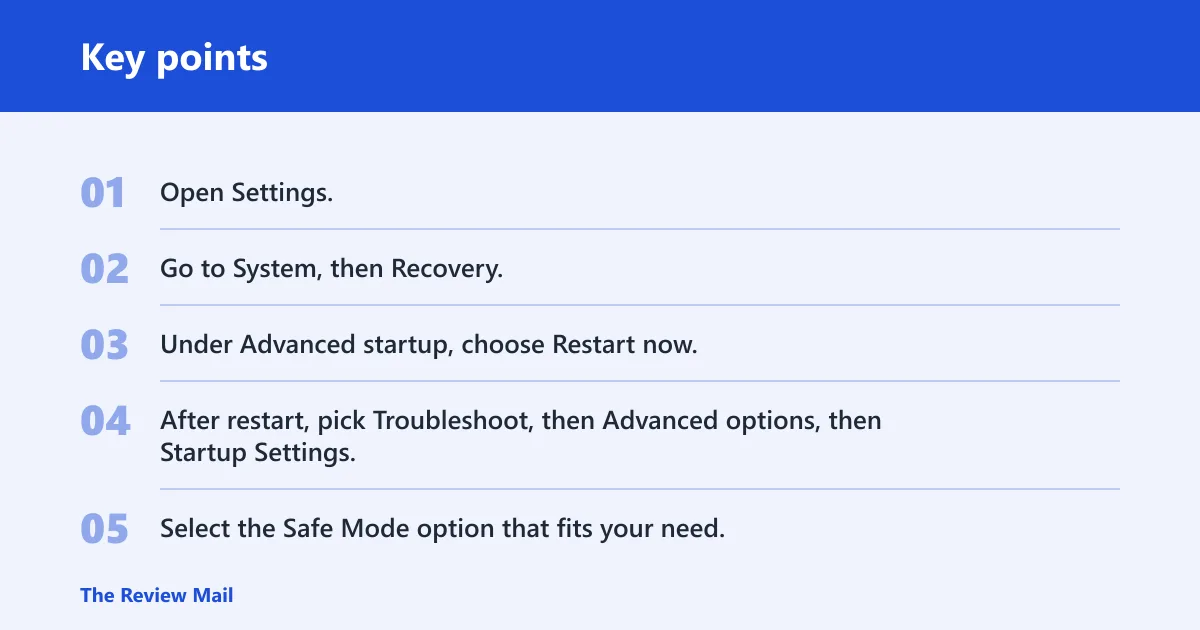
Use recovery startup when Windows still reaches the desktop
- Open Settings.
- Go to System, then Recovery.
- Under Advanced startup, choose Restart now.
- After restart, pick Troubleshoot, then Advanced options, then Startup Settings.
- Select the Safe Mode option that fits your need.
Use Startup Repair when Safe Mode is blocked
If Windows loops before you can reach Safe Mode, use the automatic recovery path. Howtoedge lists Automatic Startup Repair when Safe Mode is unavailable. Hata Uzmani also notes that the error can block access to the computer, which is why recovery media or the built-in repair menu matters early.
- Force the recovery environment to appear or boot from recovery media.
- Select Troubleshoot, then Advanced options, then Startup Repair.
- If Startup Repair fails, return to Advanced options and try Safe Mode again.
Should I run SFC or DISM for attempted switch from DPC?
Yes, but only after you sort the crash pattern and driver side. SFC /scannow checks and repairs corrupted Windows files, while DISM /Online /Cleanup-Image /RestoreHealth repairs the Windows image that SFC depends on. They are commonly paired, with DISM often run first when file corruption is suspected. (Microsoft Support)
Hata Uzmani recommends SFC scanning as a repair step, and that fits best when Windows still boots or Safe Mode works. If Windows Update components or the component store are damaged, run DISM first, then SFC. That order gives SFC a clean source to validate against.
Use this repair order
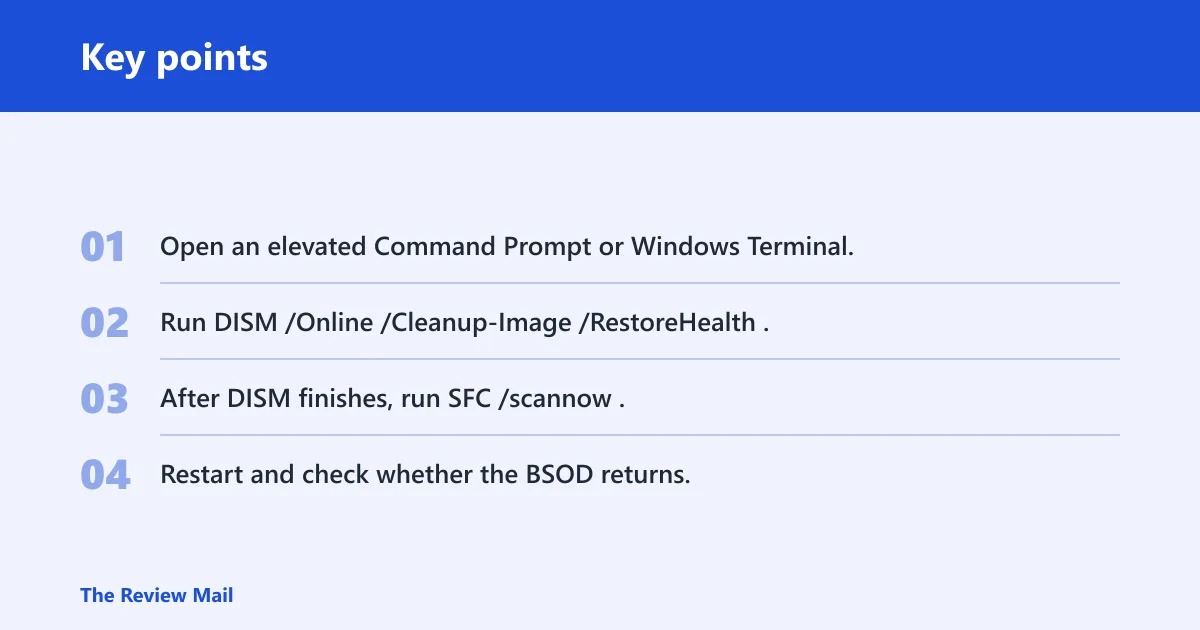
- Open an elevated Command Prompt or Windows Terminal.
- Run
DISM /Online /Cleanup-Image /RestoreHealth. - After DISM finishes, run
SFC /scannow. - Restart and check whether the BSOD returns.
Update or roll back drivers in Device Manager
Faulty drivers can cause ATTEMPTED_SWITCH_FROM_DPC. Device Manager is the right path when a recent hardware change, GPU update, or peripheral install lines up with the crash. If the problem began right after a driver update, roll it back. If it began after an install, update the related driver or remove the device temporarily.
Install Windows updates or remove the last one
Stellar recommends updating Windows as a first fix, and that makes sense when the crash started after a patch gap or mixed driver state. If the error appeared immediately after a recent update, the reverse may be more useful: uninstall the last update and test again before moving deeper into hardware checks.
What if the crash only happens while gaming?
When the stop code appears only in games, start with the GPU driver path, then check heat and power stability. Games push the graphics driver, CPU, and power delivery harder than most desktop use. Overlays, recording tools, and overclock settings can also expose timing faults that stay hidden elsewhere.
Look for a recent GPU driver update first. If the timing matches the first crash, roll it back or install the vendor’s current stable release. Then remove overlays, frame limiters, and recent game tools. A common first-timer mistake is chasing memory repairs before checking a GPU driver that changed the same day the crashes started.
Suppose a laptop runs fine on the desktop but blue-screens 10 minutes into one game at 144 Hz. That pattern points toward thermal or power load, not general Windows corruption. Lower the graphics settings, disable any overclock, and test again before you run broader repair commands.
DPC recovery checklist
Once you know the timing pattern, run the checks that fit it. Do not treat every stop code the same. A boot loop, a gaming-only crash, and a post-update crash do not point to the same first repair.
- Windows Memory Diagnostic: choose Restart now and check for problems to look for RAM errors.
CHKDSK: inspect the disk for file system or surface issues if storage corruption is possible.- Startup Repair: use it when Safe Mode or normal boot is inaccessible.
- System Restore: roll back to a restore point if the crash began after a clear software change.
The same source recommends Windows Memory Diagnostic, and a disk check as regular maintenance. CHKDSK matters when the BSOD appears alongside slow boots, file errors, or a drive that drops offline. If memory or storage tests fail, that is stronger evidence than repeating software repairs.
Frequently asked questions
What does attempted switch from DPC mean in Windows 11?
It means Windows hit stop code 0x000000B8, which is commonly associated with an invalid DPC operation. The crash is tied to a kernel routine trying an illegal transition. In practical terms, it usually points first to a driver timing problem, then to memory, storage, or heat if the pattern keeps repeating.
Can faulty drivers cause attempted switch from DPC?
Yes. Bad, outdated, or conflicting drivers are one of the most common triggers, especially after a hardware change or update. Start with Device Manager if the crash appeared after installing a device, updating a GPU driver, or adding software that installs a low-level driver.
Can overheating or RAM issues trigger attempted switch from DPC?
Yes, but they are pattern-based suspects, not universal causes. Repeated crashes under load point to heat or power instability, while random crashes across different tasks can point to RAM. Windows Memory Diagnostic is the first built-in RAM check, and temperature or fan issues deserve attention when gaming or heavy work triggers the BSOD.
How do I fix attempted switch from DPC when Windows won’t boot?
Use Startup Repair first if Safe Mode is not reachable. If you can reach recovery options, try Safe Mode next, then run DISM /Online /Cleanup-Image /RestoreHealth and SFC /scannow. If a recent driver or update caused the loop, roll that change back before deeper repairs.