Fltmgr Sys Blue Screen Windows 11
A repeated fltmgr.sys blue screen on Windows 11 usually means the file-system filter layer is exposing a deeper problem, not causing it. If it happens during boot, install, or right after login, treat storage or driver corruption first, and hardware only if the crash follows that pattern. Ignoring that order can turn a fixable boot loop into lost data or a reinstall. This guide shows how to read the crash context and separate a bad driver, a failing storage stack, and unstable hardware.
What fltMgr.sys really tells you about your crash
FLTMGR.SYS is Microsoft’s File System Filter Manager, a Windows kernel driver that handles storage-drive and filesystem filter activity. Because it sits between Windows and lower-level storage components, it often appears in crash reports when another driver, the disk path, or security software breaks that chain.
That is why it can show up with SYSTEM_SERVICE_EXCEPTION, PAGE_FAULT_IN_NONPAGED_AREA, and KMODE_EXCEPTION_NOT_HANDLED. The file is often a signal, not the root cause. (Microsoft Learn)
A common first-timer mistake is to replace random drivers before checking the crash stage. A boot-loop crash after a fresh install points somewhere different from a desktop crash that appears only after signing in and opening an app.
Likely causes
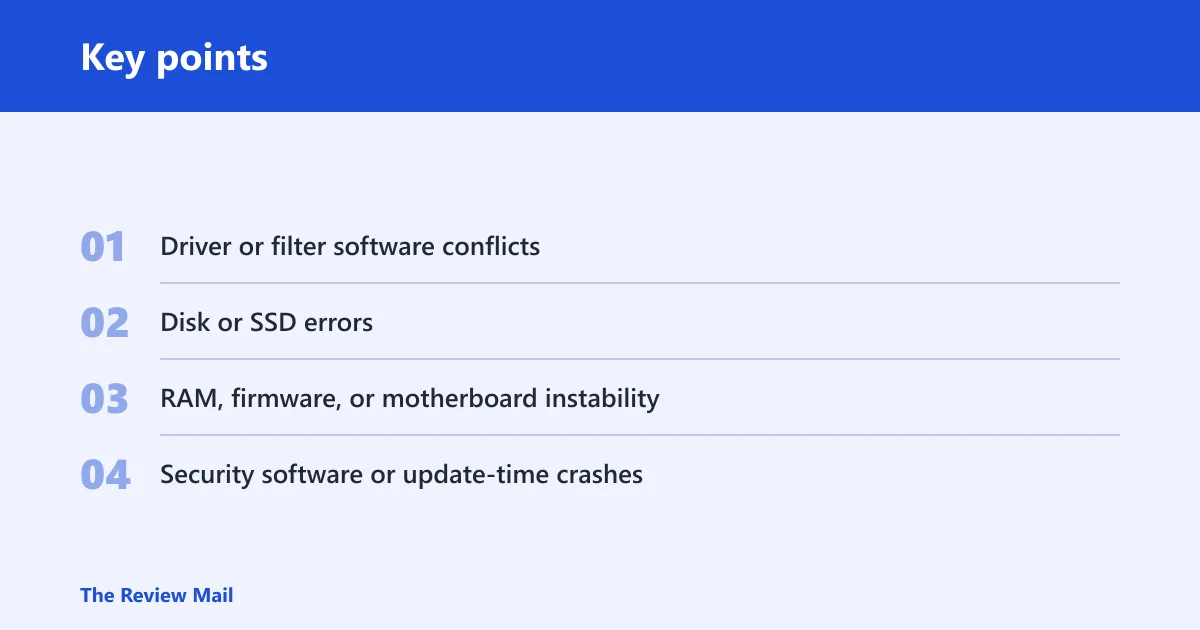
- Driver or filter software conflicts: storage, antivirus, backup, encryption, or vendor filter drivers.
- Disk or SSD errors: bad sectors, file-system corruption, or a controller problem.
- RAM, firmware, or motherboard instability: repeated crashes even after software repair.
- Security software or update-time crashes: Defender, update setup, or install activity in the crash context.
Should you start in Safe Mode with Networking?
Yes, when Windows still boots far enough to reach recovery or the desktop. Safe Mode with Networking reduces the driver and service set, which makes it a good isolation step for software and driver causes. If the crash still happens there, the case moves faster toward storage, firmware, or RAM.
- Open Settings > System > Recovery > Advanced startup > Restart now.
- Go to Troubleshoot > Advanced options > Startup Settings.
- Select the option for Safe Mode with Networking.
- After sign-in, test only one change at a time: recent driver rollback, security software removal, or a pending update pause.
- If the crash still appears before the desktop or while idle in Safe Mode, stop treating this as a simple software conflict and move to disk and RAM checks.
Say your laptop shows a blue screen before the login box after a graphics or storage utility update. If the same crash disappears in Safe Mode with Networking, the added driver set is the better lead. If it still crashes while the machine is almost idle, the storage path or hardware becomes more likely.
Fix driver and security-software conflicts
Driver conflicts are a common cause when the crash starts after a new device driver, filter utility, or security package. Update-time failures can also leave filter drivers in a bad state. FLTMGR.SYS may appear alongside Windows Defender components during a refresh install, which can point to a broader storage or security-engine interaction rather than FLTMGR.SYS by itself.
- Open Device Manager.
- Check storage, chipset, NVMe, SATA, and RAID-related devices first.
- For the most recent change, open Properties > Driver and choose Roll Back Driver if available, or Uninstall device if the driver was newly added.
- Remove or pause third-party antivirus, backup, encryption, and disk filter utilities from Settings > Apps > Installed apps.
- Update storage, chipset, and storage-controller drivers from the device maker, then restart.
- If the crash mentions Defender or install activity, use Windows Security > Virus & threat protection only after the machine is stable enough to scan.
Check the disk and repair Windows files
If the crash shows up during boot, install, or file-heavy activity, check the drive and repair Windows components. A bad SSD can absolutely trigger FLTMGR.SYS BSODs because the filter manager sits on top of the storage stack. Logical errors and physical read failures can both surface as the same blue screen path.
- Open an elevated Command Prompt.
- Run DISM.exe /Online /Cleanup-image /Restorehealth when Windows can still load normally.
- Run
sfc /scannowafter DISM finishes. - Run
chkdskC: /f /r if the system drive may have logical or physical errors. - Expect
CHKDSKto take hours on a large or unhealthy drive. - If the PC is not booting, use Windows installation media or WinRE to get to recovery tools, then run the appropriate offline repair commands there instead of forcing repeated failed starts.
Elevated Command Prompt:
DISM.exe /Online /Cleanup-Image /RestoreHealth
sfc /scannow
chkdsk C: /f /r
Suppose Windows crashes during a refresh install at 24H2 while copying files, then fails again at first boot. If CHKDSK reports repeated unreadable areas or the same blue screen returns during setup, the SSD or controller deserves more attention than another file-scan pass.
When should you test RAM or firmware?
Move to RAM and firmware checks when software repair fails, the same blue screen repeats across clean boots, or crashes continue after a reinstall. If the machine crashes during setup, not only after login, treat firmware and board-level instability as possibilities. For memory testing, use the built-in Windows Memory Diagnostic by starting mdsched.exe.
- Run Windows Memory Diagnostic by starting mdsched.exe.
- If available, run a longer test with a bootable tool such as memtest86.
- Check BIOS or UEFI for recent changes, then return storage and memory settings to known-good defaults.
- Update storage firmware and motherboard BIOS only from the system maker’s support page.
- If the crash survives a clean Windows install, stop assuming software is the cause.
FLTMGR.SYS BSOD triage map
This table helps you choose the next step from the crash stage instead of guessing. The best clue is not the filename alone. It is where the crash happens, what stop code appears, and whether a minidump points to a driver, disk, memory, or firmware layer.
| Crash stage | Likely layer | Fastest test | Escalation threshold |
|---|---|---|---|
| Boot | Disk, firmware, or storage driver | WinRE, Safe Mode with Networking, then CHKDSK | Crashes before desktop or during setup after repair |
| Install | Security software, storage stack, or firmware | Disconnect nonessential devices, review setup logs, rerun with clean media | Fresh install still fails on the same point |
| Idle | Driver or RAM | Safe Mode with Networking, then driver rollback | Crash continues with minimal drivers loaded |
| App launch | Driver, file-system filter, or security software | Check recent installs and disable filter tools | Crash repeats after rollback and clean boot |
| Stop code | Most likely next diagnostic step |
|---|---|
| SYSTEM_SERVICE_EXCEPTION (0x3B) | Check the minidump for the faulting module, then update or roll back the related driver. |
| PAGE_FAULT_IN_NONPAGED_AREA | PAGE_FAULT_IN_NONPAGED_AREA means Windows tried to access memory it expected to be permanently available, so test RAM first, then inspect the storage path and recent filter drivers. |
| KMODE_EXCEPTION_NOT_HANDLED | KMODE_EXCEPTION_NOT_HANDLED means a kernel-mode component raised an exception that Windows did not catch, so look for a bad kernel driver, especially storage, security, or virtualization software. |
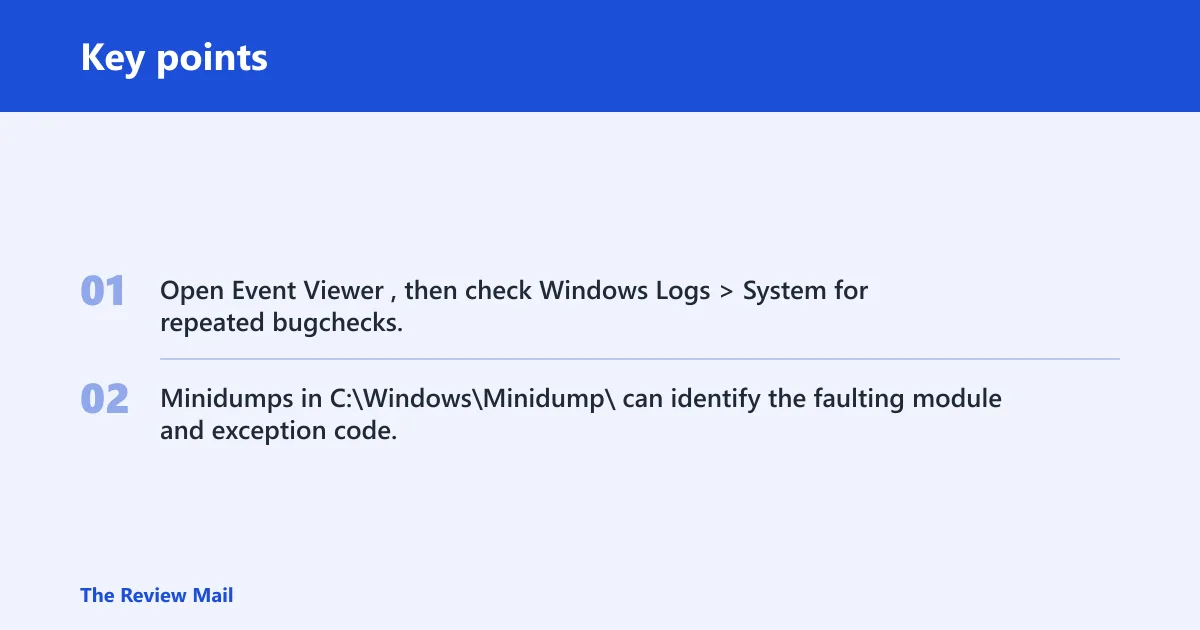
Open Event Viewer, then check Windows Logs > System for repeated bugchecks, disk warnings, or driver entries around the crash time. Minidumps in C:\Windows\Minidump\ can identify the faulting module and exception code, which is often the difference between a storage fix and a memory replacement.
Still not working?
If the machine will not boot, use Windows Installation Media or WinRE to reach recovery tools, copy files first, and then try System Restore or offline repair. If Windows starts but keeps crashing after SFC, DISM, CHKDSK, and driver rollback, the next step is usually hardware triage, not another round of the same repairs.
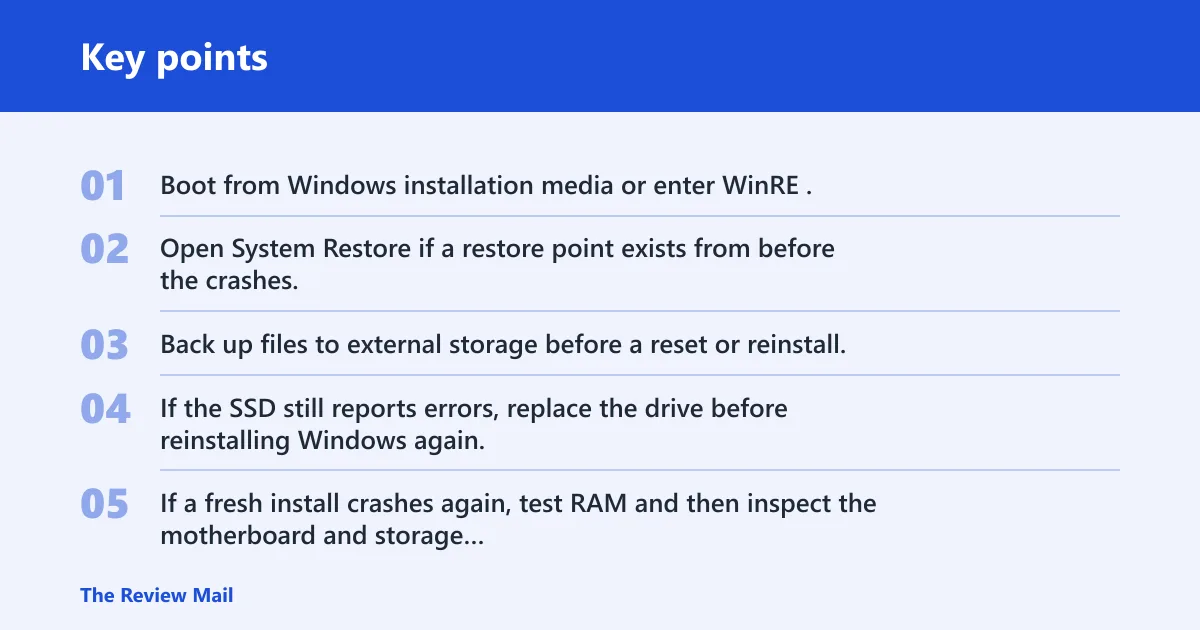
- Boot from Windows installation media or enter WinRE.
- Open System Restore if a restore point exists from before the crashes.
- Back up files to external storage before a reset or reinstall.
- If the SSD still reports errors, replace the drive before reinstalling Windows again.
- If a fresh install crashes again, test RAM and then inspect the motherboard and storage controller path.
Keep storage, chipset, and security software changes small and easy to reverse. That makes the next crash easier to trace.
Frequently asked questions
Why does fltmgr.sys cause a blue screen in Windows 11?
It usually does not cause the failure by itself. It appears when a storage filter, disk error, memory fault, or kernel driver breaks the path that FLTMGR.SYS manages. Check the stop code and minidump first, then decide whether the next step is driver rollback, CHKDSK, or RAM testing.
How do I fix fltmgr.sys blue screen on Windows 11?
Start with Safe Mode with Networking, then roll back recent driver changes, run DISM.exe /Online /Cleanup-Image /RestoreHealth, and follow with sfc /scannow. If the crash keeps returning, run chkdsk C: /f /r and inspect C:\Windows\Minidump\ for the faulting module.
Can a bad SSD cause fltmgr.sys BSOD?
Yes. A failing SSD can trigger file-system filter crashes because the storage stack sits below FLTMGR.SYS. If CHKDSK finds read errors, setup fails during copy phases, or the same blue screen returns after a clean install, move the SSD higher on the suspect list.
Should I run Safe Mode, SFC, or CHKDSK first for fltmgr.sys?
If Windows still boots, start with Safe Mode with Networking. If the crash points to corruption rather than a specific driver, run sfc /scannow after DISM.exe /Online /Cleanup-Image /RestoreHealth. If the issue appears during boot, install, or file access, add chkdsk C: /f /r early.
What stop codes can appear with fltmgr.sys crashes?
The most common ones in this family are SYSTEM_SERVICE_EXCEPTION (0x3B), PAGE_FAULT_IN_NONPAGED_AREA, and KMODE_EXCEPTION_NOT_HANDLED. The stop code should shape the next move: driver review, memory testing, or storage repair. The minidump usually gives the best clue.
How do I recover files if Windows 11 will not boot because of fltmgr.sys?
Boot from Windows installation media or WinRE, then copy data to external storage before running a reset or reinstall. If the disk is readable, use an external drive or a recovery environment to save files first. If the SSD is failing, avoid repeated full boots that can make recovery harder.