Netsh Winsock Reset Run as Administrator
Run netsh winsock reset from an elevated Command Prompt or Windows Terminal: open it with Run as administrator, then run the command and restart. If you skip admin rights or pick the wrong fix, Windows can keep returning network errors and you may waste time resetting the wrong component. This guide shows how to open an admin prompt, what the “You must be an administrator” error means, and when Winsock reset is the wrong move.
What netsh winsock reset does
netsh winsock reset restores the Winsock catalog to its default state. That catalog is the Windows sockets configuration store that helps applications connect to the network, and it can be damaged by malware, VPN software, firewall tools, or failed network installers. Windows typically rebuilds the catalog after the reset, but the change may not take full effect until you restart.
What the reset changes
The command targets the Winsock catalog and, by extension, the layered service provider chain attached to it. That matters when a third-party hook has broken normal networking after a bad install or removal. The reset can clear that corruption, but it does not rewrite every network setting on the system. (Microsoft Learn)
It is a repair command, not a full reset of network settings. Use it when connectivity points to Winsock corruption, such as internet access dropping after VPN or security software changes, or when a network program no longer starts its connections cleanly.
Why a restart is required
Windows loads network components into active memory. The reset updates the catalog on disk, but running processes may still be holding older network state. A restart clears that state and lets Windows rebuild the Winsock catalog cleanly.
After the command finishes, reboot from the Start menu or run shutdown /r in an elevated shell if you prefer the keyboard. Do not skip this step if you want the repair to stick.
Why the command needs admin rights
The elevation error means the shell is not running with administrator privileges. netsh winsock reset changes system-level network configuration, so Windows blocks it in a standard user prompt and returns the message that the requested operation requires elevation. Open an elevated shell first, then rerun the command.
How to confirm elevation
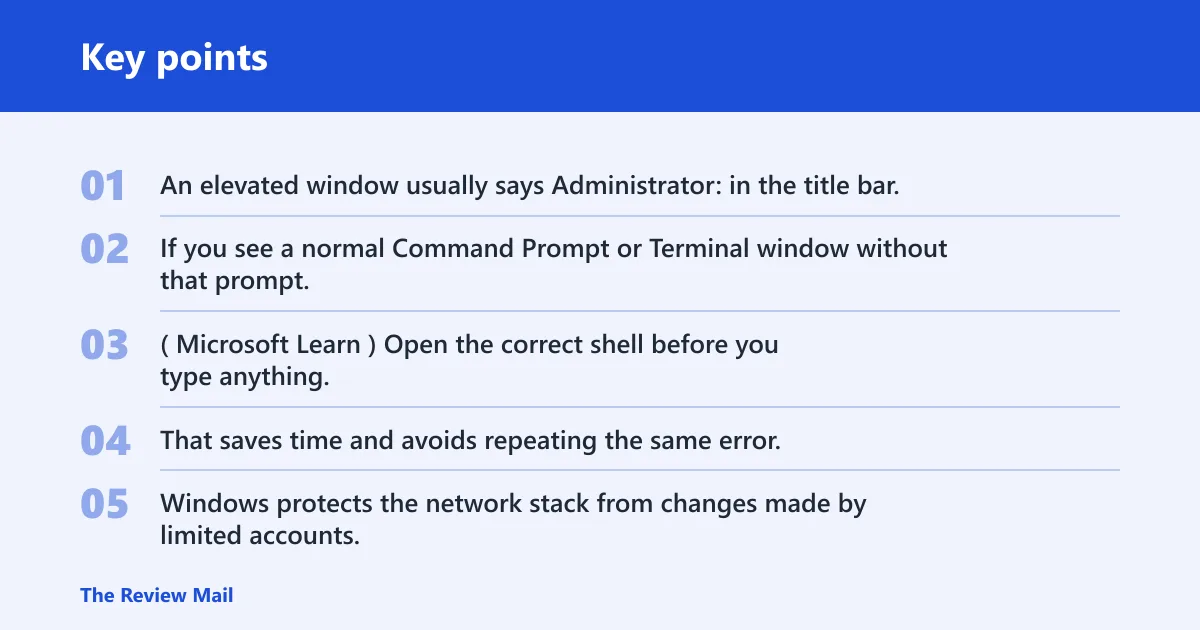
An elevated window usually says Administrator: in the title bar, and it may trigger a User Account Control prompt when you launch it. If you see a normal Command Prompt or Terminal window without that prompt, it is not elevated. Running the command there will fail. (Microsoft Learn)
Open the correct shell before you type anything. That saves time and avoids repeating the same error.
Why standard user shells fail
Windows protects the network stack from changes made by limited accounts. That protection stops accidental edits, but it also means a non-admin shell cannot reset the Winsock catalog. The command itself may be typed correctly and still fail because the session lacks the required rights.
Picture a laptop that shows “You must be an administrator to run this utility” the moment the command is entered. The text is not a network diagnosis. It means the shell needs elevation, not that the network stack is already broken.
Open an elevated terminal
You can run the command from an elevated Command Prompt or, on Windows 11, from Windows Terminal in admin mode. Open whichever shell you prefer, but make sure it is launched as administrator before you run the command. OpenVPN documentation also tells users to use Command Prompt as Administrator before resetting the network stack, and one documented path uses the exact command netsh winsock reset.
Windows 11 Terminal as administrator
- Right-click the Start button or press Windows X.
- Select Terminal (Admin) if it appears.
- Approve the User Account Control prompt.
- Type
netsh winsock resetand press Enter.
Techlasi notes that Windows 11 Terminal can be used in admin mode for this command. That path is useful when Terminal is already your default shell.
Classic Command Prompt as administrator
- Open Start and type Command Prompt.
- Right-click the result and choose Run as administrator.
- Confirm the prompt.
- Enter
netsh winsock reset.
OpenVPN and Widget Box both point users to an elevated Command Prompt for this repair. That is the safest default if you want the fewest surprises.
Search and Windows X paths
You can also search for cmd or terminal, then choose the admin option from the result. The important part is not the launch path. It is the elevation. A normal shell and an admin shell can look similar until you try to run a system command.
Winsock reset matrix
This matrix separates common symptoms from the command most likely to help. Start with the row that matches the problem, then stop if the symptom points away from Winsock and toward DNS, TCP/IP, VPN software, or hardware.
| Symptom | Likely cause | Exact command to run | Expected success message | Next step if it fails |
|---|---|---|---|---|
| Windows 11 Terminal opens normally, but networking is broken after VPN removal | Winsock catalog corruption from VPN or filter software | netsh winsock reset | “Successfully reset the Winsock Catalog” | Restart, then try netsh int ip reset if the issue remains |
| Classic Command Prompt shows admin in the title bar and the browser still cannot connect | Winsock corruption or layered service provider damage | netsh winsock reset | “Successfully reset the Winsock Catalog” | Restart, then flush DNS with ipconfig /flushdns |
| “The requested operation requires elevation” appears at once | Shell is not elevated | netsh winsock reset after relaunching as administrator | No success message until the shell is elevated | Reopen Command Prompt or Terminal with Run as administrator |
| Only some websites fail, while the connection itself stays up | DNS resolver cache issue | ipconfig /flushdns | “Successfully flushed the DNS Resolver Cache” | Use netsh winsock reset only if the DNS flush does not help |
| Internet works again briefly after a reboot, then drops after VPN or security software starts | Software hook or LSP-related side effect | netsh winsock reset | “Successfully reset the Winsock Catalog” | Check the VPN or security tool for reinstall or repair instructions |
| A network adapter vanishes from available interfaces | Driver, disabled adapter, or hardware problem | netsh winsock reset is usually not the right command | May still report success, but the adapter issue can remain | Inspect Device Manager, adapter status, and cabling before another reset |
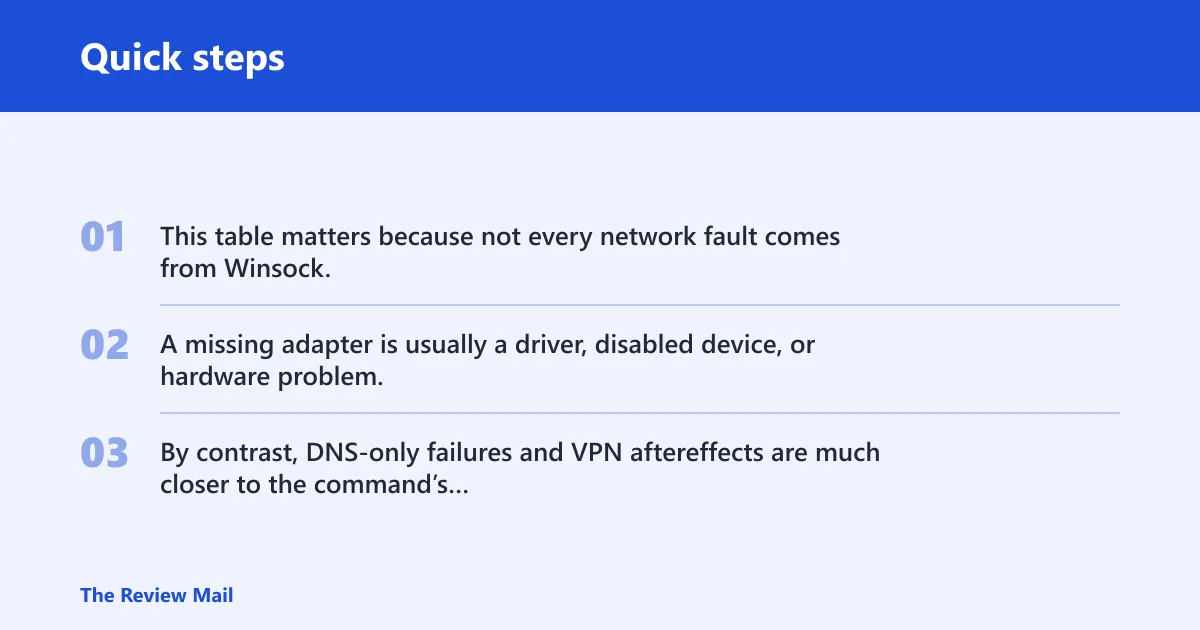
This table matters because not every network fault comes from Winsock. A missing adapter is usually a driver, disabled device, or hardware problem, not a Winsock-only failure. By contrast, DNS-only failures and VPN aftereffects are much closer to the command’s strengths.
What to run if internet still fails
If netsh winsock reset does not fix the problem, the next commands to consider are netsh int ip reset and ipconfig /flushdns. Use them for different failure modes: TCP/IP stack repair for broader connectivity problems, and DNS cache clearing when name lookups fail but the link itself is still alive.
TCP/IP reset
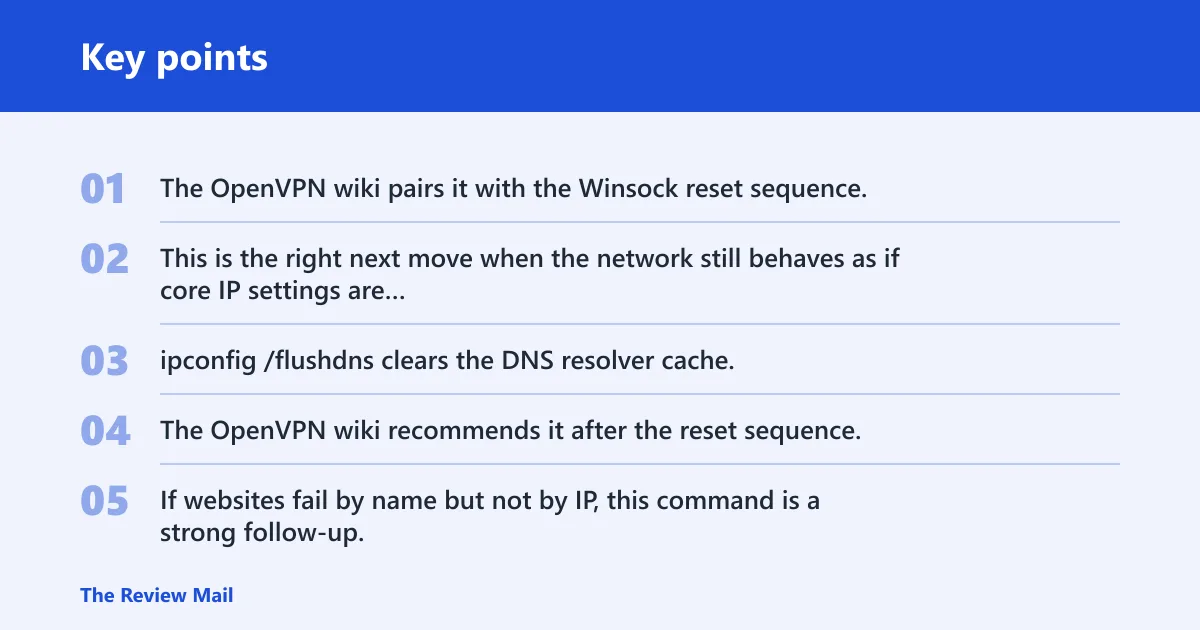
netsh int ip reset repairs the TCP/IP stack. The OpenVPN wiki pairs it with the Winsock reset sequence, and Techlasi recommends it when Winsock reset does not solve the issue. This is the right next move when the network still behaves as if core IP settings are damaged.
DNS flush
ipconfig /flushdns clears the DNS resolver cache. The OpenVPN wiki recommends it after the reset sequence, which fits cases where the system reaches the network but keeps sending old or bad name resolution data. If websites fail by name but not by IP, this command is a strong follow-up.
Suppose a user can ping a gateway address but a browser still cannot reach named sites. That pattern points away from Winsock alone and toward DNS cache or DNS server trouble. Flush DNS first, then move to TCP/IP repair only if the failure still survives.
When to stop and check router or driver issues
If both reset commands fail, stop treating the issue as a Winsock problem. Check the router, the cable or Wi‑Fi link, the adapter driver, and whether the network device is enabled in Windows. If the adapter is missing or disabled, reset commands are secondary to the hardware or driver fault.
When Winsock reset is the wrong fix
Use the command when the symptoms point to broken network hooks or corrupted Winsock state. Do not use it as a blanket answer for every outage. Missing adapter entries, adapter errors in Device Manager, or a network icon that shows no device at all usually point to a different layer of the stack.
Missing adapter symptoms
Canopy IT warns that missing network adapters may be restored by netsh winsock reset, but that should not be treated as the default explanation for a missing interface. If Windows cannot see the adapter, the more likely fixes are driver repair, re-enabling the device, or hardware checks. Winsock repair belongs later in that chain.
That distinction prevents wasted time. A reset that helps a VPN hook will not bring back a disabled Ethernet device.
VPN and security tool follow-up
Third-party VPNs and security tools often install network hooks. After a Winsock reset, those tools may need repair or reinstall so they can rebuild their own network components. Canopy IT also notes that custom settings may need reconfiguration after the reset, which is a reminder to check the software that made the change in the first place.
Files and Wi-Fi passwords
netsh winsock reset does not delete your files or Wi‑Fi passwords. It changes the Winsock catalog, not your documents, saved photos, or wireless credential store. The command is focused on network stack repair, so the main follow-up is a restart, not data recovery.
Frequently asked questions
What does netsh winsock reset do?
It resets the Winsock catalog to its default state. That can clear corruption tied to malformed layered service provider entries, VPN software, firewall tools, or failed network software installs. It does not replace every network setting on the PC, so broader IP or DNS problems may need separate commands.
Why does netsh winsock reset say the requested operation requires elevation?
That message means the shell is not running as administrator. The command needs elevated rights because it changes a system networking component, and standard user prompts are blocked from making that change. Close the current window, reopen it as administrator, and run the command again.
Do I need to restart after netsh winsock reset?
Yes. The reset is not complete until Windows restarts and reloads the network stack. You can use the Start menu or run shutdown /r from an elevated prompt. If you skip the reboot, the repaired catalog may not fully apply to running network processes.
What should I type after netsh winsock reset if internet still does not work?
Try netsh int ip reset next, then ipconfig /flushdns if the problem looks like DNS trouble. If the network adapter is missing or disabled, stop using reset commands and check the driver, Device Manager status, and hardware connection. Those symptoms usually point past Winsock.
Will netsh winsock reset delete my files or wifi passwords?
No. The command does not delete documents, pictures, or Wi‑Fi passwords. It resets the Winsock catalog, which is a network configuration store. If a VPN or security tool depends on custom network hooks, those tools may need repair or reconfiguration after the reboot, but your files stay in place.