Stuck at Restarting Windows 11
If Windows 11 keeps showing “Restarting” for more than about 30 minutes, it may point to an update stall, a crash loop, or a recovery-environment failure. Waiting longer burns time and can leave an update or file repair unfinished. Check whether the disk light still blinks and whether the screen changes at all.
What a restart loop looks like
A long restart can still be normal if Windows is finishing a large update, rolling back a bad one, or rebuilding startup data. The clue is activity: disk blinks, fan speed changes, and the screen eventually moves to the lock screen or sign-in prompt.
Stop waiting when the screen stays on Restarting or a black screen with a spinner for well over 30 minutes and nothing changes. If the machine never reaches the logo, never reaches recovery, or flashes the logo and starts over again, treat it as a loop instead of a slow shutdown.
How to tell a normal long restart from a true loop
- Normal long restart: the disk light blinks, the fan speed changes, or the screen shifts from spinner to logo to sign-in.
- True loop: the same screen returns again and again with no new prompt, no login screen, and no visible progress.
- Recovery failure: Windows never opens Safe Mode or WinRE, or it fails before those tools load.
Say your laptop has a 512 GB SSD, the fan quiets after five minutes, and the spinner still moves. That can fit a slow update finish. If the screen has shown the same “Restarting” message for about 40 minutes with no disk blink at all, move from waiting to recovery steps. That is the point to move from waiting to recovery steps.
Windows restart table
Use the symptom pattern first. Then match the most likely cause and take only the first safe action in the row. The last column shows what to avoid until you know more.
| Symptom pattern | Most likely cause | First action | Do not do yet |
|---|---|---|---|
| stays on restarting for under 15 minutes | likely a normal update finish or disk-heavy shutdown | wait while watching for disk activity, fan changes, or a screen change | do not force power off yet |
| loops after Windows Update | update component problem or a failed cumulative update | check update history when Windows opens, or go to recovery if it does not | do not clear random folders before confirming the update path |
| loops after driver install | graphics, storage, or chipset driver rollback problem | enter Safe Mode and remove the last driver or app change | do not reinstall the same driver first |
| cannot reach Safe Mode | deeper boot corruption, recovery failure, or firmware issue | check BIOS/UEFI settings and boot order, then use recovery media if needed | do not keep cycling normal boots for hours |
| restarts after BIOS/UEFI change | Secure Boot or boot-order mismatch | undo the last firmware change and verify Secure Boot | do not keep changing multiple firmware settings at once |
Why is Windows 11 stuck restarting?
Most often, the trigger is a recent change: Windows Update, a new driver, a startup setting, or a firmware change. Less commonly, missing or corrupt OS files, malware, overheating, or a bad Group Policy setting can keep the machine cycling instead of loading normally.
Windows Update and recent changes
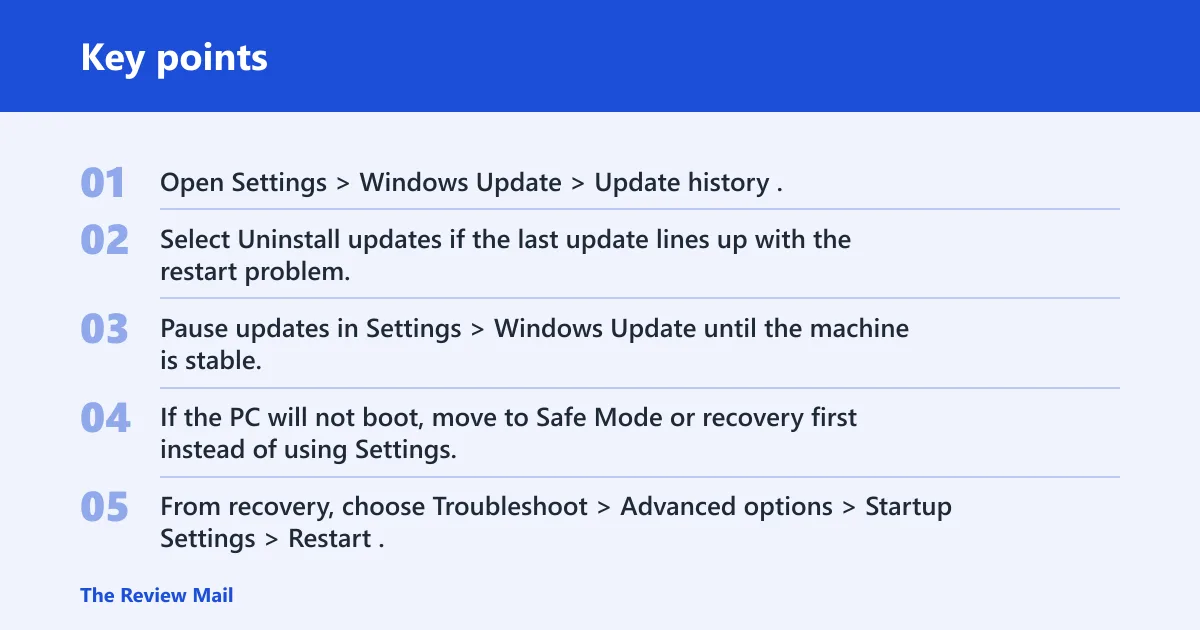
A failed cumulative update can leave Windows trying to finish, roll back, or repair the same components on repeat. If Windows still opens, check Settings > Windows Update > Update history and note the last successful or failed item before changing anything else.
- Open Settings > Windows Update > Update history.
- Select Uninstall updates if the last update lines up with the restart problem.
- Pause updates in Settings > Windows Update until the machine is stable.
- If the PC will not boot, move to Safe Mode or recovery first instead of using Settings.
Driver installs and rollback points
A graphics, storage, or chipset driver can push the machine into a reboot loop, especially if the loop began right after installation. Safe Mode is the first recovery environment to try because it loads a smaller driver set and gives you a clean place to remove the last change.
- From recovery, choose Troubleshoot > Advanced options > Startup Settings > Restart.
- Press the key for Safe Mode or Safe Mode with Networking.
- Open Device Manager, find the newest driver, and choose Uninstall device or Roll Back Driver if available.
- If an app install happened at the same time, remove that app from Settings > Apps > Installed apps after Windows boots.
Firmware, boot settings, and Secure Boot
If the problem started after a BIOS or UEFI change, check the firmware first. Secure Boot misconfiguration can contribute to restart issues, and a wrong boot order can send the system back into a loop before Windows loads.
- Enter BIOS/UEFI setup using the manufacturer key during power on.
- Verify Secure Boot is set as expected for that system.
- Check the boot order and move the Windows drive above removable media.
- Undo the last firmware change if the restart issue began immediately afterward.
What should you do if Windows Update caused it?
If Windows boots, use the update history path and remove the last failed update before anything more invasive. If it does not boot, go to recovery tools first; the Settings path does not help until Windows loads far enough to open the desktop or Start menu.
Update services and cache to check
When the pattern points to Windows Update, the nearby services matter: Background Intelligent Transfer Service and Windows Update Medic Service can keep repair activity moving in the background, and a damaged update cache can keep the same failed state returning after reboot.
- Open
services.mscfrom Run or the Start search box. - Find Windows Update and Background Intelligent Transfer Service, then restart both services if they are stopped.
- Check whether Windows Update Medic Service is running or recovering update components in the background.
- If Windows opens, rename the SoftwareDistribution folder after stopping the update services, then start them again.
Can Safe Mode fix a pc stuck on restarting?
Yes. Safe Mode often fixes a machine that cannot complete a normal boot because it removes most third-party drivers and startup items from the path. It is also the best place to remove a bad driver, scan for malware, and undo a recent app or startup change.
Enter Safe Mode from recovery
- From the recovery screen, select Troubleshoot.
- Choose Advanced options.
- Select Startup Settings, then choose Restart.
- Press the number key for Enable Safe Mode or Enable Safe Mode with Networking.
Remove the last driver or app change
- Open Device Manager.
- Right-click the newest driver category that matches the timing of the restart problem.
- Select Uninstall device or Roll Back Driver.
- Remove the most recent app from Settings > Apps > Installed apps if the loop began after an install.
Run malware and startup checks
- Open Windows Security.
- Run Virus & threat protection and choose a full scan.
- Open Task Manager > Startup apps and disable recent nonessential entries.
- Restart normally and see whether the loop is gone.
How do you repair Windows files?
Use SFC and DISM when the loop points to missing or corrupt OS files, or when startup instability keeps returning after a normal rollback. If Windows still loads, run the tools from the installed system first. If it does not, use offline paths from WinRE.
Run SFC and DISM from Windows
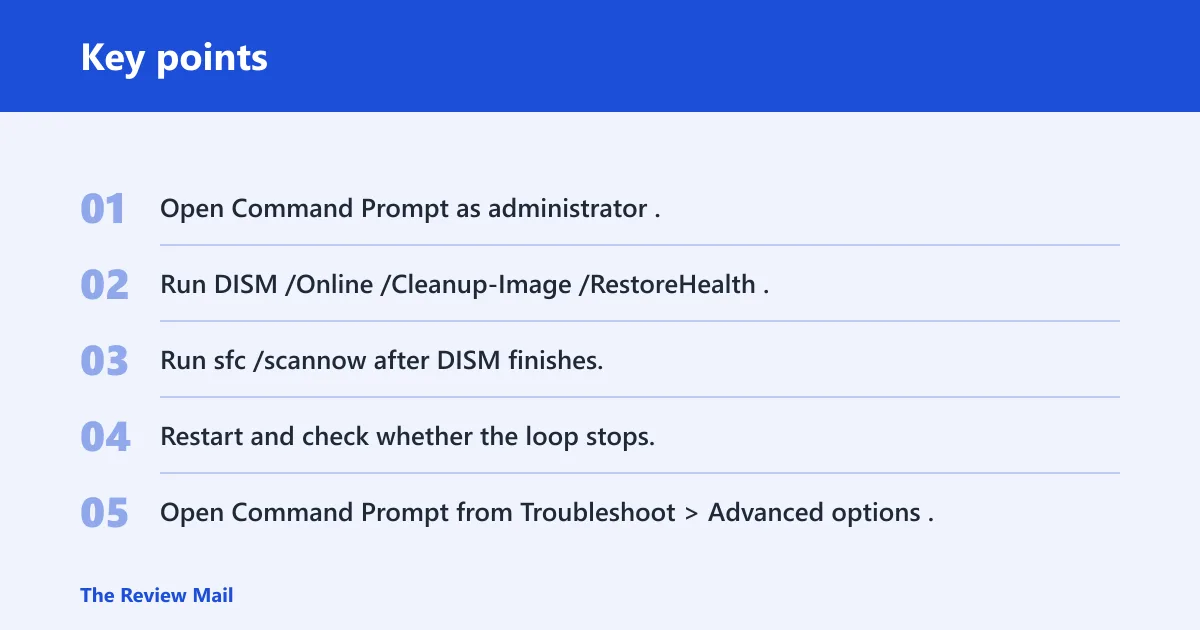
- Open Command Prompt as administrator.
- Run
DISM /Online /Cleanup-Image /RestoreHealth. - Run
sfc /scannowafter DISM finishes. - Restart and check whether the loop stops.
Run offline SFC from WinRE with the right paths
Plain sfc /scannow inside recovery can scan the recovery environment instead of the installed Windows folder. In WinRE, point SFC at the offline Windows and boot partitions with the correct /offbootdir and /offwindir paths.
- Open Command Prompt from Troubleshoot > Advanced options.
- Find the Windows drive letter and the system drive letter.
- Run a command in this form:
sfc /scannow/offbootdir=C:\ /offwindir=C:\Windows, replacing the letters if needed. - If SFC reports damage it cannot fix, run
DISM /Image:C:\ /Cleanup-Image /RestoreHealthwith the correct offline Windows path.
Reset update components when repair fails
If the loop still tracks back to update repair, the cache and related services deserve another pass. WaaSMedicSvc can restore broken update state in the background, while a damaged SoftwareDistribution cache can keep old update data in circulation.
- Stop Windows Update, Background Intelligent Transfer Service, and related update services from
services.msc. - Rename SoftwareDistribution to a backup name such as SoftwareDistribution.old.
- Restart the services.
- Reboot and let Windows rebuild the update cache.
Why check BIOS, UEFI, and Secure Boot?
Firmware problems belong high on the list when the restart started right after a BIOS or UEFI change, or when Windows never gets far enough to load Safe Mode. Secure Boot misconfiguration, wrong boot order, or a device that now conflicts with firmware settings can send the machine back to Restarting.
Undo the last firmware change
- Enter BIOS/UEFI setup during startup.
- Load the previous firmware setting if the interface offers a restore or default option.
- Recheck the last change made before the loop began.
- Save and exit once the settings match the known-good state.
Verify Secure Boot and boot order
- Open the firmware setup screen.
- Confirm Secure Boot is set correctly for the device.
- Make sure the Windows drive is first in boot order.
- Remove USB drives and memory cards during testing.
Remove nonessential peripherals
- Shut down the PC.
- Disconnect external drives, printers, hubs, and other extras.
- Start again with only keyboard, mouse, and display connected.
- If the system boots, reconnect devices one at a time.
If that didn’t work, try this next
If Safe Mode, file repair, and firmware checks do not help, move to a recovery path that preserves files first. Back up personal data from recovery media or another machine before trying a repair install, an in-place reset, or vendor service, especially if the system cannot boot past recovery.
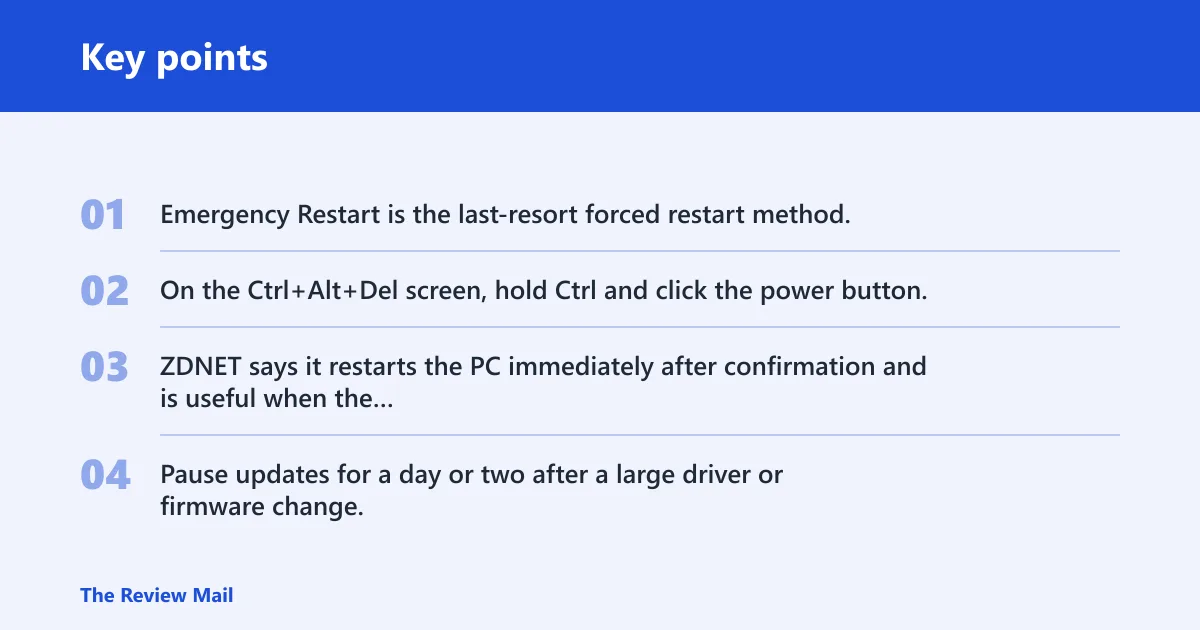
Emergency Restart is the last-resort forced restart method. On the Ctrl+Alt+Del screen, hold Ctrl and click the power button. ZDNET says it restarts the PC immediately after confirmation and is useful when the computer is frozen and responds only to that screen.
Pause updates for a day or two after a large driver or firmware change, so you can see which change caused the problem if the restart loop returns.
Frequently asked questions
What to do if windows is stuck on restarting
Wait while watching for disk activity and screen changes, but stop after about 30 minutes if nothing advances. Then use Safe Mode, check the latest update or driver change, and run SFC or DISM if Windows can boot or if you can reach WinRE with the right offline paths.
Why is my windows 10 stuck on restarting?
The same causes apply on Windows 10 and Windows 11: update trouble, a bad driver, corrupt system files, firmware mismatch, or malware. Start with the last change, then check Safe Mode and update history before moving to repair commands or firmware settings.
What to do if windows is stuck restarting
Use the symptom pattern to choose the next step. If it follows an update, inspect update history or repair update components. If it follows a driver install, go to Safe Mode and remove that driver. If it follows a firmware change, verify Secure Boot and boot order first.
How long should windows 11 stay on restarting before it’s a problem?
A restart that lasts under 15 minutes can still be normal on a busy or updated system. Once you pass roughly 30 minutes with no disk activity, no fan change, and no screen progress, treat it as a loop and move to recovery instead of waiting longer.
How do I force restart a laptop stuck on restarting windows 11?
If the laptop responds to Ctrl+Alt+Del, use Emergency Restart: hold Ctrl and click the power button on that screen. If it does not respond at all, hold the physical power button as a last resort, then boot into recovery or Safe Mode on the next start.
What should I do if windows 11 is stuck restarting after update?
If Windows still opens, go to Settings > Windows Update > Update history > Uninstall updates and remove the last problematic update. If Windows does not open, use recovery, check update services like BITS, and inspect the SoftwareDistribution cache before trying another normal boot.