0xc004c004 Windows 11: What It Means and How to Fix It
Error 0xC004C004 in Windows 11 Pro can appear after a repair install, update, or edition change when activation fails and Windows no longer accepts the current license state. The first step is not reinstalling. Check the edition, the activation status, and the license path side by side.
Check Settings > System > Activation first. The quickest fix is usually to confirm the edition, then compare it with the license path you actually own.
Quick answer
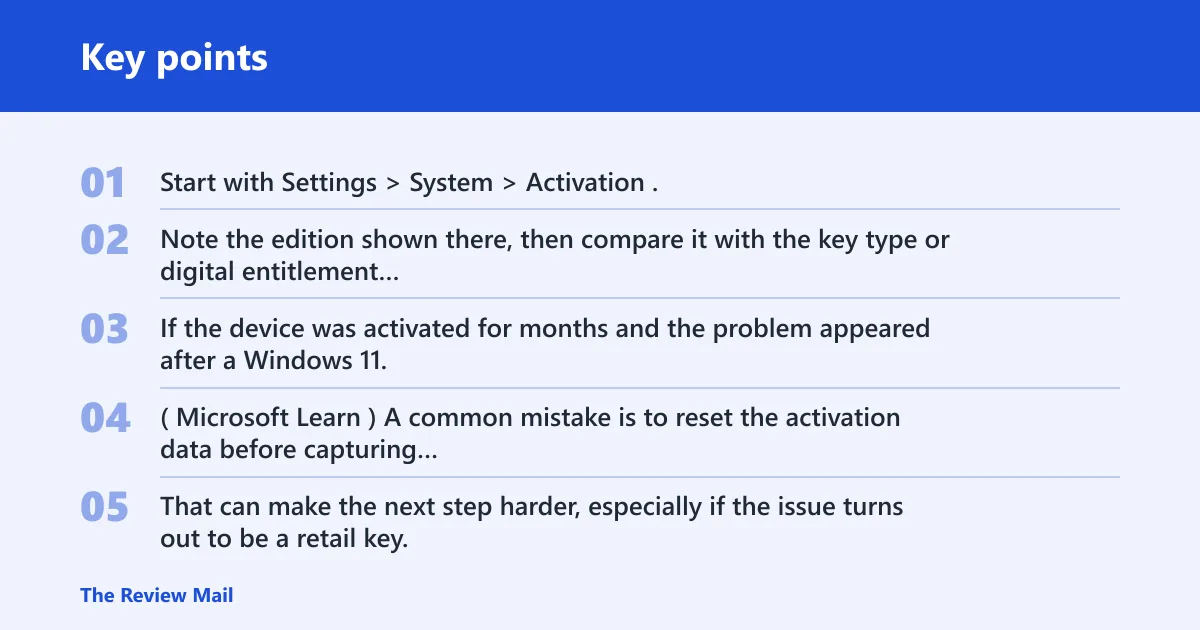
Start with Settings > System > Activation. Note the edition shown there, then compare it with the key type or digital entitlement tied to the device. If the device was activated for months and the problem appeared after a Windows 11, version 25H2 repair update, treat that change as the trigger, not proof of a new license. (Microsoft Learn)
A common mistake is to reset the activation data before capturing the 0xc004c004 error code and any related license details. That can make the next step harder, especially if the issue turns out to be a retail key, a Microsoft-account-linked digital license, or an OEM entitlement check that needs support from the seller or Microsoft.
Likely causes
Most often, 0xC004C004 comes down to a license state that no longer matches the edition or activation path Windows is trying to use. Less often, the issue is an organization-managed device, a missing digital license, or a firmware-based OEM entitlement that Windows is not reading the way it expects.
Use the order below. Start with the least invasive check, then move to stronger fixes only if the evidence points there.
0xc004c004 windows 11 decision table
| Activation symptom | slmgr /dlv channel | Firmware key present | Microsoft-account license status | Most likely fix | Safest next step |
|---|---|---|---|---|---|
Windows 11 Pro shows 0xC004C004 after repair/update | OEM:DM | No | No digital license found | OEM entitlement is not being recovered | Save the Activation page and slmgr /dlv output, then check OEM firmware support and seller records |
| Windows 11 Pro is unactivated, but the same Microsoft account previously activated it | Any non-organization result | Not relevant | License linked | Digital license recovery | Run the troubleshooter and sign in with the same Microsoft account |
| Key was purchased separately and edition does not match | Retail or unclear | Usually not needed | No linked license | Retail key or edition mismatch | Verify the installed edition, then try the purchased key in Activation |
| PC was prebuilt, but firmware shows no readable OEM key | OEM:DM or unclear | No readable key | No linked license | OEM path cannot be confirmed from the device alone | Collect proof from the seller or manufacturer before reinstalling |
| Windows 11 Pro was working for months, then failed after 25H2 repair install | Any result | Any result | License linked or missing | Repair install exposed an existing mismatch | Compare edition, key type, and account-linked license before changing hardware or wiping the PC |
Does the edition match?
Check the installed edition in Settings > System > Activation and compare it with the license you actually own. On a Windows 11 Pro device, the key or entitlement needs to match Pro, not Home or another edition. If those do not match, activation can fail even when the device itself is fine.
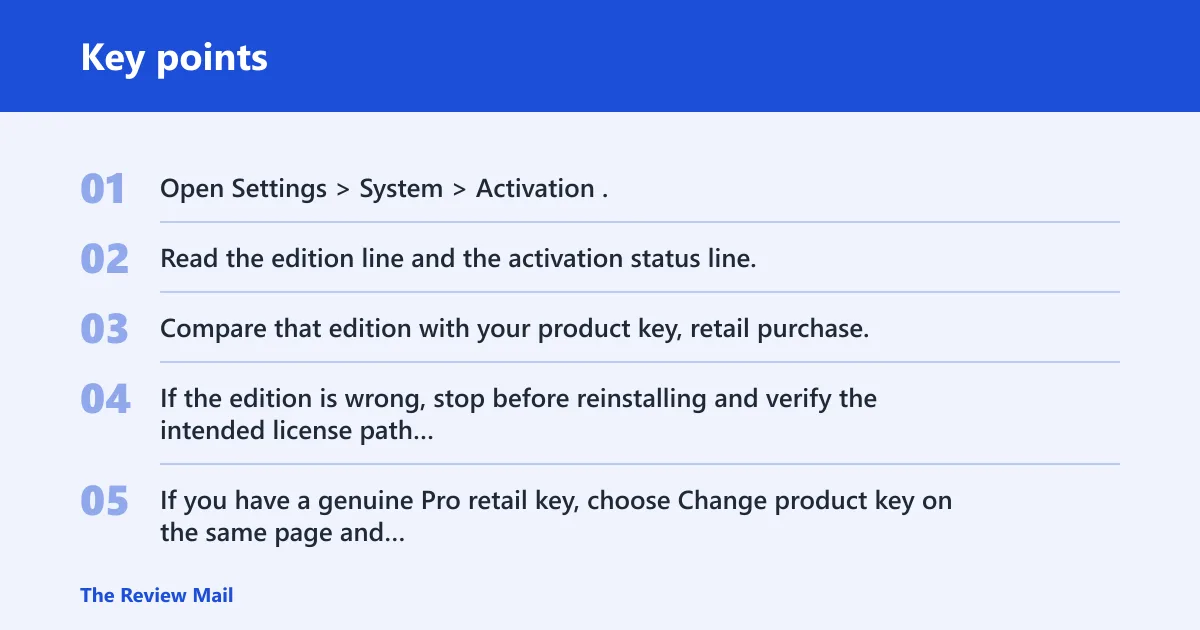
- Open Settings > System > Activation.
- Read the edition line and the activation status line.
- Compare that edition with your product key, retail purchase, or Microsoft-account-linked license.
- If the edition is wrong, stop before reinstalling and verify the intended license path first.
- If you have a genuine Pro retail key, choose Change product key on the same page and enter it exactly as supplied.
If the device was upgraded from another edition, the safer path is to confirm the target license first. Say your system now shows Pro after a repair install, but the only key you own is for Home. That mismatch needs correction before any deeper recovery step.
What does slmgr /dlv show for 0xC004C004?
slmgr /dlv is a useful diagnostic command, but it is evidence, not a final verdict. It shows license details such as the product key channel and the current activation state, which can help you compare what Windows reports with what you expect the device to use.
Open an elevated Command Prompt
Type: slmgr /dlv
Press Enter
Review the license channel, activation status, and notification reason
If the output shows OEM:DM, that points to an OEM entitlement path tied to the device firmware, not to the original image. In the reported case, the output also showed notification reason 0xC004F034. That is another clue that activation is failing, but it does not replace a firmware or account check.
- Open Command Prompt as administrator.
- Run
slmgr /dlv. - Save the window text so you can compare it with Activation settings later.
- Look for the product key channel and notification reason.
- If the result is unclear, use it as supporting evidence and move to the firmware and account checks.
Can the activation troubleshooter recover a digital license after 0xC004C004?
The activation troubleshooter can recover a Microsoft-account-linked digital license, but only if that entitlement already exists for the device. In the case at hand, the troubleshooter could not find a digital license, which means the next step is to verify the account, the edition, and whether the license came from a previous purchase or upgrade path.
- Go to Settings > System > Activation > Troubleshoot.
- Review whether it says a digital license was found.
- If nothing is found, sign in with the Microsoft account that previously activated the device.
- Run the troubleshooter again after that sign-in.
- If the license came from a previous edition or Microsoft Store purchase, follow that path before buying anything new.
Suppose the PC had activated cleanly for months, then lost activation after the repair update. If the same account still shows no digital license, the problem may be that the current install no longer matches the activation history the account carries.
How do I tell if my Windows key is OEM:DM or retail?
Run slmgr /dlv and read the product key channel it reports. If it says OEM:DM, that is the OEM device-manufacturing channel, which usually means the key is meant to be stored in firmware by the manufacturer. If the key was bought separately, treat it as retail and compare it to the installed edition.
- Open an elevated Command Prompt.
- Run
slmgr /dlv. - Look for the product key channel line.
- Check whether the device was prebuilt and whether the seller said the license was embedded.
- If the key was bought separately, validate the edition and key details before assuming the hardware is at fault.
For a firmware check, look in the system firmware setup for a stored OEM key or consult the manufacturer’s support tools. A blank result does not always prove the device was never licensed that way, because some systems will not expose that value in a simple check.
What if Windows says the OEM key is missing from BIOS?
A missing firmware key means you should not assume the machine can still recover through the OEM path. It also does not prove the device was never licensed as an OEM system. Some legitimate activations depend on a digital entitlement or on manufacturer records rather than a readable key in firmware.
- Check Settings > System > Activation for edition and status.
- Run
slmgr /dlvand save the output. - Check whether the Microsoft account has a linked digital license.
- Review purchase records, system documentation, or the seller’s activation details.
- If no recovery path appears, collect the evidence before considering a reinstall.
Picture a prebuilt desktop that shipped with Windows 11 Pro, then failed after a repair install. If firmware lookups come back empty and the troubleshooter finds nothing, the useful next move is to document the activation state, not to keep toggling settings at random.
Do you need to reinstall Windows after activation error 0xC004C004?
Not always. Reinstalling is the last step, not the first one. If the license can be recovered through a Microsoft account, a genuine retail key, or manufacturer support, that is usually safer than wiping the system and hoping the same problem disappears.
- Save the Activation page status.
- Save the
slmgr /dlvoutput. - Confirm the edition, key type, and account-linked license path.
- If those do not line up, back up your data before any clean installation.
- If you do need a new license, the advisor in the case recommended a standalone BOX or ESD Windows license and a clean installation with a genuine key.
For prevention, keep a record of the edition, the Microsoft account used for activation, and the purchase channel before a repair install or major update. That makes it much easier to compare the old state with the new one if activation breaks again.
Still not working?
If the page still shows 0xC004C004 after the checks above, move to a more invasive step only after you have the evidence saved. That means the Activation page, slmgr /dlv output, edition, firmware findings, and the troubleshooter result. With those in hand, support can tell whether you are dealing with OEM firmware, a digital license, a retail key, or an organization-managed setup.
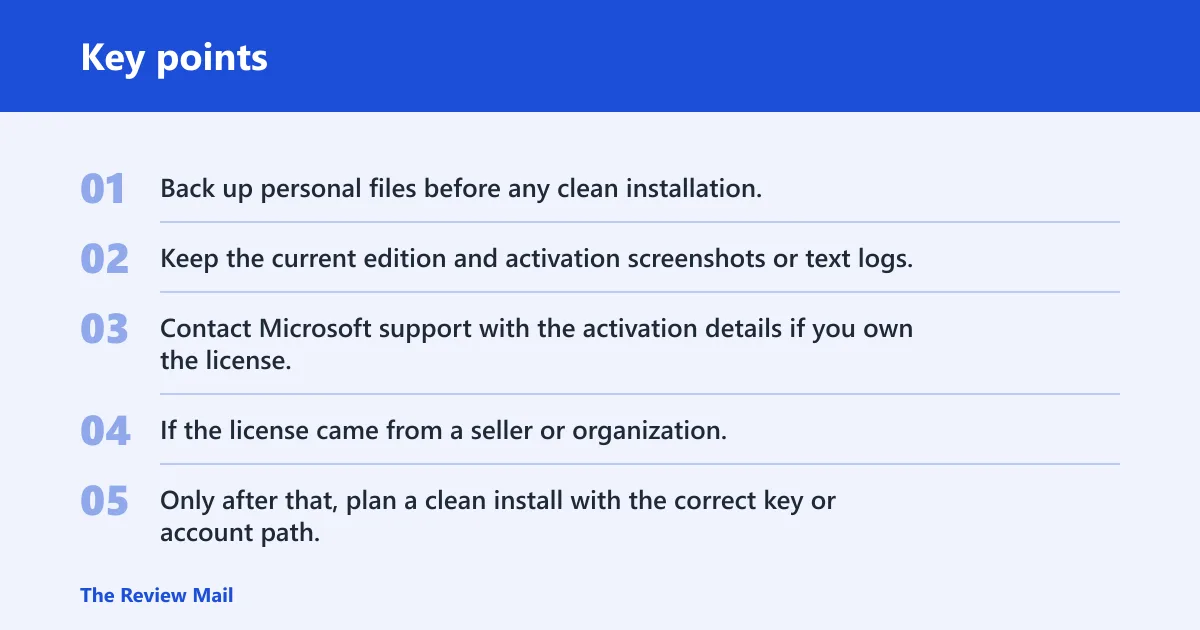
- Back up personal files before any clean installation.
- Keep the current edition and activation screenshots or text logs.
- Contact Microsoft support with the activation details if you own the license.
- If the license came from a seller or organization, ask them to verify the entitlement path.
- Only after that, plan a clean install with the correct key or account path.
Frequently asked questions
What does error 0xC004C004 mean in Windows 11?
It means Windows cannot complete activation with the license state currently on the device. Check Settings > System > Activation first, then compare the edition and the license path. If the device was working before and failed after a repair update, keep the old activation evidence before changing anything else.
How do I fix Windows 11 activation error 0xC004C004?
Start with Settings > System > Activation > Troubleshoot, then run slmgr /dlv from an elevated Command Prompt. If the edition and license type do not match, use Change product key for a valid retail key or sign in with the Microsoft account linked to the digital license.
Why did Windows 11 Pro stop activating after a repair install?
A repair install can expose a license mismatch that was already there, or it can make Windows recheck activation details more strictly. Compare the installed edition, the Microsoft account used for activation, and the channel shown by slmgr /dlv. Do that before deciding on a clean install.