Windows Activation Error 0x80072ee7
Windows activation error 0x80072ee7 usually means Windows cannot reach the server name it needs, so it is worth checking DNS, proxy, the hosts file, or basic connectivity first before retrying activation. If you skip that layer, activation, Microsoft Store, and licensing checks can keep failing even though the device is online. This guide separates Store, activation, and enterprise KMS/MAK paths so you can fix the right failure fast.
What 0x80072ee7 means
This code points to name resolution, not a product-key verdict. The same error can appear in Windows activation, Microsoft Store, or Windows Update when the PC cannot translate a Microsoft server name into a usable route, or when something local blocks that lookup. Windows 10 and Windows 11 both show it in those cases (per Microsoft support).
Fastest first move: confirm the PC can reach the internet, then check whether the DNS server can resolve Microsoft domains before you change anything more invasive.
Likely causes and first checks
Most often, the problem is DNS or a local override. Less commonly, proxy settings, a firewall test failure, or a bad hosts-file entry blocks the request. If none of those are present, the error may be an activation server reachability issue, a Store sign-in issue, or a Windows Update component problem.
- Open a browser and load a normal website to confirm the connection is live.
- Check the adapter’s DNS settings and see whether it uses a manual server.
- Open Internet Options > Connections > LAN settings and look for proxy settings that should not be there.
- Inspect the hosts file at
C:\Windows\system32\drivers\etcfor static Microsoft entries. - If the same network blocks Store, Update, and activation, move to the section that matches the failing app or feature.
Say your Windows 10 laptop reaches websites fine, but activation fails after a router change. That usually points to DNS or proxy settings, not the product key itself.
How do you fix Windows activation error 0x80072ee7?
Start with the activation type. KMS and MAK behave differently, and Windows activation checks on Windows 10 and Windows 11 can fail for different reasons: server connectivity, licensing validation, or a local name-resolution block. If the device is managed, escalation may be faster than local cleanup (per Microsoft support).
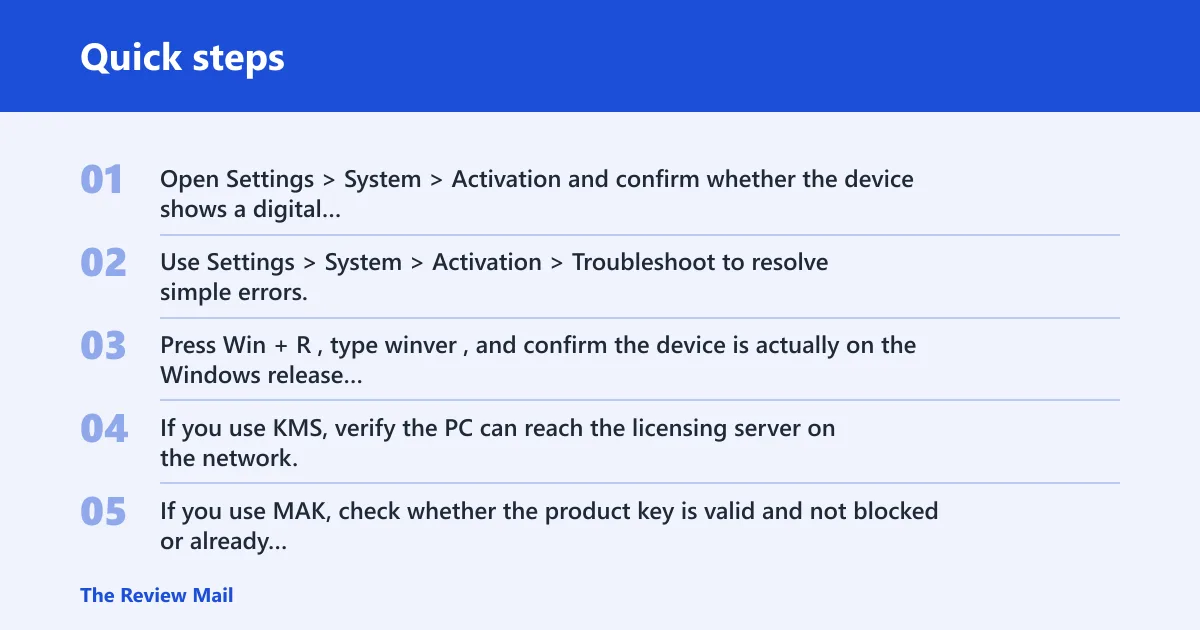
- Open Settings > System > Activation and confirm whether the device shows a digital license or asks for a key.
- Use Settings > System > Activation > Troubleshoot to resolve simple errors.
- Press Win+R, type winver, and confirm the device is actually on the Windows release you expect.
- If you use KMS, verify the PC can reach the licensing server on the network.
- If you use MAK, check whether the product key is valid and not blocked or already exhausted.
Activation status: Settings > System > Activation
Activation troubleshooter: Settings > System > Activation > Troubleshoot
slmgr /xpr
slmgr /ipk <key>
slmgr /ato
A common first-time mistake is to keep retrying activation while the PC is still pointed at a dead DNS server. If the server name never resolves, the license check never starts.
What to do for KMS and MAK
KMS needs network reachability to the KMS host. MAK needs a valid key and Microsoft-side validation. Microsoft lists several activation codes for error-based troubleshooting, including 0xC004F074, 0xC004C008, 0xC004C003, and 0x8007232B; Microsoft says 0x8007232B means the DNS name does not exist, while 0xC004F050 means the product key is invalid and 0xC004C003 means the specified product key is blocked. (Microsoft Learn)
If the code changes after a retry, use the new code, not the old one. That matters because activation problems can move from a DNS failure to a licensing failure once name resolution is fixed.
Why does Microsoft Store show 0x80072ee7?
For Microsoft Store, this code usually means the Store cannot reach Microsoft services, sign-in endpoints, or app-package update servers. That is a different path from activation, even though the same number appears. Re-registering the Store package and clearing a bad cache often helps when the network itself is fine.
- Sign out of the Microsoft account in the Store, then sign back in.
- Reset the Store cache with wsreset.exe.
- Open PowerShell as administrator and re-register the Microsoft Store package if it still fails.
- Try a small app update again to see whether the same network blocks other Microsoft services.
Suppose a Windows 11 PC opens the Store, but one app update fails with 0x80072ee7 while activation still works. That points more toward Store connectivity than a licensing problem.
Windows Update fixes
Windows Update can throw the same code when its services or component store cannot reach Microsoft servers. Resetting the update stack is an admin-only step, and it is separate from Store or activation repair. If you are already seeing update-check failures, use the update path first rather than editing activation settings (per Microsoft support).
- Open an elevated Command Prompt.
- Run these commands:
net stop wuauserv
net stop cryptsvc
net stop bits
net stop msiserver
- Rename SoftwareDistribution and Catroot2.
- Restart the services with the matching net start commands.
- Run
sfc /scannowin the same administrator Command Prompt, then reboot.
SFC checks system files, not network names, so it is a repair step after the connection layer is already suspect. Use it after the update reset, not before it.
DNS settings to check first
DNS is the first place to look because it decides whether Windows can translate Microsoft server names at all. A manual IPv4 DNS entry can be correct, wrong, or stale. If your network policy allows it, a reversible test with Google DNS values 8.8.8.8 and 8.8.4.4 can show whether the current resolver is the problem.
- Open Settings > Network & Internet > Advanced network settings > More network adapter options.
- Open the adapter properties, then select Internet Protocol Version 4 (TCP/IPv4).
- Set the preferred and alternate DNS servers to 8.8.8.8 and 8.8.4.4.
- Run
ipconfig /flushdnsin Command Prompt. - Retry activation, Store, or Update, then return DNS to automatic if your network requires it.
Can incorrect DNS settings cause activation failures? Yes. If the resolver cannot name the licensing endpoint, Windows cannot complete the check, even when the device has internet access.
Proxy, firewall, and hosts file
Proxy settings and local filtering tools can block Microsoft endpoints after DNS has already worked. A short firewall test is fine, but only as a temporary check. The hosts file is another common trap because a static entry can point a Microsoft domain to the wrong address or to nowhere at all.
- Open Internet Options > Connections > LAN settings and clear any proxy setting that should not be there.
- Temporarily disable the firewall for a brief test, then restore it immediately after the check.
- Open
C:\Windows\system32\drivers\etc\hostsin Notepad as administrator. - Remove any static Microsoft entries that could block activation, Store, or Update traffic.
- Retry the failing action after each change so you know which layer fixed it.
Do you need to change your hosts file to fix 0x80072ee7? Only if it contains a bad entry. Leave it alone if it is clean; the goal is to remove false routing, not to add new entries.
Windows activation decision table
Use this table to match the symptom to the next exact step. It keeps Windows activation separate from Microsoft Store and Windows Update, and it marks whether the action is safe, reversible, or admin-only.
| Symptom | Most likely cause | Exact next step |
|---|---|---|
Activation fails with 0x80072ee7 after a network change | DNS resolution or proxy block | Safe, reversible: set IPv4 DNS to 8.8.8.8 and 8.8.4.4, then run ipconfig /flushdns and retry Settings > System > Activation. |
| Windows says it cannot activate a KMS-based Pro or Enterprise PC | KMS host unreachable or name cannot be resolved | Admin-only: verify the device can reach the KMS server, then run slmgr /xpr and retry activation. |
| Activation reports a MAK problem after entering a key | Key blocked, invalid, or not accepted | Safe: confirm the key status in Settings > System > Activation; if the code changes to a known activation code, follow the matching Microsoft step. |
Microsoft Store shows 0x80072ee7 while downloads fail | Store package or account sign-in problem | Safe, reversible: sign out/in, run wsreset.exe, then re-register the Store package if needed. |
| Windows Update check fails with the same code | Update services or component store issue | Admin-only: stop wuauserv, cryptsvc, bits, and msiserver; rename SoftwareDistribution and Catroot2; run sfc /scannow and reboot. |
| Local fixes all pass, but activation still fails on a managed device | Licensing policy or server-side issue | Escalate: use SaRA for Enterprise, Professional, or Server editions, or hand the case to IT for KMS, MAK, or policy review. |
Microsoft Learn says SaRA targets Enterprise, Professional, or Server editions, and it includes targeted solutions for known activation codes. That makes it the right next step when local network checks pass but activation still fails.
What if the error happens after upgrading to Windows 10 or 11?
After an upgrade, activation can fail because the device is not fully on the expected release, or because the license state has not refreshed yet. On Windows 11, Microsoft says to confirm the device is up to date and actually running Windows 11 before chasing deeper activation steps (per Microsoft support). On Windows 10, the same logic applies to the edition and build state.
- Open Winver from the taskbar search box and verify the installed version.
- Go to Settings > System > Activation and run the troubleshooter.
- If the upgrade changed the error code, follow the new code, not the old one.
What should you check first when Windows says it can’t connect to the server? Check the network path, then DNS, then proxy settings. That order avoids wasting time on licensing or repair steps before the PC can reach the endpoint at all.
Still not working?
If DNS, proxy, firewall, hosts-file, Store, and Windows Update checks all pass, move to the next layer instead of repeating the same fixes. For activation, that means SaRA on supported editions, or IT/admin review for KMS, MAK, or policy-controlled devices. For Windows Update or Store, a repair install or deeper service review may be the next move.
Keep custom DNS, proxy, and hosts-file changes documented so you can undo them quickly when Microsoft services stop resolving again.
Frequently asked questions
How do I fix error code 0x80072ee7 in Windows 10?
Start in Settings > System > Activation, then verify DNS, proxy, and hosts-file entries before anything else. If the problem is update-related instead, reset wuauserv, cryptsvc, bits, and msiserver, rename SoftwareDistribution and Catroot2, then run sfc /scannow and reboot.
Why does Windows 11 activation show error 0x80072ee7?
Windows 11 can show it when activation cannot reach the licensing server name or when the device is not fully current. Microsoft says to confirm the PC is up to date and running Windows 11, then use Settings > System > Activation > Troubleshoot before moving to deeper checks.
Is 0x80072ee7 a DNS problem or an activation problem?
It can be both, but DNS comes first. If the name cannot resolve, activation never completes; if DNS is fine, the error may point to licensing validation, Store connectivity, or a blocked Microsoft endpoint. Check the network path before treating it as a key problem.
Does a firewall or proxy cause 0x80072ee7?
Yes, especially when Windows can browse the web but Microsoft services fail. Check Internet Options > Connections > LAN settings for proxy settings, and use only a short firewall disable test before restoring protection. Then retry activation, Store, or Update immediately.
Can incorrect DNS settings cause activation failures?
Yes. For a quick test, set the adapter’s IPv4 DNS servers to 8.8.8.8 and 8.8.4.4, then run ipconfig /flushdns and try again. If that works, the original resolver was the problem and you can return to the network’s required DNS later.
Should I run SFC or reset Windows components for this error?
Run sfc /scannow after you have already checked DNS, proxy, and the hosts file. Reset Windows Update components only when the failure is tied to update checks, not when activation alone is failing. Keep each repair tied to the subsystem that actually broke.