Ipconfig Dns Flush Windows 11
Run ipconfig /flushdns on Windows 11 when websites fail to resolve, the DNS cache is stale, or you get a new DNS fix and old results keep returning; if the problem survives one flush, the fault is usually DHCP, VPN DNS, the Hosts file, or the router. Missing that split wastes time and keeps you on the wrong fix. This guide shows the exact cases where a flush helps, how to check each likely cause, and what to change next.
What ipconfig /flushdns does
ipconfig is the Windows command-line tool you run in Command Prompt to inspect and change TCP/IP settings. On Windows 11, it can show IPv4 address, IPv6 address, subnet mask, and default gateway, and it can also change DNS and DHCP-related state.
ipconfig /flushdns clears the DNS client resolver cache and resets it. That cache stores recently obtained resource records and also includes Hosts file entries. Windows keeps it so repeated name lookups can finish faster. Flushing it also clears negative cache entries, which matters when a name failed once and that failure got cached.
This command does not reset the full network stack. It generally does not change your IP address, gateway, adapter driver, Wi-Fi link, or router settings. It only clears the local DNS cache on the PC.
Do you need admin rights? Usually, standard Command Prompt is enough for ipconfig /flushdns. An elevated window is still a safe default if you plan to run other commands next, especially /release, /renew, or /registerdns, because those touch DHCP or registration state.
Open Command Prompt, type the flush command, and check whether the cache changed. That is the short version. If the site still fails after that, move to the next likely cause instead of repeating the same command.
Run the command
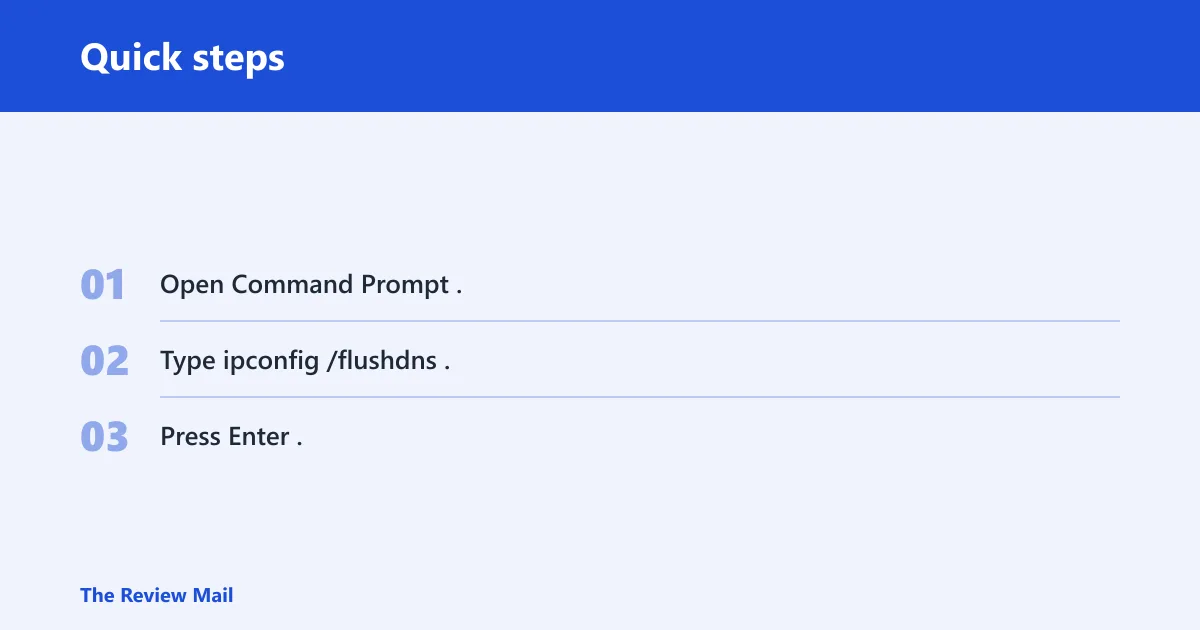
- Open Command Prompt.
- Type
ipconfig /flushdns. - Press Enter.
The command should return a confirmation message that the DNS Resolver Cache was flushed. If you are going on to other adapter commands later, remember that adapter names with spaces need quotation marks in commands that take a specific adapter name.
Check the cache before and after
Use ipconfig /displaydns before and after the flush. That command shows the contents of the DNS client resolver cache, so it gives you a concrete way to confirm that cached entries changed, including entries that were added dynamically.
A common first-timer mistake is flushing DNS and then refreshing the same browser tab without checking anything else. If the page still fails, you need to find out whether the problem is local DNS, a VPN resolver, a browser-only lookup, or the router upstream.
| Symptom | Likely cause | Command to run next | Expected result |
|---|---|---|---|
| Site resolves to an old IP after a recent DNS change | Stale DNS cache entry | ipconfig /flushdns, then ipconfig /displaydns | Old entry disappears or no longer appears in the cache |
| Login page or Wi-Fi portal will not open | Captive portal blocks normal DNS flow | Open the portal by name after ipconfig /flushdns | Portal address resolves and sign-in page loads |
| Internal company names fail only on VPN | VPN DNS or split DNS rule | Disconnect VPN, then compare ipconfig /displaydns | Names resolve on the local network or through the correct VPN resolver |
| Sites fail and the browser says the gateway is unreachable | Wrong default gateway | ipconfig | Default gateway should match the router or network design |
| No internet after refreshing the IP lease | DHCP lease or router issue | ipconfig /release then ipconfig /renew | New IPv4 address, subnet mask, and gateway appear |
| One internal host always resolves to the wrong address | Hosts file conflict | ipconfig /flushdns and check the Hosts file | Cached override clears, or the Hosts file entry is identified |
| Only one browser fails to open sites | Browser cache or DNS-over-HTTPS | Reload in another browser after ipconfig /flushdns | Only the affected browser still fails, which points away from Windows DNS cache |
| Every device on the network is offline | Full outage or router/ISP DNS failure | Check router status, then try a public site by name | No device resolves names until the upstream problem is fixed |
Say your laptop resolves a site to an old address after the host’s DNS record changed an hour ago. A flush can clear that stale answer immediately. Suppose your Windows 11 laptop opens the router page, but a new game launcher keeps showing an old server address until you flush the DNS cache. That points away from the router and toward the Windows 11 client, VPN, or Hosts file.
Why DNS still fails after flushing
If ipconfig /flushdns does not fix the problem, the failure is often outside the local cache. The most common next suspects are VPN DNS, a Hosts file override, browser-only lookup behavior, captive portal rules, or the router and ISP DNS path.
VPN and split DNS
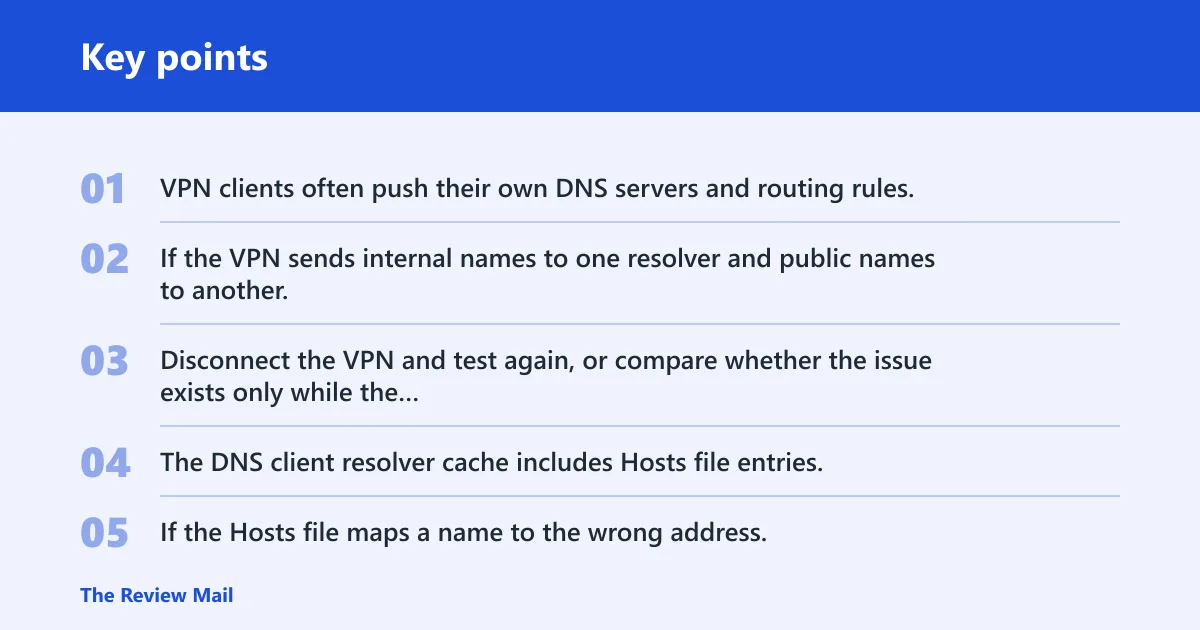
VPN clients often push their own DNS servers and routing rules. If the VPN sends internal names to one resolver and public names to another, flushing the local cache will not fix a bad resolver choice. Disconnect the VPN and test again, or compare whether the issue exists only while the tunnel is active.
Hosts file overrides
The DNS client resolver cache includes Hosts file entries. If the Hosts file maps a name to the wrong address, flushing the cache may not solve the symptom because the override still exists. That is why a persistent wrong answer for one hostname should send you to the Hosts file, not back to the same flush command.
Browser cache and DNS-over-HTTPS
Some browser failures are browser-specific. A browser may keep its own cache, or it may use DNS-over-HTTPS instead of the system resolver. In that case, Windows DNS cache changes may have no visible effect in that one app. Test the same hostname in another browser or in a fresh profile before assuming Windows 11 is the fault.
Router or ISP DNS problems
If every device on the network sees the same failure, the local PC is usually not the real problem. The router may be handing out a bad DNS server, or the ISP resolver may be failing upstream. A flush on the PC cannot repair that path. Check the router’s DNS settings and status first.
Which ipconfig commands help next?
Use the next command that matches the symptom. Do not confuse DNS cache clearing with DHCP renewal. They solve different problems, and Windows 11 often needs one or the other, not both.
Use /release when the current lease looks wrong
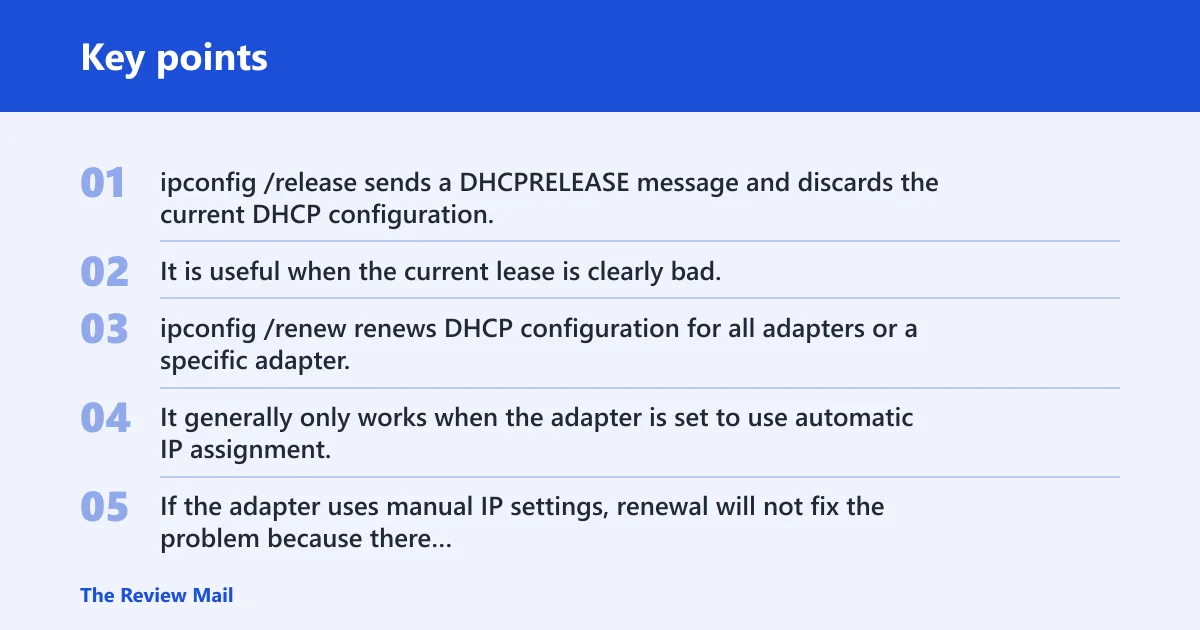
ipconfig /release sends a DHCPRELEASE message and discards the current DHCP configuration. It is useful when the current lease is clearly bad, such as an address conflict or a stale lease that no longer matches the network.
Use /renew for a fresh DHCP lease
ipconfig /renew renews DHCP configuration for all adapters or a specific adapter. It generally only works when the adapter is set to use automatic IP assignment. If the adapter uses manual IP settings, renewal will not fix the problem because there is no DHCP lease to refresh.
Use /release and /renew when Windows shows a broken IPv4 address, missing gateway, or no valid lease after reconnecting. If the adapter is configured for automatic IP assignment, a new address, subnet mask, and gateway should appear after renewal.
Use /registerdns when DNS registration fails
ipconfig /registerdns starts manual dynamic registration for DNS names and IP addresses configured on a computer. That helps when a machine should publish its name but the registration did not complete. It is not a general fix for browsing problems, and it does not replace a cache flush.
ipconfig also supports /all, /showclassid, and /setclassid, but for most Windows 11 recovery work the useful set is small: /displaydns, /flushdns, /release, /renew, and /registerdns.
How is flushdns different from network reset?
ipconfig /flushdns changes only the local DNS resolver cache. A network reset changes much more, including adapter state and related network components. If the only issue is a stale lookup, the flush is the lighter fix. If adapters, leases, or routing are damaged, a broader reset may be needed.
A restart can help only in narrow cases. It may clear a stuck app, refresh a VPN client, or reload a browser. It is less likely to help if the same DNS record is still cached by the router, the Hosts file, or the upstream resolver. Restart after a flush only when the rest of the symptoms point to a software state problem.
What a restart may and may not change
- It may reload the browser, VPN client, or DNS service.
- It may clear a temporary lease or routing glitch on the PC.
- It will not fix an incorrect router DNS setting by itself.
- It will not remove a Hosts file override.
What to check in Windows 11 TCP/IP settings
Use ipconfig to inspect the current Windows 11 TCP/IP configuration before you keep changing commands. The key values are IPv4 address, IPv6 address, subnet mask, and default gateway. Those fields tell you whether the PC has a valid lease and where traffic is supposed to go.
Check whether the adapter uses automatic or manual IP assignment. That matters because /renew only works with automatic IP assignment. If the PC has a static address, a failed renewal will not explain much; the gateway, DNS server, or manual settings may need correction instead.
Do not stop at DNS if the gateway is wrong. A bad gateway breaks reachability even when name resolution is fine. Likewise, a valid gateway with no response from any site points away from DNS and toward the router, ISP, or a wider outage.
Frequently asked questions
How do I flush DNS on Windows 11 with ipconfig?
Open Command Prompt and run ipconfig /flushdns. That command clears the local DNS client resolver cache on Windows 11. If you want to verify the change, run ipconfig /displaydns before and after so you can see that cached entries were removed or refreshed.
What is the command to clear DNS cache in Windows 11?
The command is ipconfig /flushdns. It clears and resets the DNS client resolver cache, including negative cache entries. Use it when a site name keeps resolving to an old or wrong answer, or after a DNS change that has not taken effect on the PC yet.
Do I need admin rights to run ipconfig /flushdns?
Usually no. Standard Command Prompt is generally enough for ipconfig /flushdns. If you plan to follow with DHCP or registration commands, an elevated window is a practical choice because /release, /renew, and /registerdns may be part of the same repair sequence.
What does flushing DNS do on Windows 11?
It clears the local DNS client resolver cache so Windows stops using cached answers that may be stale or wrong. That includes negative cache entries and other dynamically added entries. It does not reset the adapter, change the IP address, or fix a bad router DNS setting.
Should I restart after ipconfig /flushdns?
Not usually. A restart may help if a browser, VPN client, or DNS service is stuck, but it is not required for the cache flush itself. If the same problem remains after the flush, look at DHCP, VPN DNS, the Hosts file, or the router instead of rebooting first.
How is ipconfig /flushdns different from network reset?
ipconfig /flushdns only clears the DNS cache on the local PC. A network reset changes far more and can rebuild adapter-related state. Use the flush for name-resolution problems; use a broader reset only when the problem looks like broken networking beyond DNS.
Why does DNS still not work after flushing the cache?
Because the cache may not be the problem. The failure may come from DHCP, VPN DNS, a Hosts file override, browser-only cache or DNS-over-HTTPS, a wrong gateway, a captive portal, or a router or ISP DNS issue. If other devices fail too, the fault is likely outside Windows 11.