
Windows 11 VPN Not Working: Fixes That Actually Work
If Windows 11 VPN stopped connecting, it means the VPN profile, app, Windows networking stack, or a required rule may be preventing the tunnel from coming up. This guide walks through Windows 11 checks for VPN apps, firewall rules, adapters, and reset steps so you can isolate where the connection is failing.
Likely causes
Several Windows-side issues can prevent a VPN from connecting: a damaged VPN profile, incorrect saved credentials, blocked firewall permissions, a corrupted VPN adapter or miniport, or another networking tool interfering with the connection. In some cases, a recent Windows update or a changed VPN setting can also prevent the tunnel from starting.
Say your VPN app opens but never reaches “connected.” That usually points to the client, saved credentials, or a Windows rule blocking traffic. Suppose the tunnel connects, yet work sites fail to load. That often means firewall filtering, DNS routing, or split tunneling, not the login screen.
Fix the VPN client and sign-in settings
Start here for FortiClient and other third-party VPN apps. A damaged profile, stale password, or outdated client can fail before any Windows driver repair is needed.
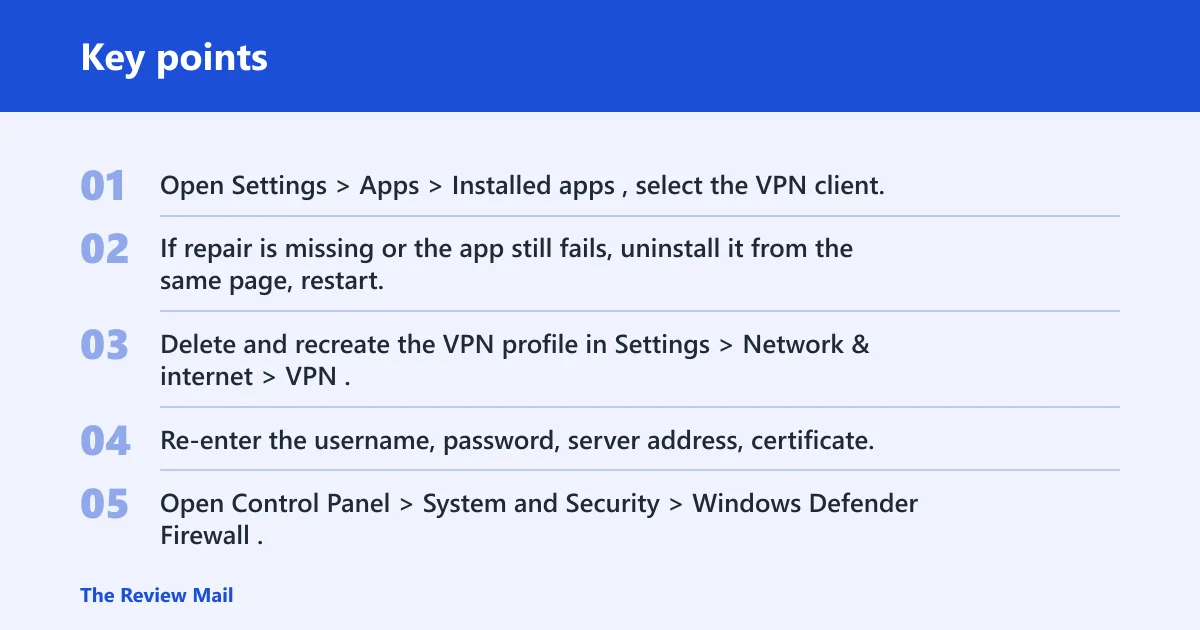
- Open Settings > Apps > Installed apps, select the VPN client, and choose Advanced options if available. Repair it first, then reboot.
- If repair is missing or the app still fails, uninstall it from the same page, restart, then install the latest vendor build.
- Delete and recreate the VPN profile in Settings > Network & internet > VPN.
- Re-enter the username, password, server address, certificate, or shared secret exactly as required.
Verification: connect again and confirm whether the status changes from “connecting” to “connected” within a normal sign-in window.
Check Windows Defender firewall rules
Windows Defender Firewall can block outbound VPN requests, especially when the app is only allowed on one network profile. The key point is private and public permission rules, not only one of them.
- Open Control Panel > System and Security > Windows Defender Firewall.
- Select Allow an app or feature through Windows Defender Firewall.
- Choose Change settings, then enable the VPN app for both Private and Public.
- If the app is missing, use Allow another app and add the VPN executable.
- Try the VPN again on the same network.
Verification: if the app connects only after the rule change, the firewall was blocking it. If it connects but pages still fail, move to DNS or split tunneling checks later in the guide.
Repair WAN Miniports and network adapters
WAN Miniport devices are Windows VPN drivers. This step matters when the app is fine, but Windows itself cannot build the tunnel.
- Open Device Manager.
- Expand Network adapters.
- Right-click WAN Miniport (IP), WAN Miniport (PPTP), and WAN Miniport (IPv6), then choose Uninstall device if present.
- At the top of Device Manager, choose Action > Scan for hardware changes.
- Restart the PC and test the VPN again.
Verification: the miniports should reappear after the scan. If they do and the tunnel starts working, the driver stack was the problem.
Before using the command prompt, open it as an administrator. In Command Prompt or Windows Terminal, run these commands one line at a time to refresh the local network stack:
ipconfig /release
ipconfig /flushdns
ipconfig /renew
netsh winsock reset
netsh int ip reset
Is another app blocking the VPN?
Third-party networking tools can break VPN connectivity even when the VPN client itself is current. The goal is to see whether Windows services alone can connect.
- Open System Configuration by typing msconfig in Start.
- On Services, check Hide all Microsoft services, then choose Disable all.
- Open Task Manager > Startup apps and disable non-Microsoft startup items.
- Restart and test the VPN connection before reopening other apps.
Verification: if the VPN works in clean boot, re-enable startup items in small groups until the conflicting tool appears.
Why is Windows 11 VPN not connecting after an update?
A Windows 11 update can change networking behavior, break a VPN profile, or expose an older client build. If the failure began right after patching, update the VPN app first, then check whether the adapter or certificate chain needs a reset.
- Open Settings > Windows Update and install any pending updates.
- Update the VPN client to the latest release from the vendor.
- Open Device Manager > Network adapters and reinstall the VPN-related miniports if the issue started immediately after the patch.
- If the failure is new and tied to a recent driver change, roll back the affected network adapter in its Properties page if the option is available.
Verification: reconnect after each change, not after all of them at once, so you can tell whether the update, client, or adapter was the trigger.
Why is L2TP VPN not working on Windows 11?
If L2TP does not connect, check the VPN profile details and the Windows firewall settings first.
- Open the VPN profile in Settings > Network & internet > VPN.
- Confirm the server address, pre-shared key, and certificate details exactly match the provider’s settings.
- Check Control Panel > System and Security > Windows Defender Firewall and allow the app on Private and Public.
- Retry the connection after each edit.
Verification: a working L2TP profile should move past authentication and hold the tunnel long enough to load a site or internal app.
Why is PPTP VPN not working on Windows 11?
If PPTP does not connect, check the related miniport and firewall permissions.
- Open Device Manager > Network adapters.
- Uninstall WAN Miniport (PPTP).
- Choose Action > Scan for hardware changes.
- Open Control Panel > System and Security > Windows Defender Firewall and allow the VPN app on both profiles.
Verification: if PPTP connects after the miniport returns, the driver was corrupted. If it still fails, check the VPN server settings and account configuration.
Why is IKEv2 VPN not working on Windows 11?
If IKEv2 does not connect, check the certificate or sign-in method and the Windows firewall permissions.
- Open the VPN profile and confirm the certificate or sign-in method matches the provider setup.
- Check Control Panel > System and Security > Windows Defender Firewall and allow the VPN app on both private and public networks.
- Restart after any certificate import or rule change.
- Try the connection again from a standard user session, not a temporary admin prompt.
Verification: if IKEv2 begins connecting after the certificate or firewall change, the profile settings were the problem.
VPN triage checklist
| Symptom | Likely cause | Exact Windows path | Verification step |
|---|---|---|---|
| Fails after a Windows 11 patch | Windows 11 update changed client behavior or adapter state | Settings > Windows Update and Device Manager > Network adapters | Update the VPN client, then reconnect and check whether the profile authenticates |
| App opens but traffic will not pass | Windows Defender Firewall block | Control Panel > System and Security > Windows Defender Firewall | Allow the app on both Private and Public, then test again |
| PPTP or other tunnel will not start | WAN Miniport corruption | Device Manager > Network adapters | Uninstall WAN Miniport (IP), WAN Miniport (PPTP), and WAN Miniport (IPv6), then scan for hardware changes |
| Works after reboot, then fails again | Clean-boot conflict from third-party software | System Configuration and Task Manager > Startup apps | Disable non-Microsoft services, reconnect, then re-enable items one at a time |
| L2TP tunnel will not form | Profile, key, or certificate mismatch | Settings > Network & internet > VPN | Recheck the shared secret, certificate, and server address, then reconnect |
| PPTP fails while other profiles work | WAN Miniport (PPTP) or blocked PPTP traffic | Device Manager > Network adapters | Reinstall the miniport and test the profile again |
| IKEv2 fails after sign-in | Certificate or firewall issue | Settings > Network & internet > VPN and Control Panel > System and Security > Windows Defender Firewall | Confirm certificate details and firewall permissions, then retry |
If that didn’t work, try this next
If the client, firewall, and miniports all check out, move to a full network reset and adapter reset. That is more invasive, so save it for last. It can clear broken TCP/IP state that survives a normal reboot.
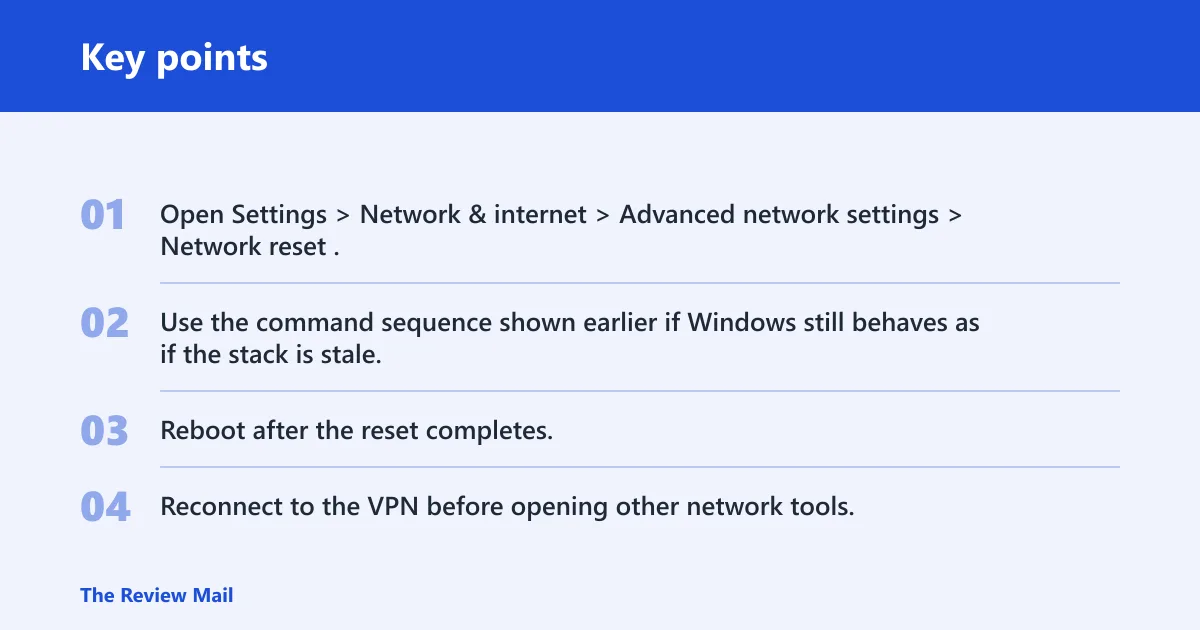
- Open Settings > Network & internet > Advanced network settings > Network reset.
- Use the command sequence shown earlier if Windows still behaves as if the stack is stale.
- Reboot after the reset completes.
- Reconnect to the VPN before opening other network tools.
Verification: if the VPN works right after the reset, the issue was in the local network stack. If it still fails, vendor support should check account policy, server logs, or certificate provisioning.
Prevention: after a working fix, update the VPN client before the next Windows 11 patch cycle and keep third-party networking tools to one vendor at a time.
Frequently asked questions
How do I fix a VPN that won’t connect on Windows 11?
Start with the VPN app, then the firewall, then the miniports. Open Settings > Apps > Installed apps to repair or reinstall the client, then check Control Panel > System and Security > Windows Defender Firewall, and finally reinstall the WAN Miniports in Device Manager. Test after each step so you know which one changed the result.
How do I know if Windows Firewall is blocking my VPN?
If the app signs in but traffic does not pass, or if it works on one network profile and fails on another, firewall rules are a prime suspect. Go to Control Panel > System and Security > Windows Defender Firewall > Allow an app or feature through Windows Defender Firewall and enable the VPN app on both Private and Public.
Why does my internet stop working without VPN on Windows 11?
That usually means the VPN changed your DNS or routing settings, or the client is forcing traffic through a tunnel when it should not. Check the VPN app for split tunneling, then review DNS settings in the adapter properties. Disconnect the VPN and confirm whether normal browsing returns before changing anything else.
Why is FortiClient VPN not connecting on Windows 11?
FortiClient problems often come from the client build, saved credentials, or Windows filters rather than FortiClient alone. Repair or reinstall it from Settings > Apps > Installed apps, then check the firewall rule and any recent Windows 11 update. If it still fails, recreate the profile and verify the server address again.
Why is 1111 VPN not working?
If you mean a cloud DNS or privacy app with “1.1.1.1” in the name, start by checking whether the client is current and whether Windows Defender Firewall is allowing outbound traffic. Open the app, sign out and back in, then verify that the DNS or tunnel settings have not been changed by another network tool.
Why 1111 vpn not working
That usually points to the app, the network profile, or a blocked route rather than Windows 11 alone. Reinstall the app from Settings > Apps > Installed apps, check Control Panel > System and Security > Windows Defender Firewall, and confirm that no other VPN or proxy software is running in the background.