My Wifi Adapter Disappeared Windows 11
If your Wi‑Fi adapter disappeared in Windows 11, use what Windows still sees to pick the fix: hidden or disabled adapter, error code, or no adapter at all. Ignore that split, and you can waste time on the wrong repair. This guide walks through Device Manager, Settings, BIOS, drivers, and network reset.
Adapter state decision table
| What Windows sees | Safest next action | When to stop | When Network reset will not help |
|---|---|---|---|
| Adapter listed normally | Check whether it is enabled, then run the Network troubleshooter or review the driver status. | Stop if Wi‑Fi returns and the adapter stays present in Device Manager. | If the adapter is already present and working, Network reset is usually unnecessary. |
| Adapter listed with a warning icon | Update, roll back, or reinstall the manufacturer-specific Wi‑Fi driver for the supported PC model. | Stop if the warning icon clears and the adapter reconnects normally. | Reset will not fix a bad or incompatible driver as directly as a proper reinstall or rollback. |
| Adapter hidden or greyed out | Turn on Show hidden devices, then enable the adapter if it is disabled and use Scan for hardware changes. | Stop if the adapter reappears in Network adapters and can be enabled cleanly. | Reset will not help much if Device Manager already hints at a disabled or hidden device that needs re-detection first. |
| Adapter absent entirely | Check WLAN AutoConfig, the driver package from the PC maker, and firmware or BIOS/UEFI settings after software fixes fail. | Stop if Windows begins showing the adapter again in Device Manager. | A network command cannot restore missing hardware if Windows detects no adapter. |
Why did my Wi‑Fi adapter disappear?
A disappearing adapter usually means Windows cannot see the wireless hardware, not just that the internet connection failed. That difference matters. If the Wi‑Fi option is missing from Settings and Device Manager no longer lists the adapter, you are dealing with detection, driver, or firmware trouble rather than a simple reconnect issue.
Why did my Wi‑Fi disappear after a Windows update?
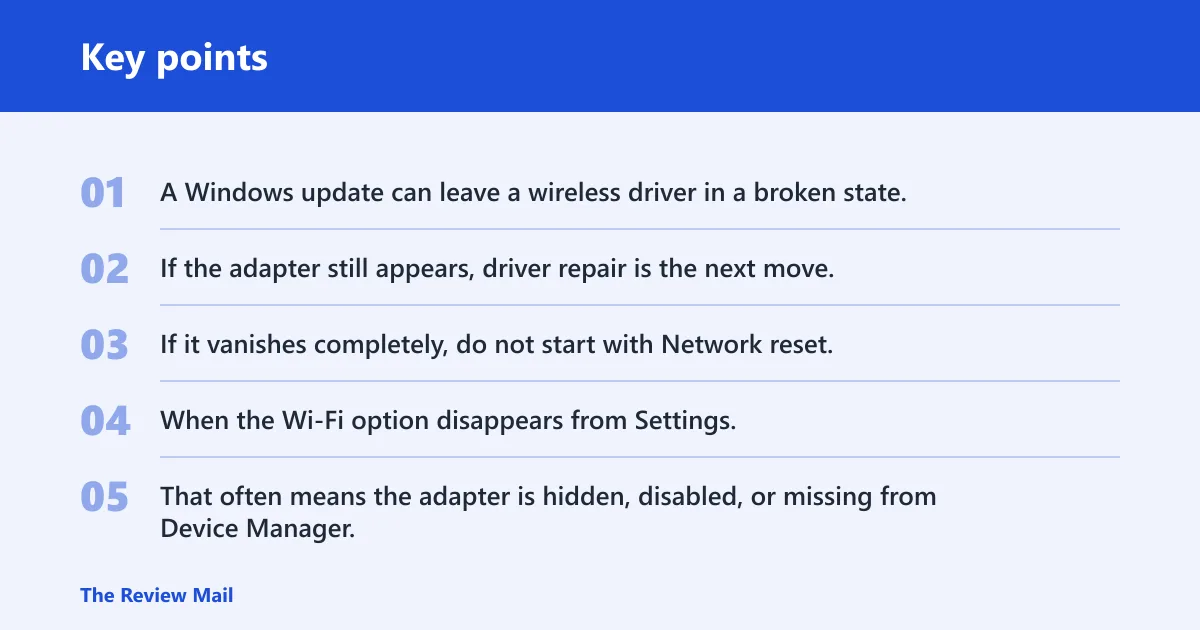
A Windows update can leave a wireless driver in a broken state, replace it with a version that does not fit the hardware, or change how the adapter appears in Device Manager. If the adapter still appears, driver repair is the next move. If it vanishes completely, do not start with Network reset.
Why is the Wi‑Fi option missing from Windows 11 Settings?
When the Wi‑Fi option disappears from Settings, Windows may not be detecting the wireless adapter at all. That often means the adapter is hidden, disabled, or missing from Device Manager. It can also happen when WLAN AutoConfig is not running or when firmware has switched the radio off.
What if Wi‑Fi works on other devices but not on my PC?
If other devices connect normally, the router is less likely to be the issue. Focus on the PC: Airplane mode, the laptop wireless key or hardware switch, Device Manager, the driver, and WLAN AutoConfig. A desktop may need firmware settings or a PCIe adapter check instead of a laptop-style switch check.
Check the fast, low-risk fixes first
Start with the items that can block wireless without harming anything. Turn off Airplane mode in Quick Settings, then confirm the laptop’s wireless function key or physical switch is on. After that, run the built-in Network troubleshooter from Settings > System > Troubleshoot > Other troubleshooters.
That troubleshooter is worth trying first because it can fix common configuration issues without changing drivers or removing adapters. It will not bring back hardware that Windows cannot detect, but it can clear a stuck network profile, service problem, or bad setting.
Say your laptop has a function key that turns wireless off and the Wi‑Fi icon vanished after a reboot. If Airplane mode is off but the key still disables the radio, Windows may act as if no adapter exists even though the hardware is fine.
- Open Quick Settings and confirm Airplane mode is off.
- On a laptop, check the wireless key or physical switch.
- Run the Network troubleshooter from Settings.
- Move to Device Manager if the Wi‑Fi option is still missing.
How do I check if Windows still detects my wireless adapter?
Open Device Manager and expand Network adapters. That is the main checkpoint. If the adapter is listed, Windows still sees it. If it is missing, hidden, greyed out, or marked with a warning symbol, the repair path changes. That is why this step comes before Network reset.

Device Manager can also reveal devices that are not visible at first. Use Show hidden devices to expose a greyed-out entry, then look for Enable device or a similar option if the adapter is disabled. After that, choose Action > Scan for hardware changes to force re-detection.
What should I do if the Wi‑Fi adapter is not in Device Manager?
If the adapter is absent from Device Manager even after Show hidden devices and Scan for hardware changes, treat it as a detection problem, not just a connection problem. Check WLAN AutoConfig, then the driver package from the PC maker, then firmware settings if the software path fails. A reset cannot restore hardware Windows does not see.
Use this sequence when you need a clean decision path:
- Listed normally: inspect status and driver.
- Warning icon: repair the driver first.
- Hidden or greyed out: enable it, then rescan.
- Absent entirely: move to services, vendor drivers, and firmware.
What the four Device Manager states mean
An adapter listed normally means Windows can detect the hardware and the issue is likely a driver, service, or configuration problem. A warning icon usually points to a driver fault or a device error. Hidden or greyed out entries often mean the device is disabled or temporarily not enumerated.
An adapter absent entirely is the most important split. That usually means Windows cannot currently detect the hardware, so network-only repairs are the wrong first move. Check the services and driver path before you try a full reset.
Wi‑Fi adapter driver repair
Use the supported PC model page from the manufacturer first, not a random driver bundle. Common adapter makers include Intel, Realtek, Qualcomm, Broadcom, and MediaTek, but the safest package is the one matched to the exact model. That matters more after a Windows update or a warning icon in Device Manager.
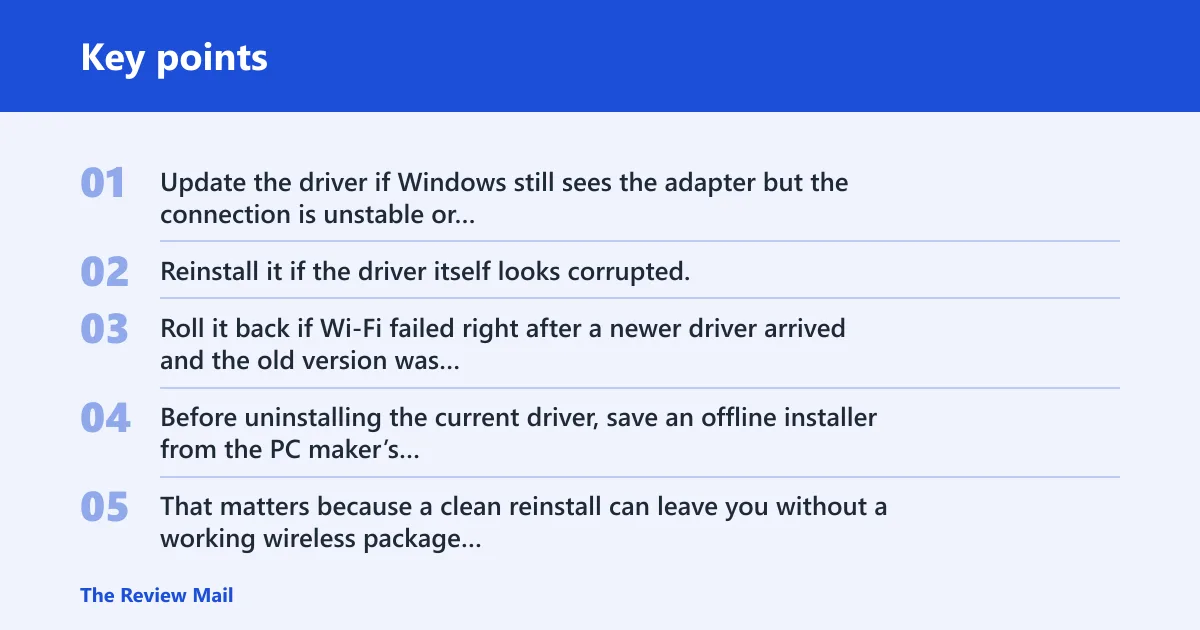
Update the driver if Windows still sees the adapter but the connection is unstable or the device shows an error. Reinstall it if the driver itself looks corrupted. Roll it back if Wi‑Fi failed right after a newer driver arrived and the old version was working better.
How do I reinstall the Wi‑Fi driver safely?
Before uninstalling the current driver, save an offline installer from the PC maker’s support page. That matters because a clean reinstall can leave you without a working wireless package if Windows does not fetch the right one automatically. Keep the file on local storage or a USB drive before you remove anything.
Then open Device Manager, right-click the wireless adapter, and uninstall the device if needed. After the reboot, install the saved package. If the adapter reappears with a warning icon instead of disappearing, the saved installer gives you a clean fallback.
Suppose a notebook shows Intel Wi‑Fi 6 AX201 with a warning icon after a driver update. Saving the OEM installer first lets you remove the broken package, reboot, and restore the supported version without depending on whatever Windows Update offers next.
When should you roll back a driver?
Rollback makes sense when the adapter disappears or starts failing right after a recent driver change. If the previous driver was stable and the current one is not, rollback is the safer move than repeated update attempts. If no prior driver exists, reinstall from the manufacturer page instead.
Wi‑Fi services and network reset
Check WLAN AutoConfig in services.msc if the adapter is present but wireless still does not behave normally. The service should be Running, and its Startup type should be Automatic. That service manages wireless connections, so a stopped state can break Wi‑Fi even when the hardware is visible.
If you want to reach Windows 11’s reset tools, the path starts at Settings > Network & internet > Advanced network settings. The built-in reset is not a first fix. A soft reset can restart the hardware adapter and reload the driver without deleting saved networks, but a full reset is broader and riskier.
When does Network reset help?
Network reset is most useful when Windows recognizes the adapter but networking remains broken. A full reset removes and reinstalls all network adapters and restores networking components to default values. That can clear bad bindings, stubborn configuration errors, or damaged network state when the hardware still shows up.
It can also remove VPN adapters and custom configurations. That makes it a last step, not a first one. Use it after Device Manager, WLAN AutoConfig, and driver repair have all failed to fix a detected adapter.
When will Network reset not help?
It will not help if Windows detects no adapter at all. It also will not fix a missing wireless radio that has been switched off in firmware. If Device Manager is empty for the wireless adapter and the vendor driver package does nothing, keep going down the detection path instead of resetting the whole network stack.
Could a BIOS or hardware switch disable my Wi‑Fi adapter?
Yes. On a laptop, a hardware wireless key or switch can disable the radio before Windows sees it. On some systems, BIOS or UEFI settings can do the same. Check those only after Device Manager, services, and driver repair fail, because firmware checks are deeper and easier to misread.
For a desktop, the wireless card may be disabled at the motherboard level, seated poorly, or failed outright. In that case, Windows may keep missing the adapter no matter how many software repairs you try. If the adapter still does not appear after rescans and driver checks, escalate to OEM diagnostics or hardware service.
A common first-timer mistake is jumping to BIOS settings before checking Device Manager. That wastes time. If Windows can already see the adapter, firmware is not the first place to go. If Windows cannot see it after the software path, then BIOS or UEFI becomes worth checking.
Frequently asked questions
Why has my wifi disappeared windows 10?
The same split applies in Windows 10: either the Wi‑Fi adapter is still present and only the connection is broken, or Windows no longer detects the hardware. Check Device Manager first. If the adapter is hidden, disabled, or has a warning icon, fix that before trying a full network reset.
Will Network reset fix a missing Wi‑Fi adapter?
Usually not if Windows cannot see the adapter at all. Network reset is better suited to cases where the adapter is still detected but networking remains broken. It removes and reinstalls all network adapters and restores defaults, so use it after the driver and service checks, not before them.