Windows 11 Slow Wi-Fi Speed Fix: Checks That Work
Compare the Windows 11 PC with a phone on the same Wi-Fi, then test the PC near the router before you change settings. Slow Wi-Fi on Windows 11 can make a fast internet connection feel painfully slow. If the phone is fast and the PC is not, the problem is usually local to the PC, its radio, or its settings.
What slow Wi-Fi on Windows 11 usually means
The first job is to separate low throughput from weak signal, latency, and post-wake slowdown. If browsing feels sluggish, streaming buffers, or downloads crawl, start with the same-network comparison on a phone, then repeat the PC test close to the router. That controlled check tells you if the PC, the router, or the ISP is the bottleneck.
Say your laptop pulls 8 Mbps in the bedroom but jumps much higher beside the router. That points to band choice, wall loss, or interference, not a broken plan. Suppose the phone is also slow beside the router. That makes router congestion or an ISP issue more likely than a Windows-only problem.
Likely causes, ranked
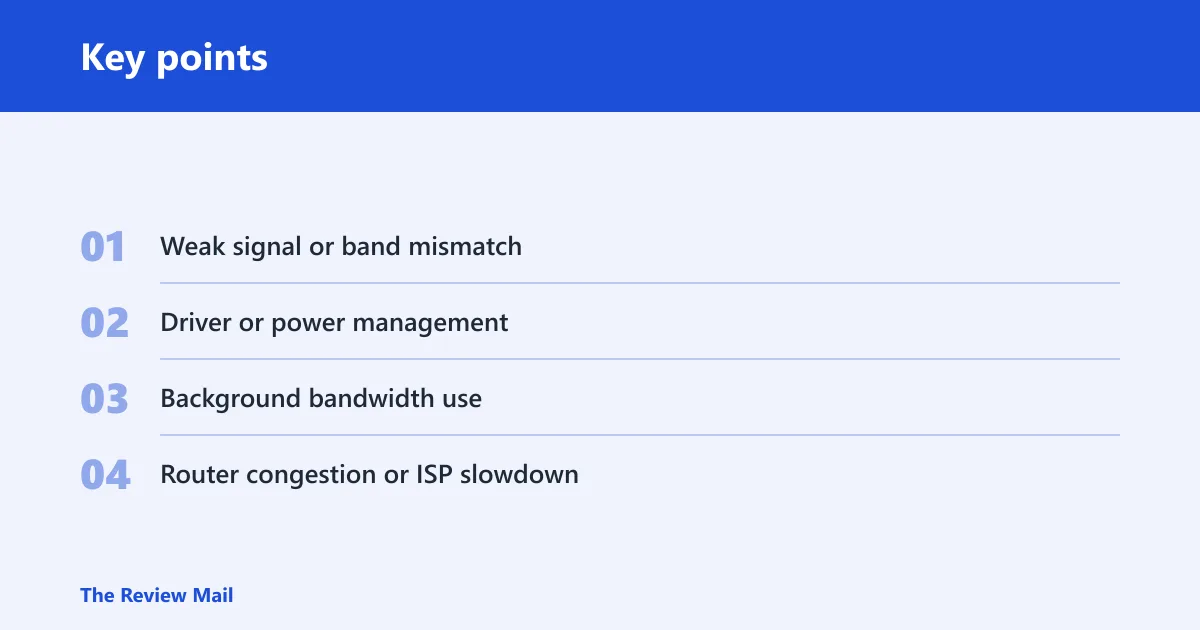
- Weak signal or band mismatch near walls or distance.
- Driver or power management problems, especially after sleep.
- Background bandwidth use from Windows or apps.
- Router congestion or ISP slowdown that looks like a PC issue.
Windows 11 Slow Wi-Fi Speed Fix Matrix
| Symptom | Likely cause | Quickest test | Expected result | Safest fix |
|---|---|---|---|---|
| Slow only on this PC | Adapter, driver, or power setting | Compare with phone on same network | Phone stays fast | Update or roll back the Wi-Fi driver |
| Slow after sleep | Power management | Wake the PC, then retest immediately | Speed drops after wake | Disable adapter power-off saving |
| Slow near router | Driver or router congestion | Stand close and rerun a speed test | Still slow close up | Check driver and router load |
| Slow far from router | Signal loss or band choice | Move one room closer | Speed improves quickly | Use 2.4 GHz for range or add a closer access point |
| Slow while downloads run | Background bandwidth use | Pause updates or cloud sync | Browsing recovers | Limit Delivery Optimization and heavy apps |
| Slow after Windows Update | Driver regression or update traffic | Check Device Manager and update history | Problem starts after update | Roll back the adapter driver if needed |
| Slow on 2.4 GHz only | Interference or crowded band | Switch to 5 GHz if available | Higher speed and lower interference | Stay on 5 GHz when close enough |
| Slow on 5 GHz only | Range or wall loss | Move closer to the router | Speed improves nearby | Use 2.4 GHz farther away |
Is your Wi-Fi adapter driver part of the problem?
Yes, especially if the slowdown began after an update or only affects one PC. A bad or incompatible driver can reduce throughput, and the manufacturer version may differ from the Windows Update version. Intel, Realtek, Qualcomm, and MediaTek adapters all use their own driver packages.
- Open Device Manager from the Start menu.
- Expand Network adapters, then open your Wi-Fi adapter’s Properties.
- Check the Driver tab for the provider and date.
- Go to Device Manager > Network adapters > your adapter > Update driver, or install the latest package from the adapter maker if Windows Update looks stale.
- If the slowdown started right after a change, use Roll Back Driver on the same tab when available.
If that does not help, reinstall the driver to clear a bad state. Use Device Manager > Network adapters > (adapter) > Uninstall device, then scan for hardware changes.
Are power settings slowing Wi-Fi after sleep?
They can. Windows 11 slow Wi-Fi can happen after sleep or hibernate, and the adapter may wake in a reduced-power state. The key setting is Allow the computer to turn off this device to save power. That trade-off can save battery life, but it can also hurt wake-from-sleep speed and stability.
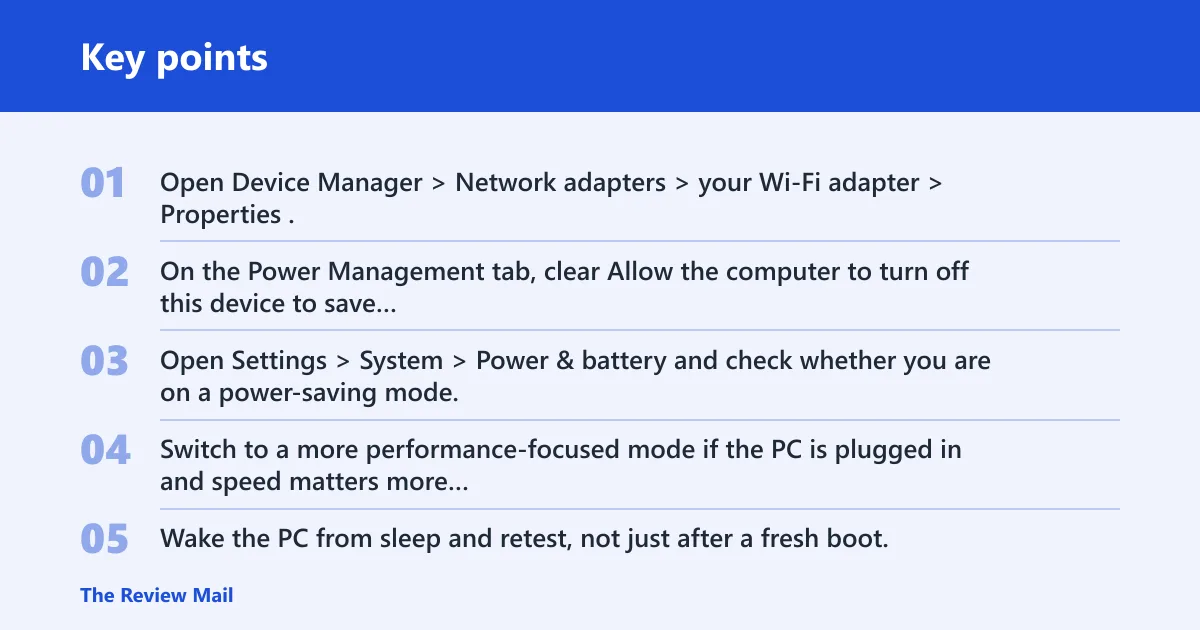
- Open Device Manager > Network adapters > your Wi-Fi adapter > Properties.
- On the Power Management tab, clear Allow the computer to turn off this device to save power.
- Open Settings > System > Power & battery and check whether you are on a power-saving mode.
- Switch to a more performance-focused mode if the PC is plugged in and speed matters more than battery life.
- Wake the PC from sleep and retest, not just after a fresh boot.
A common first-timer mistake is judging the fix only after restart. Post-wake behavior is the point that matters here.
Is Windows using your bandwidth in the background?
Often yes. Windows Update, OneDrive, Steam, and similar apps can saturate the link and make browsing feel slow even when the Wi-Fi signal is fine. Delivery Optimization can also consume too much bandwidth, and metered connection settings can change how aggressively Windows uses data.
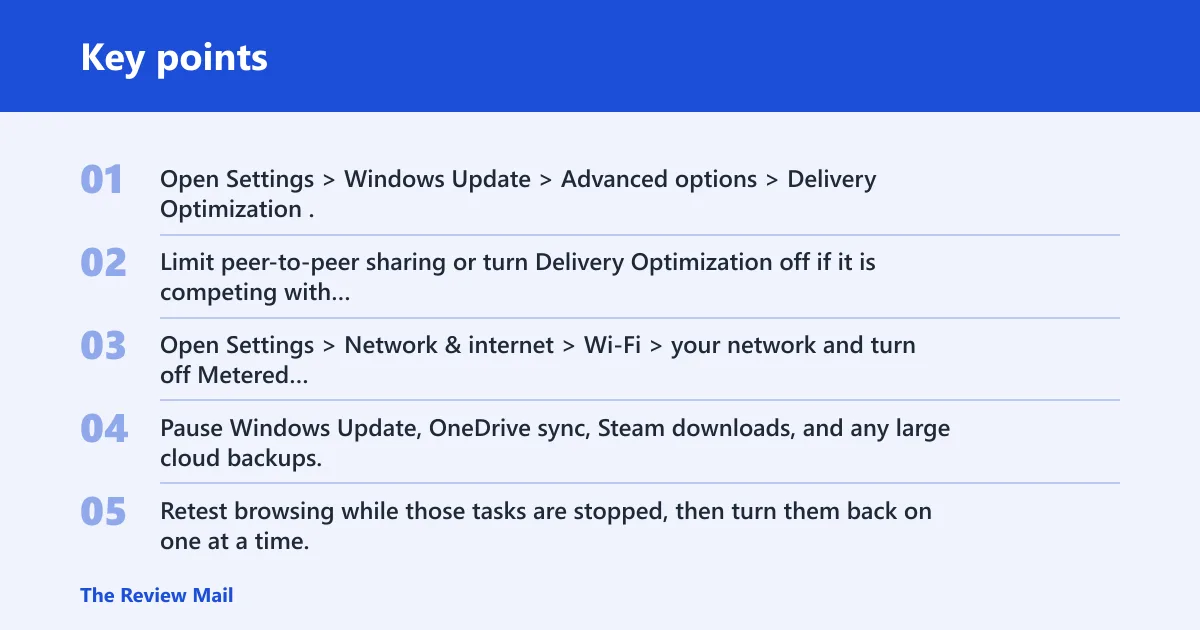
- Open Settings > Windows Update > Advanced options > Delivery Optimization.
- Limit peer-to-peer sharing or turn Delivery Optimization off if it is competing with work or streaming.
- Open Settings > Network & internet > Wi-Fi > your network and turn off Metered connection for normal home Wi-Fi.
- Pause Windows Update, OneDrive sync, Steam downloads, and any large cloud backups.
- Retest browsing while those tasks are stopped, then turn them back on one at a time.
Guiding Tech recommends turning off the metered connection option for Wi-Fi, and it also notes that Delivery Optimization can use too much bandwidth. That is why background load belongs early in the diagnosis, not at the end.
Should you switch bands or check the router?
Usually yes. 2.4 GHz reaches farther and handles walls better, but it also faces heavier interference. 5 GHz usually gives higher speed and less interference, but it loses strength sooner through distance and walls. Band choice depends on where you sit relative to the router.
- Open Settings > Network & internet > Wi-Fi.
- Connect to the 5 GHz network when you are close enough for a strong signal.
- Use 2.4 GHz when distance or wall penetration matters more than peak speed.
- Run the same speed test on the phone and the PC near the router.
- If both devices are slow near the router, inspect router load, channel congestion, or ISP service before chasing the PC further.
Competitors often stop at “switch bands.” That is too thin. If the phone is also slow near the router, the issue is no longer a Windows-only fix.
Still not working?
If the same-network tests still fail, move to recovery tools in a common order. A DNS change can help page-load responsiveness, but it will not fix weak radio performance. The Windows troubleshooter, then network reset, then command-line repairs are the right escalation path before hardware or ISP support.
- Open System > Troubleshoot > Other troubleshooters and run the Network and Internet troubleshooter or Get Help.
- Try Settings > Network & internet > Advanced network settings > Network reset if the adapter state looks corrupted.
- Run these commands in an elevated Command Prompt:
ipconfig /release
ipconfig /flushdns
ipconfig /renew
netsh winsock reset
netsh int ip reset
A network reset can erase saved Wi-Fi networks and paired Bluetooth devices, so save passwords first. If pages still open slowly, try public DNS such as 1.1.1.1, 8.8.8.8, or 9.9.9.9. Windows 11 can recognize Cloudflare, Google, and Quad9 as DNS over HTTPS servers.
Keep the adapter driver current from the manufacturer, and recheck power settings after major Windows updates.
Frequently asked questions
Why is my Windows 11 Wi-Fi so slow but other devices are fast?
That pattern usually points to the PC itself: a bad adapter driver, a power-saving setting, or background traffic on that machine. Compare the PC with another device on the same network, then test near the router. If the other device is fast in the same spot, the router and ISP are less likely.
How do I fix slow Wi-Fi speed on Windows 11?
Start with the highest-probability fixes: check band choice, inspect the adapter driver in Device Manager, disable adapter power-off saving, and pause Windows Update or cloud sync. If the problem persists, run the network troubleshooter and then try a network reset. Do the controlled near-router test before you reset anything.
Should I use 2.4 GHz or 5 GHz for faster Wi-Fi on Windows 11?
Use 5 GHz when you are close enough to keep a strong signal and want less interference. Use 2.4 GHz when distance or wall penetration matters more. If 5 GHz is weak in your room but strong near the router, the issue is range, not a Windows setting.
Can a Wi-Fi driver update fix slow internet on Windows 11?
Yes, but only when the current driver is the problem. Open Device Manager, check the adapter model and driver date, then update from the manufacturer if Windows Update looks suspect. If slow speed began right after an update, a rollback can be safer than another update.
Does Windows 11 power saving slow down Wi-Fi speed?
It can, especially after sleep or during low activity. The setting to check is Allow the computer to turn off this device to save power. Turning it off may reduce battery life, but it can restore full-speed behavior after wake on laptops and tablets.
Will resetting network settings improve Wi-Fi speed on Windows 11?
Sometimes, especially when the adapter or network stack is stuck. Use Settings > Network & internet > Advanced network settings > Network reset after easier fixes fail. It can clear corrupted network state, but it also removes saved Wi-Fi networks and paired Bluetooth devices.