Ethernet Doesn T Have a Valid Ip Configuration
Ethernet doesn’t have a valid IP configuration usually means Windows got a bad DHCP lease or no lease at all; begin with the adapter’s own IP details, then fix DHCP, drivers, and router settings in that order. If you leave it alone, the PC can stay offline on cable while Wi-Fi still works, and random command fixes often waste time. This guide shows how to read the adapter’s output first, then follow the correct branch for Windows 10 and 11. (Microsoft Support)
What the error means
This message means the Ethernet adapter did not get a usable IPv4 address from DHCP, so Windows cannot build normal local-network settings for that connection. In many cases the adapter falls back to an APIPA address in 169.254.0.0-169.254.255.255, which is a self-assigned placeholder and cannot route beyond the local link.
Why Windows shows this message
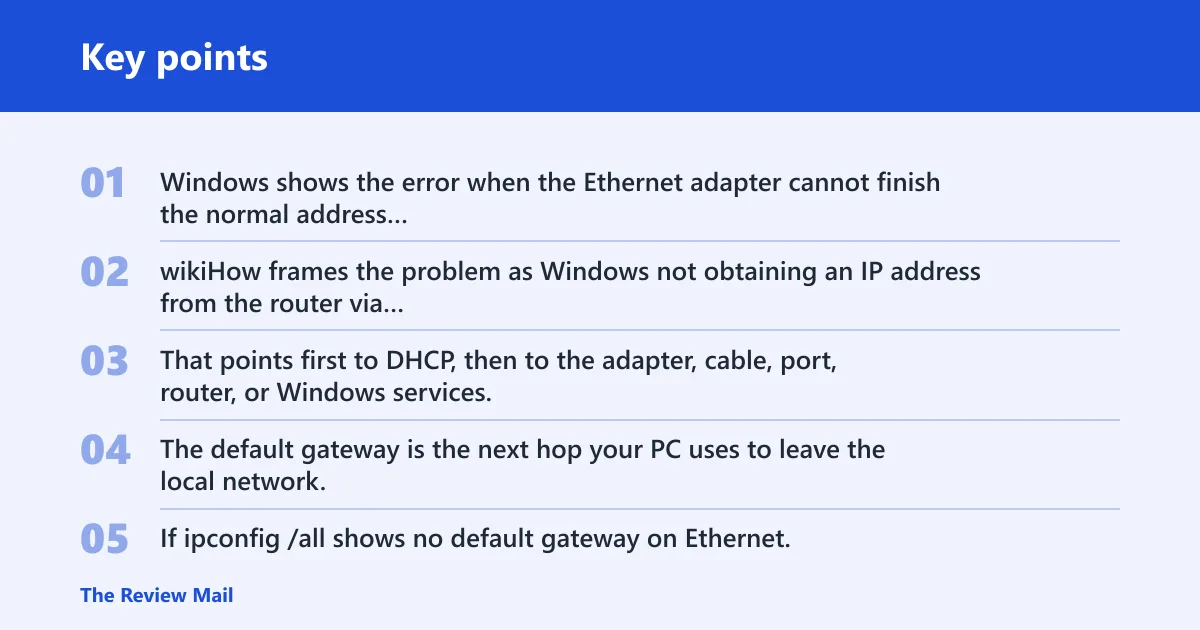
Windows shows the error when the Ethernet adapter cannot finish the normal address assignment step with the router. wikiHow frames the problem as Windows not obtaining an IP address from the router via DHCP, and WinTips says the failure happens when the computer cannot obtain a valid IP address from the router. That points first to DHCP, then to the adapter, cable, port, router, or Windows services.
Why a missing default gateway matters
The default gateway is the next hop your PC uses to leave the local network. If ipconfig /all shows no default gateway on Ethernet, the adapter may have an address but still cannot reach the router properly. That is different from a full cable failure, and it narrows the fix to DHCP, router, or adapter settings.
Ethernet IP decision table
Use ipconfig /all first. It tells you whether the fault sits in the adapter, DHCP, the cable path, the router, or a Windows service. The table below maps the most useful clues to one next action, so you do not start with random resets.
Symptom in ipconfig /all | Likely layer | Single best next action |
|---|---|---|
| No IPv4 address on the Ethernet adapter, or only a link-local placeholder | Adapter or DHCP | Disable and re-enable the Ethernet adapter, then renew the lease |
169.254.x.x address | DHCP failure with APIPA fallback | Check the cable and router LAN port before trying DHCP renew again |
| DHCP enabled but no lease shown | DHCP or router | Restart the router and confirm its DHCP server is active |
| Default gateway missing | DHCP, router, or adapter config | Renew the lease, then check whether the router handed out a gateway |
| Wi-Fi works while Ethernet fails | Ethernet path, cable, port, or Ethernet adapter | Try a different cable and a different LAN port on the router or switch |
No IPv4 address
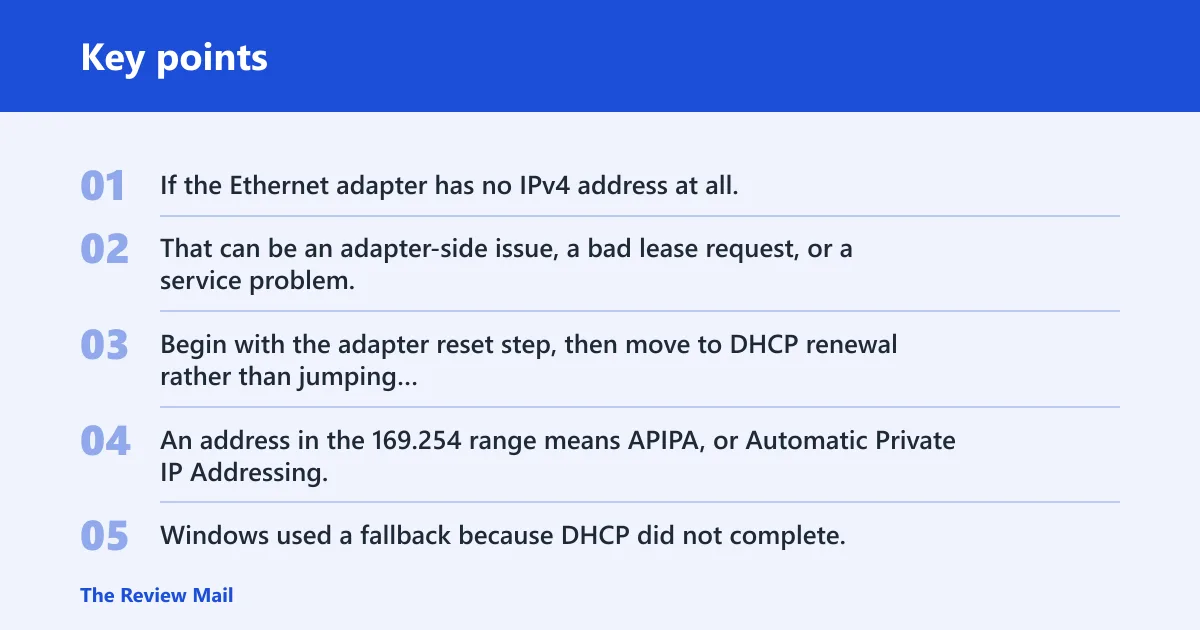
If the Ethernet adapter has no IPv4 address at all, Windows is failing before normal local addressing finishes. That can be an adapter-side issue, a bad lease request, or a service problem. Begin with the adapter reset step, then move to DHCP renewal rather than jumping straight to TCP/IP commands.
169.254.x.x APIPA address
An address in the 169.254 range means APIPA, or Automatic Private IP Addressing. Windows used a fallback because DHCP did not complete. That address is only a local placeholder, so it cannot route to the router or the internet. Treat it as a DHCP failure until the cable or port proves otherwise.
DHCP enabled but no lease
DHCP is commonly the router-side service that assigns IP addresses automatically and handles renewal and lease assignments. If DHCP is enabled but the lease is absent, the request is not completing. Check the router first, then the Ethernet path, then the DHCP Client service on Windows.
Wi-Fi works but Ethernet fails
If Wi-Fi still works while Ethernet fails, the whole internet connection is usually not down. That difference points to the Ethernet adapter, cable, LAN port, or wired-side router hardware. WinTips notes that the issue can affect both Wi-Fi and Ethernet adapters, but if only Ethernet breaks, the wired path is the stronger suspect.
Check the adapter first
Open ipconfig /all and read the Ethernet adapter section before changing anything. The adapter may be named Ethernet or Ethernet 2. Match the symptom you see with the decision table, because that tells you whether to start with the adapter, the cable, DHCP, or the router.
Open ipconfig /all
- Press Windows + R.
- Type
cmd, then press Enter. - Type
ipconfig /alland press Enter. - Find the section that names the Ethernet adapter.
- Look for IPv4 address, default gateway, and DHCP status.
Match the output to the fix
Say your Ethernet section shows 169.254.31.8 with no default gateway, while Wi-Fi on the same PC still has a normal address. That strongly suggests the wired path, not the entire network. A different cable or router port is the next check, not a full network reset.
A common first-timer mistake is to skip the adapter name and fix the wrong interface. On a PC with both Wi-Fi and Ethernet, only one can be broken. If Ethernet 2 is the adapter with the error, do not change the Wi-Fi profile first.
What should you fix first?
Begin with the physical and adapter-side checks: disable and re-enable the Ethernet adapter, test another cable, then try another LAN port on the router or switch. If Ethernet still fails, power-cycle the router and nearby network gear. That order catches the common local faults before deeper Windows repair steps.
Disable and re-enable the Ethernet adapter
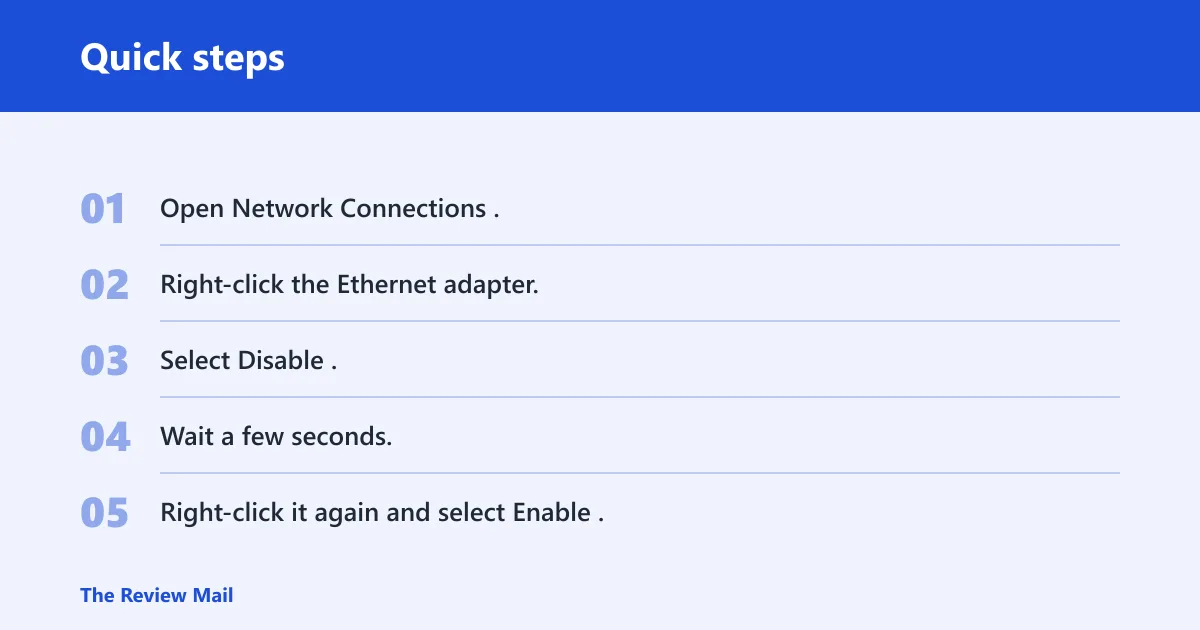
The same source recommends disabling and re-enabling the adapter through Network Connections. That can clear a stuck state in the Windows network interface. It is a quick reset and fits both Windows 10 and Windows 11.
- Open Network Connections.
- Right-click the Ethernet adapter.
- Select Disable.
- Wait a few seconds.
- Right-click it again and select Enable.
Try a different cable or LAN port
Ethernet depends on the physical path between the PC and the router or switch. A damaged cable, a bad switch port, or a failing LAN port on the router can block DHCP even when the rest of the network is fine. If Wi-Fi works, this step moves up the list.
Power-cycle router, modem, or switch
Restart the router first, then the modem if you have one, and include switches if they sit in the wired path. Many home networks host DHCP on the router, so a full restart can restore lease assignment. Wait for the router lights to settle before testing again.
When DHCP is the problem
If the adapter and cable look fine but the lease still will not appear, focus on DHCP. That means renewing the address, checking the DHCP Client service, and confirming the router’s DHCP server is active. F1 and F2 both point to DHCP and TCP/IP settings as common causes.
Renew the lease
Run the renewal commands after you have confirmed the adapter is enabled. A failed renewal on a live cable points back to DHCP or router settings, not just a temporary Windows display issue.
- Open Command Prompt as administrator.
- Type
ipconfig /releaseand press Enter. - Type
ipconfig /renewand press Enter. - Check whether the Ethernet adapter now has a normal IPv4 address and gateway.
Confirm DHCP Client is running
The same source recommends checking that DHCP Client is Running and set to Automatic. If the service is stopped, Windows may not request or keep a lease properly. Also check WLAN AutoConfig if the system shows broader adapter trouble, since WinTips lists that service too.
Check router DHCP settings
If other devices also struggle to get addresses, inspect the router’s DHCP server settings. A disabled DHCP server, an exhausted address pool, or a router that froze after a long uptime can block new leases. That is a router-side problem, not a cable issue.
Reset Windows networking components
If the adapter path, cable, and router all look normal, Windows networking may need repair. Use TCP/IP resets after the simpler checks above. wikiHow points to TCP/IP settings, and WinTips gives netsh winsock reset catalog plus netsh int ip reset as repair commands.
Reset the TCP/IP stack
The TCP/IP stack is Windows’ networking protocol stack. If it becomes corrupted or misconfigured, Ethernet may keep failing even with a good cable and router. Resetting it rebuilds core network behavior without replacing hardware.
- Open Command Prompt as administrator.
- Run
netsh winsock reset catalog. - Run
netsh int ip reset. - Restart the PC.
Run Windows Network Troubleshooter
The built-in Windows Network Troubleshooter can identify some adapter and routing problems on Windows 10 and Windows 11. Use it after the direct checks above, not before them. It may miss DHCP service problems or a bad LAN port, so treat it as a helper, not the final answer.
Use network reset as a last resort
Network reset removes and rebuilds adapters and settings, so save it for the end of the list. It can clear stubborn configuration problems, but it also removes custom network state. If you have already confirmed the adapter, cable, DHCP, and services, this is a reasonable last resort.
Fix the driver or adapter
If Windows still shows the error after the network stack repair, move to the Ethernet driver and adapter status. A corrupted or outdated driver can stop proper Ethernet connectivity. Check Device Manager for warnings, then update or reinstall the driver before choosing network reset.
Update or reinstall the Ethernet driver
Open Device Manager, find the Ethernet adapter, and check whether Windows flags it with an error symbol. If the driver looks stale or damaged, update it first. If that does not help, uninstall the adapter and let Windows reinstall it after a restart.
Check Device Manager status
A clean-looking adapter can still fail under the hood, but a warning symbol gives you a direct clue. If the Ethernet device has an error status, the problem is likely local to the adapter or its driver rather than the router. That is especially true when Wi-Fi continues to work.
When to use network reset
Use network reset only after you have checked the adapter, the cable, the router, DHCP, and the driver. It is the broadest fix in this list. On Windows 10 and 11, it can clear persistent setup damage, but it should not be the first move.
Frequently asked questions
What does ethernet doesn’t have a valid ip configuration mean?
It means Windows could not get a usable IP address for the Ethernet adapter, usually through DHCP. The adapter may fall back to a 169.254.x.x APIPA address, which is only a local placeholder. Without a valid address and gateway, the PC cannot route traffic normally.
What causes ethernet doesn’t have a valid ip configuration?
Common causes include DHCP failure, a bad cable, a bad router LAN port, a corrupted Ethernet driver, or Windows TCP/IP settings that no longer work correctly. wikiHow and WinTips both point to DHCP, TCP/IP settings, the driver, and router issues as the main suspects.
How do you fix ethernet doesn’t have a valid ip configuration on PC?
Check ipconfig /all first, then match the output to the likely layer. Begin with adapter disable/enable, cable and port checks, and DHCP renewal. If the lease still will not return, confirm DHCP Client is running, restart the router, and only then move to TCP/IP reset or driver repair.
How do you fix ethernet doesn’t have a valid ip configuration on Windows 10?
On Windows 10, the order is the same: read the adapter output first, then work through the wired path, DHCP, and Windows services. The built-in troubleshooter can help, but it may not detect every issue. If the adapter shows 169.254.x.x, treat it as a DHCP problem first.
How do you fix ethernet doesn’t have a valid ip configuration on Windows 11?
Windows 11 uses the same basic sequence. Check the Ethernet adapter in ipconfig /all, then disable and re-enable the adapter, test another cable or LAN port, and renew the lease. If that fails, verify DHCP Client is running, then use TCP/IP reset or network reset as later steps.
What to do if your ethernet doesn’t have a valid ip configuration?
Do not start with a long command list. Start with the adapter’s own IP output, because it tells you whether the fault is APIPA, a missing gateway, a lease problem, or a wired-path issue. That first read decides whether you should touch the cable, router, service, driver, or reset tools.