Windows Can’t Detect Wi‑Fi Adapter Driver Fix
If Windows can’t detect your Wi‑Fi adapter driver, check Device Manager for hidden or disabled hardware first; if it appears with an error code, the driver is broken, and if it never appears, suspect hidden hardware or hardware failure. Fixing the wrong layer wastes time on resets that change nothing and can leave you offline longer. This guide shows a fast path to separate hidden, disabled, driver-broken, service-broken, and hardware-failed adapters before you reinstall anything.
What this error means
This problem usually falls into one of five buckets: the adapter is hidden, disabled, missing a working driver, blocked by a stopped Wi‑Fi service, or unavailable at the BIOS or hardware layer. The quickest first check is Device Manager, because a disabled adapter can make the wireless option disappear from network settings and Windows can lose communication with the wireless network interface card.
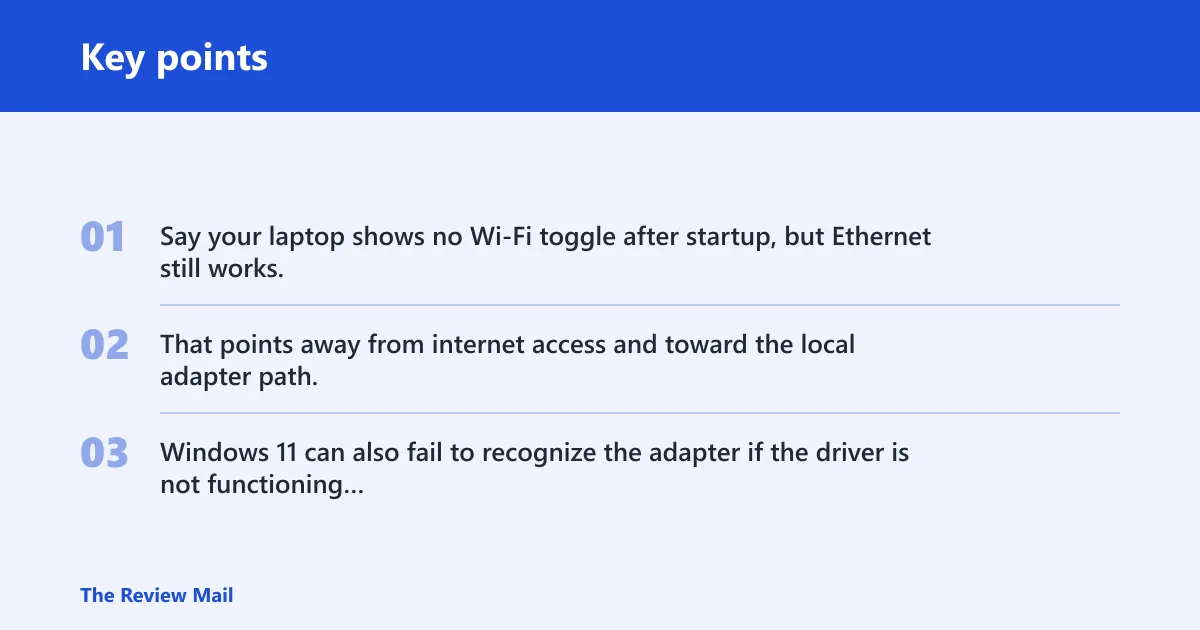
Say your laptop shows no Wi‑Fi toggle after startup, but Ethernet still works. That points away from internet access and toward the local adapter path, not a website issue or a single app. Windows 11 can also fail to recognize the adapter if the driver is not functioning correctly.
Why Windows can’t detect the Wi‑Fi adapter driver
Most often, the driver is outdated, corrupted, or incompatible, especially after an update. Less often, the adapter is present but hidden or disabled, wlansvc is stopped, power management has put the device to sleep, or BIOS has disabled wireless before Windows loads. Hardware failure is the last stop after those checks.
Microsoft notes that the issue can also look like a general connectivity failure rather than a driver fault, so do not confuse “can’t reach the internet” with “can’t see the adapter at all” (per Microsoft support). A firewall or a specific app can also block internet access, but that does not explain a missing device entry.
How do you check the adapter in Device Manager?
Device Manager is a common place to check hidden, disabled, and driver-broken states. Open Device Manager, expand Network adapters, then use Show hidden devices, Scan for hardware changes, Update driver, and Uninstall device in that order. Driver Easy recommends revealing hidden devices before deeper fixes.
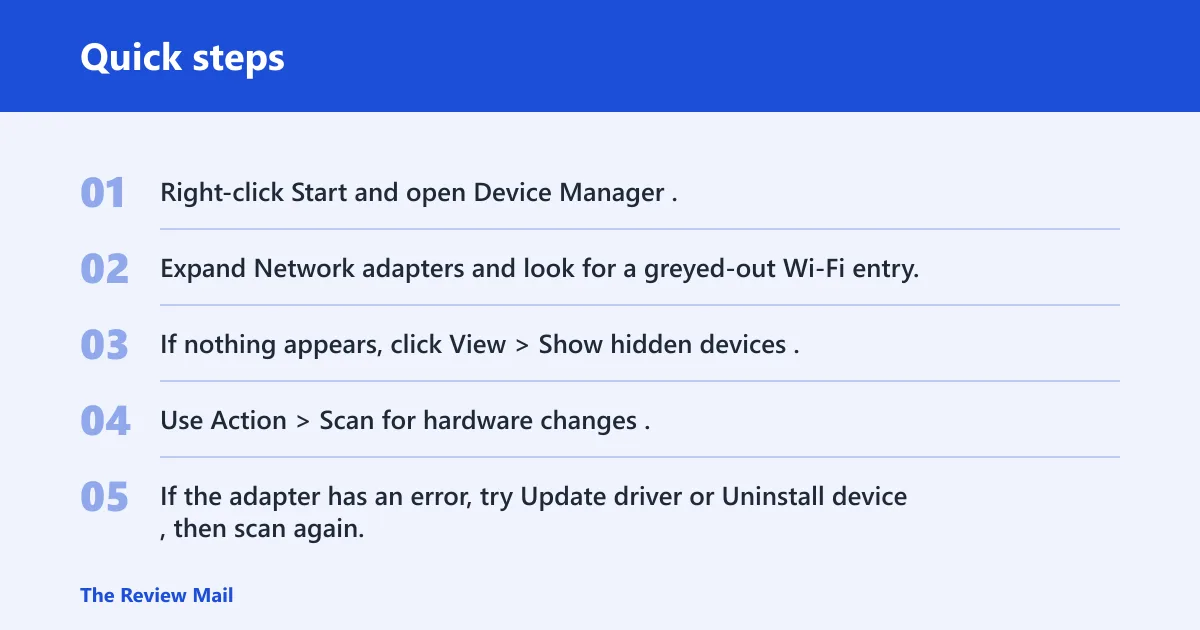
- Right-click Start and open Device Manager.
- Expand Network adapters and look for a greyed-out Wi‑Fi entry.
- If nothing appears, click View > Show hidden devices.
- Use Action > Scan for hardware changes.
- If the adapter has an error, try Update driver or Uninstall device, then scan again.
Driver Talent also recommends checking Network Connections for a disabled wireless adapter. If the adapter is disabled there, the problem is usually lower-level than a simple network toggle.
| Why Windows can’t detect the Wi‑Fi adapter driver | Likely cause | Quickest check | Next action |
|---|---|---|---|
| Adapter missing from Device Manager | Hidden device, disabled hardware, or deeper fault | Device Manager > View > Show hidden devices | Scan for hardware changes, then check BIOS and power settings |
| Adapter greyed out | Disabled adapter | Right-click the device in Network adapters | Enable it or reinstall the driver |
| Network Controller with a yellow triangle | Driver missing or wrong package installed | Device Properties > Details > Hardware Ids | Match the exact chip and install the OEM driver |
| Wi‑Fi icon missing | Disabled adapter or stopped Wi‑Fi service | Check Device Manager and Services | Enable adapter, start wlansvc, then restart |
| Adapter appears after Show hidden devices | Adapter was hidden, not removed | View > Show hidden devices | Enable the device and scan for changes |
| Adapter returns after power drain | Power state issue | Full shutdown and unplug or battery drain | Adjust power management settings |
| WLAN AutoConfig stopped | Wi‑Fi service not running | Services > WLAN AutoConfig | Set Startup type to Automatic and start the service |
| BIOS wireless disabled | Wireless blocked before Windows loads | BIOS/UEFI setup or wireless key | Enable wireless in firmware and reboot |
How do I find the correct driver?
When Device Manager shows Network Controller with a yellow triangle, Windows has not matched the hardware to the right driver. Open Properties > Details > Hardware Ids to identify the exact wireless chip, then use the computer maker’s support page first. Chip-maker packages can help, but OEM packages are usually the safer match for Windows 10 and Windows 11 compatibility. (Microsoft Learn)
- In Device Manager, right-click the unknown Wi‑Fi device.
- Select Properties > Details.
- Choose Hardware Ids from the property list.
- Copy the top ID and match it to the exact wireless chip model.
- Install the OEM package first; if needed, compare it with the manufacturer’s package for the same chip family.
Suppose the ID names a specific Intel or Realtek wireless chip, but Windows Update installed a generic package. That can leave the adapter visible yet unusable, which is the driver-present-but-broken case that many guides skip.
Should I update, reinstall, or roll back my Wi‑Fi driver?
Update first when the adapter is visible but unstable, reinstall when Windows shows an error or a yellow triangle, and roll back when the problem started right after a Windows update. The same source says reinstalling or updating the wireless driver may rebuild the connection to Wi‑Fi, and Windows Update can also supply a generic package.
- Open Device Manager > Network adapters.
- Right-click the Wi‑Fi adapter and choose Update driver.
- If that fails, choose Uninstall device, then restart or use Scan for hardware changes.
- If the issue began after an upgrade, open Properties > Driver > Roll Back Driver if the button is available.
On Windows 10, a device may stop working after an upgrade. Windows 10 can also fail to recognize a component, which is why matching the exact hardware ID matters before you pick a package.
Could WLAN AutoConfig be the problem?
Yes. WLAN AutoConfig, or wlansvc, is the Windows service that handles wireless configuration. If it is stopped, Wi‑Fi can fail even when the adapter is still installed. Check both Startup type and whether the service is actually running.
- Press Win + R, type
services.msc, and press Enter. - Find WLAN AutoConfig.
- Open Properties and set Startup type to Automatic.
- Select Start if the service is stopped.
- Restart the PC and retest Wi‑Fi.
A stopped service can look like a driver problem because the icon disappears and the adapter cannot connect even when it is still installed. If Windows 11 shows the adapter in Device Manager but Wi‑Fi still fails, this is one of the first places to check.
Does power or BIOS disable Wi‑Fi?
Yes, and laptop-specific power management causes are easy to miss. Open the adapter’s Power Management tab and clear Allow the computer to turn off this device to save power. Also check BIOS/UEFI for a wireless enable setting and any physical wireless switch or function key before you assume the hardware is dead. For USB Wi‑Fi adapters, BIOS guidance usually does not apply.
- In Device Manager, open the Wi‑Fi adapter Properties.
- Go to Power Management and clear Allow the computer to turn off this device to save power.
- On a laptop, check the wireless switch or function key for wireless radio control.
- Enter BIOS/UEFI setup and confirm wireless is enabled.
- If the adapter is still missing, try Settings > Network & internet > Advanced network settings > Network reset.
Network reset restores default network settings and reinstalls adapters, and it requires a restart; it also removes custom network configurations. Use it after adapter, service, and BIOS checks, not before. Microsoft’s troubleshooting flow for Windows 11 starts with automated diagnostics in the Get Help app on some builds, while other builds still show the built-in Network Adapter troubleshooter path in Settings. (Microsoft Support)
Network reset:
Settings > Network & internet > Advanced network settings > Network reset

Adapter driver reset:
Device Manager > Network adapters > (adapter) > Uninstall device, then scan for hardware changes

Command sequence:
Device Manager > Network adapters > (adapter) > Uninstall device, then scan for hardware changes
Still not working?
If the adapter still does not appear after a driver reinstall, a power check, and BIOS verification, the next step is escalation rather than another random reset. Run the built-in Network Adapter troubleshooter from Settings > System > Troubleshoot > Other troubleshooters on Windows 11 where it is available, or use the matching Windows 10 troubleshooting path; on some Windows 11 builds, Get Help may be the route instead. Then use Network reset only if custom network settings are expendable.
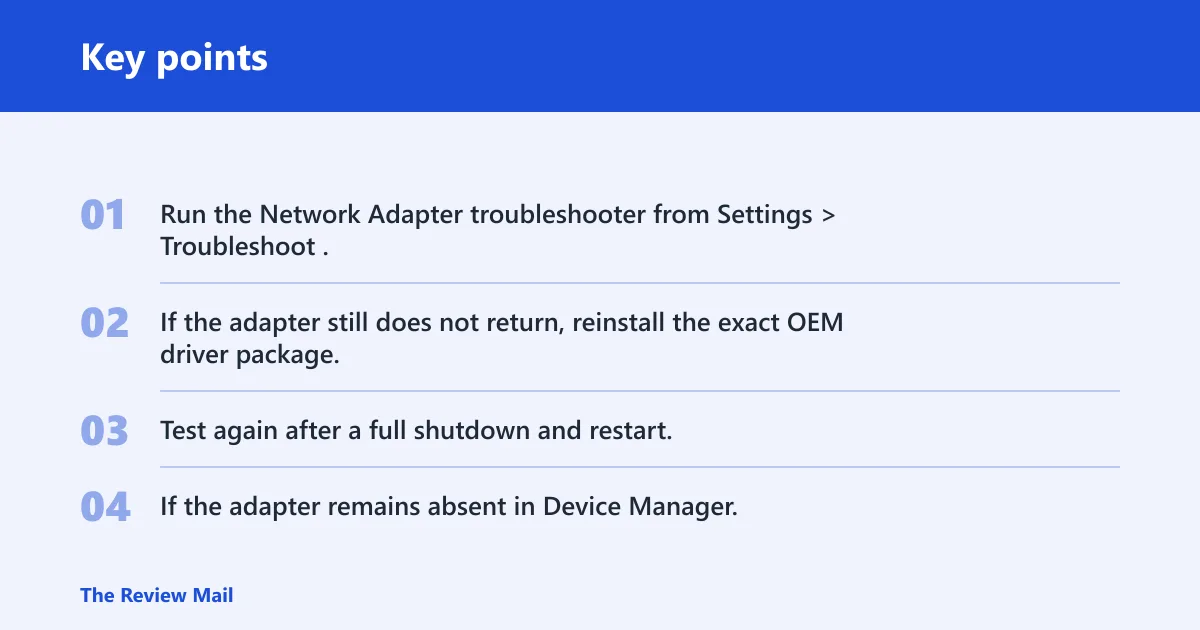
- Run the Network Adapter troubleshooter from Settings > Troubleshoot.
- If the adapter still does not return, reinstall the exact OEM driver package.
- Test again after a full shutdown and restart.
- If the adapter remains absent in Device Manager, treat it as a hardware or vendor-support case.
Keep the OEM wireless driver package for the exact model on hand, especially before a Windows 11 update or a clean install. That avoids being stranded when the only visible entry is Network Controller.
Frequently asked questions
How do I check my Wi‑Fi adapter driver in Windows?
Open Device Manager, expand Network adapters, and open the Wi‑Fi adapter’s Properties. The Driver tab shows the provider, date, and version. If the device appears as Network Controller instead, use Details > Hardware Ids to identify the exact chip first.
Why can’t Windows detect my Wi‑Fi adapter driver?
The usual causes are a hidden or disabled adapter, a broken or incompatible driver, a stopped wireless service, or BIOS-level wireless disablement. If the adapter is missing from Network adapters, check Show hidden devices, then verify WLAN AutoConfig and BIOS/UEFI before you reinstall anything.
How do I see if my wireless adapter is hidden in Device Manager?
Open Device Manager, click View, and choose Show hidden devices. Then expand Network adapters. A hidden Wi‑Fi device may appear greyed out; if it does, right-click it and choose Enable device or Uninstall device and scan for hardware changes.
What if my Wi‑Fi adapter is missing after a Windows 11 update?
First check Device Manager for a greyed-out or hidden adapter, then run Update driver or Uninstall device and scan again. If Windows 11 still does not recognize the adapter, check WLAN AutoConfig, then install the OEM wireless package for the exact chip model.
How do I tell if this is a driver problem or a hardware problem?
If Network Controller appears with a yellow triangle, that points to a driver mismatch or a missing package. If nothing appears after Show hidden devices, Scan for hardware changes, BIOS checks, and a network reset, the remaining likelihood shifts toward hardware failure or a failed internal connection.