DHCP Is Not Enabled Windows 11 Fix
Fix “DHCP is not enabled on Windows 11” by checking whether the adapter uses a manual IP; if it does, set both IP and DNS to automatic, then repair the DHCP Client service, adapter, or router in that order. If you skip that, you can lose internet access, get a self-assigned 169.254 address, and chase the wrong layer. This guide walks through the checks, with branches for manual IP settings, Windows services, adapter resets, and router-side DHCP problems.
What the error means
DHCP, or Dynamic Host Configuration Protocol, gives a device its IP address and related network settings, including the subnet mask, default gateway, and often DNS server information. It works as a client/server protocol, so Windows asks and a DHCP server answers with a lease. (Microsoft Learn)
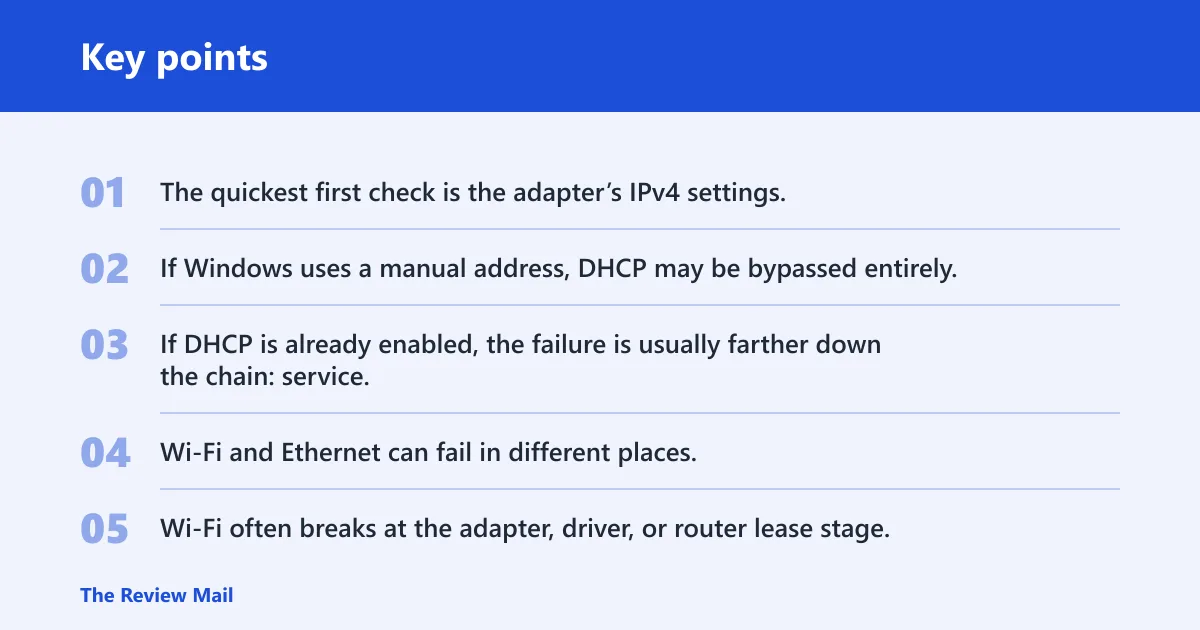
The quickest first check is the adapter’s IPv4 settings. If Windows uses a manual address, DHCP may be bypassed entirely. If DHCP is already enabled, the failure is usually farther down the chain: service, driver, router lease, or TCP/IP stack.
Wi‑Fi versus Ethernet symptoms
Wi‑Fi and Ethernet can fail in different places. Wi‑Fi often breaks at the adapter, driver, or router lease stage. Ethernet more often points to a cable, port, or adapter-path issue, although the same DHCP settings still apply. A laptop on Wi‑Fi may show “No internet,” while a desktop on Ethernet may get an APIPA-style 169.254 address.
Picture a small home network with one router and three devices. If only the laptop drops out after a router reboot, the router’s DHCP lease pool is a stronger suspect than Windows settings. If only the desktop fails on Ethernet, focus on the adapter path first.
Likely causes
Start with the most common layer and move outward. Most often, the adapter is set to a static address by mistake. Less often, the DHCP Client service is stopped, the router is not handing out leases, or the network stack or driver is damaged.
| Symptom | Most likely cause | Best next step |
|---|---|---|
| Wi‑Fi shows “DHCP is not enabled” and no valid gateway | Manual IPv4 settings on the Wi‑Fi adapter | Set IP and DNS to automatic in the adapter properties |
| Ethernet connects at link level but gets no usable address | Manual IPv4 settings, bad cable, or adapter driver trouble | Check IPv4 first, then renew the lease, then test another port or driver |
| DHCP is enabled but renewal still fails | DHCP Client service stopped or router not issuing leases | Restart the service and confirm the router is handing out addresses |
| Only one device fails after a router reboot or update | Router lease pool, scope limit, or MAC filtering issue | Check the router’s DHCP page and restart the router fully |
ipconfig /all shows DHCP Enabled = Yes, but internet still fails | TCP/IP stack damage, driver fault, or downstream DNS issue | Reset Winsock and IP, then update or reinstall the adapter driver |
Check the adapter IP settings
If Windows uses a manual address, set the adapter back to automatic assignment first. That applies to both Wi‑Fi and Ethernet. Windows 11 can typically obtain the IP address, subnet mask, default gateway, and DNS automatically when the adapter is set correctly.
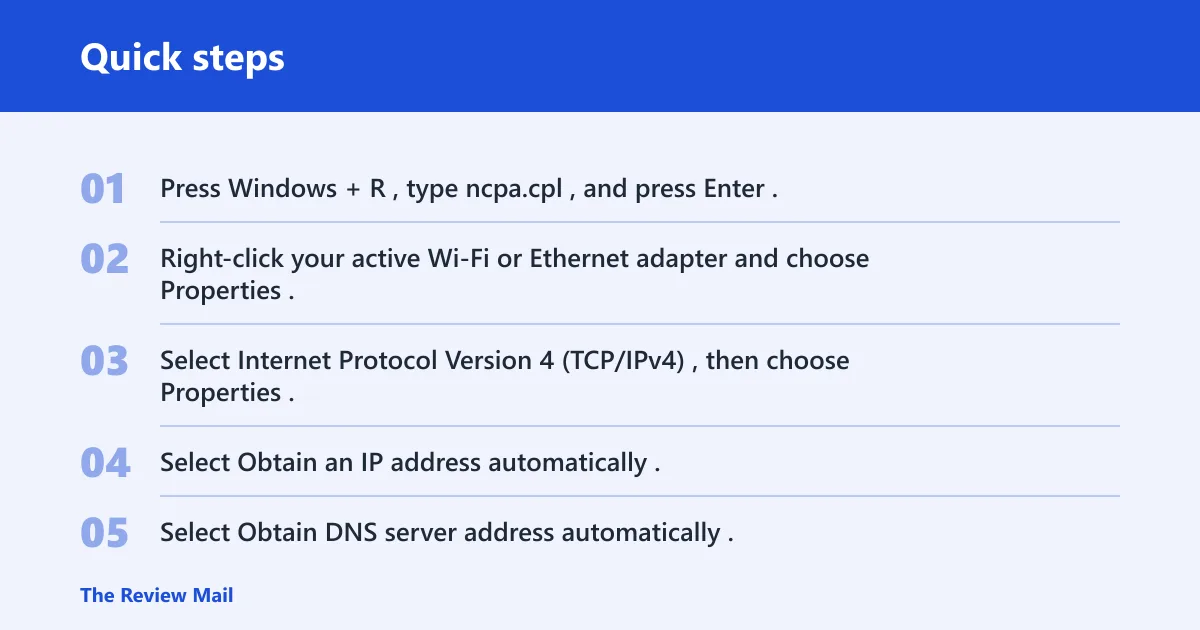
- Press Windows + R, type ncpa.cpl, and press Enter.
- Right-click your active Wi‑Fi or Ethernet adapter and choose Properties.
- Select Internet Protocol Version 4 (TCP/IPv4), then choose Properties.
- Select Obtain an IP address automatically.
- Select Obtain DNS server address automatically.
- Click OK twice, then disconnect and reconnect the adapter.
For the Windows 11 Settings path, open Settings > Network & internet > Wi‑Fi or Ethernet, then open the adapter’s hardware properties if the option is available there. The classic ncpa.cpl path is faster when you need a known-good route for either adapter type.
A common mistake is setting a static gateway on Windows 11 and forgetting to switch the adapter back to automatic IP assignment. That can leave the adapter half-fixed: Windows may get an address, but name lookups still fail.
Is DHCP Client running?
The DHCP Client Windows service is required for automatic IP acquisition. If it is stopped or disabled, the adapter can fail to request or renew a lease even when the IPv4 settings are correct. Its startup type should be Automatic.
- Press Windows + R, type
services.msc, and press Enter. - Find DHCP Client in the list.
- Open it and set Startup type to Automatic.
- If the service is stopped, select Start; if it is running, select Restart.
- Close Services, then open Command Prompt and run
ipconfig /renew.
Suppose a Wi‑Fi laptop connects to the SSID but loses its address after sleep. If the service was disabled, Windows can stay connected at the radio level while DHCP renewal silently fails. That difference matters.
If the service is already automatic and running, move on to the router and renewal path. Do not keep toggling the same service if the lease never reaches the server.
Fix the router DHCP server
On a small home network, the router is usually the DHCP server. It hands out leases, and it can be the source of no-dhcp-server errors when the lease pool is exhausted, the DHCP scope is misconfigured, or MAC filtering blocks the device.
- Restart the router and wait until the internet and Wi‑Fi indicators finish their full boot cycle and stay steady.
- Open the router admin page and find the DHCP or LAN settings.
- Confirm that DHCP is enabled and that the address pool is large enough for all devices.
- Check for lease exhaustion, static reservation conflicts, or MAC filtering.
- Reboot the affected Windows 11 device and run
ipconfig /renew.
If a second device on the same network gets a lease immediately, the router is probably serving DHCP correctly and the problem is local to the Windows adapter or stack. If no device gets a lease, the router side deserves the next inspection.
DHCP diagnostic matrix
This matrix helps you choose the next step without guessing.
| Symptom | Most likely cause | Best next step |
|---|---|---|
| Wi‑Fi shows connected but the address is 169.254.x.x | DHCP request failed on the Wi‑Fi path | Check IPv4 automatic settings, then restart DHCP Client, then renew the lease |
| Ethernet link light is on, but Windows shows no valid gateway | Manual IPv4, bad lease, or adapter/driver fault | Open ncpa.cpl, verify automatic IP and DNS, then test another cable or port |
| Windows says it cannot reach the DHCP server | Router DHCP service, scope, or filtering issue | Check router DHCP status, pool size, and MAC filtering |
ipconfig /all shows DHCP Enabled = Yes with a valid lease and default gateway | Basic DHCP is working | Move to TCP/IP reset, driver checks, or DNS/proxy checks if internet still fails |
Still no internet?
If DHCP is enabled but Windows 11 still has no internet, reset the TCP/IP stack next. This is the right move when the lease exists but traffic still fails, or when a broken stack blocks renewal or name resolution.
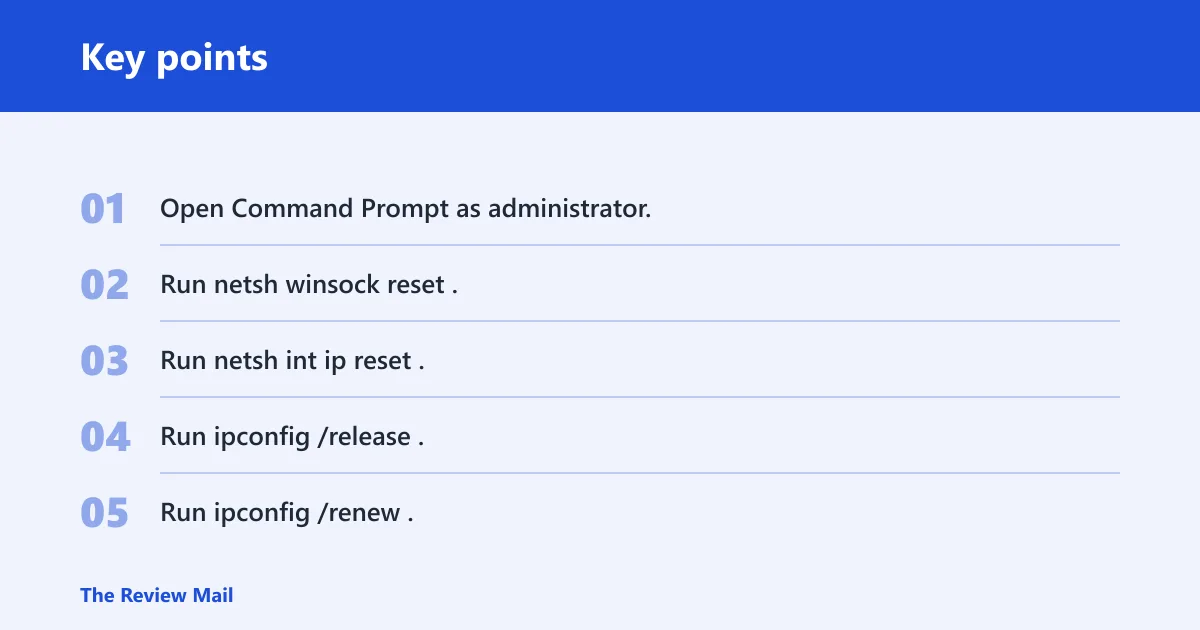
- Open Command Prompt as administrator.
- Run
netsh winsock reset. - Run
netsh int ip reset. - Run
ipconfig /release. - Run
ipconfig /renew. - Run
ipconfig /flushdns. - Restart the PC.
Next, update the network adapter driver or remove it and let Windows reinstall it. Open Device Manager, expand Network adapters, right-click the Wi‑Fi or Ethernet adapter, then choose Update driver. If that does not help, uninstall the device and restart so Windows can reinstall it.
Windows Network Troubleshooter is still worth a quick pass before deeper changes. Run Settings > System > Troubleshoot > Other troubleshooters > Network Adapter. If a proxy, firewall, or security tool is interfering, disable it briefly only long enough to test the connection.
Keep the adapter on automatic IP and automatic DNS unless you truly need a static address, and avoid changing router lease settings without noting the old values first.
Frequently asked questions
Can’t reach the dhcp server windows 11
Open ncpa.cpl, confirm the adapter uses Obtain an IP address automatically, then restart DHCP Client in services.msc. If that still fails, check the router’s DHCP page for an enabled server, a valid scope, and enough available addresses.
How do I switch a Windows 11 adapter from static IP to DHCP?
Open ncpa.cpl, right-click the adapter, choose Properties, open IPv4, and change both fields to automatic. After saving, run ipconfig /release and ipconfig /renew so Windows requests a fresh lease from the DHCP server.
What if DHCP is enabled but Windows 11 still has no internet?
Run netsh winsock reset and netsh int ip reset, then renew the lease and flush DNS with ipconfig /renew and ipconfig /flushdns. If the problem remains, update the Wi‑Fi or Ethernet driver, or uninstall it and run the Network Troubleshooter.