Windows Cannot Connect to the Proxy Server
When Windows cannot connect to the proxy server, first check whether this device should use a proxy or a VPN. If not, turn proxy settings off. If yes, fix the broken proxy entry before you reset the network. A wrong proxy state can block browsers, email, and corporate apps even when Wi‑Fi is working. This guide shows how to check Windows proxy settings, PAC scripts, VPN conflicts, WinHTTP proxy, and the smallest safe fixes.
Proxy diagnosis decision table
Start with the symptom, not the reset command. The same error can mean a required company proxy is missing, a home PC has an unwanted proxy entry, or a VPN profile has its own proxy setting turned on.
| Symptom | Likely proxy state | Next action |
|---|---|---|
| Every browser and app fails, and Windows shows the proxy error on Wi‑Fi or Ethernet | A system proxy is set, but the server name, IP address, port, or setup script is wrong | Check Settings > Network & internet > Proxy first, then LAN Settings |
| Only one browser fails with proxy connection errors | The browser has its own proxy setting, cache problem, or corrupted browser profile | Check browser proxy behavior, then clear cache or reset browser settings |
| The error appears only when a VPN is connected | The VPN has separate proxy settings that differ from Windows proxy settings | Open the VPN connection’s advanced options and check its proxy path before changing Windows proxy settings |
| A work laptop fails after a policy or network change | The proxy is organization-managed and may require a script or specific exceptions | Check whether the proxy is required by IT before removing it |
| The error keeps coming back after a change | Proxy settings may be rewritten by malware, antivirus, or a bad startup rule | Check for recurring changes before moving to network reset commands |
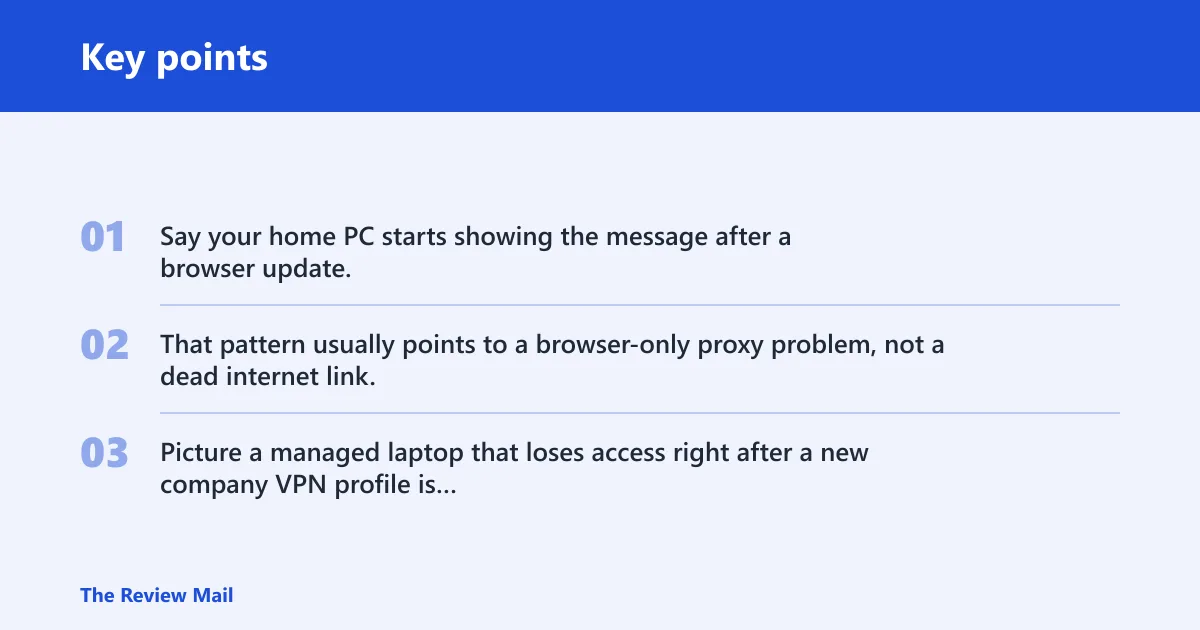
Say your home PC starts showing the message after a browser update, but email and file sharing still work on the same connection. That pattern usually points to a browser-only proxy problem, not a dead internet link. Picture a managed laptop that loses access right after a new company VPN profile is added; the fix path is different because the VPN may own its own proxy state.
What a proxy server does
A proxy server sits between your PC and the internet, then forwards requests for it. Windows can use that middle step on Wi‑Fi or Ethernet, and the proxy may be set by a home user, a work policy, or a VPN profile.
When a proxy is expected
On a managed network, the proxy may be required for web access, software updates, or content filtering. In that case, removing it can break normal access. On a home PC, a proxy is usually not needed unless a provider, privacy tool, or special network says otherwise.
That distinction matters. A device that should not use a proxy should not keep a server name, IP address, port, or script address in Windows. A device that must use a proxy needs the exact values the network owner provides.
How do you check proxy settings in Windows?
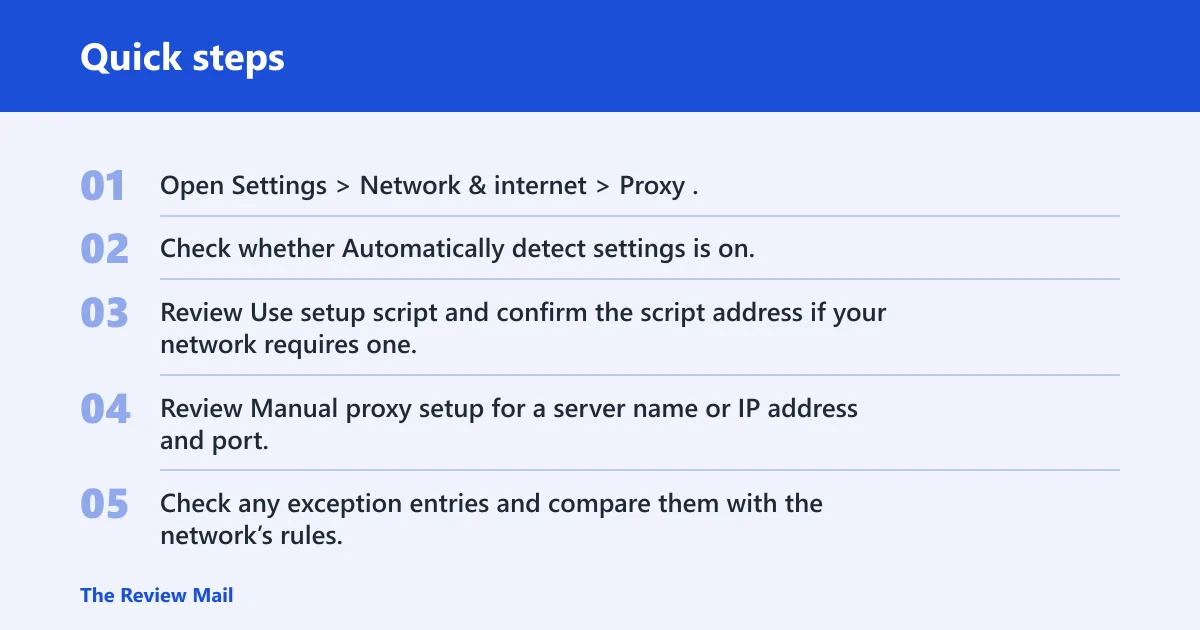
Open Settings > Network & internet > Proxy and review the three Windows proxy paths in order: automatic detection, setup script configuration, and manual proxy setup. This is the fastest way to confirm whether Windows is supposed to connect through a proxy and whether the stored entry matches that plan.
Check automatic detection
Windows automatic proxy setup uses the Automatically detect settings toggle. If the network is meant to supply proxy details automatically, this should be on. If it is already on and the error remains, the network may not be supplying valid proxy information.
Check setup script configuration
Use setup script points Windows to a script address when proxy settings are not detected automatically. If your organization uses a PAC-style setup, confirm the script address is present and correct. If the script field is blank on a network that requires it, Windows may fail before traffic reaches the internet.
Check manual proxy setup
Manual proxy setup is where you enter a proxy server name or IP address and a port. Microsoft documents that manual setup needs a server name or IP address, with an optional port, and Windows can also keep an exception list for sites that should not use the proxy.
- Open Settings > Network & internet > Proxy.
- Check whether Automatically detect settings is on.
- Review Use setup script and confirm the script address if your network requires one.
- Review Manual proxy setup for a server name or IP address and port.
- Check any exception entries and compare them with the network’s rules.
The exception list can use wildcard suffixes such as *.contoso.com. Microsoft also recommends keeping local intranet addresses out of the proxy in most cases, so the local intranet bypass checkbox should match the network’s own instructions rather than a guess.
How do I connect Windows to a proxy?
To connect Windows to a proxy, enter the proxy server’s name or IP address and the required port under Manual proxy setup, then save the change. If the network uses exceptions, add domain suffixes in the exception list and separate multiple entries with semicolons. Use the local intranet bypass checkbox only when the network expects it.
Use the right proxy fields
The key fields are simple, but they must match the proxy server exactly. If the address is wrong, if the port is off by one value, or if the exception list includes the wrong domains, the connection can fail even though the proxy is reachable.
For example, a proxy might use an address such as 192.168.20.15 on port 8080, and the network owner may say internal sites should bypass it. The correct setup would use that server and port, then add the approved intranet suffixes, such as *.corp.example, in the exception list. A stray space or missing semicolon can break multiple entries.
LAN settings and Internet Properties
Windows still exposes proxy controls in Internet Properties. Open the Connections tab, then choose LAN Settings. There you can check Use a proxy server for your LAN, which affects the system proxy path for wired and wireless access.
Use Advanced and Reset controls
If the proxy entry is clearly wrong, the Advanced and Reset controls in Internet Properties can help clean up old settings. Techbout also documents resetting Internet Properties from the Advanced tab, which helps when a bad value survives a normal Settings change.
Do not skip the question of ownership here. If the proxy belongs to an organization, changing the setting by yourself can cut off access to required resources. If the device is personal and the proxy is unknown, removing it is often the right move.
Can a VPN use separate proxy settings?
Yes. VPN proxy settings are configured separately for each VPN connection, not as the same thing as the Windows system proxy. If the error appears only after the VPN connects, fix the VPN’s own proxy path first so you do not disturb a working Windows proxy setup.
Check the VPN path before changing Windows
Open the VPN connection’s advanced options and look for per-VPN proxy settings. Microsoft’s design keeps those settings separate, so a working Windows proxy can still fail inside a VPN tunnel if the VPN profile points to a bad proxy server or script.
This is the point many guides miss. They tell you to disable the Windows proxy, but that can be the wrong move when the VPN is the only layer with a bad proxy state. Fix the smallest layer that matches the symptom.
Proxy reset steps
Once you know which proxy layer is broken, move in order: browser-only failure, Windows proxy settings, LAN Settings, VPN proxy settings, then network stack repair. That order keeps you from resetting the whole network before checking the wrong layer.
Clear a browser-only failure
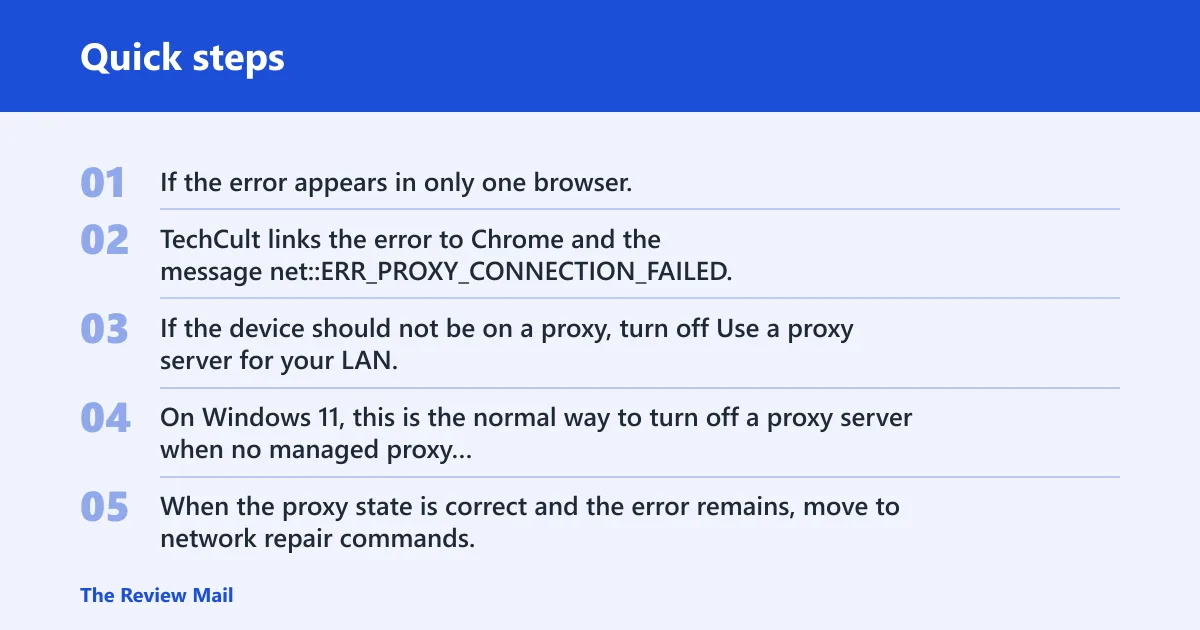
If the error appears in only one browser, clear that browser’s cache or reset its settings before changing Windows. TechCult links the error to Chrome and the message net::ERR_PROXY_CONNECTION_FAILED, which can come from the browser profile rather than the whole operating system.
Remove an unwanted proxy
If the device should not be on a proxy, turn off Use a proxy server for your LAN, clear any manual proxy address, and confirm that automatic detection is not pulling in a stale setting. On Windows 11, this is the normal way to turn off a proxy server when no managed proxy is required.
Use network commands only after proxy checks
When the proxy state is correct and the error remains, move to network repair commands. Techbout recommends running ipconfig /flushdns before reset commands. If that does not help, continue with netsh int ip reset and netsh winsock reset.
These commands are an escalation, not the first move. They are most useful when the proxy entry is fixed but Windows still caches bad routing or socket state. If the proxy keeps reappearing after a removal, malware or antivirus may be rewriting it, and that needs separate cleanup.
Check for recurring changes
A proxy that reappears after you remove it can point to a startup item, security tool, or unwanted software. Appuals documents the Internet Settings registry path used in proxy cleanup, which is one place admins check when a bad proxy state keeps returning.
What matters is the pattern. If the setting changes again after reboot, the cause is not a one-time typo. If the setting stays fixed but sites still fail, the problem is more likely elsewhere in the network path or in the VPN profile.
Frequently asked questions
How do I connect to a proxy server?
Use the proxy server details provided by your organization or service: server name or IP address, port, and any exception list entries. If the connection is for a work network, do not guess at the values. A wrong port or missing script address can produce the same error even when the server itself is online.
How do I configure a proxy server in Windows?
Go to Settings > Network & internet > Proxy, then review automatic detection, setup script, and manual proxy setup. Windows supports all three methods. If your network uses domain exceptions, enter them with semicolons between entries and keep local intranet bypass settings aligned with the network policy.
Why does Windows say it cannot connect to the proxy server?
The message usually means Windows is pointed at a proxy that is missing, unreachable, misconfigured, or not meant for the current network. It can also appear if a VPN has its own proxy settings, if a browser is using a different proxy path, or if malware keeps changing the system proxy.
How do I turn off a proxy server on Windows 11?
Open Settings > Network & internet > Proxy and turn off the manual proxy entry, then review the setup script and automatic detection fields. If the PC is personal and should not use a proxy, also check Internet Properties > Connections > LAN Settings and clear Use a proxy server for your LAN if it is enabled.
Can a VPN use separate proxy settings in Windows?
Yes. VPN proxy settings are configured separately for each VPN connection, so a working Windows proxy can still fail inside the VPN path. Open the VPN connection’s advanced options and check its proxy settings before changing the global Windows proxy or resetting the network stack.
What should I do if Chrome says the proxy server connection failed?
Check whether the problem affects only Chrome or every browser. If only Chrome fails, clear its cache or reset Chrome settings first, because the message can come from the browser profile itself. If all apps fail, move to Windows proxy settings, then LAN Settings, then VPN proxy settings if the error appears only with a tunnel.