How to Fix Boot Windows 11: 10 Fixes That Work
Fix Windows 11 boot failures by matching the symptom to the start point: no power, UEFI boot loop, or a post-update hang, then follow the matching repair order. Wrong steps can wipe recovery options, damage the boot loader, or turn a recoverable startup problem into a reinstall. This guide gives a symptom-to-fix decision tree, with the right checks for power, firmware, Safe Mode, Startup Repair, and update rollback. The vague_step error means a repair instruction is too unclear to follow reliably, so each step below is written as a specific Windows action.
Boot failure decision matrix
Use this table to avoid guessing. Start at the row that matches what you actually see, then stop and back up data if the drive looks unstable, the PC loses power during startup, or repair tools report disk errors.

| Symptom | Likely cause | First repair | Second repair | When to stop and back up data |
|---|---|---|---|---|
| No power or no lights | Power adapter, battery, PSU, or motherboard fault | Check outlet, adapter, power cable, and power button | Test with minimal hardware connected | Stop if the machine clicks, smells hot, or shuts off immediately |
| Shuts down immediately after starting boot | Hardware fault, thermal shutdown, or power issue | Remove accessories and retry on AC power | Check fans, vents, and BIOS hardware status | Stop if shutdown repeats on every attempt |
| Black screen with cursor | Display path, graphics driver, or boot load problem | Disconnect external displays and peripherals | Enter WinRE and run Startup Repair | Stop if the disk is noisy, absent, or unreadable in recovery |
| Stuck on logo or spinning dots | Boot order issue, incompatible USB device, or startup file damage | Remove USB drives and enter BIOS/UEFI | Check boot order and Secure Boot settings | Stop if the logo hang turns into repeated resets or disk warnings |
| Boot loop after update | Recent quality or feature update conflict | Use WinRE to uninstall the latest update | Use System Restore if the issue started after another change | Stop if rollback fails and the drive shows errors |
| Inaccessible boot device | Storage controller setting, boot data damage, or disk failure | Check SATA or NVMe settings in BIOS/UEFI | Run offline SFC and bootrec-style repair | Stop if CHKDSK reports bad sectors or the SSD drops from view |
| Automatic Repair loop | Corrupted startup files or BCD damage | Run Startup Repair from Advanced options | Repair BCD from Command Prompt in WinRE | Stop if repair loops continue after boot files are rebuilt |
| Blue screen before login | Driver, update, or file-system corruption | Enter WinRE and remove the latest update | Run offline SFC and CHKDSK after backup | Stop if the same stop code repeats and hardware checks fail |
| Safe Mode will not load | Deeper boot data damage or storage fault | Use Startup Repair | Use Command Prompt to rebuild BCD | Stop if recovery media cannot see the system disk reliably |
| USB boot media is ignored | Wrong boot order, Secure Boot block, or bad installer media | Check USB port, boot order, and media creation | Temporarily adjust Secure Boot or boot mode if needed | Stop if the USB is missing in BIOS/UEFI or the port fails elsewhere |
Why Windows 11 will not start?
Most boot failures come from corrupted system files, driver conflicts, updates, hardware faults, or BIOS/UEFI settings. An external device can also change the boot order, and the boot files themselves can break. Start with the easiest check first: unplug USB drives, docks, and other peripherals.
External devices and wrong boot order
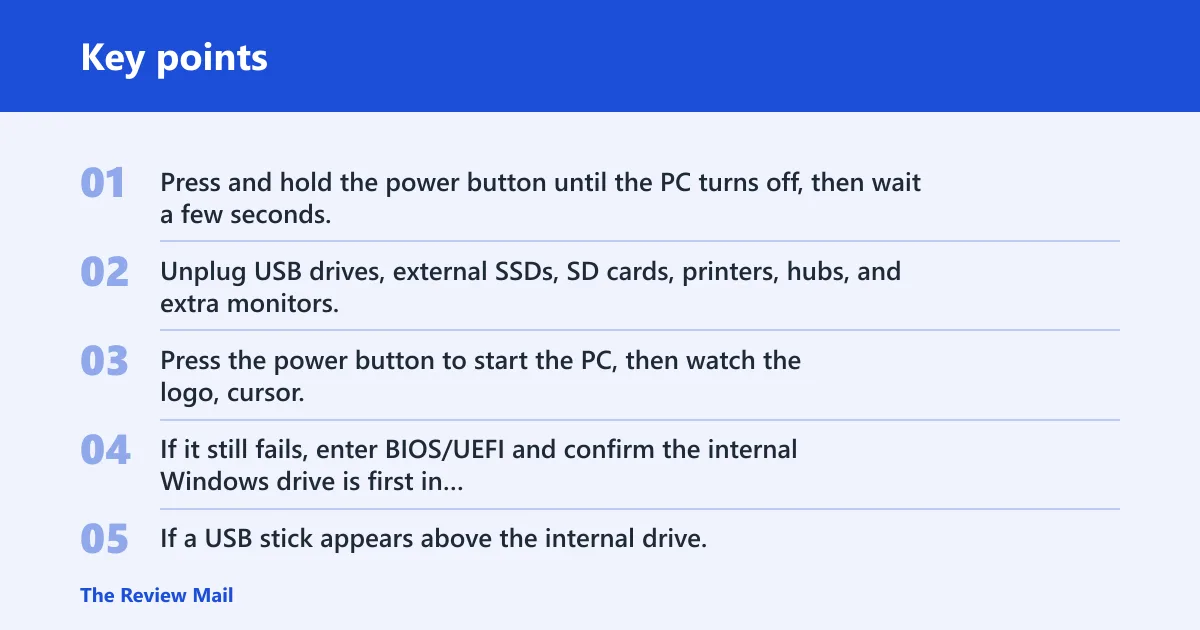
- Press and hold the power button until the PC turns off, then wait a few seconds.
- Unplug USB drives, external SSDs, SD cards, printers, hubs, and extra monitors.
- Press the power button to start the PC, then watch the logo, cursor, or recovery screen to see whether anything changes.
- If it still fails, enter BIOS/UEFI and confirm the internal Windows drive is first in the boot order.
- If a USB stick appears above the internal drive, move it below the internal drive or remove it from the boot list.
Picture a desktop that only boots when a backup drive is unplugged. That points to a boot-order issue, not a Windows file problem. A common first-time mistake is leaving a recovery USB inserted and then chasing the wrong repair path for hours.
BIOS/UEFI settings, Secure Boot, and boot mode mismatch
- Open BIOS/UEFI during startup with the key your PC shows on-screen, often Del, F2, Esc, or F10.
- Check that the boot mode matches the installed system. A Windows 11 install that uses UEFI should not be forced into legacy compatibility mode.
- Confirm Secure Boot is in the normal enabled state unless you changed hardware or are booting vendor recovery media that requires a temporary change.
- Save changes and restart the PC.
- If you changed Secure Boot and the PC no longer starts, restore the previous setting in BIOS/UEFI before trying anything else.
Corrupted system files, updates, or boot data
- If the failure began after an update, open WinRE and uninstall the latest quality update first.
- If the system keeps restarting at the Windows logo or shows boot errors, open Startup Repair from WinRE.
- If Windows still will not load, use Command Prompt in WinRE for offline repair commands.
- Use SFC and bootrec-style commands before any disk-intensive repair on a drive that may be failing.
How do you enter WinRE?
Windows Recovery Environment, or WinRE, is the built-in recovery path when Windows cannot start. It contains Startup Repair and Command Prompt. If the PC will not reach Windows normally, you can often get into WinRE by powering on and off repeatedly. If that fails, use installation or recovery media.
Use the recovery path built into Windows 11
- Turn the PC on and let it begin loading Windows.
- As soon as the Windows logo appears, hold the power button until the PC turns off.
- Repeat that interruption cycle until Recovery appears.
- Select Troubleshoot > Advanced options.
Use installation or recovery media if automatic entry fails
- Boot from a Windows 11 installation USB or OEM recovery media.
- Select Repair your computer instead of Install.
- Open Troubleshoot > Advanced options.
- If BitLocker appears, enter the recovery key before you continue.
What winRE gives you: Startup Repair and command Prompt
Startup Repair is often the first built-in fix for common loading failures. Command Prompt lets you run offline commands against the Windows installation, but you must confirm the correct drive letters first. WinRE is also where you can get to restore points and update rollback tools.
Run Startup Repair first
Startup Repair is the fastest built-in check for common loading failures. Use it before command-line work when the system reaches WinRE but not Windows, especially after a black screen, logo hang, or automatic repair loop.
Launch Startup Repair from Advanced options
- Open Troubleshoot > Advanced options.
- Select Startup Repair.
- Choose the Windows installation if prompted.
- Wait for the tool to finish, then restart the PC.
What a successful repair changes
A successful run may fix the boot manager, repair startup configuration, or correct a missing loading file. If Windows starts after this, check whether the original trigger was a recent USB device, update, or power interruption so the same fault does not return.
What to try next if Startup Repair fails
- Return to Advanced options in WinRE.
- Open Command Prompt.
- Confirm the Windows drive letter before you run any command.
- If the disk is healthy enough to continue, repair system files and boot data next.
How do I use Command Prompt to fix boot Windows 11?
Use Command Prompt in WinRE for offline repair commands after Startup Repair fails or when the boot files are missing or damaged. The key step is finding the correct Windows drive letter first, because WinRE can assign different letters than normal Windows does.
Confirm the Windows drive letter in WinRE
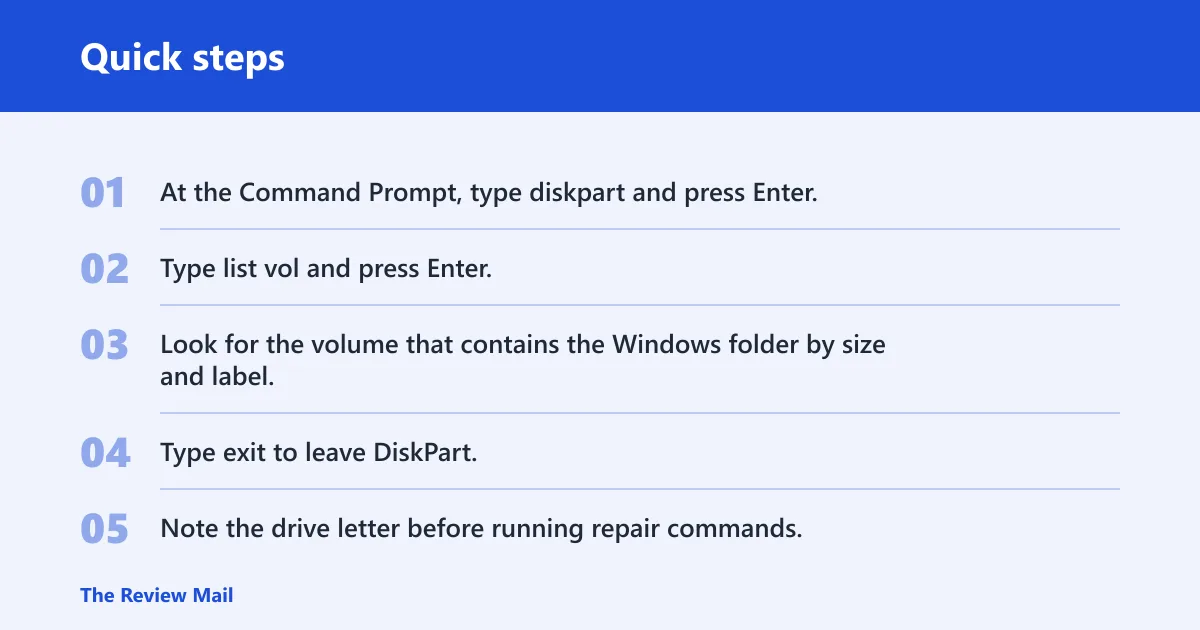
- At the Command Prompt, type diskpart and press Enter.
- Type list vol and press Enter.
- Look for the volume that contains the Windows folder by size and label.
- Type exit to leave DiskPart.
- Note the drive letter before running repair commands.
Run offline file checks and system file repair
- Run
sfc /scannow/offbootdir=C:\ /offwindir=C:\Windows, replacing C: with the correct Windows drive letter if needed. - If file corruption is suspected and the disk is stable, run
chkdskC: /f. - If the system is on a different volume, use that drive letter in both commands.
- Restart after the commands finish.
Rebuild boot data with bootrec and bcdboot when needed
- Run bootrec /scanos to look for Windows installations.
- Run bootrec /rebuildbcd if Windows is found but the boot data is missing or damaged.
- If the EFI boot entry is broken on a UEFI system, run bcdboot C:\Windows /f UEFI, again replacing C: if needed.
- Restart and test the boot path.
Suppose a laptop shows “Inaccessible boot device” after a storage-driver update. If the drive still appears in WinRE, the next move is not a reinstall; it is a careful offline repair path with the right drive letter and a check of the firmware storage setting.
What do I do if Windows 11 won’t boot after an update?
If the failure began right after Windows Update, rollback comes before deeper repair. Use WinRE to uninstall the most recent quality update first. If that does not restore startup, use System Restore to roll back recent changes, then check Fast Startup after Windows loads again.
Uninstall the latest quality or feature update
- In WinRE, open Troubleshoot > Advanced options.
- Select Uninstall Updates.
- Choose the latest quality update first.
- If needed, try the latest feature update afterward.
Use System Restore to roll back recent changes
- Open Advanced options.
- Select System Restore.
- Pick a restore point dated before the boot failure.
- Finish the restore and restart.
Test Fast Startup after the PC boots again
- Open Control Panel > Hardware and Sound > Power Options.
- Select Choose what the power buttons do.
- Open Change settings that are currently unavailable.
- Turn off Turn on fast startup, save, then test another cold boot.
Check disk corruption and hardware health
Disk damage and hardware faults move this from a software repair into a data-safety problem. If the drive is disappearing, making unusual noises, or CHKDSK reports bad sectors, stop repair attempts and back up files first. Further writes can make recovery harder.
File-system repair and backup-first decision point
- If WinRE can still open the disk reliably, copy important files to another drive before deeper repair.
- Use a recovery shell or a live USB to extract files if Windows never reaches a desktop.
- After the backup, run
chkdskC: /f on the affected volume. - If the drive becomes slower, unreadable, or vanishes, stop and switch to recovery.
Signs that point to SSD, RAM, or motherboard trouble
- The PC powers on, then shuts down immediately after starting boot.
- The same boot failure happens with every drive and every USB device removed.
- WinRE cannot see the internal disk consistently.
- Firmware reports storage errors or the system fails memory checks.
Frequently asked questions
How do I fix Windows 11 boot issues?
Start by removing external devices, then check BIOS/UEFI boot order and enter WinRE. Run Startup Repair first. If that fails, use Command Prompt for sfc /scannow /offbootdir=C:\ /offwindir=C:\Windows and bootrec /rebuildbcd, then move to update rollback or System Restore.
How do I repair Windows 11 boot files?
In WinRE, open Command Prompt, confirm the Windows drive letter with diskpart and list vol, then run offline SFC and boot data repairs. For UEFI systems, bcdboot C:\Windows /f UEFI can recreate the EFI boot entry after the correct drive letter is confirmed.
When should I use Startup Repair versus BCD repair?
Use Startup Repair first when Windows reaches WinRE but not the desktop. Move to BCD repair when Startup Repair fails, boot files are missing, or the system reports boot manager errors. If the drive is unstable, back up files before trying bootrec /rebuildbcd.
How do I fix inaccessible boot device in Windows 11?
First check BIOS/UEFI storage settings and confirm the drive is detected. Then use WinRE to run offline SFC and, if the disk looks healthy, chkdsk C: /f. If the issue started after a storage or chipset change, rollback the change before deeper repair.
How do I fix boot failure in Windows 11 USB?
If you mean a USB installer or recovery drive, check that the media is valid, the USB port works, and the boot order places the USB device ahead of the internal drive. If Secure Boot or boot mode blocks it, temporarily adjust those settings, then restore the normal setting after recovery.