Bugcode_Ndis_Driver
BUGCODE_NDIS_DRIVER is a Windows bug check with value 0x0000007C. It indicates that the operating system detected an error in a networking driver. Start by installing pending Windows updates, then check the network adapter driver and recent network software changes.
What BUGCODE_NDIS_DRIVER means
Microsoft’s debugger documentation identifies BUGCODE_NDIS_DRIVER as a networking-driver bug check. It occurs only on Microsoft Windows Server 2003 and later versions of Windows; on Windows 2000 and Windows XP, the corresponding code is bug check 0xD2 (BUGCODE_ID_DRIVER). See Microsoft Learn on bug check 0x7C (BUGCODE_NDIS_DRIVER).
Often, the problem is caused by a NDIS miniport driver, part of the Network Driver Interface Specification (NDIS).
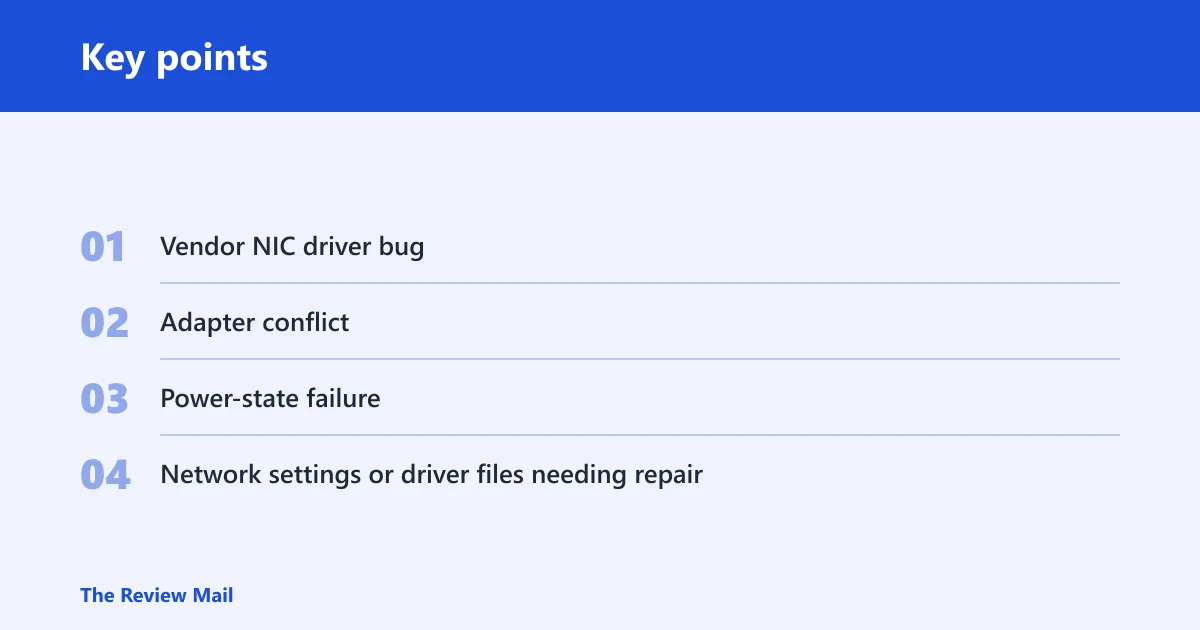
Likely causes, ranked
- Vendor NIC driver bug or bad update
- Adapter conflict on Wi-Fi or Ethernet
- Power-state failure affecting the network adapter
- Network settings or driver files needing repair
How do you fix bugcode_ndis_driver on Windows 10 or 11?
Start with Windows Update, then work through the network adapter in Device Manager. On Windows 10 and Windows 11, the shortest path is usually: update Windows, inspect Device Manager, undo recent network software changes, and use System Restore if the crash began after a recent change. Microsoft documents System Restore as a rollback tool for restoring system files and settings: System Restore. For update guidance, use Get the latest Windows update.
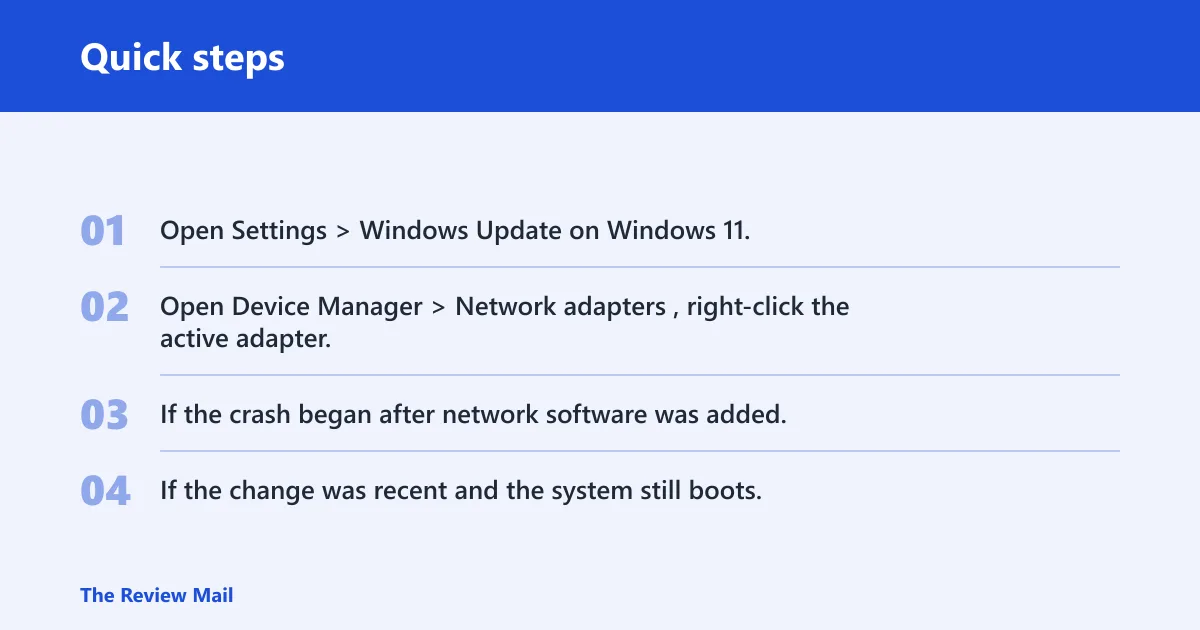
- Open Settings > Windows Update on Windows 11, or Settings > Update & Security > Windows Update on Windows 10, then install all available updates.
- Open Device Manager > Network adapters, right-click the active adapter, and choose Update driver. If the crash began after a driver change, choose Properties > Driver > Roll Back Driver if that button is available.
- If the crash began after network software was added, uninstall that package from Settings > Apps > Installed apps or Apps & features, then restart.
- If the change was recent and the system still boots, open Control Panel > Recovery > Open System Restore and roll back to a point before the crash started.
For a quick internal path, update Windows first when the issue appears on that platform, then roll back a faulty driver after a BSOD when the crash began immediately after a driver update. If your laptop crashes only after a dock is attached and Ethernet comes up, try the adapter rollback before changing the whole system. If the crash starts right after a network-related package is installed, remove that package first.
Can a network driver cause a BSOD?
Yes. A network driver can trigger a BSOD if it fails during initialization or while handling adapter activity. If a dump points to ndis.sys, that does not automatically mean the Windows file is broken. Use Device Manager to check the adapter, and compare the timing of the crash with recent driver or software changes.
- Open Device Manager and expand Network adapters.
- Check for recent changes: a new driver version, a disabled adapter, or a newly added virtual NIC.
- Right-click the adapter and choose Properties, then check the Driver tab for the provider and date.
- If needed, choose Uninstall device, check Delete the driver software for this device if offered, then restart and let Windows reload the adapter.
How do you know which driver is causing the NDIS crash?
Look at the pattern first, then confirm it with dump files. A boot-time crash usually points to a driver that loads early. A crash that happens after a network change usually points to the adapter or related software that changed most recently. A Wi-Fi-only crash often points to the wireless vendor driver, while Ethernet-only trouble points to the wired NIC path.
- Open Event Viewer > Windows Logs > System and note the time of the crash.
- Check
C:\Windows\Minidumpfor recent files, then open them in a debugger or send them to vendor support if you cannot read them directly. - Look for ndis.sys, a vendor NIC name, or a filter component in the stack trace.
- Disable one suspect item at a time: first the network-related software, then the physical adapter if needed.
Boot-time crash, Wi-Fi-only crash, Ethernet-only crash, and crash after a network software change are the main patterns that tell you where to look first.
NDIS crash triage matrix
This table sorts the fault by symptom pattern so you can separate a driver bug from a software conflict. Use it as a first-pass decision tree before you uninstall anything broad.
Takeaway: if the crash aligns with one adapter or one app, start by reversing that exact change before you move to broader recovery steps.
| Symptom pattern | Likely trigger | First action | Escalation step |
|---|---|---|---|
| Boot-time crash | Bad NIC driver or early-loading network component | Boot into Safe Mode and roll back the adapter driver in Device Manager | Uninstall the adapter driver, then reinstall the OEM package |
| Wi-Fi-only crash | Wireless NIC driver | Update or roll back the Wi-Fi adapter in Device Manager | Reinstall the vendor driver package after removing the old one |
| Ethernet-only crash | Wired NIC driver | Roll back the wired adapter driver | Install the vendor driver package again after removing the old one |
| Crash after network software install | Network-related software conflict | Uninstall the added package, then restart | Reinstall only the needed networking software after testing stability |
| Crash after a recent change | Recent driver or settings change | Use System Restore to return to a point before the crash started | Reinstall the adapter driver if the issue returns |
Should you update Windows to fix BUGCODE_NDIS_DRIVER?
Yes. Windows Update is a first-line repair and can fix blue screen errors when the trigger is an outdated system component or driver package. It is the right first step if the crash began after a period without updates or after a recent device change.
- Open Settings > Windows Update and select Check for updates.
- Install all important updates, then restart even if Windows does not prompt immediately.
- Return to Windows Update and check again until no further updates remain.
- If the crash remains, move to the adapter driver or rollback steps rather than looping on updates alone.
Still not working?
If the crash survives updates and System Restore, escalate in a narrower order. Collect the minidump files, note whether the failure happens during boot or after a network change, and avoid broad recovery until you know which layer is involved.
- Gather files from
C:\Windows\Minidumpand note the exact stop code on the screen. - Run Safe Mode and test whether the system stays up without the third-party network software.
- Use Reset This PC only after driver rollback, dump review, and adapter removal fail.
- If the machine came from an OEM such as HP, reinstall the vendor network package from the system support page or contact vendor support with the dump files.
Caution: registry cleaners are generally unnecessary for this error and can create their own problems if used broadly. For Windows 10 and Windows 11, keep rollback, clean boot, adapter disable/enable, and dump review as the core path.
Frequently asked questions
What is bugcode_ndis_driver?
It is a blue screen stop error tied to the Windows network driver path. The usual meaning is a networking driver fault, often in a miniport driver or another adapter-related component.
How do I fix bugcode_ndis_driver on Windows 11?
Use Settings > Windows Update, then Device Manager > Network adapters to roll back or update the adapter driver. If the crash started after network software was added, remove that package and reboot. If a recent change lines up with the crash, open System Restore and roll back.
How do I fix bugcode_ndis_driver on Windows 10?
Open Settings > Update & Security > Windows Update, install updates, then work in Device Manager on the active network adapter. If needed, use Control Panel > Recovery > Open System Restore.
What are kernel dumps and live kernel dumps?
When minidump files are not enough, Microsoft also documents kernel dumps and live kernel dumps for deeper crash analysis.