Is This Device Windows 10?
Open Settings > System > About, use the Start menu search box, or run winver. If the version screen says Windows 10, the device runs Windows 10. Pick the wrong OS path, and you can land on the wrong driver, app, or recovery fix. This guide shows the exact Windows locations to verify the OS and choose the correct driver-error fix path.
Check the windows edition in settings
Start with Settings > System > About. That page shows the Edition, Version, and OS build. Those fields give the clearest identity check. Do not rely on a raw build string alone, because Windows 11 can still show version numbers that confuse readers. The interface and edition matter more here.
Use the exact identity screen
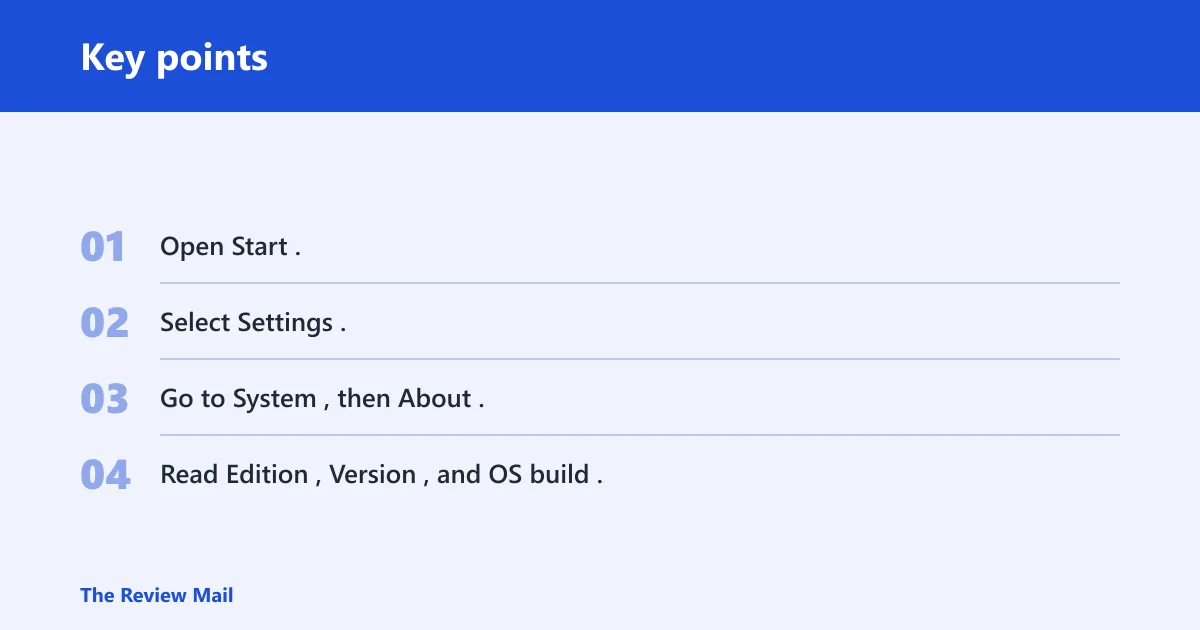
- Open Start.
- Select Settings.
- Go to System, then About.
- Read Edition, Version, and OS build.
If the edition says Windows 10, that is the answer you need. If the screen instead shows Windows 11, do not treat a familiar-looking version number as proof of Windows 10. The OS label decides it.
Use the interface to rule out Windows 11
Windows 11 uses a different Settings layout and visual style. If the device opens to Windows 11’s newer interface, the machine is not Windows 10 even when the build line looks familiar. That mismatch trips people up often. A laptop that opens the newer rounded Settings layout points to Windows 11, not Windows 10.
📊 Windows 10 hardware setup starts from Start > Settings > Devices. Source: Microsoft.
Is this phone Windows 10?
First confirm that you are looking at a phone, not a PC or tablet with a touchscreen. If it is a phone, the Windows 10 question is really about whether it is a Windows phone or another mobile system. Many search results mix those device classes, which is why the first step is to identify the hardware type.
Check the device class first
On a phone, look for the system information page in Settings and check the OS label there. If the phone does not present a Windows label, stop using PC-style instructions. A phone that only shows a model name or carrier screen may need a different support path entirely.
What to do if the wording only gives a device name
Suppose the screen says only “Surface” or another device name and never shows the OS. That means you do not have enough information yet. Open the system information area, then the About page if the device offers one. If the menu is missing, the device may not be running Windows at all.
Windows device checklist
Use this checklist when the question is really “what am I looking at?” and the device name alone is not enough. The fastest path differs for a PC or tablet versus a phone, and the wrong branch wastes time. Start with the branch that matches the device in your hand.
| Device branch | Exact check | What confirms Windows 10 | What to do next if unclear |
|---|---|---|---|
| PC or tablet | Start > Settings > System > About | Edition says Windows 10 | Search winver from Start and compare the edition screen |
| Phone | Settings > system information or About | OS label identifies Windows on the phone | Do not use PC driver steps until the device class is confirmed |
| If the OS is unclear | Look for the version and edition fields | Windows 10 wording appears directly | Check whether the interface matches Windows 11 instead |
PC or tablet branch: confirm the OS in Settings
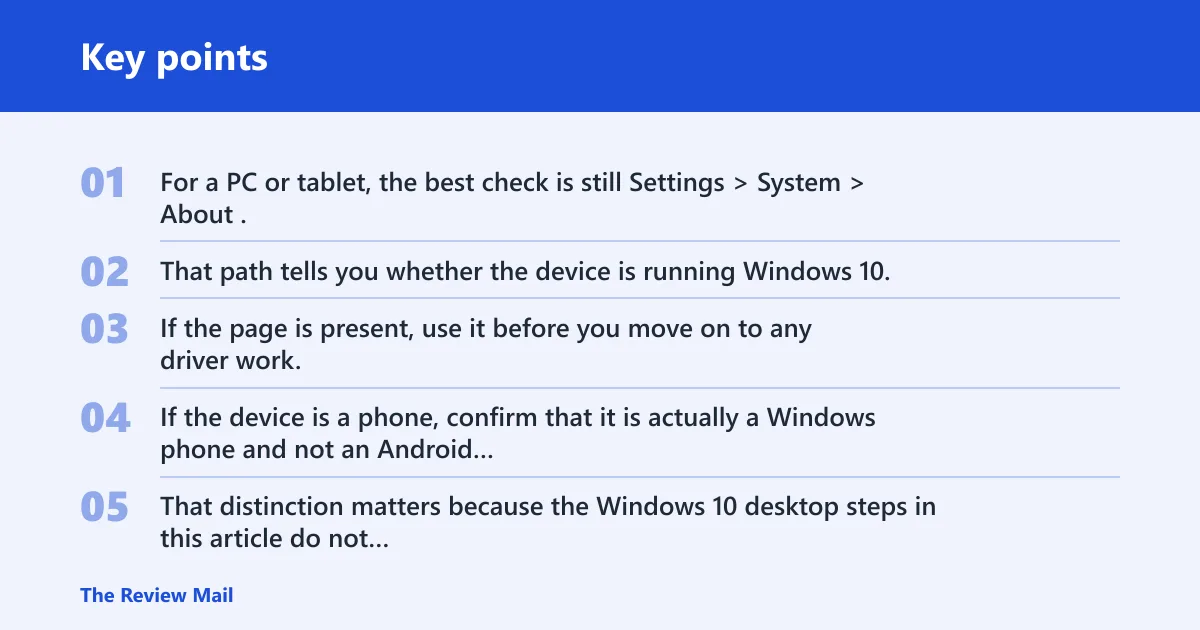
For a PC or tablet, the best check is still Settings > System > About. That path tells you whether the device is running Windows 10, and it avoids the guesswork that comes from device names, search results, or a raw build number. If the page is present, use it before you move on to any driver work.
Phone branch: confirm the device class before you look for Windows 10
If the device is a phone, confirm that it is actually a Windows phone and not an Android or iPhone. That distinction matters because the Windows 10 desktop steps in this article do not apply to a handset. If the phone cannot show a Windows-based About screen, the OS is likely something else.
If the OS is unclear, use the fastest next check
A common first-timer mistake is opening Device Manager before confirming the OS. Device Manager can show hardware details, but it does not tell you whether the device is Windows 10 or Windows 11. Finish the identity check first, then move to device details only if you need driver or status information.
What device manager shows
Device Manager is useful after you confirm the OS. It shows device type, status, manufacturer, and driver information, which helps you decide whether the issue is a missing driver, a bad pairing, or a hidden device. It does not confirm the Windows edition.
Open properties for the useful tabs
Right-click a device and open Properties. The tabs you want are General, Driver, Details, and Events. General shows the current status. Driver shows provider and version details. Details gives hardware identifiers. Events records recent device activity. (Microsoft Learn)
Look for the problem symbol
A yellow exclamation point marks a device with a problem in Device Manager. That symbol tells you something needs attention, but it still does not prove anything about the Windows edition. It is a hardware status clue, not an OS-identity clue.
Use hidden devices when a device disappears
Device Manager can hide some devices by default. If a device was present before and now seems missing, reveal hidden devices before you assume it is gone. That step is especially useful when the device was connected recently and then stopped showing up.
Where do connected devices appear?
On Windows 10, connected hardware and Bluetooth pairing start in Start > Settings > Devices. The specific area for pairing is called Bluetooth & other devices. That section is for device connections, not OS identity, so use it after you know the machine is Windows 10.
Use the add-device button
In Bluetooth & other devices, select Add Bluetooth or other device for manual adds. Windows usually detects and installs new hardware automatically, but manual adding may be needed if the device is not detected when connected. Keep the device close, and make sure it is in pairing mode before you start.
What automatic detection can and cannot tell you
Automatic detection tells you that Windows sees the hardware. It does not tell you whether the device is the right one, whether the driver is correct, or whether the OS is Windows 10 or Windows 11. If the device name appears but the OS still looks unclear, return to Settings > System > About.
How do you add hardware manually?
Use Add a hardware device to a Windows device when Windows does not find the hardware on its own. This applies to Windows 10 and Windows 11. The key requirements are simple: put the device in pairing mode, keep it close, and follow the manual add flow if automatic detection fails.
Manual add path
- Open Start.
- Open Settings.
- Choose Devices on Windows 10 or the matching device area on Windows 11.
- Select Add Bluetooth or other device.
- Choose the device type and finish pairing.
If the hardware is not listed, stop and confirm pairing mode again. Many add failures are simple range or mode issues, not permanent faults.
Keep pairing expectations realistic
Suppose a wireless keyboard appears once, then disappears before pairing finishes. That usually points to pairing mode timing, distance, or power, not to a wrong Windows edition. Move the device closer, put it back into pairing mode, and try the add flow again.
When Windows does not detect the device
If Windows does not detect the device, check Device Manager for hidden items, confirm the device is powered, and verify that pairing mode is on. For supported advanced setups, Windows Device Portal is another diagnostic option. It is a web server included with Windows devices, and it is disabled by default.
Use Windows Device Portal only for advanced diagnostics
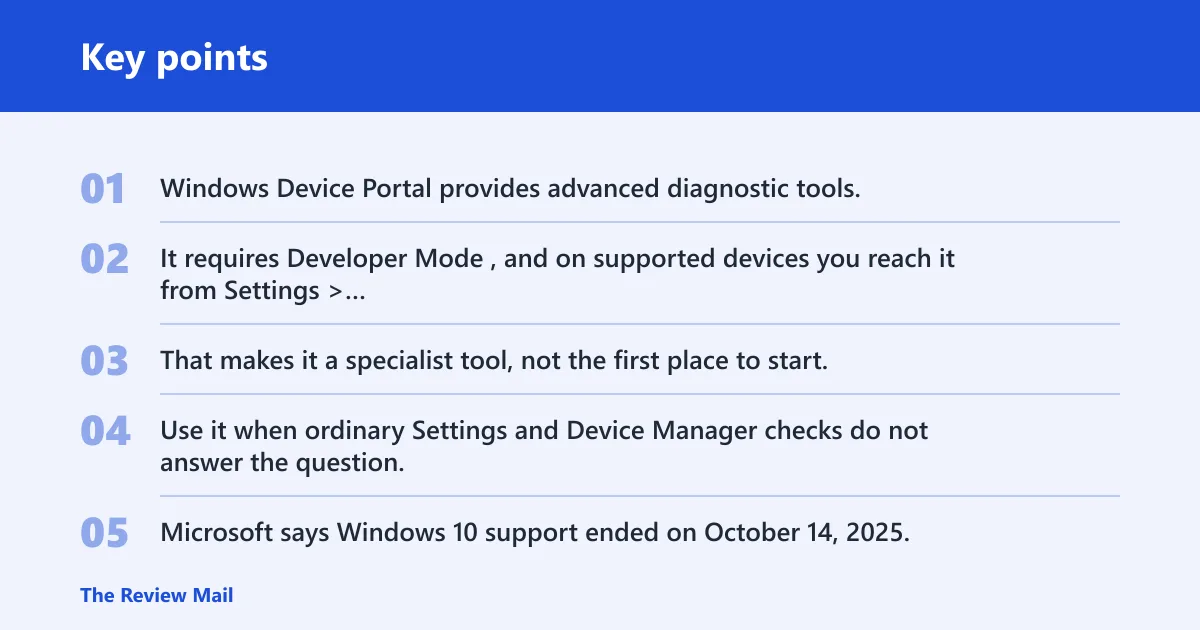
Windows Device Portal provides advanced diagnostic tools. It requires Developer Mode, and on supported devices you reach it from Settings > System > Advanced. That makes it a specialist tool, not the first place to start. Use it when ordinary Settings and Device Manager checks do not answer the question.
Why Microsoft says Windows 10 support ended
Microsoft says Windows 10 support ended on October 14, 2025. Microsoft also says Windows 10 will no longer get free software updates after October 14, 2025. That matters because a device can still run Windows 10 while no longer receiving standard updates. The OS identity and the support status are separate questions. (Microsoft Support)
What to do after you confirm Windows 10
If the device is confirmed as Windows 10, move to the right fix path: check Device Manager status, open the Driver tab, and look at any hidden devices. That is where driver errors and missing hardware usually surface. The identity check comes first; the repair path comes second.
Frequently asked questions
Is this device windows 10 or 11: open Settings System About?
Open Settings > System > About and read the Edition field first. If it says Windows 10, that is your answer. If the interface looks like Windows 11, do not trust a build number alone, because Windows 11 can show version numbers that confuse readers.
Is this phone windows 10: check whether the device?
Check whether the device is truly a phone and then open its system information page. If the OS label does not identify Windows, it is not the Windows 10 desktop path you want. A phone that only shows a model name needs a different support route.
How do I tell if my device is windows 10?
The shortest check is Start > Settings > System > About. Read the edition, version, and build fields there. If the edition says Windows 10, stop there. If you only see a device name, you need a better system-information screen before you can decide.
Where do I check the windows version on my device?
Use Settings > System > About. That page is the cleanest place to verify the version and edition on a PC or tablet. You can also search for winver from Start, but use it as a version check, not as the only proof that the device is Windows 10.
How can I see connected devices in windows 10?
Open Start > Settings > Devices, then choose Bluetooth & other devices. That area lists device connections and gives you the Add Bluetooth or other device button. It is the right place for pairing, not for deciding whether the device is Windows 10 or Windows 11.
What menu in windows 10 shows device details
Device Manager shows the details you need after the OS is confirmed. Open a device’s Properties window to find the General, Driver, Details, and Events tabs. That is where you check status, manufacturer, driver information, and recent device activity.
How do I add a hardware device in windows 10?
Go to Start > Settings > Devices, then select Add Bluetooth or other device. Put the hardware in pairing mode and keep it close. If Windows does not detect it, try the manual add path and check Device Manager for hidden devices or a yellow exclamation point.
Why does microsoft say windows 10 support ended?
Because Microsoft ended Windows 10 support on October 14, 2025. Microsoft says Windows 10 will no longer get free software updates after that date. That does not change the OS identity on your device, but it does change the support status and the path you should use for future fixes.
What if my device is not automatically detected in windows?
Windows usually detects and installs new hardware automatically, but some devices still need manual adding. Check that the device is powered, close enough, and in pairing mode. Then use Add Bluetooth or other device and inspect Device Manager if the device still does not appear.