Windows 10 Network Reset vs Network Troubleshooter
Use network troubleshooter first when you need a diagnosis and light repairs; choose windows 10 network reset only when Windows 10’s network stack looks corrupted, misconfigured, or stuck after repeated failures. Mixing them up can wipe settings you still need or leave the real fault in place. This guide compares both tools and shows which one to try first.
| Decision factor | windows 10 network reset | network troubleshooter | Winner |
|---|---|---|---|
| What it does | Reinstalls network adapters and returns network settings to default network settings. | Runs automatic checks and repair attempts for basic connectivity problems. | network troubleshooter |
| How disruptive it is | More disruptive; it can clear adapter state and custom networking settings. | Light touch; it tries targeted fixes without rebuilding the network setup. | network troubleshooter |
| Best symptom match | Stuck adapter, corrupted settings, broad Wi-Fi and Ethernet failure, problem returns after reboot. | Connected but no internet, DNS failure, public Wi-Fi sign-in trouble, minor drops. | Depends on symptom |
| Risk to saved network setup | Can remove saved Wi-Fi profiles and reset local network options such as custom DNS or proxy settings. | Usually keeps the existing setup in place while it tests and repairs. | network troubleshooter |
| Best use case | Last step before deeper manual repair. | First step for ordinary connection faults. | network troubleshooter |
What Network Troubleshooter checks
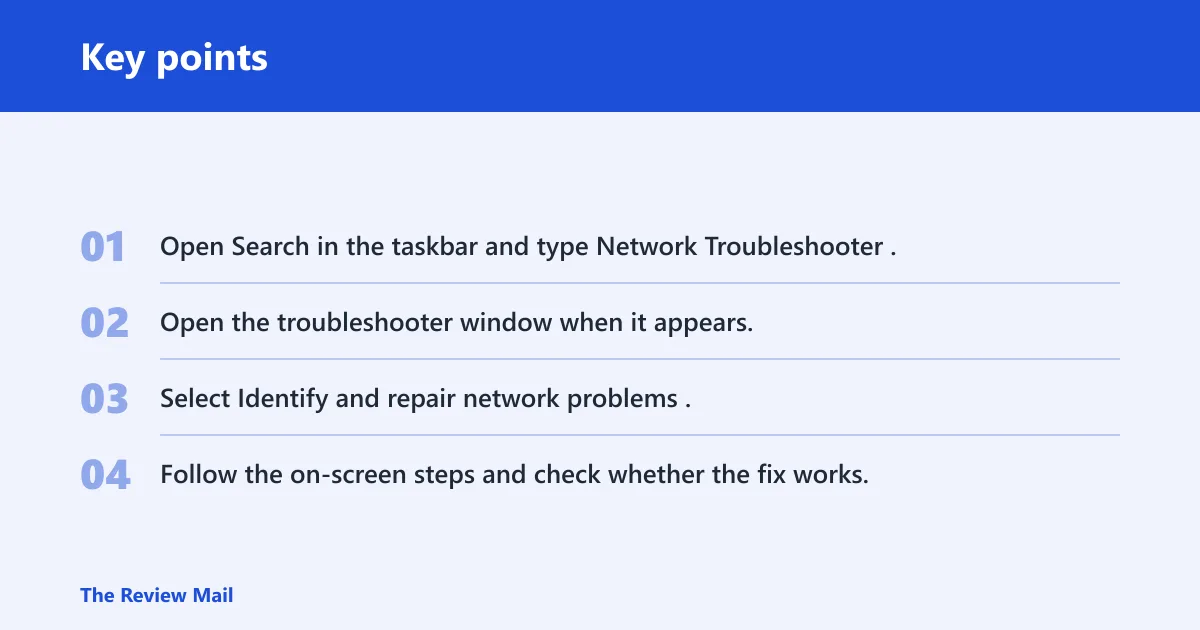
network troubleshooter is Windows 10’s built-in diagnostic for common connection problems. Microsoft’s support flow tells you to search for Network Troubleshooter in the taskbar, open the troubleshooter window, choose Identify and repair network problems, and follow the on-screen steps to check whether the fix works. (LSU)
That makes it the better first pass when you want a diagnosis before a larger change. It can catch common faults, try automatic repair, and show whether the problem is local to the PC or wider than that.
📊 The Network Troubleshooter article is specifically for Windows 10. Source: LSU.
What windows 10 network reset changes
windows 10 network reset is the deeper repair action. In Windows 10, the path is Settings > Network & Internet > Status > Network reset. It is more disruptive than troubleshooting because it returns networking components and adapter state to defaults instead of only checking for a fault.
That matters when Windows network settings look corrupted, misconfigured, or stuck. It can affect adapter state, saved Wi‑Fi profiles, custom DNS or proxy settings, and other local networking configuration. It does not remove Windows itself, and it does not automatically delete every app or every VPN program.
Troubleshooter vs network reset
Use the tool that fits the symptom. The choice is usually clear once you separate a plain connection fault from a broken adapter state or a network stack that keeps failing after reboot.
Symptom patterns that favor a lighter first step
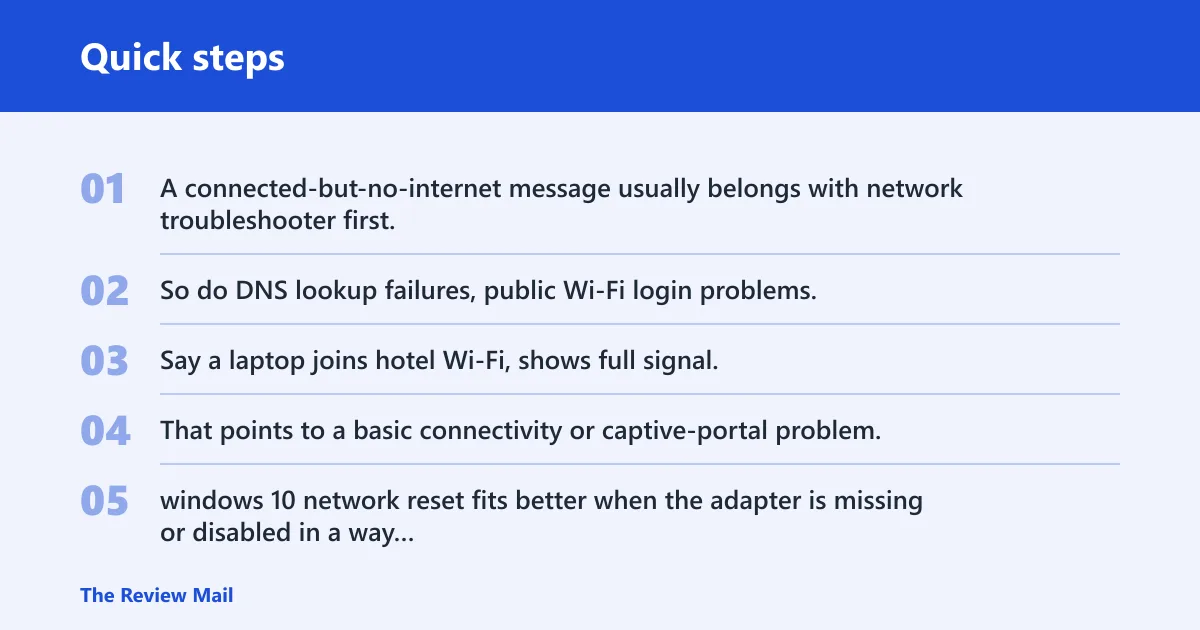
A connected-but-no-internet message usually belongs with network troubleshooter first, not a reset. So do DNS lookup failures, public Wi-Fi login problems, and minor Wi-Fi dropouts that appear on one network but not every network.
Say a laptop joins hotel Wi-Fi, shows full signal, and still cannot open sites after the sign-in page appears. That points to a basic connectivity or captive-portal problem, so troubleshooting first is the cleaner choice.
Symptom patterns that point to a deeper reset
windows 10 network reset fits better when the adapter is missing or disabled in a way normal repair does not clear, when both Wi-Fi and Ethernet fail, or when the problem returns after reboot. Those patterns suggest the local network setup is stuck rather than merely misread.
A common first-time mistake is rerunning the troubleshooter while the adapter list keeps changing or vanishing. If Windows keeps rebuilding the same failure after restart, the reset path is usually the more direct next step.
Office-managed PCs need a different check
On a home PC, you can usually choose the path yourself. On an office-managed device, policy can block adapter changes, proxy edits, or reset behavior, so the next step may be to ask IT before using either tool.
When should you start with Network Troubleshooter?
Start with network troubleshooter when the device still has some network life left: it sees Wi-Fi, joins the router, but cannot reach the internet; DNS lookups fail; or a public Wi-Fi page will not finish signing in. Microsoft also recommends checking internet connectivity first and using Wi-Fi settings to verify network status before deeper troubleshooting.
That same advice applies when the fault looks narrow. If one browser works poorly while other apps still load, or if the problem affects only one network and not your phone or another PC, a reset may be more than you need.
How to run network troubleshooter in Windows 10
- Open Search in the taskbar and type Network Troubleshooter.
- Open the troubleshooter window when it appears.
- Select Identify and repair network problems.
- Follow the on-screen steps and check whether the fix works.
You can also start from Settings > Network & Internet > Status and move from there to the repair flow. If the connection is only weak or confusing, this is usually the least disruptive choice.
When is network reset the better next step?
windows 10 network reset is the better next step when the network stack itself looks damaged or stale. That includes an adapter that is missing, a connection that fails across multiple networks, settings that appear wrong even after a reboot, or a fault that keeps coming back after simpler repair steps.
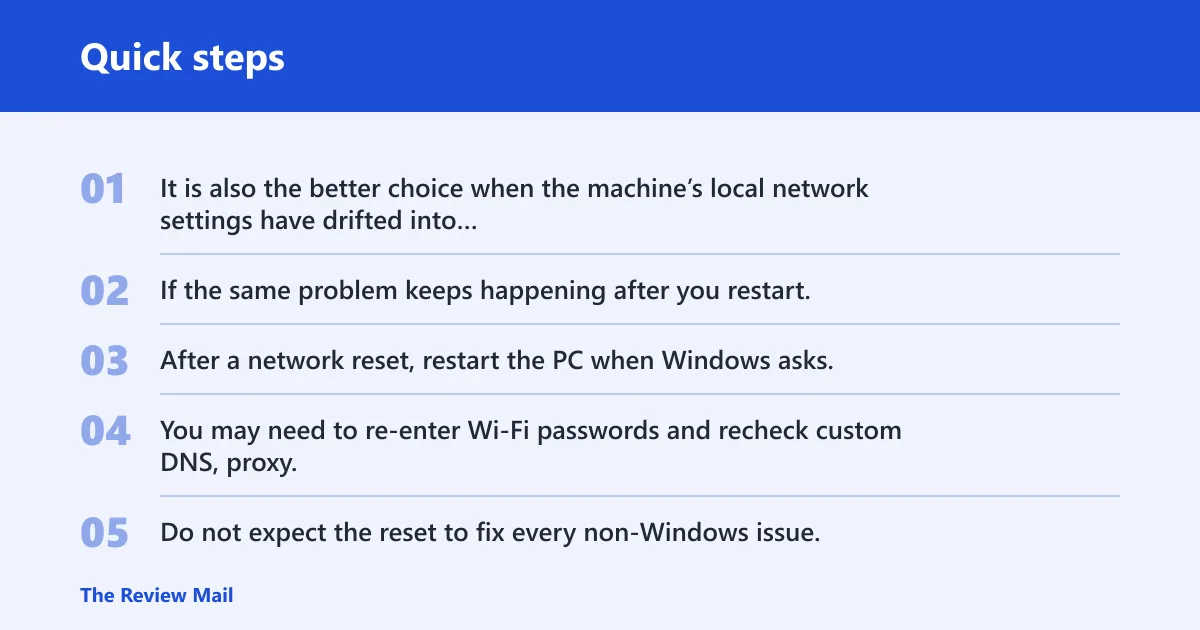
It is also the better choice when the machine’s local network settings have drifted into a bad state that ordinary repair cannot unwind. If the same problem keeps happening after you restart, the reset is the point where Windows rebuilds the local network setup more aggressively.
What to do after the reset
After a network reset, restart the PC when Windows asks, then reconnect Wi-Fi or Ethernet from Settings > Network & Internet > Wi-Fi or the equivalent network page. You may need to re-enter Wi-Fi passwords and recheck custom DNS, proxy, or VPN-related network settings.
Do not expect the reset to fix every non-Windows issue. If the router is down, the modem has no upstream signal, or the office VPN server is unreachable, the PC reset will not solve that external fault.
How do you run network reset in Windows 10?
Open Settings > Network & Internet > Status > Network reset, then follow the prompts. This is the Windows 10 path Microsoft uses for the deeper repair action, and it is the right place to look only after simpler checks have failed.
When the process finishes, restart the computer and reconnect to the network. Because the reset can remove saved Wi-Fi profiles and return local network settings to defaults, expect to spend a few minutes re-entering connection details.
Does windows 10 network reset fix Wi-Fi problems?
Yes, it can fix some Wi-Fi problems on Windows 10, especially when the adapter state, local settings, or wireless profile has become stuck. It is not a blanket cure for every Wi-Fi failure, though, and it is usually too heavy for a simple sign-in or DNS problem.
If the issue is only that one SSID will not connect, start with network troubleshooter. If Wi-Fi fails across several networks, or the adapter disappears until you reset it, windows 10 network reset is the more plausible next move.
Does network troubleshooter fix no internet but connected issues?
Often, yes. A “connected but no internet” message is one of the clearest cases for network troubleshooter because the machine already has a link, but something in the path to the internet is off. The tool can check common Windows-side faults before you make bigger changes.
If that same message keeps returning after the troubleshooter runs, move to the next layer. Check Settings > Network & Internet > Wi-Fi for the network status, then consider windows 10 network reset if the fault looks systemic rather than temporary.
Does Windows 11 work the same way?
Windows 11 uses a similar repair flow, but Microsoft routes some troubleshooters through the Get Help app. Microsoft says the Windows Update troubleshooter can run automatically in Get Help on Windows 11, and it also distinguishes Windows 11 from older Windows versions and mobile devices in its support flow. (Microsoft Support)
The logic is still the same: check the network first, try an automated troubleshooter for lighter faults, and use a deeper repair only when the network state looks broken. This guide stays centered on Windows 10 because the menus and entry points are different there.
Choose windows 10 network reset if…
Choose windows 10 network reset if the adapter is missing or disabled, if Wi-Fi and Ethernet both misbehave, if the problem returns after reboot, or if manual changes left the network setup in a bad state. It is the right pick when the local network configuration looks corrupted enough that a clean rebuild is worth the disruption.
It is also the right move after simpler steps fail. If the PC has already been checked in Settings > Network & Internet > Wi-Fi, run the troubleshooter, and still cannot hold a stable connection, the reset is the deeper next step.
Choose network troubleshooter if…
Choose network troubleshooter if the device is connected but cannot reach the internet, if DNS lookups fail, if a public Wi-Fi page will not finish signing in, or if the fault looks narrow rather than system-wide. It is the first choice when you want a diagnosis and a light repair attempt, not a rebuild.
That is the safer starting point for most home users. It gives you a chance to fix the issue without losing saved Wi-Fi details or custom local settings, and it tells you whether a deeper repair is actually justified.
Frequently asked questions
What is the difference between network reset and Network Troubleshooter in Windows 10?
network troubleshooter checks for common faults and tries automatic repairs with minimal change to your setup. windows 10 network reset goes further by reinstalling network adapters and returning local networking settings to defaults, so it is better reserved for stuck or corrupted network state.
When should I run Network Troubleshooter instead of a network reset?
Run network troubleshooter first when the problem is limited to one connection, one website class, or a “connected but no internet” message. That is the right choice when you want Windows to diagnose and try a fix before you remove saved network settings or rebuild adapter state.
What gets removed when I use network reset in Windows 10?
windows 10 network reset can clear saved Wi-Fi profiles, custom DNS or proxy settings, adapter state, and other local networking configuration. It does not remove Windows itself, and it does not automatically uninstall every VPN app, though some VPN-related network settings may need to be set up again.
How do I run the network troubleshooter in Windows 10?
Use Search in the taskbar, type Network Troubleshooter, open the troubleshooter window, and select Identify and repair network problems. Then follow the on-screen steps to check whether the fix works. You can also begin from Windows 10’s network settings pages.
Is network reset better for Ethernet or Wi-Fi problems?
It can help either one, but it is more useful when the fault affects both Ethernet and Wi-Fi or when the adapter state itself looks broken. If only Wi-Fi is failing on one network, start with network troubleshooter; if both wired and wireless keep failing, windows 10 network reset is the better next step.
Can I use the same fix on Windows 11 if I’m on Windows 10?
The repair logic is similar, but the entry points are not identical. Windows 11 often uses the Get Help app for automated troubleshooters, while Windows 10 keeps the main path in Search and Settings. This guide centers on Windows 10, but the same step order still makes sense.