Registry Errors Fix Windows 10
Fix registry errors in Windows 10 by checking whether the warning is tied to a bad registry entry, a leftover uninstall entry, malware changes, or wider Windows file damage. Common messages can include text such as “The registry is corrupt” or a startup warning that points to a registry key. Using the wrong fix can waste time, break apps, or leave boot and update failures unresolved. This guide shows how to separate each case and choose the next repair.
When Windows shows a registry-related warning, start with a backup, then use standard Windows repair tools in the order that matches the symptom: scan for malware if suspicious activity is involved, use System File Checker and DISM when Windows files may be damaged, and use Startup Repair or System Restore from Windows Recovery Environment when the desktop will not load.
Registry basics and error meaning
The Windows Registry is a large database of configuration settings. It stores hardware data and application settings in keys, values, and hives, so a bad change can affect sign-in, startup, updates, or a single app while leaving the rest of Windows fine.
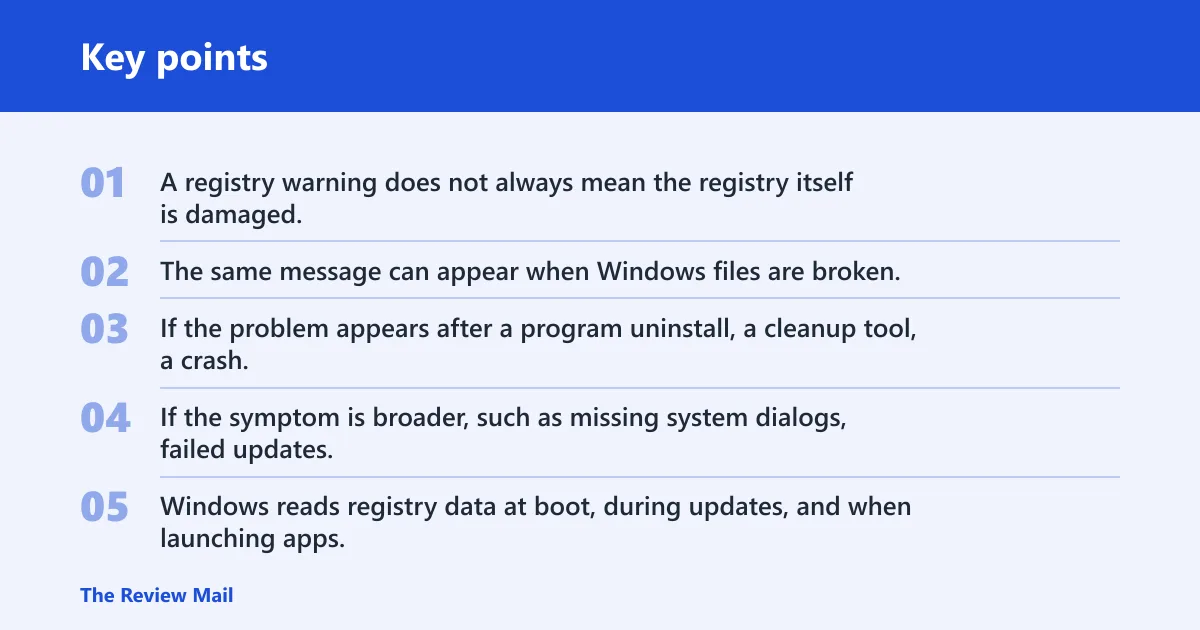
A registry warning does not always mean the registry itself is damaged. The same message can appear when Windows files are broken, when an uninstall leaves stale entries behind, or when malware changes policy keys. Diagnosis comes before repair.
When it points to the registry versus Windows files
If the problem appears after a program uninstall, a cleanup tool, a crash, or a power loss, the registry may be involved. If the symptom is broader, such as missing system dialogs, failed updates, or repeated repair prompts, Windows file damage can be the real issue even when the message mentions the registry.
Why the same message can have different causes
Windows reads registry data at boot, during updates, and when launching apps. A single failure point can surface as a startup error, an app crash, or a blue-screen symptom. The key observation is whether the failure is isolated to one app or repeated across boot, updates, and security prompts; that difference usually decides whether to edit a key, repair Windows files, or move into recovery tools.
What causes registry errors in Windows 10?
Registry problems can start with incomplete uninstalls or leftover entries. They can also follow Windows file damage after updates, crashes, or power loss. Malware can change keys and policies, and hive corruption can also happen.
Incomplete uninstalls and leftover entries
Programs often leave behind empty, duplicate, or orphaned keys after removal. Those leftovers can be harmless clutter, or they can break one app’s launch path. A registry cleaner may remove some debris, but Microsoft generally does not recommend registry cleaners, and they do not repair a damaged Windows image or a broken hive.
System-file damage after updates, crashes, or power loss
An abrupt shutdown or a failed update can damage files that Windows depends on before the registry is the real problem. In that case, SFC and DISM are better first steps than manual editing, because they check the operating system files and image that Windows uses to load settings.
Malware changes to keys and policies
Hostile software can change startup entries, browser settings, security policies, and file associations. If the problem started after a suspicious download or a browser redirect, scan first. Editing registry keys before removing the infection can let the same change return.
True hive corruption
A corrupted hive can prevent normal boot or cause repeated repair loops. If Windows still starts, a backup, SFC, DISM, or System Restore is safer than guessing which key to edit. Important nuance: importing a .reg backup in Registry Editor is not the same as restoring a corrupted offline hive from Windows Recovery Environment; .reg files restore exported registry data, but they do not replace a damaged hive file that Windows cannot mount.
Registry error or not?
Use this table to separate harmless clutter from a true repair case. Start with the symptom, then choose the safest first action. The bootable path assumes Windows still opens the desktop. The unbootable path assumes you only reach recovery screens or automatic repair.
| Symptom | Likely cause | Safest first action | Escalation path for bootable vs unbootable Windows 10 systems |
|---|---|---|---|
| One app fails to open after uninstall or reinstall | Leftover keys or stale file associations | Reinstall the app, then check its startup entries and related settings | Bootable: back up the registry first, then remove only the app-related entries if needed. Unbootable: use System Restore or a registry backup if one exists. |
| Windows shows repair prompts after a crash or update | System-file damage or image corruption | Run sfc /scannow | Bootable: follow with DISM. Unbootable: use Windows Recovery Environment and choose Troubleshoot > Advanced options > Startup Repair or Troubleshoot > Advanced options > System Restore. |
| Browser homepage, search engine, or security settings keep changing | Malware or policy changes | Run Windows Security malware scan | Bootable: remove the infection, then review startup items and browser-related keys. Unbootable: use Safe Mode if available, or start from recovery media and run the scan from there. |
| Blue-screen errors and repeated boot failure | Possible hive corruption or deeper Windows damage | Try System Restore from recovery options | Bootable: create a registry backup before any edit. Unbootable: use a known-good backup or recovery media before manual registry work. |
| Performance is slow, but no specific registry error appears | General Windows issues, not necessarily the registry | Check storage, updates, and system files before editing the registry | Bootable: avoid registry cleaners as a first step. Unbootable: move straight to recovery tools. |
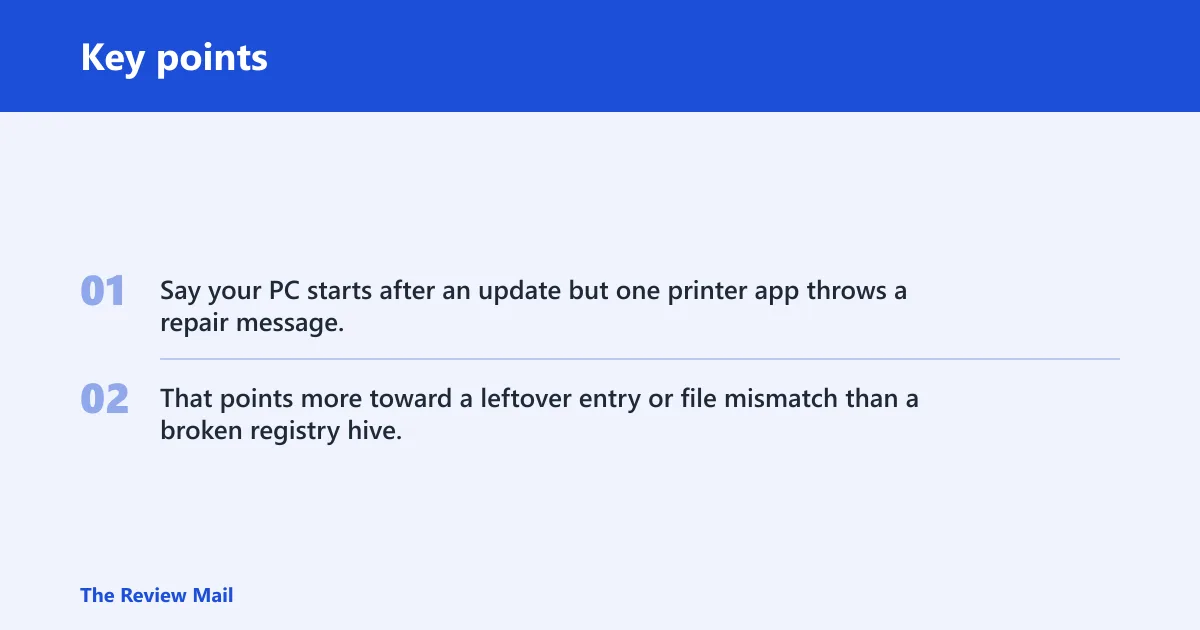
Say your PC starts after an update but one printer app throws a repair message. That points more toward a leftover entry or file mismatch than a broken registry hive, so the first safe move is an app reinstall, not a manual registry edit.
How do you back up the registry first?
Save a copy before you change anything. Registry Editor, or regedit, is the built-in tool for viewing and editing registry data, and it can export and import registry backups. That backup helps protect the specific keys or hives you plan to edit, but it is not a full-system rollback and it does not replace a complete Windows recovery option.
- Press Win + R, type regedit, and press Enter. You can also open it from Command Prompt by typing regedit.
- In Registry Editor, click the top node you want to save, such as Computer for a full export or a specific hive for a smaller backup.
- Select File > Export.
- Choose a file name and save it somewhere easy to find.
- If a later change causes trouble, open Registry Editor and use File > Import to restore that exported data only.
Suppose you only need to check one startup key. Export that branch instead of the full registry. That keeps the backup smaller and makes rollback easier if a change breaks a login item.
Can SFC or DISM fix registry errors in Windows 10?
Yes, sometimes, but they do it indirectly. SFC checks and repairs corrupted system files with sfc /scannow, and DISM repairs the Windows image with dism /online /cleanup-image /restorehealth. Those commands help when the registry warning is tied to damaged Windows files rather than a single key.
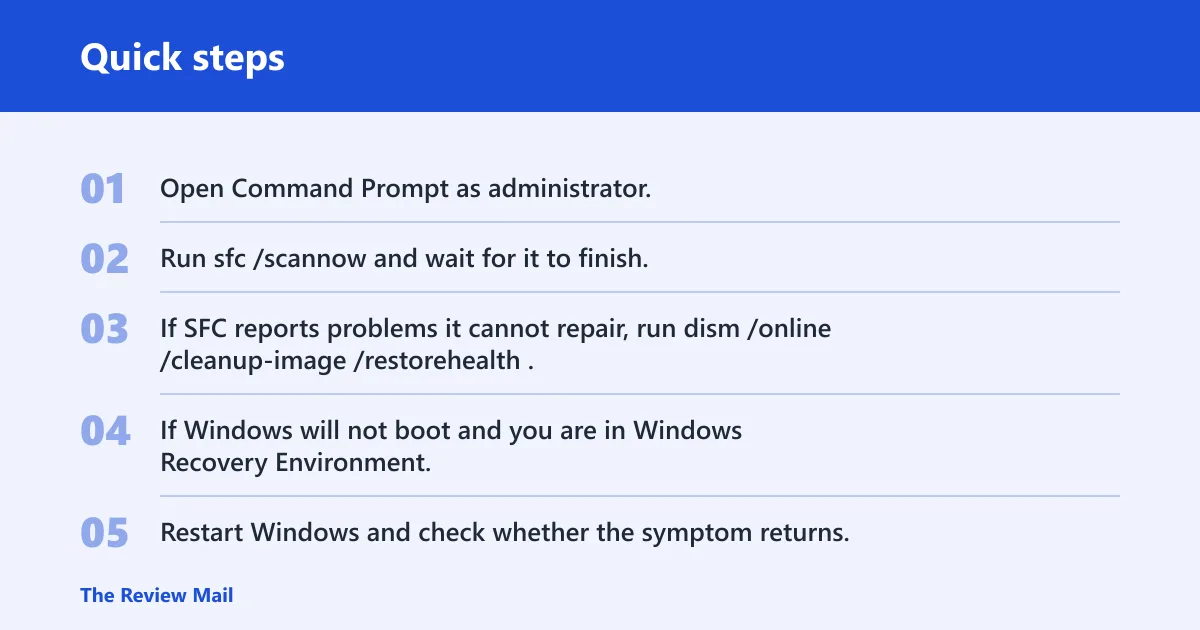
- Open Command Prompt as administrator.
- Run
sfc /scannowand wait for it to finish. - If SFC reports problems it cannot repair, run
dism /online /cleanup-image /restorehealth. - If Windows will not boot and you are in Windows Recovery Environment, run
dism /image:C:\ /cleanup-image /restorehealthagainst the offline Windows installation. - Restart Windows and check whether the symptom returns.
- If both commands finish without a fix, move to System Restore or a known-good backup instead of editing random keys.
If SFC and DISM both fail
That failure usually means the issue is deeper than system files alone. At that point, use System Restore, restore a registry backup if you have one, or prepare recovery media. Manual registry edits without a backup are a poor next step when Windows still cannot stabilize itself. In practice, when SFC returns unrepairable files and DISM also completes without resolving the symptom, the better path shifts away from registry edits and toward restore points, offline recovery, or reinstall planning.
What if malware changed the registry?
Run a malware scan before editing the registry when the problem follows suspicious downloads, browser redirects, or changes to security settings. Hostile software can rewrite startup entries, policies, and browser keys, and those changes can come back if the infection stays in place.
- Open Windows Security.
- Go to Virus & threat protection.
- Select Scan options, then run a full or offline scan if available.
- Remove or quarantine anything detected.
- After the scan, review Task Manager > Startup and the affected app’s settings before touching registry entries.
A common first-timer mistake is cleaning the registry before cleaning the infection. If malware added a startup entry, deleting one key without removing the payload can leave the system in the same state after the next restart.
What if Windows will not boot?
If Windows will not boot, skip normal desktop fixes and use recovery tools. The safest choices are System Restore, a known-good registry backup, or recovery media. System Restore rolls Windows back to a restore point, can remove apps and software installed after that point, and does not delete personal files and data.
- Enter Advanced startup from the recovery screen or installation media.
- Choose Troubleshoot > Advanced options > System Restore if a restore point exists.
- If you have a registry backup, restore the specific registry data you saved only after you are sure it matches the problem area.
- If neither option works, use Startup Repair or reinstall Windows after backing up data.
If that still does not work
At that stage, the repair has moved past registry cleanup. Reinstalling Windows is safer than continuing to edit hives by guesswork, especially when the machine cannot reach the desktop or safe mode.
Frequently asked questions
How to scan and fix registry errors in windows 10
Short answer: There is no single built-in “fix registry” button. Use Windows Security > Virus & threat protection to scan for malware, then open an elevated Command Prompt for sfc /scannow and dism /online /cleanup-image /restorehealth. If the problem persists after those checks, move to System Restore or recovery tools.
Is a registry cleaner safe to use on Windows 10?
Short answer: It is not a complete fix for serious registry errors. Some tools remove orphaned keys, yet they do not repair corrupted system files or a damaged Windows image. If the PC has boot issues, SFC, DISM, System Restore, or a backup is the better path.
How do I back up the registry before fixing errors?
Short answer: Open Registry Editor with Win + R, type regedit, and use File > Export. Save either the full registry or the specific hive you plan to change. If a mistake causes trouble, return to Registry Editor and use File > Import to restore the saved file. For offline corruption, a .reg import is not the same as restoring the actual hive file from recovery mode.