The Configured Proxy Server Is Not Responding
“The configured proxy server is not responding” usually means Windows, the browser, or a VPN is sending traffic through a dead proxy. Check the failing layer first. If the error affects all browsers, test proxy settings, DNS, VPN, and Windows networking in that order. Guessing can break internet access further and waste time changing settings that were never the cause. This guide shows how to isolate the fault fast and apply the right fix on home, work, or school PCs.
What the error means
The message points to a failed proxy connection, not always a full internet outage. A proxy can be set at the Windows level, inside one browser, or by VPN software. If that proxy host is offline, blocked, misconfigured, or replaced by malware, Windows can report that the configured proxy server is not responding.
That is why the first question is not “how do I reset everything?” It is “where is the failure?” If only one browser is affected, the fix is often in that browser. If all browsers fail, Windows networking or a VPN is a better suspect.
Why Windows says it
Windows 11 proxy settings are reached through Settings > Network & Internet > Proxy. From there, the manual proxy path can be disabled by turning Use a proxy server to Off, and automatic proxy detection should be turned on when troubleshooting. Internet Options can also hold proxy settings through the Connections tab, so browser-era settings may still matter.
What to separate before changing anything
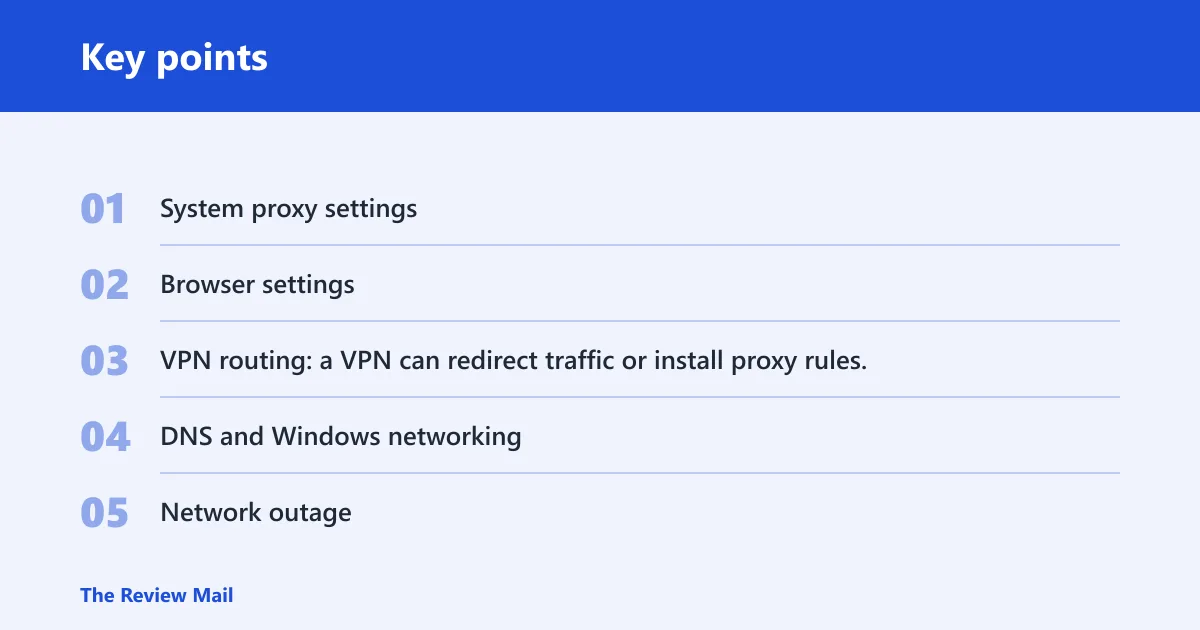
- System proxy settings: Windows 11 settings apply across apps that use the Windows network stack.
- Browser settings: one browser may have its own proxy or connection setting.
- VPN routing: a VPN can redirect traffic or install proxy rules.
- DNS and Windows networking: name resolution or the network stack can fail even when proxy settings look correct.
- Network outage: the modem, router, or provider may be down.
Proxy error decision table
This table helps you pick the right layer before you change settings. Start with the symptom that matches what you see, then test the fastest check listed. If the result points to a higher-level problem, skip the proxy reset and move there first.
| Symptom | Likely layer | Fastest verification step | Safest fix |
|---|---|---|---|
| Error appears in every browser and app | Windows proxy or network stack | Open Settings > Network & Internet > Proxy and check whether Use a proxy server is on | Turn manual proxy off, turn automatic proxy detection on, then test again |
| Error appears after a recent proxy change | Manual proxy enabled | Check the manual proxy setup toggle in Windows 11 Proxy settings | Disable manual proxy and remove any saved address or port you do not recognize |
| Error appears only after a sign-in delay or network change | Auto-detect off | Confirm Automatically detect settings is on in Windows Proxy settings | Turn automatic proxy detection on |
| Error appears only when a VPN is connected | VPN conflict | Temporarily disconnect the VPN and retest the browser | Keep the VPN off for testing, then adjust its proxy or split-tunnel settings if needed |
| Error appears in one browser only | Browser-only failure | Open another browser and compare the result | Reset that browser’s proxy, connection, or cache settings |
| Websites fail by name, but a direct IP may load | DNS-only failure | Flush cached resolver records with ipconfig /flushdns | Flush DNS, then reconnect and retest |
| Proxy settings changed without permission | Malware or adware | Check whether proxy values in Windows were altered unexpectedly | Run a security scan and restore the proxy setting manually |
| Error persists on a work or school PC | Managed-device proxy policy | Check whether the setting snaps back after you change it | Ask the administrator; policy may override local changes |
| No devices can reach the internet | Full network outage | Test another device on the same Wi-Fi or Ethernet link | Restart the router and modem, then contact the provider if nothing returns |
How to read the table
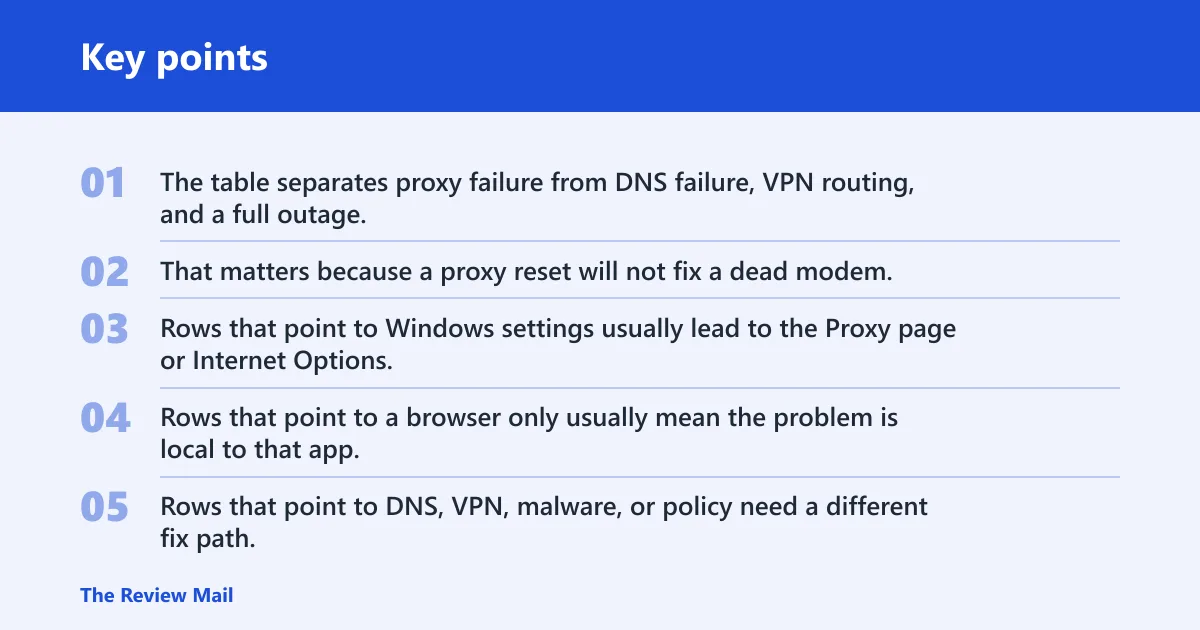
The table separates proxy failure from DNS failure, VPN routing, and a full outage. That matters because a proxy reset will not fix a dead modem, and a router restart will not fix a browser-only proxy rule. One quick check saves several wrong moves.
What each row helps you verify
Rows that point to Windows settings usually lead to the Proxy page or Internet Options. Rows that point to a browser only usually mean the problem is local to that app. Rows that point to DNS, VPN, malware, or policy need a different fix path, which is why the symptom comes first.
Is the problem in Windows or just one browser?
If the error shows up in every browser, start with Windows proxy settings, DNS, VPN, and the network stack. If only one browser is affected, the problem is probably inside that browser’s own settings or cache. That split keeps you from resetting Windows when the fault is isolated to one app.
Quick system-wide check
- Open a second browser.
- Try the same website.
- If both browsers fail the same way, the issue is likely system-wide.
- If the second browser works, focus on the first browser’s settings.
Browser-only check
Picture one browser failing on every site while a second browser loads pages normally. That points away from Windows proxy settings and toward that browser’s connection settings, cache, or extension layer. Resetting Windows would be the wrong first move there.
How to fix the configured proxy server is not responding
Start with the proxy controls, because they are the closest match for the message. On Windows 11, go to Settings > Network & Internet > Proxy and check both manual proxy and automatic detection. If a browser has its own proxy setting, check that too, because browser and system settings do not always match.
Turn off manual proxy settings in Windows 11
- Open Settings.
- Go to Network & Internet > Proxy.
- Under manual proxy setup, turn Use a proxy server off.
- Leave Automatically detect settings on while testing.
- Close and reopen the browser, then retest the site.
Check Internet Options LAN settings
Some systems still store proxy settings in Internet Options. Open the Connections tab, then LAN settings. If Use a proxy server for your LAN is checked, clear it. Make sure Automatically detect settings is checked while you test the connection.
Suppose a work laptop loads company sites but fails on public sites after a settings change. The system may still be pointed at a proxy that no longer responds. Turning off the manual proxy and enabling automatic detection is the right first correction, not a driver reinstall.
Could a VPN be causing it?
Yes. A VPN can trigger this error if it changes routing, installs proxy rules, or conflicts with the browser or Windows network stack. The fastest test is to disconnect the VPN briefly and try the same site again. If the error disappears, the VPN is part of the problem.
Temporary disable test
- Disconnect the VPN.
- Close the browser.
- Reopen the browser and try the same website.
- If the site loads, check the VPN’s proxy, split-tunnel, or connection profile settings.
When the VPN changes routing
Some VPN software changes browser or OS-level routing, which can make a working internet connection look like a proxy failure. If the issue only appears while the VPN is active, the proxy message may be a side effect of that routing layer, not a broken proxy host.
Why DNS or Winsock can trigger the error
DNS and Winsock problems can mimic proxy trouble. Cached resolver records may point traffic to the wrong place, and a damaged network stack can stop normal connections even when proxy settings look fine. The usual repair pair is ipconfig /flushdns and netsh winsock reset.
Flush DNS cache
The DNS cache stores cached resolver records. Flushing it clears stale entries that can point to a dead host. Use ipconfig /flushdns, then test the same site again before moving to deeper steps.
Reset Winsock and restart
netsh winsock reset repairs parts of the network stack. A restart is required after running the command. Microsoft Q&A examples for Windows 11 internet and connectivity also mention ipconfig /registerdns, ipconfig /release, and ipconfig /renew during troubleshooting, which can help when address assignment is also involved.
A common first-timer mistake is to run Winsock reset and then keep browsing without rebooting. That leaves the repair unfinished. Restart first, then retest the browser and the system-wide connection.
What if Windows still cannot connect?
If proxy settings, VPN, DNS, and Winsock do not solve it, move to the broader network path. Restart the router or modem first, then consider Windows network reset, malware, and managed-device policy. Network reset is a last-resort repair step because it removes saved networks and settings.
Restart the router or modem
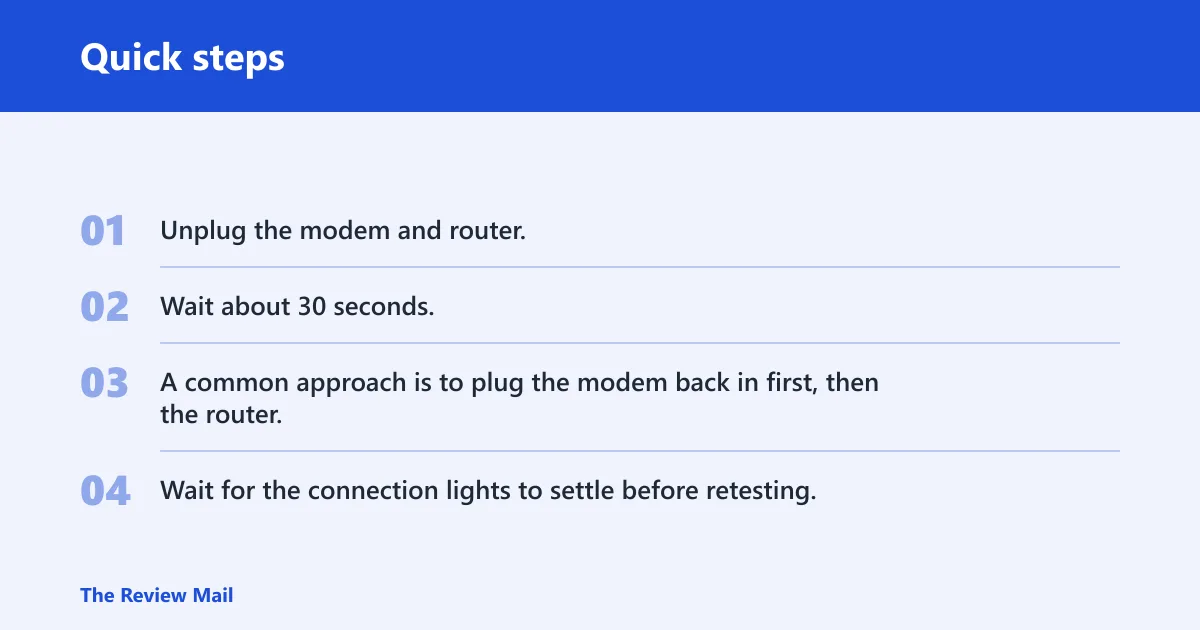
- Unplug the modem and router.
- Wait about 30 seconds.
- A common approach is to plug the modem back in first, then the router.
- Wait for the connection lights to settle before retesting.
This clears short-lived router faults and refreshes local connectivity. If another device on the same network also fails, this step matters more than browser tweaks.
Run a network reset as the last resort
Windows network reset removes saved networks and network settings. Use it only after simpler fixes fail, because it is broader than a proxy toggle or DNS flush. It can help when the network stack is badly misconfigured, but it will not fix a dead provider link.
Check for malware or managed-device proxy policy
Malware and adware can alter proxy settings and can force traffic through unauthorized proxies. If proxy values keep changing back, run a security scan. On a work or school device, a proxy policy may also override your local change, so ask the administrator if the setting will not stay off.
Check adapter drivers only after the above
If the error still persists after proxy, DNS, VPN, router, and reset checks, then look at the network adapter driver. That is a secondary step, not the first one. A driver update can help when Windows networking is unstable, but it should not replace the faster checks above.
Frequently asked questions
What does the configured proxy server is not responding mean?
It means Windows or the browser tried to send traffic through a proxy server that did not answer. The problem may be a bad proxy address, a VPN conflict, DNS trouble, browser-only settings, or a wider outage. Start by checking which layer fails, not by resetting everything.
How do I turn off proxy settings in Windows 11?
Open Settings > Network & Internet > Proxy, then turn Use a proxy server off. Also check Internet Options under the Connections tab, then LAN settings, and clear Use a proxy server for your LAN if it is checked. Keep Automatically detect settings on while testing.
Does resetting Winsock fix proxy server errors?
Sometimes. netsh winsock reset can fix network stack damage that looks like a proxy failure, but it does not repair a dead proxy host or a policy-controlled setting. Run it after you have checked proxy settings and DNS, then restart before you test again.
Can a VPN cause the configured proxy server is not responding?
Yes. A VPN can change routing, enforce its own proxy rules, or conflict with browser and Windows networking. The quickest test is to disconnect the VPN briefly and retry the same site. If the error vanishes, the VPN is a likely part of the failure.
What if the error only happens in one browser?
That usually points to browser-only settings, cache, or extensions rather than Windows proxy settings. Try a second browser first. If the second browser works, reset the problem browser’s connection settings and clear its cache before you touch system-wide proxy or network controls.
What to do when the configured proxy server is not responding?
Check the layer first: Windows proxy settings, browser settings, VPN routing, DNS, or the modem and router. Turn off manual proxy settings, leave automatic detection on, briefly disable the VPN, flush DNS, and reset Winsock if needed. If none of that helps, test for a network outage or managed-device policy.