Windows Unmountable Boot Volume Error: Fixes That Work
The fastest first move is Startup Repair from WinRE. Microsoft documents Startup Repair as a first pass for boot problems in the Windows Recovery Environment, and if the disk looks unreadable or CHKDSK later reports unrecoverable errors, stop and copy your files before you try Reset this PC or reinstall.
What usually causes it?
The boot volume is the Windows partition on an SSD or hard drive, and Windows must read it at startup. This stop code often comes from file-system corruption or damaged boot information, and it can also appear after a major Windows update. Windows 10 and Windows 11 generally use similar recovery paths, but many modern systems boot through an EFI system partition rather than legacy BIOS-only boot code, which matters when you choose the repair branch.
File-system corruption on the Windows partition
If the partition that holds Windows cannot be read cleanly, the system may stop before sign-in. That points to a repairable file-system problem more often than a full reinstall problem. Microsoft’s CHKDSK guidance explains that file-system checks can correct some disk errors, but not physical drive failure.
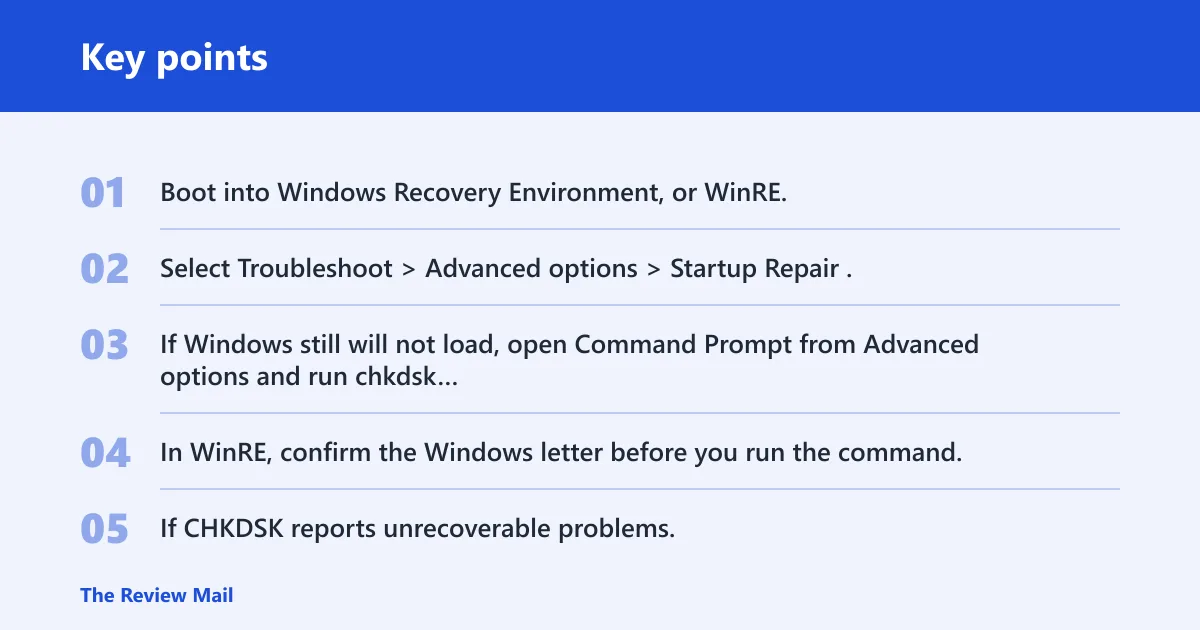
- Boot into Windows Recovery Environment, or WinRE, from Windows installation media or a recovery USB.
- Select Troubleshoot > Advanced options > Startup Repair.
- If Windows still will not load, open Command Prompt from Advanced options and run
chkdskD: /f against the Windows drive letter you see in recovery mode. If you need a deeper surface scan, usechkdskD: /f /r, but note that /r is much slower. - In WinRE, confirm the Windows letter before you run the command. Drive letters can change in recovery mode, and using the wrong one can target the wrong volume.
- If
CHKDSKreports unrecoverable problems, stop and back up important files before trying any more repairs.
Boot-sector, MBR, or GPT damage
Damage to the boot structures can block startup even when the files on the disk still exist. This is the branch to try when Startup Repair does not fix the boot path and the drive itself still answers in recovery mode. On many Windows 10 and Windows 11 PCs, the system boots with UEFI and GPT, so the right fix is often to rebuild EFI boot files and the BCD store rather than treating every machine as a legacy BIOS/MBR case. Microsoft’s Startup Repair and boot configuration data repair guidance covers the recovery path.
- Open Command Prompt in WinRE.
- Run bootrec /fixmbr if the machine uses legacy BIOS/MBR boot.
- Run bootrec /fixboot if the boot sector needs repair.
- Run bootrec /rebuildbcd to rebuild the boot configuration data.
- If bootrec /fixboot stalls or errors on a GPT system, move to file backup first instead of repeating the command blindly.
- For UEFI/GPT systems where bootrec /fixboot fails, rebuild the EFI boot files and BCD instead of forcing MBR-style repairs. Microsoft’s recovery documentation points to using boot configuration repair from WinRE when the EFI path is damaged.
Recent update or system-change failure
A major Windows update can trigger the problem, and one common pattern is an endless boot loop instead of a single stop screen. If the machine fails right after an update, System Restore is often the safer next move before deeper repairs. Microsoft’s System Restore instructions are the standard rollback path when a restore point exists.
- From WinRE, go to Troubleshoot > Advanced options > System Restore.
- Choose a restore point from before the update or other recent change.
- Let the restore complete, then restart the PC once.
- If the restore point is missing or the restore fails, copy files off the drive before trying reset or reinstall.
When the drive may be failing
If CHKDSK cannot finish cleanly, returns unrecoverable errors, or the drive becomes hard to access during recovery, treat the disk as suspect. Microsoft’s disk-repair guidance and major drive makers’ health tools both treat repeated read errors, disappearing volumes, and slow, unstable access as warning signs that point beyond a simple software fix.
- Stop running repair commands that write to the disk.
- Copy off the most important files first.
- If the drive drops out or becomes unreadable during copy, stop and do not keep retrying aggressively.
- After data is safe, replace the drive or use a clean reinstall on the new disk.
Which fix to try first?
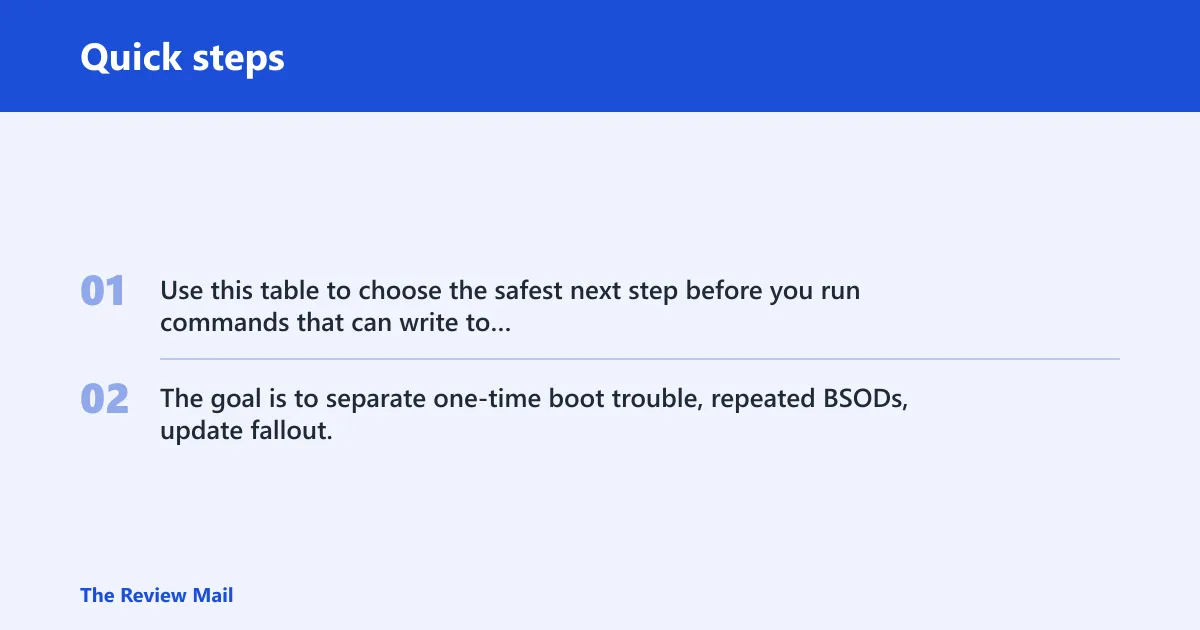
Use this table to choose the safest next step before you run commands that can write to the disk. The goal is to separate one-time boot trouble, repeated BSODs, update fallout, and signs of disk damage, then stop early when the symptoms point to data risk.
| Symptom | Likely cause | Safest next step | Command or tool to use | When to stop and back up data |
|---|---|---|---|---|
| One-time BSOD, then it boots normally | Temporary file-system or boot hiccup | Restart once and watch for a repeat | Plain restart | Stop if the screen returns on the next boot |
| Repeated BSOD or boot failure every restart | Persistent boot or file-system corruption | Go to WinRE and try Startup Repair first | Startup Repair | Stop if repair fails twice or the disk becomes unstable |
| Endless boot loop | Boot files or recent system change | Go to WinRE and try Startup Repair first | Startup Repair | Stop if repair fails twice or the disk becomes unstable |
| Post-update failure | Recent Windows change or update fallout | Try System Restore before boot-record repair | System Restore | Stop if no restore point exists or restore does not complete |
CHKDSK reports unrecoverable errors | Possible drive damage | Copy files off the disk first | Command Prompt, file copy tools, then CHKDSK only if needed | Stop as soon as the most important files are safe |
CHKDSK finds bad sectors but still completes | Weak or aging drive media | Back up data, then plan replacement | CHDSK /f /r if you must confirm the damage, then file backup | Stop once files are copied; repeated scans can stress a failing disk |
| Reset or reinstall fails | Corruption deeper than the built-in repair path | Back up data, then reinstall cleanly | Reset this PC or reinstall Windows | Stop before resetting if files are not already copied |
Run Startup Repair first
Startup Repair is the first-line automatic repair for boot failures, and it is the safest place to start when Windows cannot load normally. On Windows 10 and Windows 11, the path is the same once you are in WinRE, and Microsoft recommends it before manual boot repair when startup files may be damaged.
- If Windows will not load, boot from Windows installation media or a recovery USB.
- If you can still reach the sign-in screen, hold Shift while selecting Restart.
- Choose Troubleshoot > Advanced options > Startup Repair.
- Let the tool finish, then restart the PC one time.
- If it fails again, move to the next branch in the table rather than repeating the same repair.
Can you fix boot records?
Yes, if the problem is in the boot records rather than the files on the Windows partition. Use these commands only from recovery Command Prompt, where the system is not actively trying to boot from the damaged volume. Microsoft’s boot repair guidance also notes that UEFI systems may need EFI boot-file repair when the normal bootrec path does not complete.
- Open Command Prompt from Advanced options in WinRE.
- Run bootrec /fixmbr to repair the master boot record path on legacy BIOS/MBR systems.
- Run bootrec /fixboot if the boot sector needs repair.
- Run bootrec /rebuildbcd to rebuild the boot configuration data.
- If the drive uses GPT and bootrec /fixboot errors out, do not keep forcing it; rebuild the EFI boot files and BCD from WinRE instead of continuing to write to a possibly failing disk.
Check the disk with CHKDSK
CHKDSK is the right next step when the Windows partition may have file-system errors but still responds in recovery mode. In WinRE, you need the correct drive letter, which may not be the same as the one you see in normal Windows. Microsoft’s CHKDSK documentation warns that the command must target the right volume, especially when recovery mode reassigns letters.
- Open Command Prompt in WinRE.
- Find the Windows drive letter from recovery mode.
- Run
chkdskD: /f on that letter, such aschkdskD: /f if recovery shows Windows on D:. If you need a full surface scan, usechkdskD: /f /r, but note that /r is much slower. - Watch for unrecoverable errors.
- If the disk reads slowly, throws repeated errors, or stops partway through, prioritize copying files over more repairs.
Should you use system restore?
Use System Restore when the stop code showed up after a recent change and you have a restore point from before the failure. It can roll back system files and settings, but it does not copy personal files off the drive. Microsoft’s System Restore page describes it as a rollback tool for exactly this kind of post-change failure.
- Open Troubleshoot > Advanced options > System Restore.
- Pick a restore point that predates the update or other change.
- Confirm the restore and let it complete.
- Restart the PC one time afterward.
- If System Restore is unavailable or fails, back up your files before trying reset or reinstall.
Should you reset or reinstall Windows?
Reset this PC and reinstall Windows are last-resort options. Choose them only after your files are safe, because even the Keep my files option can remove apps and drivers. Microsoft’s reset guidance makes clear that it is a recovery tool, not a substitute for a backup.
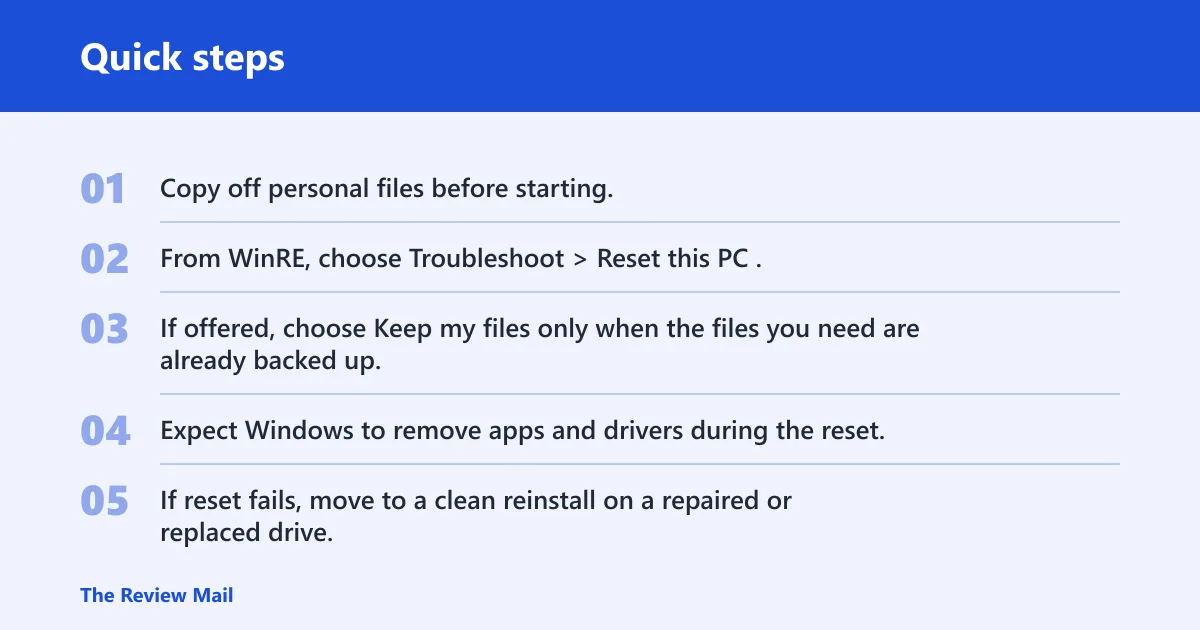
- Copy off personal files before starting.
- From WinRE, choose Troubleshoot > Reset this PC.
- If offered, choose Keep my files only when the files you need are already backed up.
- Expect Windows to remove apps and drivers during the reset.
- If reset fails, move to a clean reinstall on a repaired or replaced drive.
Before you reset, back up what matters
Suppose the disk opens in recovery but CHKDSK reports unrecoverable problems. Copy the most important folders first, such as Documents, Desktop, Pictures, and any one-off work files, then stop if the drive becomes unstable.
A common first-timer mistake is to keep forcing repairs after the disk starts disappearing during copy. That risks turning recoverable files into unreadable ones.
Frequently asked questions
How do I fix unmountable boot volume error in Windows 10?
Use the same WinRE path as Windows 11: reboot into Troubleshoot > Advanced options > Startup Repair. If that fails, try bootrec /fixmbr, bootrec /fixboot, and bootrec /rebuildbcd, then run chkdsk D: /f against the Windows drive letter in recovery mode. Microsoft’s repair flow also recommends checking the drive letter carefully in WinRE before running disk commands.
How do I fix unmountable boot volume error in Windows 11?
Windows 11 uses the same recovery tools. Start with Startup Repair from WinRE, then move to Command Prompt for bootrec commands or chkdsk D: /f if the disk still reads. If the failure started right after an update, try System Restore first.
What command should I run to check the disk for unmountable boot volume?
Run chkdsk D: /f from recovery mode against the Windows drive letter that WinRE shows for that installation. If you need a deeper surface scan, use chkdsk D: /f /r, but remember that /r is slower. If the command returns unrecoverable errors, stop repair attempts and back up the files you still can reach before resetting or reinstalling.
How do I repair the MBR or GPT for unmountable boot volume?
Open Command Prompt in WinRE and run bootrec /fixmbr, bootrec /fixboot, and bootrec /rebuildbcd. For legacy BIOS/MBR machines, those commands repair the classic boot path. For UEFI/GPT systems, use the same entry point, but if /fixboot errors out, rebuild the EFI boot files and boot configuration data instead of repeating the command.
Can I recover files before reinstalling Windows after unmountable boot volume?
Yes. Before any reset or reinstall, copy the files you need off the Windows drive while it is still readable in recovery mode. If the disk slows down, errors out, or vanishes, stop copying and save the most important files first.
Should I reset Windows or reinstall it for unmountable boot volume?
Use reset or reinstall only after your data is safe. Reset this PC may keep personal files, but it can remove apps and drivers. If reset fails, a clean reinstall is the last step, preferably after the drive has been replaced if CHKDSK showed unrecoverable errors.