Ethernet Not Detected Windows 11: Fixes That Work
If Ethernet is not detected in Windows 11, check link status first: cable, port, dock, and adapter LEDs. If the adapter still does not appear after that, treat it as a driver or NIC fault. Skipping the wrong layer wastes time and can leave you without network access during updates, work, or remote support. This guide uses a symptom-based path for physical link failure, driver failure, and network configuration failure, then covers the safest reset steps.
Ethernet status decision table
Start with the exact status Windows 11 shows in Settings. The wording matters, because statuses such as “Cable unplugged,” “Not connected,” “Unidentified network,” and “Connected but no internet” can point to different layers of failure. Use the table below to match the symptom to the fastest check and the next step.
| Exact Windows 11 status | Likely cause | Fastest verification step | Next action |
|---|---|---|---|
| No Ethernet adapter shown | Driver failure, disabled NIC, dock or USB-C adapter failure, or BIOS/UEFI LAN setting | Open Device Manager and look for the Ethernet adapter under Network adapters | Enable it, uninstall and reinstall the driver, or check dock and firmware settings |
| Cable unplugged | Physical link failure at the cable, wall jack, router port, dock, or USB adapter | Check both ends of the Ethernet cable and the link lights | Reseat the cable, swap in a known-good cable, then test another router LAN port |
| Not connected | The adapter is present, but Windows sees no active link or the driver is not negotiating properly | Open Settings > Network & internet and confirm Ethernet status at the top | Check the cable, disable and re-enable the adapter, or reinstall the driver |
| Unidentified network | DHCP, IP, gateway, or DNS problem | Run the Network troubleshooter in Get Help | Reset Winsock and TCP/IP, then renew the IP address and clear DNS |
| Connected but no internet | Local link is up, but the router, modem, ISP handoff, or DNS path is broken | Try Wi-Fi on the same network or check another device on the same router | Power-cycle modem and router, then run network repair commands |
| Adapter present but disabled | The NIC is turned off in Windows or in firmware | Check Device Manager and adapter status in Network & internet settings | Enable the adapter, then restart and retest |
📊 Microsoft says Windows 11 users should start with the automated Network and Internet troubleshooter in the Get Help app. Source: Microsoft.
Why is Ethernet not detected?
Windows 11 usually misses Ethernet for one of three reasons: the physical link is broken, the adapter or driver has failed, or the network stack cannot assign a working address. The quickest way to avoid random fixes is to decide which layer failed first, then work outward from there.
Physical link failure
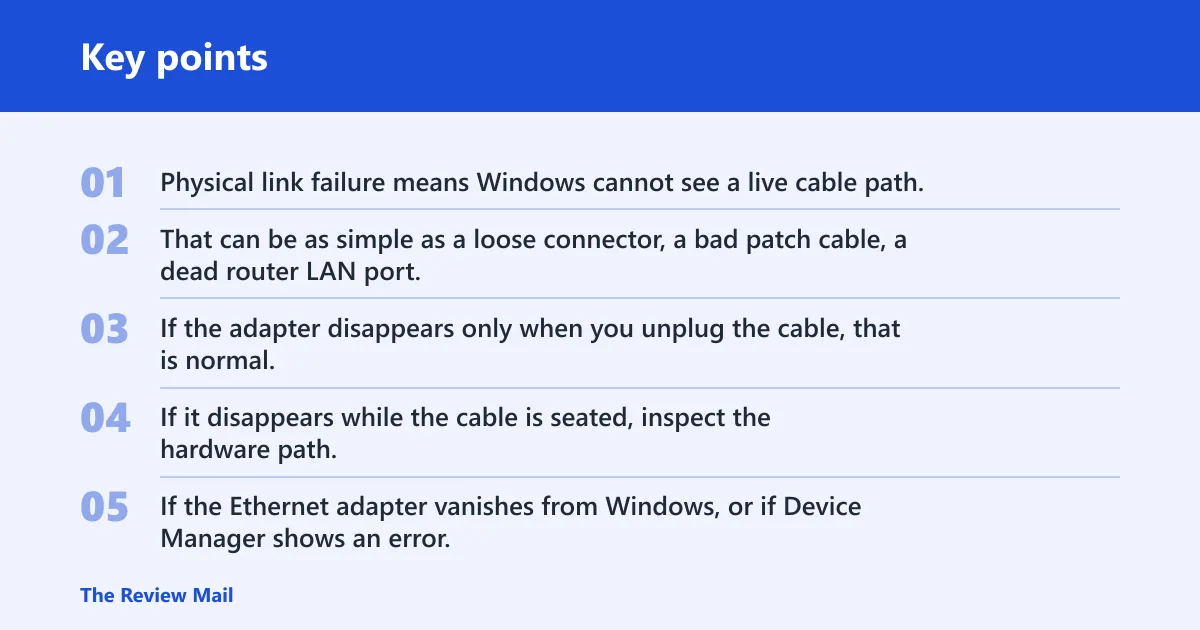
Physical link failure means Windows cannot see a live cable path. That can be as simple as a loose connector, a bad patch cable, a dead router LAN port, a wall jack that is not patched through, or a dock that is not passing Ethernet correctly. If the adapter disappears only when you unplug the cable, that is normal. If it disappears while the cable is seated, inspect the hardware path.
Driver or adapter failure
If the Ethernet adapter vanishes from Windows, or if Device Manager shows an error, the driver or the adapter itself may be the fault. That includes built-in NICs, USB to Ethernet adapters, and Ethernet built into docks. On laptops, a disabled NIC or a BIOS or UEFI LAN setting can make the port look dead even when the cable is fine.
Windows network configuration failure
When Windows detects the adapter but the network still fails, the issue often sits in DHCP, TCP/IP, Winsock, or DNS. In that case the adapter is present, but Windows cannot complete the connection or resolve names. The symptom usually appears as “Unidentified network,” “Connected but no internet,” or a similar status with no usable browsing.
Say your desktop shows Ethernet in Settings, but the status reads “Unidentified network” after a restart. That points away from the cable and toward the address or resolver layer. A different cable will not help if the TCP/IP stack is the broken part.
What should you check first?
Begin with the status in Windows 11 Settings, then move to the cable and the network hardware. Microsoft recommends the automated troubleshooter first, but a quick visual check often separates a dead cable from a working adapter that only needs repair. That saves time and prevents unnecessary resets.
Confirm Ethernet status in Settings
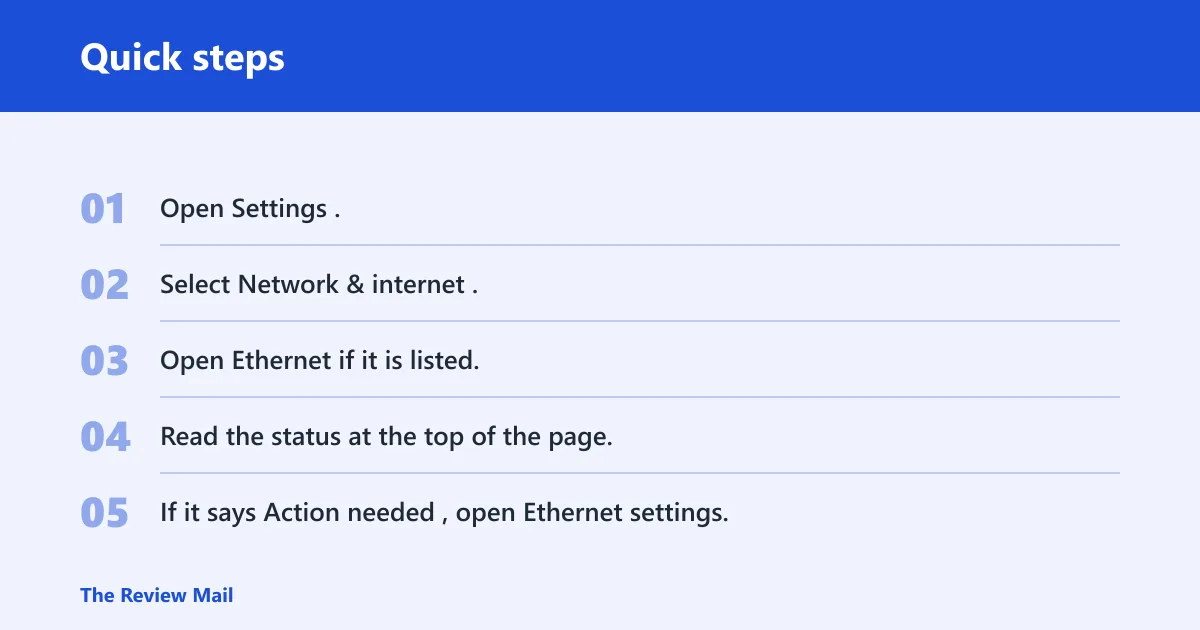
Open Settings > Network & internet and look at Ethernet near the top of the page. Microsoft says the status should display Connected underneath the network connection name. If it shows Action needed, select Ethernet to view settings. That one screen tells you whether Windows sees the adapter at all.
- Open Settings.
- Select Network & internet.
- Open Ethernet if it is listed.
- Read the status at the top of the page.
- If it says Action needed, open Ethernet settings.
Reseat the cable and test a known-good cable
Check that the Ethernet cable is plugged into both the router and the Windows PC. Then swap in a known-good cable if the link is still absent. Microsoft recommends testing another cable to isolate cable failure, which is the fastest way to rule out a bad patch cord. A loose plug can mimic a dead NIC.
Check the router, modem, wall jack, and LAN port
Restart both modem and router, and give them a few minutes to fully power on. If you have a single combo device, one restart sequence may be enough. Then move the cable to another router LAN port. If that works, the first port is the issue. If it still fails, move the cable to a different wall jack to separate internal wiring from the ISP handoff.
Picture a laptop on a dock with a USB-C Ethernet adapter. The adapter light is on, but Windows says “Not connected.” Try the same cable in the laptop’s own dock port if available, then move the cable to a router port known to work. That separates the dock from the cable and the router in one pass.
Try Wi-Fi to see whether the internet service is down
If Wi-Fi works on the same network, the ISP connection is probably alive and the fault sits in Ethernet, the router port, or the cable path. If Wi-Fi also fails, the issue may be upstream at the modem or ISP handoff. This step keeps you from blaming Ethernet for a wider outage.
How do you fix a missing Ethernet adapter?
When Windows 11 does not show the Ethernet adapter at all, start with Get Help, then move to Device Manager. Microsoft recommends the Network and Internet troubleshooter first. If that does not restore the adapter, uninstall the Ethernet driver and restart so Windows can reinstall it automatically.
Run the Network troubleshooter in Get Help
Microsoft says Windows 11 users should start with the automated Network and Internet troubleshooter in the Get Help app. It checks common adapter, address, and connection problems and tries to repair them without manual commands. This is the safest first repair when the adapter status is unclear or missing.
Enable a disabled adapter in Device Manager
Open Device Manager and expand Network adapters. If the Ethernet adapter is present but disabled, enable it and then check Settings again. A disabled NIC can look like hardware failure until you turn it back on. That applies to built-in ports and some dock adapters as well.
Uninstall the Ethernet driver and restart
Microsoft recommends uninstalling the Ethernet network adapter driver and restarting if earlier steps do not work. After restart, Windows will automatically install the latest driver. That is a strong next step when the adapter disappears, shows an error, or keeps dropping to “Not connected.”
- Open Device Manager.
- Expand Network adapters.
- Right-click the Ethernet adapter.
- Select Uninstall device.
- Restart the PC.
Choose OEM drivers or Windows Update drivers
Use the OEM driver first when the adapter is built into a laptop, motherboard, dock, or branded desktop system and the vendor offers a specific network package. Use Windows Update drivers when you need a clean baseline and the device is fairly standard. OEM drivers are often the better choice after a recent hardware or firmware change, while Windows Update is useful when you need a stable reinstall path.
How do you reset network settings?
Use command-line repair when the adapter is present but the network path is broken. These commands target Winsock, the TCP/IP stack, the IP lease, and the DNS client resolver cache. They are deeper repair steps, so save them for cases where the cable and driver checks did not fix the issue.
Run Command Prompt as administrator
Open Command Prompt as administrator before you run any repair commands. If you do not use an elevated prompt, some network repair actions will fail or do nothing. This step matters for both Ethernet and other network interfaces.
Reset Winsock and the TCP/IP stack
Microsoft lists these repair commands in order: netsh winsock reset, netsh int ip reset, ipconfig /release, ipconfig /renew, and ipconfig /flushdns. The first two reset the network layer and TCP/IP stack. They are the right choice when Windows sees the adapter but cannot complete the connection. (Microsoft Support)
- Open Command Prompt as administrator.
- Run
netsh winsock reset. - Run
netsh int ip reset. - Run
ipconfig /release. - Run
ipconfig /renew. - Run
ipconfig /flushdns. - Restart the PC.
Renew the IP address and clear DNS cache
ipconfig /release and ipconfig /renew force Windows to drop and request a fresh IP address. ipconfig /flushdns clears the DNS client resolver cache, which helps when names resolve badly even though the link is up. If Ethernet shows connected but websites fail to load, these three commands are usually worth trying before a full reset.
Restart the PC and retest Ethernet
After the commands finish, restart and check Settings again. If Ethernet now shows Connected, the repair worked. If the status remains “Not connected” or “Action needed,” go back to the physical path and the adapter driver before moving to a full network reset.
What if Windows 11 still says not connected?
When Windows 11 still says “Not connected,” the issue is often outside the basic cable check. Focus on docks, USB-C adapters, firmware LAN settings, and the exact port that carries the signal. That is the point where many generic guides stop, but those are common failure points on laptops and compact desktops.
Check dock and USB-C Ethernet adapters
If the PC uses a dock or USB-C Ethernet adapter, disconnect and reconnect it, then test another port if the dock has one. Microsoft also suggests a USB to Ethernet adapter if the PC has no Ethernet port. A bad dock cable can look exactly like a dead onboard NIC.
Look for BIOS or UEFI LAN settings
Some systems can disable onboard LAN in firmware. If the Ethernet adapter never appears in Windows, check BIOS or UEFI LAN settings and confirm the port is enabled. This step matters most after motherboard updates, hardware swaps, or a factory reset that changed firmware defaults.
Test a USB to Ethernet adapter
A USB to Ethernet adapter gives you a separate path around a failed built-in port. If the USB adapter works while the onboard port does not, the built-in NIC, its driver, or its firmware setting is the real fault. That result also helps separate hardware failure from router or cable failure.
Confirm the problem at the wall jack or router port
If the adapter works on one port and fails on another, the issue sits in the bad port, not Windows. A wall jack that never lights the link LED points to wiring or patch-panel trouble. A router port that fails only on one connector points to the router hardware, not the PC.
Frequently asked questions
Why ethernet not working windows 11
Ethernet usually fails in Windows 11 because the physical link broke, the adapter driver failed, or the network stack cannot get a valid IP address. The exact status matters. “Cable unplugged” points to hardware, while “Unidentified network” or “Connected but no internet” points to configuration or routing.
Why does Windows 11 say not connected on Ethernet?
Windows 11 says “Not connected” when the adapter is present but it cannot complete link negotiation. That can happen with a loose cable, a dead port, a disabled NIC, a dock problem, or a bad driver. Check the cable and the adapter status before you move to resets.
What should I check when Windows 11 does not detect my ethernet cable?
Check the cable at both ends, the router or switch port, the wall jack, and any dock or USB-C adapter in the path. Then look at the Ethernet status in Settings and the adapter in Device Manager. If the adapter is absent, use Get Help first, then reinstall the driver if needed.
How do I reinstall an ethernet driver in Windows 11?
Open Device Manager, expand Network adapters, right-click the Ethernet adapter, and uninstall it. Restart the PC and let Windows reinstall the driver automatically. If the device came from the PC maker or motherboard maker, use the OEM driver when Windows Update does not restore full Ethernet function.
How do I reset network settings for ethernet on Windows 11?
Open Command Prompt as administrator and run netsh winsock reset, netsh int ip reset, ipconfig /release, ipconfig /renew, and ipconfig /flushdns. Restart afterward. These commands reset the TCP/IP stack, refresh the IP address, and clear the DNS client resolver cache.