Unidentified Network No Internet Windows 11
“Unidentified network, no internet” in Windows 11 usually means the break is above the link layer: check link, then IP lease, then DNS, then VPN or security policy, in that order. Checking the wrong layer wastes time and can leave Ethernet or Wi‑Fi half-working while apps still cannot reach the web. This guide shows how to spot each failure point and choose the right fix.
Unidentified network decision table
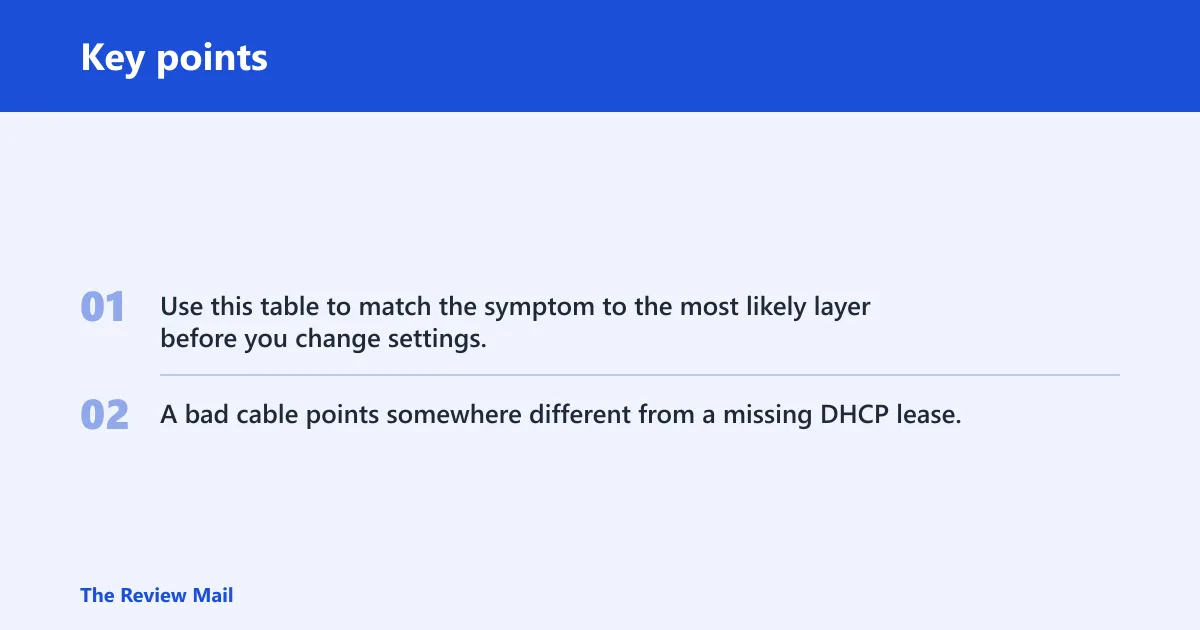
Use this table to match the symptom to the most likely layer before you change settings. A bad cable points somewhere different from a missing DHCP lease, and a VPN adapter collision looks different again.
| Symptom | Likely layer | Fastest verification step | Next fix |
|---|---|---|---|
| Ethernet shows “Unidentified network,” the link light is off, or the port goes dead only on one cable | Link | Check the cable, router port, and adapter link light; try a different port or cable | Replace the cable or port, then power-cycle the router or modem if other devices also lost access |
| Ethernet is connected, but the PC gets no usable address or shows a self-assigned 169.254.x.x address | IP | Run ipconfig and confirm whether DHCP handed out a valid IPv4 address, subnet mask, and default gateway | Release and renew the lease, then test a static IPv4 configuration if DHCP still fails |
| Wi‑Fi is associated, signal looks normal, but websites fail and Windows still shows unidentified network | IP or DNS | Confirm whether other devices on the same Wi‑Fi can reach the internet | Renew DHCP first, then flush DNS and test public DNS only after IP connectivity exists |
| Only one adapter fails after a VPN, gaming booster, or security suite was installed | Policy | Temporarily disable virtual adapters and security filters, then retest the physical adapter | Remove or disable the conflicting virtual adapter, or adjust the security software profile |
| Both Ethernet and Wi‑Fi fail on the same PC, while other devices still work | Policy or stack | Check firewall settings, then run the Windows network troubleshooter and TCP/IP reset sequence | Reset TCP/IP, clear DNS, and review Windows Defender Firewall profiles |
What “unidentified network” means
“Unidentified network” is a Windows status label, not a full diagnosis. It often appears when the adapter has a link but Windows cannot map that connection to a normal local network with valid addressing. That label can coexist with no internet, but the two are not identical problems.
That matters because the fix changes with the layer. A missing Ethernet link, a failed DHCP lease, broken DNS, or a blocking firewall can all end in the same label. Start with the layer that can be verified fastest.
How to read the fastest verification step
The quickest test is not a big reset. It is a short check that separates the physical link, IP assignment, DNS, and policy layers. That keeps you from flushing DNS when the cable is unplugged or changing static settings when the router is down.
- Confirm whether the router or modem is online and whether other devices can browse.
- Check the Ethernet link light or Wi‑Fi connection state on the PC.
- Look at the adapter’s IP details in Windows and see whether DHCP assigned a valid address.
- Test DNS and firewall only after the IP layer looks healthy.
Is the fault in Windows or the router?
If other devices on the same router can reach the web, the fault is usually local to the Windows 11 PC, its adapter, or something installed on it. If multiple devices fail at once, start with the router or modem before changing anything in Windows.
What to check first
Help Desk Geek recommends testing Google first to confirm internet access, then rebooting the router or modem before deeper troubleshooting. That is the right order when the outage affects more than one device. If the modem lights look wrong or the router has no WAN link, the PC is probably not the root cause.
For Ethernet, inspect the cable, the switch or router port, and the adapter light. For Wi‑Fi, confirm the PC is actually associated with the right network and not stuck on a weak or captive connection. A common mistake is rebooting the PC repeatedly while the Ethernet cable is still loose, which can make Windows 11 keep showing an unidentified network with no internet.
How do you rule out adapter and driver problems?
If only one Windows 11 adapter is failing, the network card driver or the adapter itself becomes a prime suspect. Tech News Today lists outdated drivers as a cause, and Help Desk Geek recommends updating the network card driver through Device Manager. If the driver looks wrong, update it, then retry the connection.
Device Manager steps
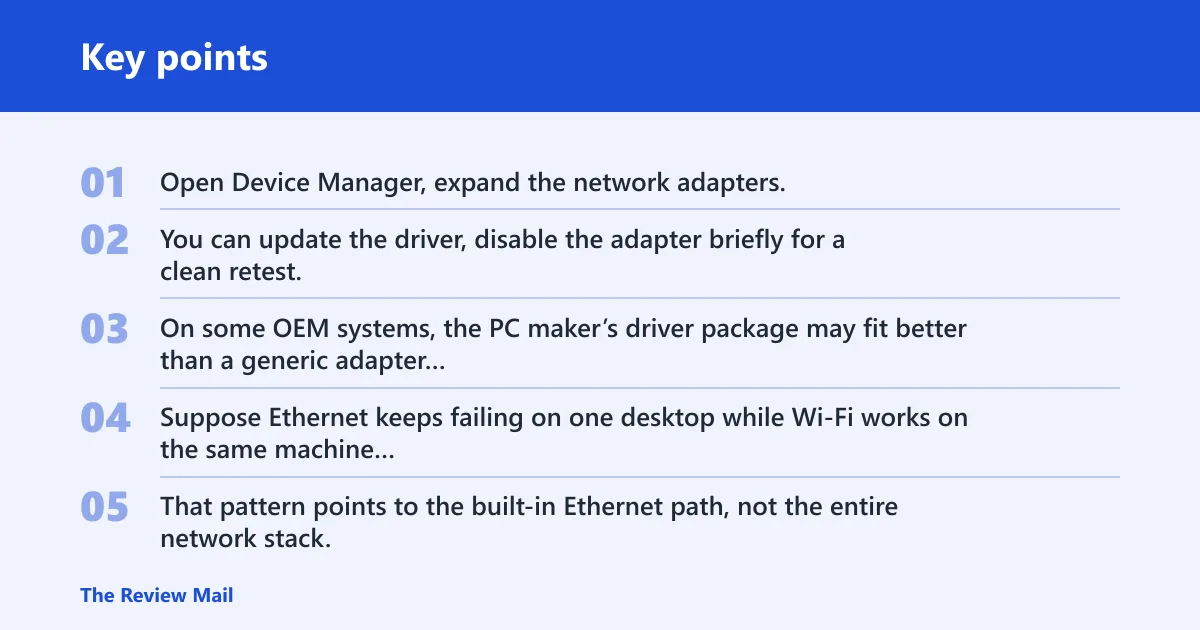
Open Device Manager, expand the network adapters, and inspect the active Ethernet or Wi‑Fi interface. You can update the driver, disable the adapter briefly for a clean retest, or uninstall it and let Windows reinstall it after restart. On some OEM systems, the PC maker’s driver package may fit better than a generic adapter package.
Suppose Ethernet keeps failing on one desktop while Wi‑Fi works on the same machine through a USB adapter. That pattern points to the built-in Ethernet path, not the entire network stack. If the wireless path fails alone, focus on the Wi‑Fi adapter, wireless driver, and association state.
Why Ethernet and Wi‑Fi point to different causes
Ethernet-only failures often trace back to a bad cable, dead port, or adapter conflict. Wi‑Fi-only failures often point to association, wireless driver, or security policy problems. Treat them separately, because a good cable cannot fix a bad wireless handshake, and a Wi‑Fi password issue will not explain a dead Ethernet link light.
How do you repair DHCP and IP assignment?
Appuals says this error often means the PC cannot obtain a valid IP address from DHCP. That fits the common Windows 11 case where the adapter is connected, but the lease is wrong, missing, or stuck. In that situation, renew the address before you touch DNS or firewall settings.
Renew the lease
Open Command Prompt as an administrator and run:
ipconfig /releaseipconfig /renew
ipconfig /release drops the current lease, and ipconfig /renew asks DHCP for a fresh one. If the adapter comes back with no valid address, a bad router lease, a reserved address conflict, or a damaged local configuration becomes more likely.
When to try a static IP
Use static IPv4 settings as a diagnostic step or as a real fix only when DHCP is failing. In adapter properties, you need an IP address, subnet mask, default gateway, and DNS servers that match the local network range. If those values do not match the router’s subnet, the manual address can create a new problem.
Static IP is most useful when the router’s DHCP pool is broken, exhausted, or colliding with another device. It is not the default fix. Use it when you know the correct local network range and want to confirm whether DHCP is the thing that failed.
Which command fixes should you run next?
Once the lease looks wrong or DNS lookups still fail after a valid address appears, move to stacked repair commands. The same source recommends resetting the TCP/IP stack with netsh int ip reset. Appuals also includes ipconfig /flushdns and ipconfig /registerdns in the repair sequence.
DNS repair
Run these commands from an elevated Command Prompt:
ipconfig /flushdnsipconfig /registerdns
DNS repair helps only after IP connectivity exists. If the PC cannot reach the router or obtain a valid gateway, flushing DNS will not fix the underlying break. That is why DNS comes after link and IP checks, not before them.
TCP/IP reset
To reset the TCP/IP stack on Windows 11, run the reset commands for both IPv4 and IPv6, then reboot. A typical repair sequence is netsh int ip reset for the stack, followed by a restart so Windows can rebuild the network state cleanly. A reboot is part of the fix, not an optional extra.
If the PC has both Ethernet and Wi‑Fi problems, a stack reset makes more sense than changing DNS first. If only one adapter is affected, driver or adapter conflict still deserves attention before a full reset.
Start with the shortest path: confirm the router or modem is online, check link state, and see whether the problem affects one adapter or every connection on the PC. Then move in order through adapter, DHCP, DNS, and policy. That sequence finds the broken layer faster than random resets.
Use Windows 11’s built-in troubleshooter as a first-pass diagnostic from Settings > System > Troubleshoot > Other troubleshooters. It is worth running early, but do not stop there if the result is vague. If the adapter still shows unidentified network after the tool finishes, continue with the layer checks above.
Could firewall, VPN, or virtual adapters block access?
Yes. Tech News Today includes antivirus software among possible causes, and Help Desk Geek suggests disabling virtual ethernet devices as a fix. Windows Defender Firewall can also block traffic if a private or public profile is set too tightly, especially after software changes.
Firewall testing
Temporarily disable Windows Defender Firewall only for testing. Check both the private and public profiles, because a profile mismatch can make one network look fine while another fails. Turn the firewall back on after the test, then tighten the rule set instead of leaving it off.
Virtual adapters and security software
VPN clients, network filter tools, and some gaming or ping-boost utilities install virtual network adapters. Those can compete with the active adapter and leave Windows with an unidentified network label. Disable the virtual adapter during troubleshooting, then retest the physical Ethernet or Wi‑Fi interface.
Virtual adapter conflicts are common enough to check early if the problem began after a VPN or network utility install. If uninstalling or disabling that software fixes the issue, the real fault was the extra filter, not the router.
When should you stop troubleshooting Windows?
Stop on the PC side and switch to router, modem, ISP, cable, or hardware checks when the same network still fails for multiple devices, when link lights stay dark, or when Ethernet fails across ports and cables. At that point, Windows is probably not the main cause.
If only one PC fails while other devices stay online, focus on the adapter, driver, DHCP lease, DNS, firewall, and virtual adapters first. If every device fails after a power outage or reboot, the modem or router deserves the next check before any deeper Windows repair.
Frequently asked questions
Why does Windows 11 say unidentified network but no internet?
Windows 11 may show “unidentified network” when it cannot map the adapter to a normal local network state, while “no internet” is used when the device cannot reach the web. They are related, but not the same. A common troubleshooting order is link, DHCP, DNS, then firewall or VPN policy.
How do I reset TCP/IP on Windows 11?
Open an elevated Command Prompt and run the TCP/IP reset command for the stack, including IPv4 and IPv6 repair steps, then reboot. A restart matters because Windows needs to rebuild the networking state after the reset. This is usually more useful after DHCP and adapter checks than before them.
What commands fix unidentified network no internet?
The main command sequence is ipconfig /release, ipconfig /renew, ipconfig /flushdns, ipconfig /registerdns, and a TCP/IP reset with netsh int ip reset. Use them in that order only after link and adapter checks, because commands cannot fix a dead cable or an offline router.
Should I use static IP or DHCP for this error?
Use DHCP first, because automatic addressing is the normal setup. Try static IPv4 only when DHCP fails or when you need a diagnostic test for lease problems or address conflicts. If you choose static, the IP address, subnet mask, default gateway, and DNS servers must match the local network.
Can antivirus or firewall cause unidentified network on Windows 11?
Yes. Antivirus suites, Windows Defender Firewall profiles, and other security tools can block traffic or insert filters that make Windows label the connection as unidentified. Test by temporarily disabling the firewall or security filter, then turn it back on and adjust the profile or rule instead of leaving protection off.
How do I know if the problem is my router or Windows?
If other phones, laptops, or TVs on the same network also lose access, the router or modem is the first suspect. If only the Windows 11 PC fails, the problem is more likely the adapter, driver, DHCP lease, DNS cache, firewall, or a virtual adapter installed by software.
Why does Ethernet say unidentified network on Windows 11?
Ethernet usually says that when the physical link exists but the PC cannot get a valid IP address, route, or policy state from the network. Bad cable, dead port, adapter driver trouble, DHCP failure, and virtual adapter conflicts are the most common checks to run first on a wired connection.