Brother Scan to Pc Not Working Windows 11
Brother Scan to PC on Windows 11 usually fails when Windows does not detect the scanner, Brother software is missing or does not match the device, or the PC and printer cannot find each other on the network. Fix the layer that is failing first so you do not reinstall software or change settings that are not related.
Windows layer: when Windows cannot see the scanner
This layer covers hardware detection, Device Manager entries, and Windows Image Acquisition. If Windows cannot see the scanner, Brother apps cannot use it either. Start here when the device is missing, marked with a warning icon, or only works after reconnecting the cable or rebooting.
Why is my Brother scanner not appearing in Windows 11?
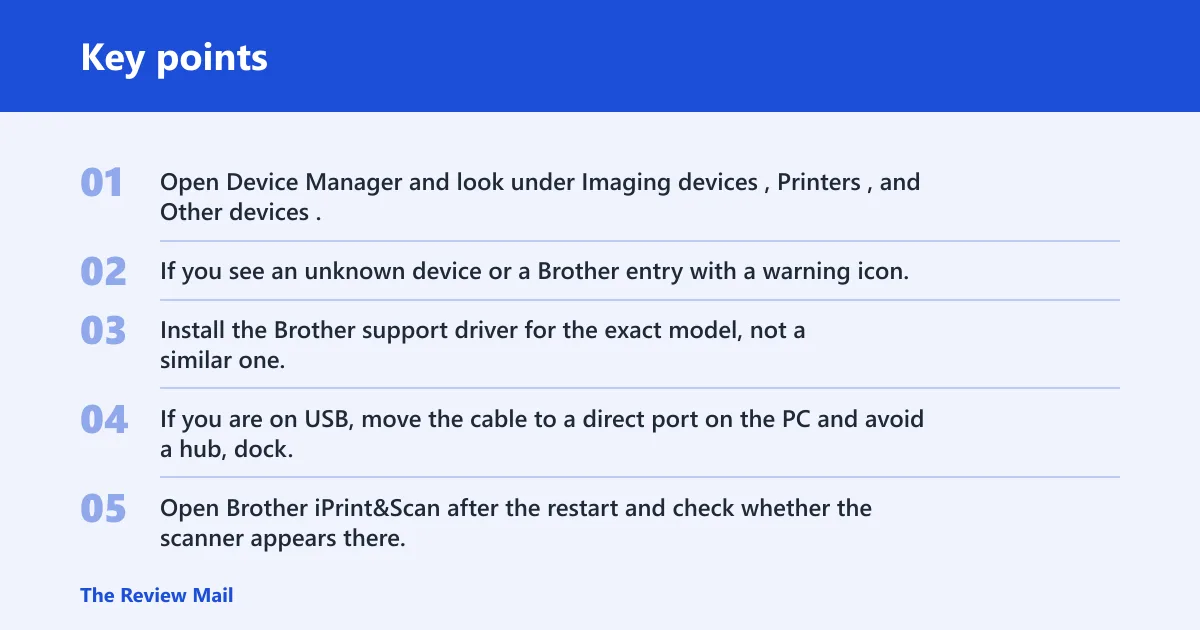
If Windows does not list the scanner, check Device Manager first, then the Brother driver for the exact model, then the cable or port. If Windows can see the hardware but the scan app still fails, the issue is usually WIA or a mismatched Brother package rather than the scanner itself.
- Open Device Manager and look under Imaging devices, Printers, and Other devices.
- If you see an unknown device or a Brother entry with a warning icon, right-click it and choose Uninstall device, then restart the PC.
- Install the Brother support driver for the exact model, not a similar one.
- If you are on USB, move the cable to a direct port on the PC and avoid a hub, dock, or extension cable.
- Open Brother iPrint&Scan after the restart and check whether the scanner appears there.
For Windows-side troubleshooting, Microsoft documents where Device Manager lives and how Windows uses WIA for image devices. If the scanner never appears under Device Manager, fix the hardware/driver layer before changing Brother registration or discovery settings.
Device Manager and Windows Image Acquisition (WIA) are the two Windows checks most top-level guides miss when they jump straight to reinstalling printer software.
What Windows 11 services must be running?
Windows Image Acquisition, or WIA, should normally be running. If WIA is stopped, Brother scanning tools can open but fail to discover or pull from the device. This is one of the fastest checks after a Windows update or a fresh reinstall.
- Press Win + R, type
services.msc, and press Enter. - Find Windows Image Acquisition (WIA).
- Open its properties, then start the service if it is stopped.
- Restart the PC and retest scanning from Brother iPrint&Scan.
- If the problem began after an update, check whether it started after Windows 11 version 24H2.
Microsoft’s WIA guidance and Brother’s driver pages both point to the same practical rule: if Windows services and the device entry are broken, software reinstalls alone will not fix scan detection.
Brother software layer: when the app is missing or mismatched
This layer covers Brother iPrint&Scan, ControlCenter, and the Brother package tied to your exact model. Use this section when Windows sees the scanner, but Brother software does not, or when scanning works from the PC but the panel cannot send jobs to that PC.
What to do when Brother software is missing
Missing Brother software is a separate failure from a missing Windows device. Brother iPrint&Scan handles PC-side scanning, while ControlCenter is the piece that supports scan jobs sent from the device panel. If either app is absent or installed for the wrong model, scanning can break even when Windows sees the hardware.
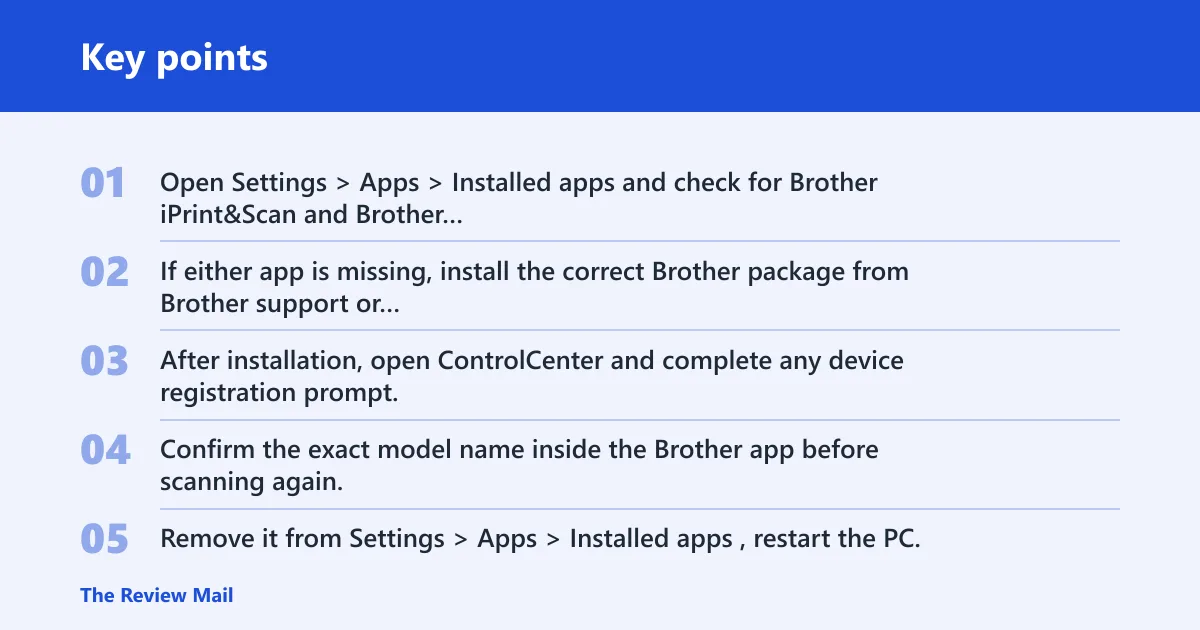
- Open Settings > Apps > Installed apps and check for Brother iPrint&Scan and Brother ControlCenter.
- If either app is missing, install the correct Brother package from Brother support or from the Microsoft Store.
- After installation, open ControlCenter and complete any device registration prompt.
- Confirm the exact model name inside the Brother app before scanning again.
Brother’s own software pages distinguish between the scan utility and the panel-facing control software. Use Brother iPrint&Scan when the scan starts from the PC, and use ControlCenter when you need the printer or MFP panel to send a scan to a registered computer.
Brother iPrint&Scan and Brother ControlCenter are the two Brother components that most often need to match the model and Windows version exactly.
How do I reinstall Brother ControlCenter on Windows 11?
Reinstall ControlCenter when the PC can scan but the panel cannot find the computer. That usually means the Brother registration data is broken, not the base driver. A clean app reinstall can restore the target list without touching Windows hardware detection.
- Remove it from Settings > Apps > Installed apps, restart the PC, then install the Brother package again for your exact model.
- Open ControlCenter and complete device registration so the printer panel can send scan jobs to the PC.
- Make sure the app is pointed at the same Brother device name you see in the printer’s destination list.
If the PC scan path works but the panel path does not, reinstalling only the driver is usually the wrong fix. Brother registration lives in the app layer, not in the basic Windows imaging entry.
Network and panel discovery layer: when the printer cannot find the PC
This layer covers discovery, sharing, and whether the Brother device and PC can see each other on the same network. If scanning from the PC works but the panel says no PC found, the hardware and driver are probably fine; the discovery path is what needs attention.
Why does the panel say no PC found?
That message usually points to the device-panel discovery path, not the PC scan path. The Brother device is trying to find a registered computer on the network, and it cannot see one that matches the saved target. Check registration, discovery, and whether both devices are on the same network.
- Open Brother ControlCenter on the PC and confirm that the computer is registered as a scan destination.
- On Windows 11, turn on Network Discovery and File Sharing in Settings > Network & internet > Advanced network settings > Advanced sharing settings.
- Make sure the PC and Brother device are on the same network.
- On networked models, restart the Brother device and reopen ControlCenter so discovery can refresh.
Network Discovery and File Sharing are the Windows settings Brother discovery depends on when the scan begins at the printer panel. If the PC is on Ethernet and the Brother device is on guest Wi-Fi, the panel may never see it.
Fix USB and network connection issues
Use this section when the device is visible sometimes, or only one scan path works. USB and network scanning fail for different reasons, so fix the link that matches the path you use. Brother’s support pages also separate driver setup from network setup, which helps narrow the issue faster.
- If you use USB, connect the scanner with a stable cable to a direct PC port.
- Avoid USB hubs, docking stations, and extension cables.
- If you use Wi-Fi or Ethernet, confirm both devices are on the same network segment.
- Open Brother iPrint&Scan and check that it shows the same model you expect.
- If scan-to-PC from the panel still fails, re-open ControlCenter and confirm the PC registration.
Use Brother iPrint&Scan when you start the scan from the PC. Use ControlCenter when the scan starts on the printer or MFP panel and needs to land on a specific computer.
Brother scan-to-PC failure map
This decision table separates the three failure layers and shows where to verify each one. Start with the symptom that matches your failure first, then move to the next check only if the current layer looks healthy.
| Symptom | Likely broken layer | Fastest verification step | Exact verification location | Next fix |
|---|---|---|---|---|
| PC can scan, but the panel says no PC found | Brother software registration | Open Brother ControlCenter and check whether the PC is listed as a scan target | Brother ControlCenter destination or device-registration screen | Reinstall ControlCenter and register the device again |
| Scanner does not appear in Device Manager | Windows detection / driver | Look in Device Manager under Imaging devices, Printers, or Other devices | Windows Device Manager, including warning icons or unknown devices | Install the Brother support driver for the exact model |
| Scan works over USB but not network | Network discovery or network isolation | Check whether the PC and Brother device are on the same network | Windows sharing settings, router/Wi-Fi segment, Brother network setup | Enable Network Discovery and File Sharing, then re-register the device |
| Problem started after a Windows 11 update | Windows update regression | Check the update history and note whether the failure began after Windows 11 version 24H2 | Windows Update history and installed update list | Restart WIA, confirm Brother software, then reinstall the Brother stack if needed |
| WIA stopped | Windows Image Acquisition | Open Services and check Windows Image Acquisition | services.msc > Windows Image Acquisition (WIA) | Start the service |
| Brother software is missing | Brother application layer | Check whether Brother iPrint&Scan or ControlCenter is installed | Settings > Apps > Installed apps | Install the Brother package that matches Windows 11 and the model |
| Scanning fails only on Wi-Fi or Ethernet | Firewall or network isolation | Check whether the PC and scanner are on the same subnet and not on guest Wi-Fi | Router network map, PC IP settings, Brother network settings | Allow the Brother app through Windows Firewall and restore network visibility |
| Wrong source or device is selected | Brother software setup | Check the source list inside Brother iPrint&Scan or ControlCenter | Brother iPrint&Scan source picker or ControlCenter device list | Select the Brother device and the correct scan mode |
| PC scan works, but the panel cannot browse the target | Network discovery / sharing | Check Windows sharing settings and confirm discovery is on | Advanced sharing settings for Network Discovery and File Sharing | Turn on discovery, verify the same subnet, then refresh ControlCenter |
One useful shortcut: if the scanner works from the PC but not from the printer panel, stay in the Brother app and network layer. If Windows cannot see the scanner at all, go back to Device Manager, WIA, and the Brother driver.
What to check when the scanner works from the PC but not the panel
If the PC can scan, the base driver and local imaging path are usually working. The remaining problem is almost always registration, discovery, or network isolation. That makes this branch model-agnostic: the exact Brother model matters less than the destination setup and the network path.
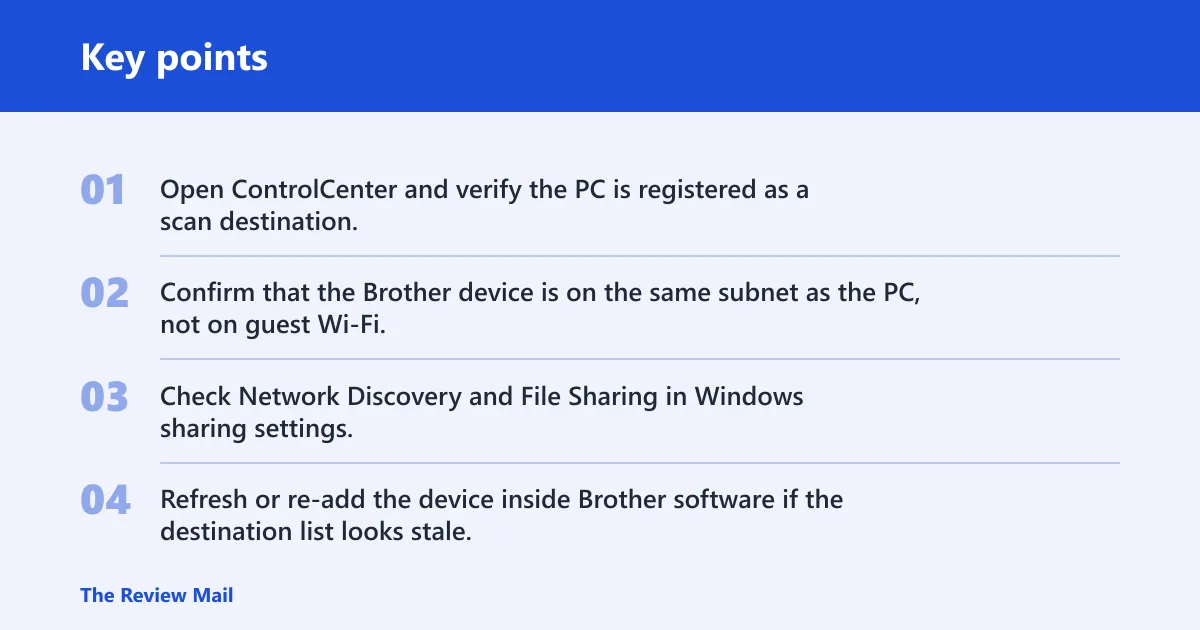
- Open ControlCenter and verify the PC is registered as a scan destination.
- Confirm that the Brother device is on the same subnet as the PC, not on guest Wi-Fi.
- Check Network Discovery and File Sharing in Windows sharing settings.
- Refresh or re-add the device inside Brother software if the destination list looks stale.
Frequently asked questions
How do I fix Brother Scan to PC not working after a Windows 11 update?
Start with WIA, then Brother ControlCenter. Open services.msc, check Windows Image Acquisition (WIA), and restart the service if needed. If the failure began after Windows 11 version 24H2, recheck Network Discovery, File Sharing, and the Brother registration in ControlCenter.
Why does my Brother printer say no PC found when I scan from the panel?
That usually means the panel discovery path cannot see a registered computer. Open Brother ControlCenter, confirm the PC is listed, and make sure Network Discovery and File Sharing are enabled. Also check that the Brother device and PC are on the same network.
What Brother driver do I need for Windows 11 scanning?
Use the Brother support driver that matches the exact model number, not a similar device. Brother support offers Windows 11 downloads, and Brother’s download pages list model-specific packages for scanning and device setup. Matching the model matters because scan support is tied to the device package.
What Windows 11 services must be running for Brother scanning?
Windows Image Acquisition (WIA) should be running. Open services.msc, start the service if needed, then restart the PC. If the scanner still fails, check Device Manager and the Brother software registration next.
Why does Brother scan work from the PC but not from the printer screen?
That usually means the Windows scan path is fine, but the panel-to-PC path is broken. Check Brother ControlCenter registration, Network Discovery, File Sharing, and whether both devices are on the same network. If those are correct, reinstall ControlCenter and retest the panel destination list.
How do I check whether Windows 11 detects my Brother scanner?
Open Device Manager and look under Imaging devices, Printers, and Other devices. If the Brother model or an unknown device appears, Windows sees something. If nothing appears, move the cable to a direct USB port, restart the PC, and install the Brother support driver again.