Acpi Ven_Asd Dev_0001 Windows 11
ACPI\VEN_ASD&DEV_0001 is usually an OEM ACPI device, not a generic Windows 11 driver, so the safest move is to identify the exact laptop or motherboard model before installing anything. In many systems, it is tied to HP-style sensor or protection utilities, but that is not universal. Microsoft’s Device Manager guidance and driver-signing documentation still point to the same rule: verify the hardware ID, the model, and the signed OEM package before you install.
What ACPI\VEN_ASD&DEV_0001 means
ACPI\VEN_ASD&DEV_0001 is a hardware ID, not a complete driver name. In Device Manager, it often shows up as an unknown ACPI device when Windows cannot match the part to an installed OEM package. Microsoft’s Device Manager documentation says the exact ID matters, because Windows matches devices by hardware IDs and compatible IDs, not by guesswork.
The most useful clue is the full string. VEN identifies the vendor code and DEV identifies the device code. If the model is wrong or the ID is incomplete, Windows may install a package that looks valid but does not control the actual hardware. That is why OEM support pages matter more than generic driver search results.
For this specific ID, the most likely mapping is an OEM sensor, protection, or utility component in a laptop family that ships with ACPI-based hotkey, accelerometer, sleep-sensor, or hard-drive protection software. It is commonly seen on HP-style systems that use 3D DriveGuard-like utilities, but it is not proof of HP by itself. If the machine is not an HP-family system, treat it as an OEM-specific ACPI part until the support page says otherwise.
Where to find the exact hardware ID
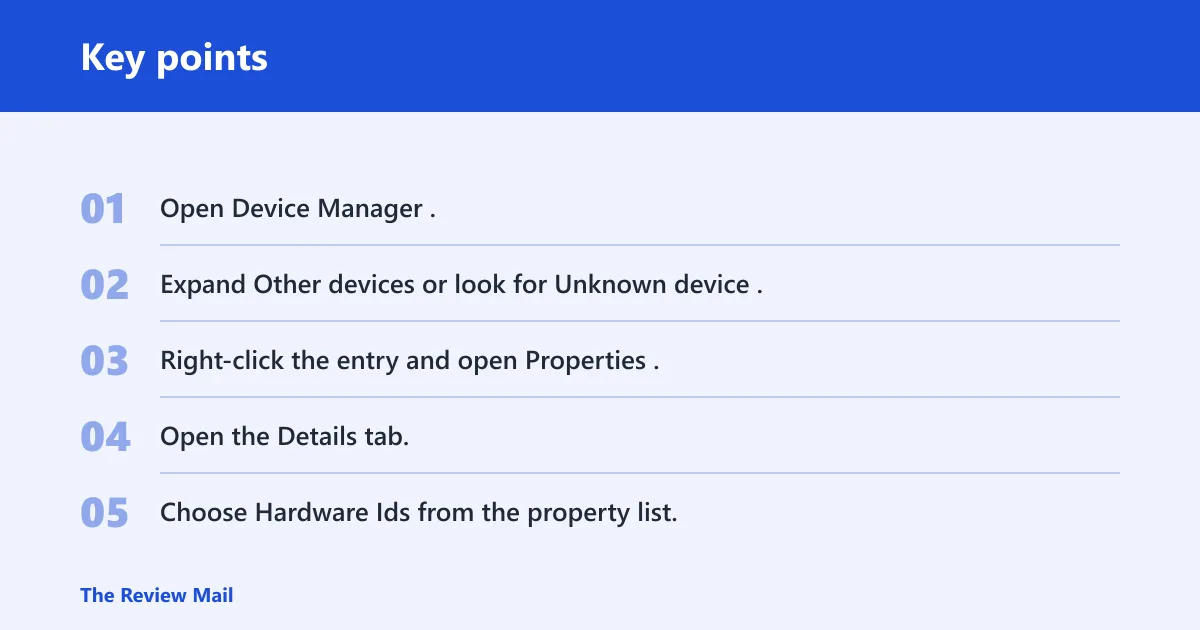
- Open Device Manager.
- Expand Other devices or look for Unknown device.
- Right-click the entry and open Properties.
- Open the Details tab.
- Choose Hardware Ids from the property list.
- Match the full hardware ID string exactly before downloading anything.
If the device is hidden, turn on Show hidden devices in Device Manager and check again. Microsoft notes that Device Manager can show devices that are not currently active, and ACPI entries can reappear after sleep, wake, or reboot.
A common mistake is to search only for “ASD” or “0001.” That is too broad. Similar-looking IDs can point to different OEM families, different utility packages, and different model-specific downloads.
How to identify the exact laptop model
Use the OEM’s label, BIOS information, or Windows system information to find the precise model before you download anything. Microsoft and OEM support pages both rely on model-specific support pages, because ACPI utilities are usually shipped by system family, not by the hardware ID alone.
Wrong-model downloads fail often. The package can install and still leave the device unknown, or it can install the wrong helper utility. If the support page separates chipset, sensor, BIOS, and hotkey bundles, treat each one as a different step until the ID is matched to the correct package.
Fast ways to verify the model
- Check the bottom label or service tag on the laptop.
- Open System Information and note the exact system model.
- Enter the serial or product number on the OEM support page.
- Confirm whether the machine is 64-bit or 32-bit before downloading.
- Match the BIOS release notes if the ACPI device appears after a firmware change.
Suppose the machine says one family in BIOS but another on the sticker. Use the BIOS and OEM support lookup first. That is the cleaner match for driver and firmware packages, especially when a replacement board or refurbished system has mixed labels.
ACPI device decision table
This table is a narrowing tool, not proof. For ACPI\VEN_ASD&DEV_0001, the safest interpretation is usually an OEM sensor or protection utility. In Device Manager it commonly appears under Other devices as Unknown device, although some systems surface it under System devices. The package name is often model-specific rather than generic.
| Symptom | Device Manager location | Likely package type | Windows 11 outcome | Safe next step |
|---|---|---|---|---|
| Unknown ACPI device with a sensor-like entry after a fresh install | Other devices | OEM sensor bundle or protection utility | Often works after the correct OEM package is installed | Verify the exact model, then install chipset and OEM utility packages first |
| Device appears after sleep or lid close | System devices or Other devices | Power, sensor, or firmware-related OEM package | May return until BIOS and related utilities are current | Update BIOS, then retry the OEM package and reboot |
| Unknown device stays after reinstalling Windows 11 | Unknown device | Model-specific chipset bundle or device utility | Usually fixable if the model match is exact | Recheck the full hardware ID and reinstall only the model-specific package |
| Device name or package resembles a protection utility | System devices | Accelerometer or hard-drive protection utility | May install on Windows 11 if the package is signed for that model | Use the OEM support page, not a generic driver site |
| OEM lists only Windows 10 downloads for the model | Other devices | Legacy fallback package | May work if it is signed and the OEM says the model supports it | Check the release notes and install only if the package is intended for that exact machine |
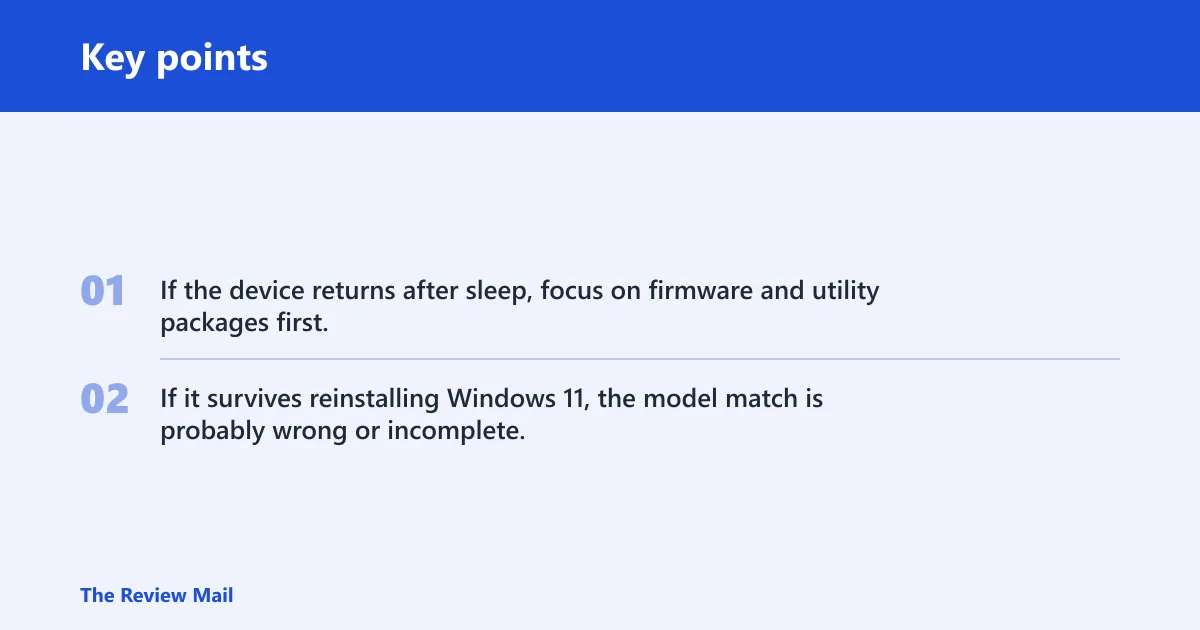
Use the table like a filter. If the device returns after sleep, focus on firmware and utility packages first. If it survives reinstalling Windows 11, the model match is probably wrong or incomplete.
Which driver path is safe on Windows 11?
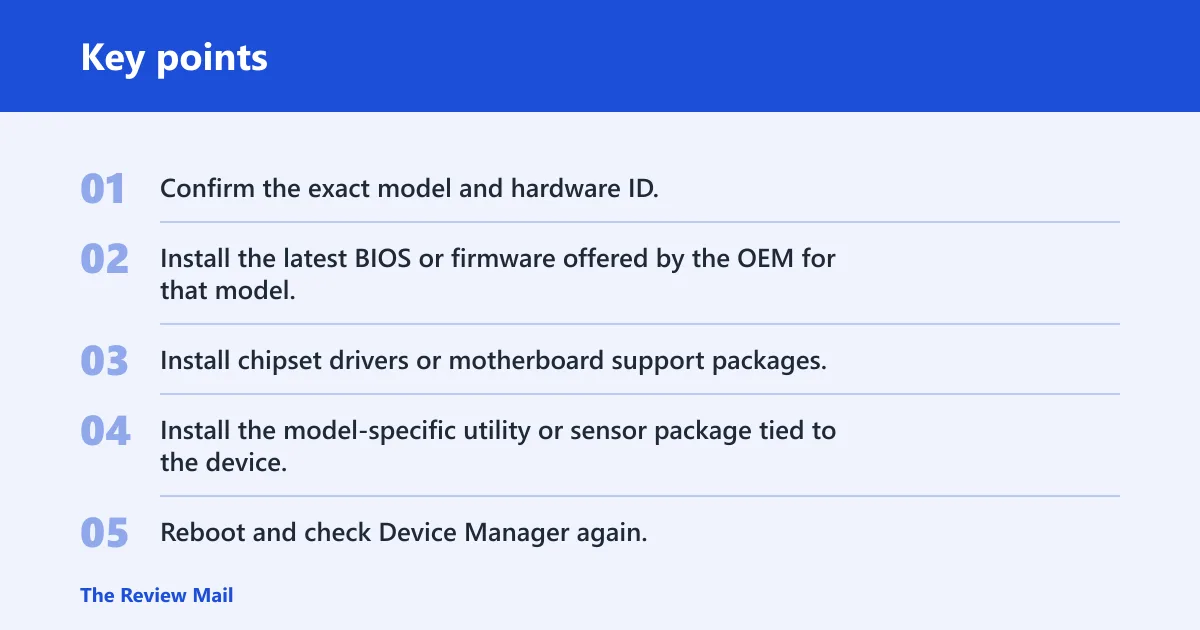
The safest order is BIOS or firmware first, then chipset drivers, then the model-specific utility or sensor package. Microsoft’s Windows driver guidance emphasizes signed packages, and OEM support pages usually publish platform drivers before device-specific utilities. That order gives Windows the base support it needs before the ACPI helper is installed.
Windows 11 adds another checkpoint: driver signing and model support. A package can be old and still valid if it is signed and the OEM still supports that model. If the OEM lists only Windows 10 files, treat that as a fallback path, not an automatic match. Microsoft’s Windows 10/11 support documentation also makes clear that compatibility depends on the device, the driver package, and OEM support.
Use this order
- Confirm the exact model and hardware ID.
- Install the latest BIOS or firmware offered by the OEM for that model.
- Install chipset drivers or motherboard support packages.
- Install the model-specific utility or sensor package tied to the device.
- Reboot and check Device Manager again.
- If the device remains unknown, remove it and try the OEM package again.
Suppose a laptop ships with a sleep-sensor utility, but the OEM lists only a Windows 10 package. That may still be the right package if the model page points to it and the file is signed. Do not force it on a different model just because the hardware ID looks close.
Windows 10 driver packages can work on Windows 11, but only after a cross-check. If the OEM support page for that exact model lists the package and the device class matches, it can be a safe fallback. If the package belongs to a different family, skip it.
Does this need an HP driver?
Not automatically. ACPI\VEN_ASD&DEV_0001 is not a universal HP-only package, so the brand name alone is not enough. The correct answer depends on the exact model and the device class. On HP-family systems, the match is often a sensor or protection utility, but the same ID pattern can appear on other OEM platforms too.
HP 3D DriveGuard is a useful comparison because it shows how similar ACPI sensor devices are often packaged. An HP support page can map an ACPI string to a protection utility, and the package may appear as a model-specific SoftPaq rather than a generic driver. That is why the exact support page matters more than the ID prefix alone.
That example matters because it shows how an ACPI string can map to a protection utility rather than a plain chipset file. It also shows why model matching matters: the same type of utility can be packaged differently across model generations, and the wrong download may not activate the device at all. OEM support pages are the reliable source; Microsoft’s driver-signing rules are the safety check.
For comparison only, broad download-index pages are not a reliable source for this ID. They may list many operating systems and many unrelated device families, but they do not establish which OEM package belongs to ACPI\VEN_ASD&DEV_0001. Use the OEM support page for the exact model, plus Microsoft’s Device Manager and signed-driver guidance, instead of a generic driver directory.
What to try if the device stays unknown
If the device remains unknown after a correct model match, the next move is to uninstall the entry, reboot, and reinstall the OEM package in the proper order. That usually means BIOS first, then chipset, then the device-specific utility or sensor package. Microsoft’s Device Manager guidance supports this kind of reset-and-retry workflow when a device is misidentified or missing its driver.
Device Manager can also hold a stale entry after a failed install. Remove the device, choose the option to delete the driver if Windows offers it, then reboot. After startup, check whether the hardware ID returns under Unknown device or appears under a more specific class.
Hidden devices and sleep-related reappearance matter here. Some OEM ACPI parts only reappear after the system wakes, and some are exposed again only after firmware updates. If the same ID comes back after reboot, the issue is still active and needs the correct package, not another random driver.
Acpi ven asd dev checklist
- Confirm the exact model again.
- Check the full hardware ID under Hardware Ids.
- Update BIOS or firmware from the OEM page.
- Install chipset support before the device utility.
- Remove the unknown device and reboot.
- Reinstall only the model-specific package.
Picture a 14-inch laptop that shows ACPI\VEN_ASD&DEV_0001 after a Windows 11 reinstall, then again after sleep. That pattern usually points to missing OEM support rather than a broken Windows install. The fix path is still the same: exact model, exact hardware ID, then the correct package order.
Frequently asked questions
What is ACPI\VEN_ASD&DEV_0001 on Windows 11?
It is usually an OEM ACPI device that Windows 11 could not match to an installed package. On many systems it behaves like a sensor, protection, or utility component, and on HP-family machines it may resemble a 3D DriveGuard-style helper. The safe move is to verify the exact model and use the OEM support page, not a generic driver search.
How do I fix ACPI\VEN_ASD&DEV_0001 in device Manager?
Open Device Manager, check the Hardware Ids property, confirm the exact model, and install the OEM BIOS, chipset, and related utility packages in that order. If the entry remains, uninstall the device, reboot, and retry the model-specific package. If the wrong model was used, the device can stay unknown even after installation.
Is ACPI\VEN_ASD&DEV_0001 a driver I should download?
No. It is an identifier, not a driver name. You should not download anything until you know the exact OEM model and the device class. The right file may be a sensor utility, protection utility, or chipset bundle, and the wrong package can install without fixing the unknown device.
Why does ACPI\VEN_ASD&DEV_0001 appear after reinstalling Windows 11?
Reinstalling Windows 11 removes OEM support packages that were previously on the machine. If the system needs a model-specific ACPI utility, Windows may show the device as unknown until you reinstall the right BIOS, chipset, or vendor package. Sleep or reboot can make the same entry reappear if the underlying support is still missing.
Does ACPI\VEN_ASD&DEV_0001 need an HP driver?
Not necessarily. HP 3D DriveGuard is a useful comparison because HP systems sometimes map ACPI sensor IDs to a protection utility, but ACPI\VEN_ASD&DEV_0001 is not an HP-only code. The exact laptop model decides whether the fix is an HP package or a different OEM package.
Will the Windows 10 driver work on Windows 11 for ACPI\VEN_ASD&DEV_0001?
Sometimes, but only as a model-specific fallback. If the OEM lists the package for that exact machine and the file is signed, it may work on Windows 11. Do not force a Windows 10 package from a different model or family. That can leave the device unknown or create a new driver problem.