Device Manager Unknown Device Windows 11
An unknown device in Device Manager means Windows 11 can see the hardware, but it may not yet match it to the right driver or class. Start with the error code and Hardware Ids before installing anything; that keeps you from guessing wrong and landing on the wrong package. This guide shows how to identify the device first, then choose the right fix path for chipset, network, USB, Bluetooth, or other driver errors.
What does an unknown device mean?
An unknown device is hardware that Windows can detect but may not be able to name, class, or fully start. It often appears under Other devices with a yellow triangle. That does not always mean the part is broken; it may simply need the right chipset, BIOS, motherboard, USB, or peripheral driver. Microsoft uses Device Manager status and error codes to distinguish a missing or misconfigured driver from a hardware problem. (Open Device Manager, Microsoft Support)
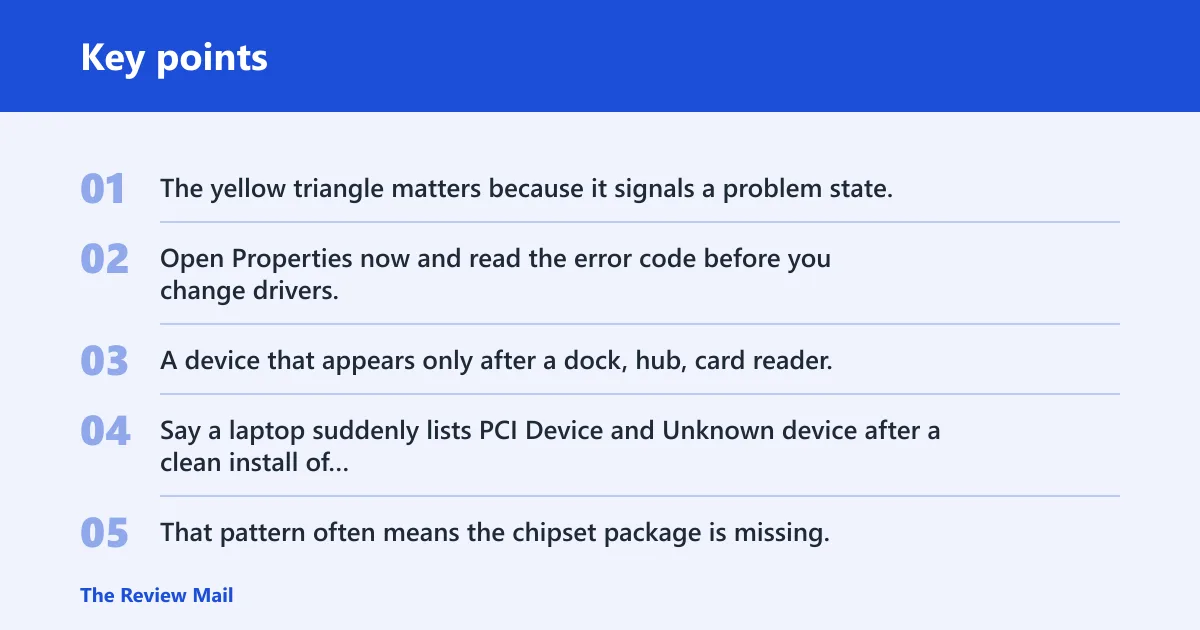
The yellow triangle matters because it signals a problem state, not a normal connected device. Open Properties now and read the error code before you change drivers. A device that appears only after a dock, hub, card reader, or new motherboard feature is connected often points to a missing support package rather than a bad component.
Say a laptop suddenly lists PCI Device and Unknown device after a clean install of Windows 11. That pattern often means the chipset package is missing, not that two separate parts failed. A separate USB entry with a descriptor failure points you somewhere else entirely.
How do you find device manager in Windows 11?
You can open Device Manager from Start search, the Run box, Win+X, Settings, or by launching devmgmt.msc directly. Microsoft says to select Start and enter device manager, then open it from the search results. If you prefer the keyboard, Win+X then M is a fast route. (Open Device Manager)
If Device Manager will not open, check whether Windows Search is working, whether the system is in a restricted state, and whether the console file opens from Run. Some users can still launch devmgmt.msc even when the Start menu path fails. If every method fails, focus first on Windows recovery tools and a repair install before chasing drivers.
- Press Win + X and choose Device Manager or press M.
- Press Win + R, type
devmgmt.msc, then press Enter. - Open Start, type device manager, and select it from the results.
- Use Settings search if Start search is not responding.
Device Manager is the Windows hardware console that lists hardware the system can see. It also shows status, driver version, and hardware identifiers through each device’s Properties window. If the device category is missing, hidden, or collapsed, use View and then Show hidden devices. Microsoft documents Device Manager access from Start search and confirms that hidden devices can be displayed from the View menu. (Open Device Manager, Show hidden devices)
How do you identify the device?
Start with the error code in Properties, then move to Details and Hardware Ids. That order matters. The code tells you whether Windows sees a missing driver, a corrupted one, or a resource issue. The hardware ID tells you which chip or vendor the package should target. Microsoft’s Device Manager error guidance uses the code to determine whether a driver update, reinstall, or resource fix is the right path. (Microsoft Support)
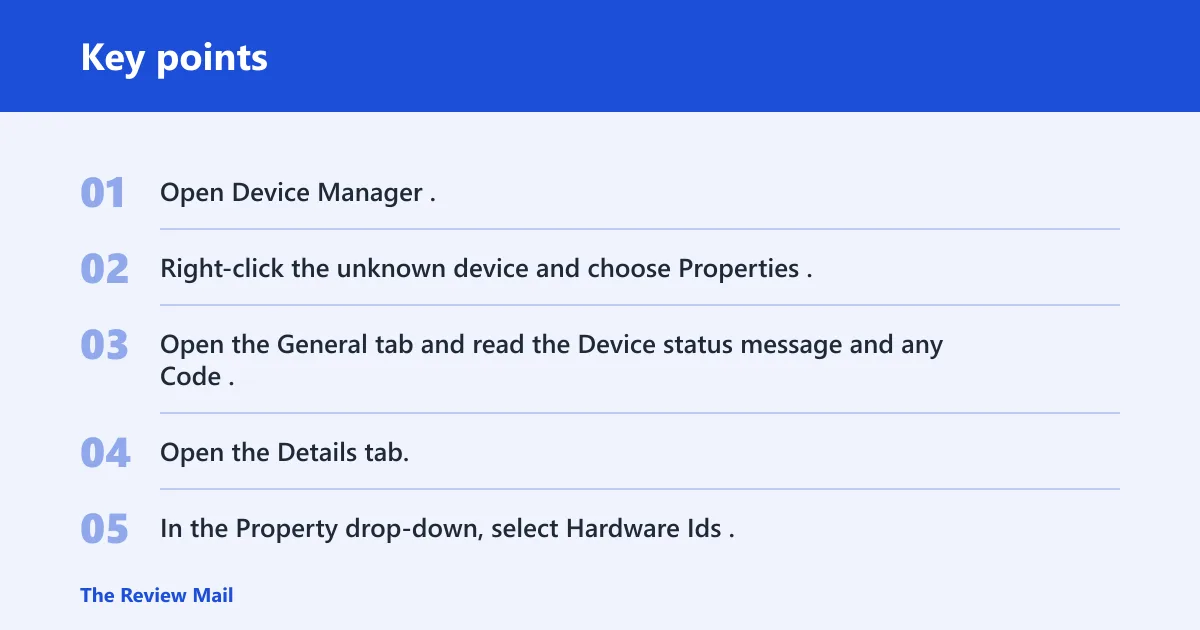
In the Details tab, the most useful strings often contain VEN and DEV. VEN identifies the vendor and DEV identifies the device. Those values are the fastest way to match a specific chipset, network adapter, Bluetooth radio, controller, or onboard device to the correct package. For USB devices, the same idea appears as VID and PID, which identify the vendor and product pair.
Show hidden devices can change the picture. It reveals non-connected hardware that already has drivers installed, which helps you separate a missing driver from a device that is simply unplugged or disabled. Do not treat every hidden entry as a fault. Microsoft specifically supports using Show hidden devices when troubleshooting Device Manager entries. (Show hidden devices)
Device identification workflow
- Open Device Manager.
- Right-click the unknown device and choose Properties.
- Open the General tab and read the Device status message and any Code.
- Open the Details tab.
- In the Property drop-down, select Hardware Ids.
- Read the top string first, because it is usually the most specific match.
An ID like PCI\VEN_10EC&DEV_8168 indicates a PCI device from vendor 10EC with device 8168; that is often enough to identify a network adapter family. A USB ID like USB\VID_0BDA&PID_8153 points to a USB vendor and product pair, which helps you choose the right USB Ethernet or peripheral package. If the IDs point to your laptop maker or motherboard vendor, prefer the OEM package over a generic driver.
Device Manager triage table
| Symptom in Device Manager | Likely device class | First safe action to try |
|---|---|---|
| Unknown device under Other devices, yellow triangle, no clear name | Chipset or motherboard device | Open Properties, read the error code, then check Hardware Ids. If the ID matches the OEM board or chipset package, stop and use the OEM driver package. |
| USB entry with descriptor failure or a device that appears after plugging into a port | USB | Try another port and cable first. If the name is Unknown USB Device (Device Descriptor Request Failed), follow the USB path instead of reinstalling random drivers. |
| Bluetooth device with a warning icon after an update | Bluetooth | Use Update Driver once. If the adapter still shows the same error code and Hardware Ids point to the laptop maker’s radio package, stop and install the OEM package. |
| Storage controller or NVMe entry with an error code | Storage | Check the code before changing anything. If the IDs match the system vendor’s storage or chipset package, use the OEM driver package instead of a generic download. |
| Old printer, legacy port, or special-purpose card showing as unknown | Legacy hardware | Look for an exact VEN/DEV match. If Windows Update finds nothing and the hardware is older, stop and use the manufacturer archive or OEM support page. |
What fix should you try first?
Start with the fix that matches the error code, not a blind reinstall. Code 1 means the device is not configured correctly and can mean drivers are missing or configured incorrectly; Microsoft recommends Update Driver first. Code 3 may indicate low memory or other resources, and Microsoft recommends uninstalling and reinstalling the driver. (Microsoft Support)
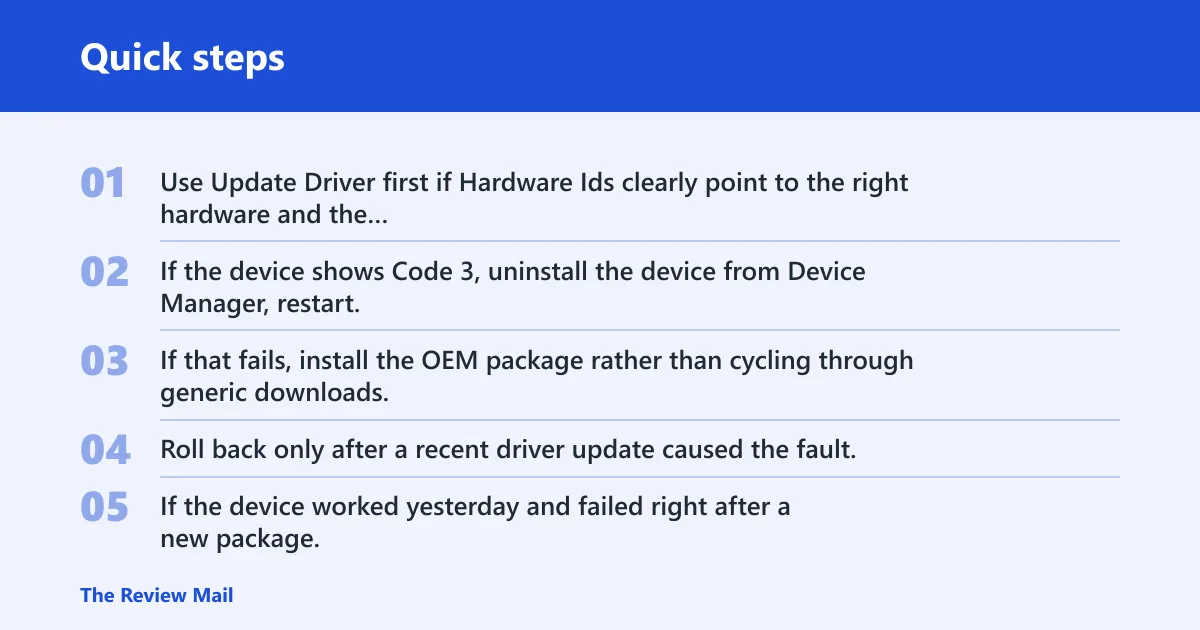
Use Update Driver first if Hardware Ids clearly point to the right hardware and the error is Code 1. If the device shows Code 3, uninstall the device from Device Manager, restart, and let Windows rebuild the entry. If that fails, install the OEM package rather than cycling through generic downloads.
Roll back only after a recent driver update caused the fault. If the device worked yesterday and failed right after a new package, rollback is the cleanest next step. Do not roll back a device that never worked in Windows 11; that usually means the right package was never installed in the first place.
Picture a desktop with a new Wi-Fi card that shows Code 1 and Hardware Ids ending in a vendor and device pair for the adapter. Updating the driver from Device Manager is the correct first step. A different machine with a storage controller showing Code 3 may need uninstall and reinstall, because the issue is not an identification problem.
When to stop and use the OEM package
Stop using Windows Update when Hardware Ids clearly point to a laptop, motherboard, or board-specific package and generic drivers do not resolve the code. This is common with chipset, Bluetooth, audio, storage, and some USB controller entries. The OEM package usually includes the full set of dependent drivers in the right order.
Windows Update is useful, but it is not enough for every case. If the device is tied to a board feature, dock, or integrated controller, the manufacturer package is often the better fit. That is especially true after a clean install, a motherboard change, or a BIOS update. Microsoft’s driver guidance favors the OEM package when the hardware vendor provides a specific driver for the device. (Microsoft Support)
How do you fix unknown USB device?
Unknown USB Device (Device Descriptor Request Failed) is a USB-specific case that often appears under Universal Serial Bus Controllers. Microsoft’s USB troubleshooting guidance starts with disconnecting the device, trying another port, checking the cable, and removing hubs or docks from the path. That is the narrowest and safest way to isolate a USB descriptor failure before you change any software. (Fix USB problems in Windows)
Try a different USB port, remove hubs, and test a known-good cable or accessory. If the device works on one port but not another, the problem may be power, port type, or a hub limitation. If it still fails, open Properties and confirm the error code before taking the next step.
If the device still reports descriptor failure after the basic checks, use the OEM support page for the specific device or the PC maker’s USB/chipset package. For many systems, especially after a clean install, a chipset or root hub driver is more appropriate than a random third-party download. Microsoft’s USB guidance keeps the path focused on connection checks first, then driver repair. (Fix USB problems in Windows)
USB troubleshooting order
- Disconnect the device and plug it into a different port.
- Remove any hub or dock from the path.
- Try a different cable if the device uses one.
- Open Device Manager, confirm the USB entry, and read the code in Properties.
- Use the OEM or Microsoft USB troubleshooting path if the device still shows descriptor failure.
Frequently asked questions
What does unknown device in Device Manager mean?
It means Windows 11 sees hardware but cannot match it to the right driver or class. The entry often appears under Other devices and usually carries a yellow triangle. That state can point to a missing chipset, USB, Bluetooth, storage, or legacy driver. Microsoft uses the warning state and device code to guide troubleshooting. (Microsoft Support)
How do I identify an unknown device in Device Manager?
Open the device’s Properties, read the error code in General, then open Details and select Hardware Ids. The VEN/DEV strings help match the exact chip or vendor package. For USB devices, look for VID/PID. If the IDs do not map cleanly, use the OEM support page rather than guessing.
Why is my device showing under Other devices in Windows 11?
Windows places many unidentified items under Other devices when it cannot load a matching driver. That can happen after a clean install, a board change, a BIOS update, or a new peripheral. If the device has a yellow triangle, open Properties before trying repairs. Microsoft notes that the warning icon indicates a device problem state. (Microsoft Support)
Is it safe to uninstall an unknown device?
Usually yes, if you are using Device Manager and you know the hardware ID or error code first. Uninstalling can help with Code 3 or a bad install. Do not remove an item at random if it appears to be a storage controller, chipset device, or system-critical component.
What should I do if Device Manager is missing in Windows 11?
Try Start search, Win + X, and devmgmt.msc in Run. If Windows still will not open the console, the issue may be broader than hardware identification. Check for search problems, system corruption, or policy restrictions before you keep troubleshooting drivers. Microsoft’s guidance includes Start search and Run as valid access paths. (Open Device Manager)
What driver do I need for an unknown device?
The answer depends on the device’s Hardware Ids and error code. If the IDs point to a motherboard, laptop, or board-specific controller, use the OEM package first. If the code suggests a standard peripheral and Windows Update finds a matching driver, that may be enough. The safest workflow is identify first, install second.
What does a yellow triangle mean in Device Manager?
A yellow triangle means Windows sees a problem with the device, such as a missing driver, a configuration issue, or a resource conflict. It does not automatically mean the hardware is bad. Open Properties and read the code before making changes so you can follow the correct repair path.
Should I use Windows Update or the OEM driver?
Use Windows Update for a known driver update when the device is already identified and the code is minor. Prefer the OEM driver when the Hardware Ids point to a system-specific part, or after a clean install when chipset, storage, Bluetooth, or USB controller drivers are missing. OEM packages are often the better fit for board-integrated hardware.