Device Manager Windows 11 Update
In Device Manager on Windows 11, start with Update driver. If that does not help, try Uninstall device and restart so Windows can reinstall it, or use Roll Back Driver when a newer driver caused the problem and a previous version still exists. Use the path that matches the failure, not the one that sounds most drastic.
Device manager driver paths
Use the right path for the fault
Device Manager is the built-in Windows tool for listing and managing hardware categories such as Display adapters and Printers. Use it when one device needs attention and you want to update, reinstall, or revert that device’s driver without changing everything else on the PC. (Microsoft Support)
Windows Update is Microsoft’s preferred first stop for many drivers. If you want the driver Microsoft is most likely to approve for your current Windows 11 build, or Device Manager cannot find anything better, check Windows Update before trying a deeper manual fix. (Microsoft Support)
📊 Microsoft’s Device Manager driver steps apply to Windows 11 and Windows 10. Source: Microsoft.
When should you use Windows Update first?
Use Windows Update first when you want Microsoft’s recommended driver channel or when Device Manager cannot find a better match. Microsoft says Windows Update is the preferred way to get many drivers automatically, and Device Manager may direct you there when a local search comes up empty.
Why Microsoft points you there
Device Manager can search local driver sources first and then hand off to Windows Update if needed. That matters because many common drivers arrive through Windows Update without manual browsing. For printers, scanners, network adapters, and video cards, the Windows Update path is often the cleanest first pass. (Microsoft Support)
When Device Manager is still the right tool
Use Device Manager when you need to target one device, force a check, install a manufacturer package, remove a broken driver, or roll back after a bad update. It is also the right place when the rest of the PC works normally but one device is failing.
Device manager driver decision table
This table turns the main symptoms into a direct next move. Start with the first action, then switch paths if that step does not solve the issue.
| Symptom | Best first action in Device Manager | When Windows Update is better | When to roll back | Most common reason the step fails |
|---|---|---|---|---|
| Device works, but you want a newer driver | Right-click the device, choose Update driver, then Search automatically for drivers | If Device Manager finds nothing, choose Search for drivers on Windows Update | Only if the trouble began right after a recent driver update and a previous version still exists | No newer driver is available, or Windows has no approved match |
| Device has an error icon, is missing, or will not start | Right-click the device, choose Uninstall device, then restart | If Windows still does not reinstall a working driver after restart | If the problem began after a driver change and the earlier driver worked | Windows reinstalls the same broken driver, or the hardware still fails after restart |
| Device broke right after a Windows Update | Open Properties, go to the Driver tab, then choose Roll Back Driver | If rollback is unavailable or no previous driver version is stored | Yes, but only when Windows still has a previous driver version to return to | The button is unavailable, or the previous version no longer exists |
| Manual package is already downloaded from the maker | Use Update driver and Browse my computer for drivers | If the package does not match the device or Windows keeps rejecting it | Only if the new package replaced a working driver and caused the fault | The folder is wrong, files are still compressed, or the package does not match the device |
How do you open Device Manager in Windows 11?
Open Device Manager in Windows 11 by right-clicking Start and selecting Device Manager, or by using Start search and typing Device Manager. Once it opens, expand the category you need, such as Display adapters or Printers, to see the individual devices you can manage. (Microsoft Support)
Open it from Start search
Press the Windows key, type Device Manager, and open the result. This is a fast way to reach the tool when you already know the name. If you manage several devices in one category, expand the arrow beside the category name to reveal the full list.
Open it from the right-click Start menu
Right-click Start, then select Device Manager. Microsoft documents this as a direct path to open the tool. If the menu is slow or incomplete, try Start search instead. (Microsoft Support)
What to do if it does not open
If Device Manager opens and then closes, restart the PC and try again. If it still fails, use an account with sufficient permissions and retry. Driver and hardware changes can be blocked when Windows limits access to protected settings.
If it is missing from search results, a Windows component may be damaged or the system may be restricted by policy. In that case, use Windows Update for supported driver updates while you resolve the issue that is blocking the tool.
Checklist:
- Try Start search first.
- Try the right-click Start menu path.
- Restart Windows if Device Manager will not stay open.
- Use Windows Update if the tool is temporarily unavailable.
How do you update drivers in Device Manager on Windows 11?
Right-click the device, choose Update driver, and then pick Search automatically for drivers or Browse my computer for drivers. If Windows still cannot find a better match, use Search for drivers on Windows Update. That keeps you on Microsoft’s current Windows 11 wording and the current update flow.
Use automatic search first
Choose Search automatically for drivers when you want Windows to check the local driver store and any Microsoft-managed sources it can use. This is the simplest route and the one most users should try before manual work. (Microsoft Support)
If Device Manager says it found nothing, switch to Search for drivers on Windows Update. Microsoft positions Windows Update as the next place to check when a local search does not produce a better driver.
Use a manufacturer package when you already have one
Choose Browse my computer for drivers when you downloaded a driver package from the manufacturer’s support site. Microsoft says the package must match the version and architecture of Windows. In practice, that means the package has to fit the device and the Windows 11 build you are running. A second authoritative source for this step is the device maker’s own support package, which usually includes installation notes, a matching setup file, or a driver folder designed for that exact model.
Check whether the update actually succeeded
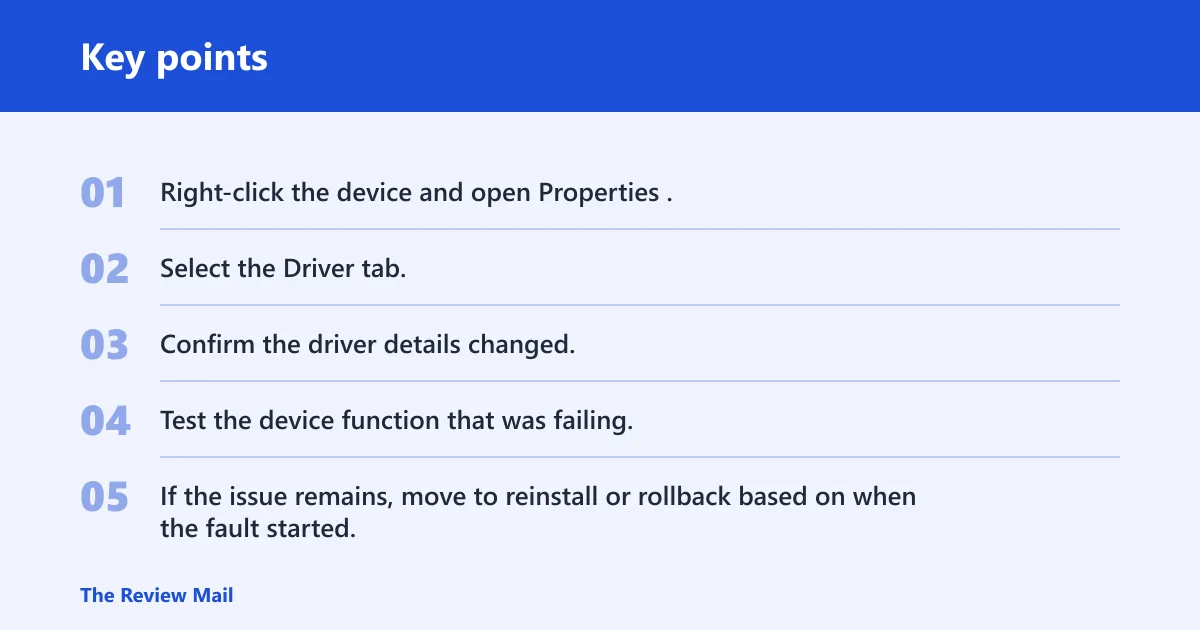
After the update, reopen the device’s Properties and check the Driver tab. Confirm that the driver provider, date, and version changed as expected. Then test the device itself, because a successful install can still leave the original symptom if the wrong device was updated.
- Right-click the device and open Properties.
- Select the Driver tab.
- Confirm the driver details changed.
- Test the device function that was failing.
- If the issue remains, move to reinstall or rollback based on when the fault started.
Checklist:
- Try Search automatically for drivers first.
- Use Search for drivers on Windows Update if local search fails.
- Use Browse my computer for drivers only for a known manufacturer package.
- Verify the Driver tab after the update.
How do you reinstall a device driver from Device Manager?
To reinstall a driver, right-click the device and select Uninstall device, then restart the PC so Windows can reinstall the driver. Microsoft notes that a restart may be needed after uninstall. This is the right move when the driver is broken, corrupted, or stuck in a bad state. (Microsoft Support)
Use uninstall and restart for a broken device
This path is for devices that stopped working cleanly, not for a small tweak. If the device disappears, shows a warning icon, or keeps producing the same error after an update attempt, uninstalling it forces Windows to rebuild the device entry on the next start.
What if the same problem comes back?
If the device returns with the same symptom after restart, Windows may be reinstalling the same driver again, or the hardware may need a manufacturer-specific package. At that point, switch from reinstall to manual update with the correct package, or use Windows Update if Microsoft has a better driver available.
A common mistake is removing the graphics adapter in Device Manager after a Windows 11 update, then expecting the system to restore the correct driver settings automatically on the next restart. If the device was already working, that can create a new problem instead of solving one. Use uninstall when the driver is already broken or unusable.
What if Windows does not reinstall it?
If Windows does not reinstall the device after restart, open Device Manager again and scan the category tree. Some devices reappear only after an additional restart or after Windows Update finishes its own driver pass. If the device still never returns, the missing package may need to come from the manufacturer.
Checklist:
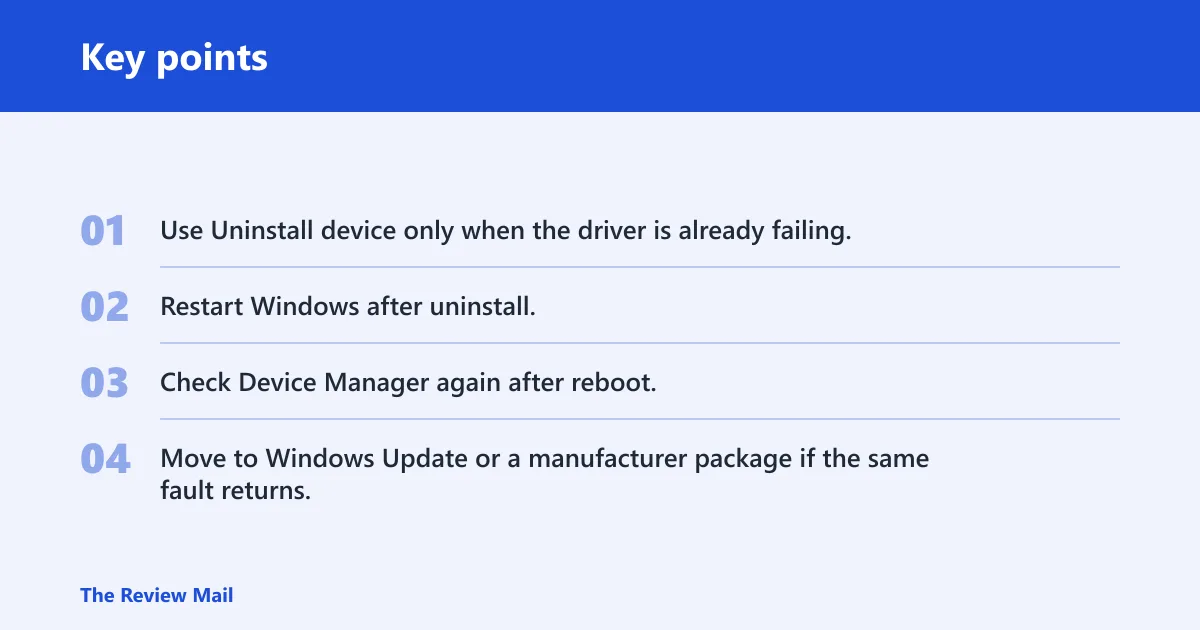
- Use Uninstall device only when the driver is already failing.
- Restart Windows after uninstall.
- Check Device Manager again after reboot.
- Move to Windows Update or a manufacturer package if the same fault returns.
Device manager driver package checks
Manual driver installs fail most often because the package does not match the PC or the files are being pointed to the wrong place. Before you browse in Device Manager, check the Windows version and the folder layout of the downloaded package.
Match Windows version and package support
Microsoft says drivers should match the version and architecture of Windows. For Windows 11, that means the package has to be intended for your current Windows 11 edition and system type. If the package is for another Windows release or for the wrong system type, Device Manager may refuse it or install it incorrectly.
Use the correct folder structure
When you choose Browse my computer for drivers, point Device Manager to the folder that contains the actual driver files, not just the top-level download location. If the package has subfolders, use the one the manufacturer expects. A misplaced folder is a common reason the update appears to “find nothing.”
Uncompress the package before browsing
If the driver arrived in a compressed file, uncompress it first. Device Manager cannot use a package that is still locked inside an archive. After extraction, browse to the folder that holds the .inf and related driver files, then retry the manual update. Manufacturer documentation commonly treats extraction and the included setup folder as part of the install flow.
Checklist:
- Confirm the package is meant for your exact device.
- Use the extracted folder, not the compressed download.
- Point Device Manager to the folder with the driver files.
- Retry with a manufacturer package if Windows rejects the first one.
How do you roll back a driver after a Windows Update?
Open the device’s Properties, select the Driver tab, and choose Roll Back Driver. Use rollback only when the problem started after a driver update and Windows still has a previous driver version available. Microsoft also requires administrator permissions for this action. (Microsoft Support)
When rollback is the right move
Use rollback when the device was working, then started failing after a driver change or Windows Update. That timing matters. If the fault existed before the update, rollback may not help, and reinstall or manual package replacement may be a better path. Rollback is available only when Windows still has the earlier version stored.
Do you need administrator permissions?
Yes. Microsoft says driver rollback requires administrator permissions. If the button is unavailable or you are blocked by permission prompts, use an account with admin rights or ask for approval before trying again. Protected driver changes are limited for a reason.
Checklist:
- Use rollback only after a recent driver change.
- Confirm a previous driver version still exists.
- Use an administrator account.
- Switch to reinstall or manual update if rollback is unavailable.
Frequently asked questions
Should I use Windows Update or Device Manager for driver updates?
Start with Windows Update when you want Microsoft’s recommended channel for drivers. Use Device Manager when you need to target one device, install a manufacturer package, or fix a broken driver. If Device Manager cannot find a better match, Windows Update is the next place to check.
What do I do if Device Manager is missing or not opening in Windows 11?
Try Start search first, then the right-click Start menu path. If it still will not open, restart Windows and try again. If Device Manager remains unavailable, use Windows Update for supported driver updates while you resolve the system issue that is blocking the tool.
Can I update drivers manually in Device Manager?
Yes. Choose Update driver, then Browse my computer for drivers. Use a manufacturer driver package that matches the Windows version and the device. If the package is still compressed, uncompress it first and point Device Manager to the extracted folder.
Why does Windows say search for drivers on Windows Update?
Because Device Manager did not find a better driver on its own. Microsoft uses Search for drivers on Windows Update as the next step when the local search comes up empty. It is the handoff from Device Manager to Microsoft’s driver channel.
Do I need administrator permissions to roll back a driver?
Yes. Microsoft says Roll Back Driver requires administrator permissions. If the option is greyed out or blocked, use an account with admin rights. That is especially important after a recent driver update changed the device and you need to return to the previous version.