Device Manager Flashing Windows 11
Device Manager flashing in Windows 11 usually means a device is repeatedly reconnecting, a driver is failing, or the system is rescanning hardware; start by checking whether one device, an error code, or the whole PC is involved. Ignoring the pattern can waste time on the wrong fix, while a bad driver or failing USB device can keep icons refreshing, stall installs, or break input. This guide shows how to separate single-device faults, driver error codes, and system-wide causes, then pick the next check.
Flashing pattern triage
The first job is to separate a one-time refresh from a loop. A brief flash after you open Device Manager can be normal. Repeated refreshing, disappearing devices, or a device that keeps reappearing points to a narrower hardware or driver problem.
That distinction matters because the fix changes with the pattern. A single display adapter with Code 1 needs a different next step than a Bluetooth adapter that drops in and out while the whole list keeps redrawing.
| Visible symptom | Likely cause | Next action | Escalate? |
|---|---|---|---|
| Flashes once when opening Device Manager | Normal UI refresh or a one-time hardware scan | Check the device only if the flash repeats | No, unless another symptom appears |
| Repeated refreshes or flicker | A driver is failing or a device keeps reconnecting | Open the problem device, then check its status and driver | Yes, if the loop affects several devices |
| Device disappears and reappears | Loose hardware connection, unstable USB path, or driver churn | Try another port or cable, then inspect the driver | Yes, if it affects display, USB, Bluetooth, or camera devices |
| Code 1 in Device status | Device is not configured correctly | Update the driver first | Maybe, if update fails |
| Code 3 in Device status | Driver may be corrupted, missing, or misconfigured; low memory can also be involved | Close apps, check memory, then uninstall and reinstall the driver | Yes, if the code stays after reinstall |
| Slow system, app pauses, low memory signs | Resource pressure is affecting hardware handling | Check Task Manager and virtual memory settings | Maybe, if memory stays tight after cleanup |
Say your USB webcam vanishes every few seconds while Device Manager redraws the list. That points more toward a local device loop than a generic Windows display issue, so the webcam driver, cable, port, or hub should move to the front of the queue.
📊 Device Manager applies to Windows 11 and Windows 10. Source: Microsoft.
How do you open Device Manager?
Search Start for Device Manager in Windows 11, then open the result. Use the same path in Windows 10. If the device list is already unstable, the same tool still gives you the status code, driver tab, and hardware scan controls you need.
Find the problem device by type
Once Device Manager opens, look for the device type that matches the symptom. Display problems usually start with the display adapter. USB dropouts often show under Universal Serial Bus controllers or a specific USB device. Bluetooth, camera, network, and storage devices can all trigger the same flashing pattern.
- Open Device Manager from Start search.
- Expand the device type that matches the problem.
- Select the device that shows a warning icon or seems to vanish and return.
- Open its Properties dialog box.
A common first-timer mistake is to open the display adapter entry instead of the device with the warning icon when troubleshooting a flashing Windows 11 driver in Device Manager. If the screen flickers while a camera driver is failing, the cause may sit under Imaging devices or Cameras, not under Display adapters.
How do you check the error code?
Microsoft says to find the error code in the device’s Properties dialog box. The code appears in the Device status area. That field is the quickest way to tell whether you are dealing with a driver fault, a setup problem, or a resource issue.
Read the Device status area
After you open Properties, look at the Device status area first. If the device reports Code 1, Code 3, or another code, let that result steer the next step instead of guessing from the flashing alone. If the area says the device is working properly, the flash may be a system-wide refresh issue instead.
Use the code to narrow the fix, not to stop there. The same flicker can come from a single corrupted driver, an external device that keeps reconnecting, or low memory making Windows stumble during hardware scans.
What Code 1 and Code 3 mean
Code 1 means the device is not configured correctly. Microsoft recommends updating the driver for Code 1. Code 3 may mean the driver is corrupted, and it can also relate to low memory or resources. Those two codes point to different next steps, even when the symptom looks the same.
Use the code to choose the next move
If Code 1 appears, start with a driver update. If Code 3 appears, check for memory pressure and consider reinstalling the driver. If the device is a display adapter, a USB hub, a Bluetooth radio, or a camera, the same logic still applies. The category changes; the decision path does not.
Suppose a Bluetooth adapter shows Code 3 while several apps are open and the system feels slow. Closing a few applications may relieve memory pressure enough to stop the loop, but a driver reinstall still belongs on the list if the code returns.
Driver fixes that usually come next
The Driver tab is where most of the direct repair actions live. Use it to update the driver, and if needed, uninstall and reinstall the driver. Microsoft also uses the Hardware Update Wizard from the Driver tab when you update the driver through the device’s Properties dialog box.
Update the driver
For Code 1, the first move is usually Update Driver. Open the device’s Properties dialog box, go to the Driver tab, and start the Hardware Update Wizard. Use it to check whether Windows can load a better driver or a cleaner match for the device.
Uninstall and reinstall the driver
If the driver may be corrupted, missing, or misconfigured, uninstall it and let Windows detect it again. The driver can be uninstalled, then the computer can be scanned for new hardware again. This step can clear a broken install that keeps making the device disappear and return.
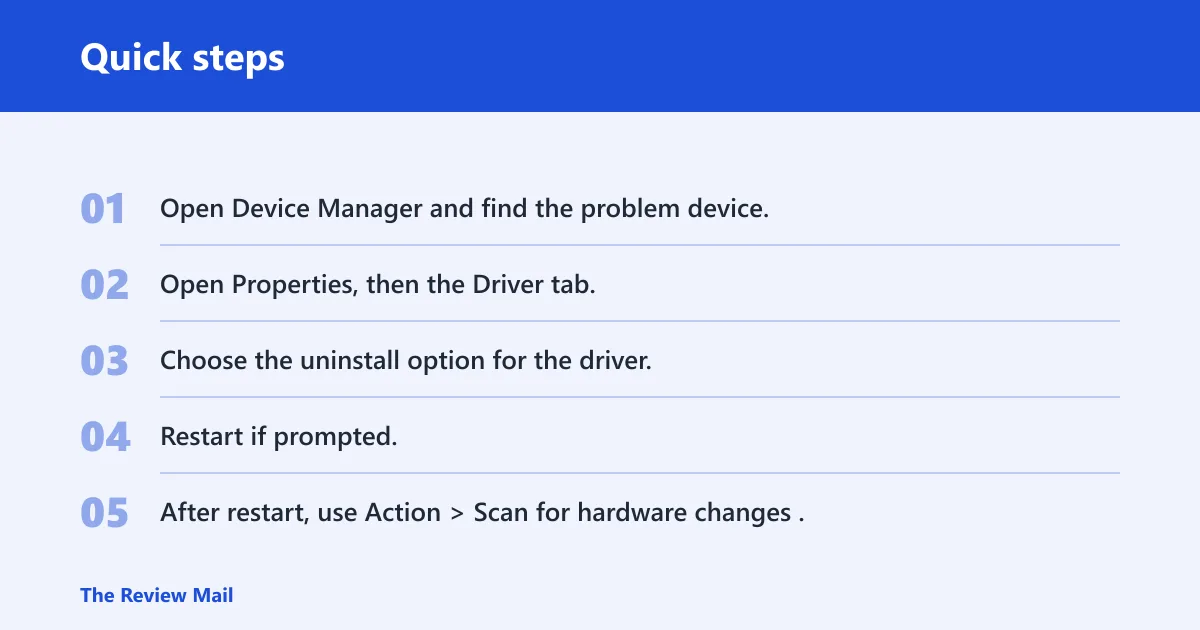
- Open Device Manager and find the problem device.
- Open Properties, then the Driver tab.
- Choose the uninstall option for the driver.
- Restart if prompted.
- After restart, use Action > Scan for hardware changes.
Scan for hardware changes
After reinstalling, use Scan for hardware changes. Microsoft includes that action as the next step after restart. It gives Windows another pass at finding the hardware and loading the driver cleanly, which is useful when the device type is still missing or unstable.
Could low memory be the cause?
Yes. Low memory can cause Device Manager errors, especially with Code 3. Microsoft advises closing applications if the computer has insufficient memory. Task Manager is the tool Microsoft names for checking memory and system resources, and you can open it with Ctrl+Alt+Delete.
Check Task Manager and virtual memory
Open Task Manager first and look for heavy memory use or other resource pressure. If the system is short on memory, close unused applications and see whether the Device Manager loop settles. If the problem continues, review virtual memory settings in System Properties.
Virtual memory settings are on the Advanced tab in System Properties, in the Performance area through the Settings button. If memory pressure is the reason Device Manager keeps refreshing, fixing the resource shortage may do more than reinstalling a driver.
Picture a laptop that keeps flashing Device Manager while a large video editor and a browser with many tabs are open. The driver may still need attention, but the first sign here is resource strain, so closing apps and checking memory is the faster test.
How do I stop Device Manager from flickering in Windows 11?
Start by deciding whether the flicker is a single refresh or a loop. If it happens once, leave it alone unless you also see a warning icon, a missing device, or a status code. If it repeats, focus on the affected device, its driver, and system resources before you move to broader troubleshooting.
If the flashing is tied to one category, such as USB or Bluetooth, disconnect external hardware and reopen Device Manager. If the whole list keeps moving, the issue is more likely system-wide. In that case, check memory pressure, then move to driver repair or vendor support if the code persists.
Frequently asked questions
Why is device Manager flashing on Windows 11?
Device Manager flashing on Windows 11 usually means Windows is repeatedly rescanning hardware, a device is reconnecting, or a driver is failing. The key is to check whether the flash is one-time or looping, then inspect the device status area for an error code before changing drivers.
Is Device Manager flashing a driver problem?
Sometimes, but not always. A flashing or refreshing Device Manager can come from a corrupted driver, a misconfigured device, or low memory. It can also point to a loose USB connection or another hardware issue, so the visible pattern matters before you assume the driver is the cause.
How do I open device Manager in Windows 11?
Use Start search and type Device Manager, then open the result. Windows 10 uses the same tool. Once it opens, expand the matching device category, select the problem device, and open its Properties dialog box to check the Device status area and driver tab.
What should I do if a device shows Code 1 or Code 3?
Code 1 means the device is not configured correctly, and Microsoft recommends updating the driver. Code 3 may mean the driver is corrupted, missing, or misconfigured, and it can also relate to low memory. Close unused apps, then consider uninstalling and reinstalling the driver.
Can low memory cause Device Manager errors?
Yes. Microsoft says Code 3 can relate to low memory or resources, and it advises closing applications if memory is insufficient. Check Task Manager with Ctrl+Alt+Delete, then review virtual memory settings in System Properties on the Advanced tab if the system still feels strained.
Should I uninstall and reinstall the driver?
Yes, when the driver seems corrupted or the device keeps failing after an update. Microsoft advises uninstalling the driver and scanning for new hardware again. After restart, use Action > Scan for hardware changes so Windows can detect the device and reload it.