Windows 11 Fix Temporary Profile Issue
To troubleshoot a Windows 11 temporary profile issue, check three layers in order: the profile mapping, the profile folder, then possible disk or file-system damage. A temporary profile means Windows signed you into a disposable profile for that session, so changes may not be saved after sign-out. If you skip a layer, Windows can leave you on a temporary desktop, drop changes at sign-out, and hide files stored in the real profile. This guide shows how to identify the failed layer and fix Windows 11 without changing the wrong part.
Temporary profile decision table
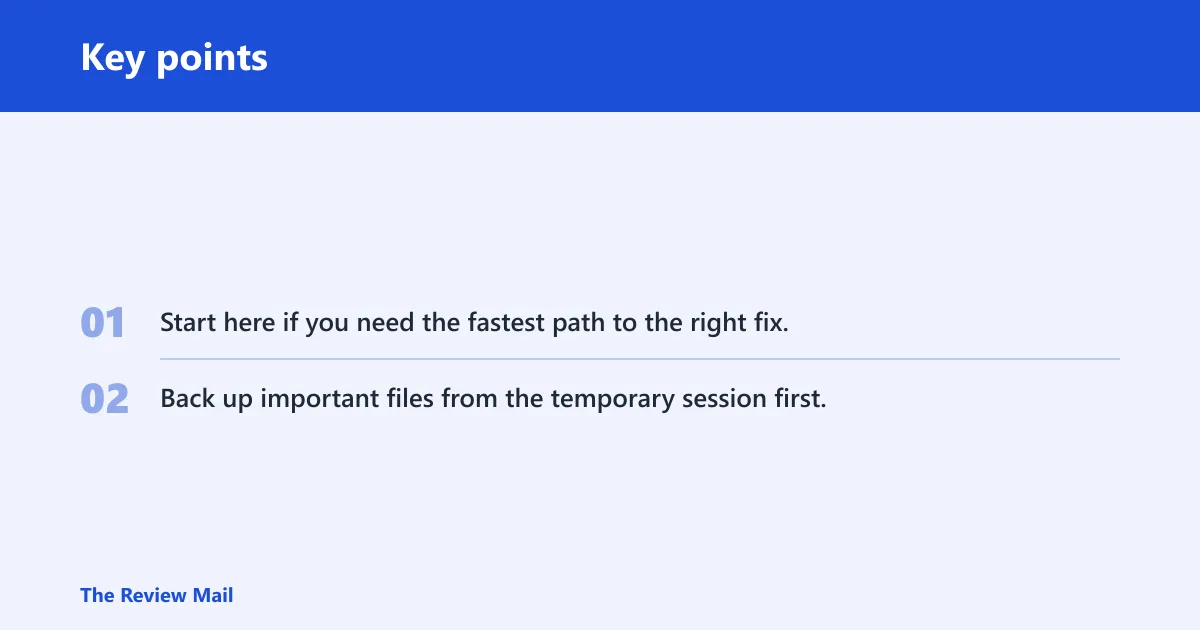
Start here if you need the fastest path to the right fix. Back up important files from the temporary session first, then use the symptom to choose the safest next step.
| Symptom | Likely cause | Safest next step | Escalation trigger |
|---|---|---|---|
| One-time temporary profile after a restart | Windows could not load the saved profile normally | Sign out, restart Windows, and sign in again. If it happens again, check HKEY_LOCAL_MACHINE\SOFTWARE\Microsoft\Windows NT\CurrentVersion\ProfileList and verify ProfileImagePath | The same profile loads TEMP again after another sign-in |
| Recurring login with a .bak key | ProfileList contains duplicate SID keys | Match the SID to the real profile, then repair the live key and the .bak entry | The key repair completes, but sign-in still returns to a temporary desktop |
| TEMP folder under C:\Users | The profile folder or user hive may not be loading correctly | Check folder ownership, permissions, and whether the profile folder itself opens normally | The folder is present but access is denied or the hive will not load |
| Profile-folder permission failure | ACLs, ownership, or file corruption block the profile | Use the built-in Administrator account, then inspect permissions and repair with disk and system-file tools | Permissions cannot be restored or the profile keeps breaking again |
Why does Windows 11 keep signing me into a temporary profile?
Windows usually falls back to a disposable session when it cannot load the real user profile, and that session can vanish after sign-out. The most common places to check are the profile mapping, the profile folder, the user hive, permissions, and then disk or system-file corruption.
How to match the symptom to the cause
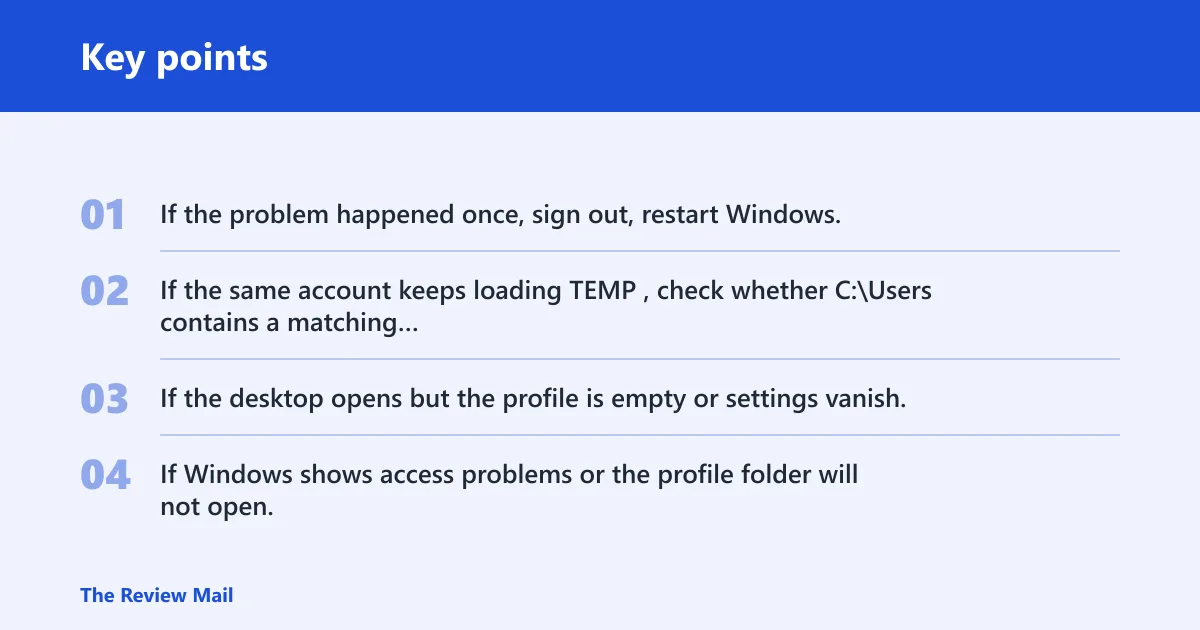
- If the problem happened once, sign out, restart Windows, and sign in again before editing anything.
- If the same account keeps loading TEMP, check whether C:\Users contains a matching profile folder.
- If the desktop opens but the profile is empty or settings vanish, suspect the mapping or folder load first.
- If Windows shows access problems or the profile folder will not open, move to permissions and hive checks before disk repair.
If your account opens with a blank desktop and a warning that files may not be available, that usually points to a failed profile load, not a bad app setting. If the same account works after one reboot, but returns to TEMP the next morning, check the saved profile path and the user folder before making larger changes.
Check the profile mapping first
The quickest useful check is the SID-to-profile mapping. The correct key under ProfileList is the one whose ProfileImagePath points to C:\Users\<username>. Verify the SID before changing registry values.
Find the SID and verify ProfileImagePath
- Open Command Prompt and run whoami /user.
- Copy the SID that looks like S-1-5-21-….
- Open Registry Editor and go to
HKEY_LOCAL_MACHINE\SOFTWARE\Microsoft\WindowsNT\CurrentVersion\ProfileList. - Click the SID key that matches your account and check ProfileImagePath.
- If the path does not point to the expected folder, note the mismatch before changing anything else.
If the key does not point to the expected folder, or if the matching SID appears twice and one ends in .bak, stop before making more changes. Back up the registry branch first. Then identify the correct entry by matching the SID from whoami /user and the ProfileImagePath that points to the real profile folder, not by renaming keys at random.
How do you repair the.bak profile entry?
If ProfileList shows a live SID key and a matching .bak key, repair the active entry only after you confirm which key has the real ProfileImagePath. Use the key that points to the actual profile folder as the reference, then set the standard profile values: State and, if present, RefCount.
Repair the registry entry
- In Registry Editor, export the ProfileList branch before changing anything.
- Find the SID for the affected account.
- If one key ends in .bak, compare both SID keys and their ProfileImagePath values first, then make the key that matches the real profile path the active SID key.
- Set State to 0.
- If RefCount exists, set it to 0.
- Close Registry Editor, then sign out and sign in again.
Do not keep editing if the registry values look right but the account still loads TEMP. That points you to the profile folder itself. A second sign-in failure after a clean key repair usually means the profile files or permissions need attention.
Fix the profile folder and permission problem
When the registry looks correct, the next layer is the profile folder. Check C:\Users for the real profile folder, then verify whether NTUSER.DAT exists and whether the folder owner and permissions match the account. If NTUSER.DAT is missing or denied, that can mean profile corruption, deletion, or a file-system problem.
Use the built-in Administrator account if needed
- Open an elevated Command Prompt.
- Run net user Administrator /active:yes. (Microsoft Learn)
- Sign out and sign in to the built-in Administrator account.
- Open C:\Users, check the affected profile folder, and inspect ownership and permissions.
- If the profile folder opens but NTUSER.DAT is missing or denied, that can point to profile corruption, deletion, or file-system trouble.
- When you are done troubleshooting, disable the built-in Administrator account again.
A common first-timer mistake is to keep forcing the same damaged account to load after permissions fail. If the folder cannot be opened cleanly from the built-in Administrator account, the repair may be smaller than a full rebuild, but it is no longer a registry-only fix.
Can a disk check fix a temporary profile in Windows 11?
Yes, but only after the mapping and folder checks. A disk check can clear file-system errors that block profile loading. It does not repair a bad SID entry by itself, and it does not fix a broken user hive unless the storage layer is part of the problem.
Run CHKDSK, then SFC and DISM
- Open an elevated Command Prompt.
- Run
chkdskC: /f. - If Windows asks to schedule the scan, accept it and restart.
- After Windows starts, run
sfc /scannow. - If SFC reports corruption it cannot repair, run
DISM /Online /Cleanup-Image /RestoreHealth, then runsfc /scannowagain.
Do not assume the drive is fine because Windows still boots. If CHKDSK and SFC finish cleanly but the profile still falls back to TEMP, stop treating it as a storage problem.
When should you create a new user account?
Create a new account if the same user keeps landing in a temporary profile after the registry fix, folder checks, and disk repairs. That is the point where migration is safer than repeated repair attempts, especially if NTUSER.DAT is damaged or permissions keep breaking again.
Move files safely from the old profile
- Sign in with a working admin account, or the built-in Administrator account if needed.
- Create a new local account or Microsoft account in Settings > Accounts > Other users.
- Copy only personal data from the old profile: Desktop, Documents, Downloads, Pictures, and app-specific exports you can verify.
- Do not copy NTUSER.DAT, NTUSER.DAT.LOG1, NTUSER.DAT.LOG2, or the old registry hive.
- Sign in to the new account, confirm the desktop loads normally, then remove the broken account only after the data is safe.
That is the right stop point when the profile keeps returning to TEMP after repair. A fresh account avoids reusing a damaged hive and gives Windows a clean profile path to load.
Still not working?
If the problem survives a restart, SID check, .bak repair, permission review, and disk-system repair, the remaining path is a clean profile rebuild or vendor support for a deeper Windows fault. At that stage, the built-in Administrator account is for rescue and inspection, not repeated daily use.
Before you give up on the old account, copy what matters from the temporary session while it still exists. Once you sign out, the disposable profile can disappear, and files saved only there may go with it.
Frequently asked questions
What should I do first if windows 11 opens in a temporary profile?
Sign out, restart Windows, and sign in again before changing anything. If the profile still opens as TEMP, back up important files from the temporary session, then check ProfileList and the profile folder. That sequence avoids editing the wrong key.
Should I create a new user account if the temporary profile keeps coming back?
Yes, if the repair keeps failing after the SID check, .bak fix, folder permission review, and disk repair. A new account is the safer next step when NTUSER.DAT or the profile folder keeps breaking again. Copy only personal files, then move on from the damaged profile.