Windows Has Stopped This Device: Fix Code 43
Windows has stopped this device because it reported problems (Code 43) usually means Windows stopped trusting the device or its driver. Check the driver, power, port, and hardware first. If you ignore it, a GPU, Wi‑Fi, Bluetooth, USB, or network adapter can stay unusable while you chase the wrong fix. This guide shows how to tell which fault is most likely and what to try first on Windows 10 and 11.
What Code 43 means
Device Manager shows Code 43 in the General tab, inside the Device status box. Microsoft’s message is: “Windows has stopped this device because it has reported problems. (Code 43)”. In plain terms, Windows stopped the device because it found a fault it could not ignore safely. (Microsoft)
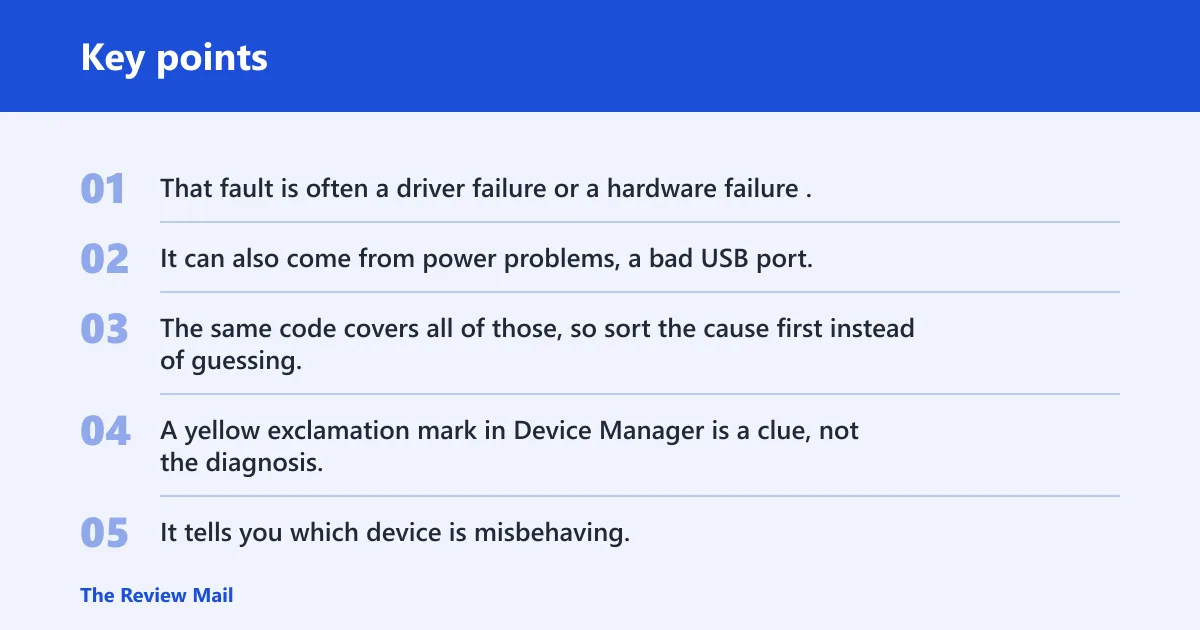
That fault is often a driver failure or a hardware failure. It can also come from power problems, a bad USB port, or passthrough and virtualization settings on devices that do not sit on a normal physical bus. The same code covers all of those, so sort the cause first instead of guessing.
A yellow exclamation mark in Device Manager is a clue, not the diagnosis. It tells you which device is misbehaving, but not whether the problem is the driver package, the device itself, or the connection path.
📊 Microsoft defines the message as "Windows has stopped this device because it has reported problems. (Code 43)". Source: Microsoft.
Where is the fault?
If the error started right after a driver install, driver removal, Windows Update, or a settings change, a software fault is more likely. If the device failed after a hot-plug, a reboot, a power loss, or a move to another port, connection or power issues move up the list. If the error survives those checks, hardware becomes more likely.
Driver failure clues
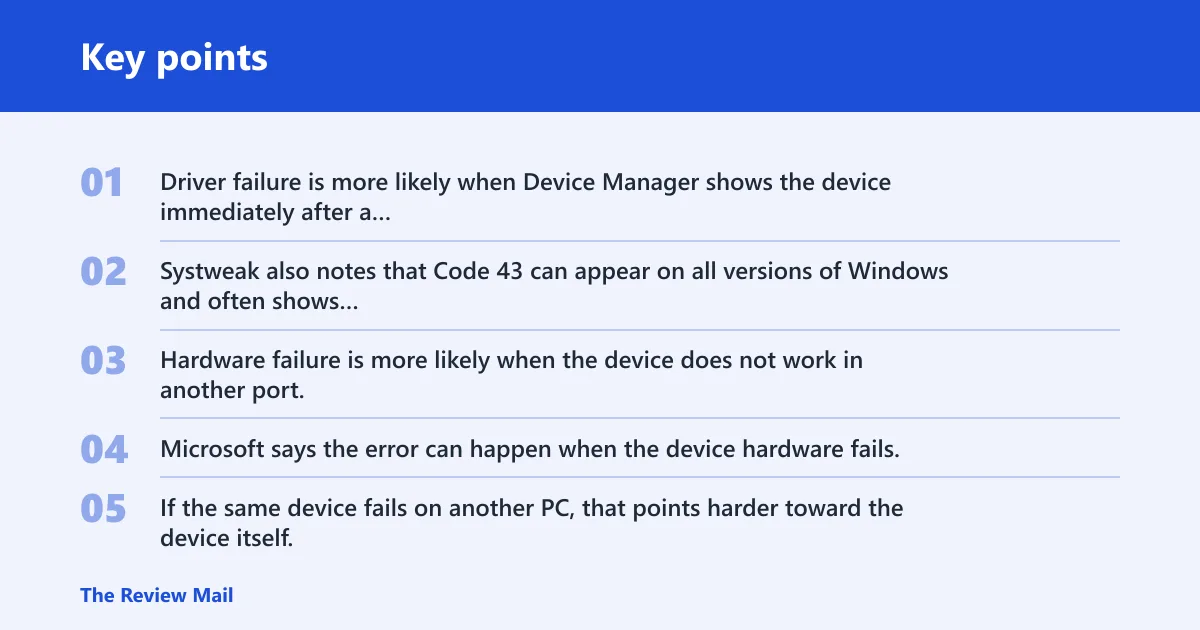
Driver failure is more likely when Device Manager shows the device immediately after a new driver was installed, Windows replaced the old driver, or the error began during a driver install or uninstall. Systweak also notes that Code 43 can appear on all versions of Windows and often shows up during driver changes.
Hardware failure clues
Hardware failure is more likely when the device does not work in another port, fails after a clean reboot, or still shows Code 43 after the driver is removed and Windows reloads it. Microsoft says the error can happen when the device hardware fails. If the same device fails on another PC, that points harder toward the device itself.
Power, port, and passthrough clues
External devices can fail because of a weak port, a loose connector, or not enough power. For virtual machines or passthrough setups, Code 43 can also appear when the guest cannot access the device correctly. If a GPU, USB controller, or network adapter only fails inside a VM, check the passthrough configuration before replacing hardware.
Picture a USB 3.0 external drive that shows Code 43 only in one front-panel port. That pattern is more useful than the error itself. Try the same drive on a rear port or another machine before you assume the drive has failed.
Find the affected device
Open Device Manager and look for the device with the yellow exclamation mark. Then open its General tab and read the Device status box. That box shows the exact Code 43 text and confirms which device Windows stopped.
Use right-click, uninstall, and scan for hardware changes
- Right-click the affected device.
- Select Uninstall device.
- Restart the PC or choose Scan for hardware changes in Device Manager.
- Check whether Windows reloads the device with a working driver.
Microsoft recommends uninstalling the malfunctioning device in Device Manager and then rescanning hardware. That is a safe early step when you suspect a bad driver or a stale device entry. It is less useful if the device is physically failing or cannot stay powered.
Code 43 triage matrix
| Device type | Likely cause | Fastest safe test | Escalation step |
|---|---|---|---|
| GPU | Driver mismatch, corrupted driver, or PCIe passthrough issue | Open Display adapters, note the exact model, then uninstall the display driver and rescan hardware changes | If Code 43 returns after a clean reinstall or appears only in a VM, use the OEM driver or check passthrough settings; hardware support becomes more likely if the card fails on another PC |
| Wi-Fi adapter | Driver fault or adapter power management problem | Disable and re-enable the adapter, then reinstall the driver from Windows Update or the manufacturer package | If the adapter disappears again after reboot or fails in another machine, OEM support or replacement becomes more likely |
| Bluetooth adapter | Driver fault, USB internal module issue, or radio stack conflict | Uninstall the adapter in Device Manager, rescan hardware changes, and check whether the device returns cleanly | If Bluetooth remains absent after reinstall or fails with every paired device, hardware service is more likely |
| USB storage | Weak port, unsafe removal, cable fault, or drive failure | Safely eject, disconnect, wait 30 seconds, reconnect, and try a different port | If the drive still reports Code 43 on another PC, stop writing to it and treat the drive as likely failing |
| Network adapter | Driver fault, hardware fault, or power state issue | Check the adapter in Network adapters, then reinstall the driver and reboot | If the adapter still shows Code 43 after reinstall and Windows updates do not help, OEM support or replacement becomes more likely |
Should you uninstall the driver?
Yes, if the device is still present in Device Manager and the problem looks driver-related. Uninstalling the device is one of Microsoft’s first recommendations, especially when the error started after a driver change. It is a safe first step because Windows can often reinstall a basic driver on restart or after a rescan.
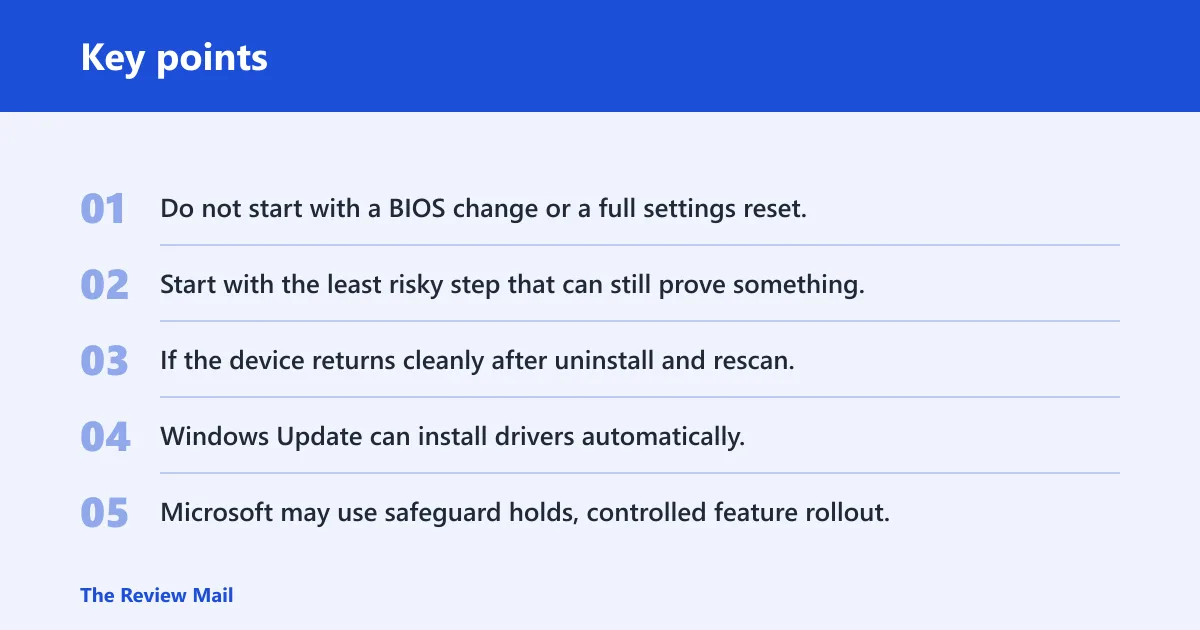
Do not start with a BIOS change or a full settings reset. Start with the least risky step that can still prove something. If the device returns cleanly after uninstall and rescan, the issue was probably software or a stale device record.
When to reinstall from Windows Update
Windows Update can install drivers automatically, but it may not always offer the best driver for every device. Microsoft may use safeguard holds, controlled feature rollout, and device eligibility checks, so a newer driver may not reach every PC at once. If Windows offers a driver that matches the device exactly, it is reasonable to try it.
Use Windows Update first when the device is common, the current driver looks generic, and the machine is already on a supported build. If the same Code 43 returns after that, move to the manufacturer package.
When to use the manufacturer driver instead
If Windows cannot automatically detect the right driver, Microsoft advises getting it from the manufacturer. That matters most for GPUs, Wi-Fi adapters, Bluetooth radios, and some network adapters, where vendor packages may include device-specific fixes that Windows Update does not provide. Use the exact model number, not a close match.
Say your NVIDIA graphics adapter shows Code 43 after a driver update. A generic display driver from Windows Update may load, but the error can come back. In that case, the vendor package is the more useful next step because it is built for that card family and driver branch.
How do you fix USB Code 43?
For USB devices, the first safe move is to disconnect and reconnect the device after a proper shutdown or reboot. Microsoft says external drives should be safely ejected before unplugging, and it advises waiting 30 seconds before reconnecting some powered devices. That can clear a stuck power state without changing anything else.
Try another port or another PC
Use a different USB port if one is available, preferably on another controller path such as a rear port instead of a front hub. Systweak recommends trying the USB device on another PC or port as a diagnostic step. If the same Code 43 appears everywhere, the device itself is the stronger suspect.
A common first-timer mistake is to keep reconnecting the same external drive to the same port after it fails. That tells you nothing new. Change one thing at a time: port, then cable, then another machine if you have one.
Can System Restore help?
Yes, if the problem began after a driver install, driver removal, Windows update, or a settings change. System Restore rolls the PC back to a restore point and can undo recent driver or settings changes without wiping personal files. Systweak includes it as a fix for recent driver or settings changes.
Check Scan for affected programs
Before you restore, use the Scan for affected programs option to see which apps and drivers will be removed or reverted. That helps you confirm whether the restore point reaches back far enough to matter. If the bad driver was installed after that restore point, the rollback is more likely to help.
If Code 43 returns after reinstalling a driver, that is a clue, not a dead end. It means the issue may be deeper than a bad package, especially if the same failure appears after reboot or on another port. At that point, hardware, power, or passthrough should move to the top of the list.
Frequently asked questions
How do I fix Windows has stopped this device code 43?
Start in Device Manager, open the device’s General tab, and read Device status. Then try the safe order: uninstall the device, rescan hardware changes, reconnect external devices, and reinstall or update the driver. If the error returns after a clean reinstall, test for hardware, port, or power issues next.
Why does Device Manager say Windows has stopped this device because it has reported problems?
That message means Windows detected a problem severe enough to stop the device from running normally. Microsoft says the cause is usually hardware failure or driver failure. The same code can also appear with power, port, or passthrough faults, so the best next step is to separate those causes before deeper changes.
How do I fix code 43 on my Wi-Fi adapter?
Check the adapter under Network adapters, then disable and re-enable it or uninstall it and scan for hardware changes. If that does not help, reinstall the driver from Windows Update first, then from the PC or adapter maker. If the adapter fails again after reboot, hardware becomes more likely.
Why is my GPU showing code 43 in Device Manager?
GPU Code 43 often points to a bad driver, a driver mismatch, or a corruption problem after an update. Open Display adapters, uninstall the GPU driver entry, and reinstall the correct vendor driver. If the card still reports Code 43 on another system or inside a VM, suspect hardware or passthrough configuration.
Can code 43 be caused by hardware failure?
Yes. Microsoft says Code 43 can happen when the device hardware fails. That becomes more likely when the error survives a reboot, a driver reinstall, a different port, and a second PC. At that point, replacement or OEM support is a more realistic next step than another software tweak.
What should I do if Code 43 comes back after reinstalling the driver?
Treat that as a signal to widen the search. Try a different port, power-cycle external devices, compare behavior on another PC, and check whether Windows Update keeps replacing the driver. If the same device still fails after those tests, the fault is more likely hardware-related than driver-related.