Windows 11 Autologon Not Working: Fixes That Help
Windows 11 autologon usually fails when the saved sign-in settings do not match the account or when a device setting overwrites them. Match the method to home, domain, kiosk, or managed devices, or users may see sign-in loops and repeated prompts after restart. This guide shows how to isolate the cause and apply the right fix path for each environment.
What autologon failure means in Windows 11
Autologon signs a user in without prompting for a password. When it stops working, Windows may still accept the account, then return to the sign-in screen or reset the stored values after logoff.
Likely causes
The issue can come from a changed account type, Windows Hello requirements, or a policy that overrides local sign-in settings. On managed devices, device management or domain policy can override local autologon settings. A Windows version change can also expose a setting that needs to be checked again.
Picture a classroom smart panel that signs in to one Active Directory account, then flashes every 30 seconds after reboot. That points away from a simple checkbox problem and toward policy, account, or version behavior. A home PC with the same symptom usually has a different cause.
Use the Microsoft autologon tool first:
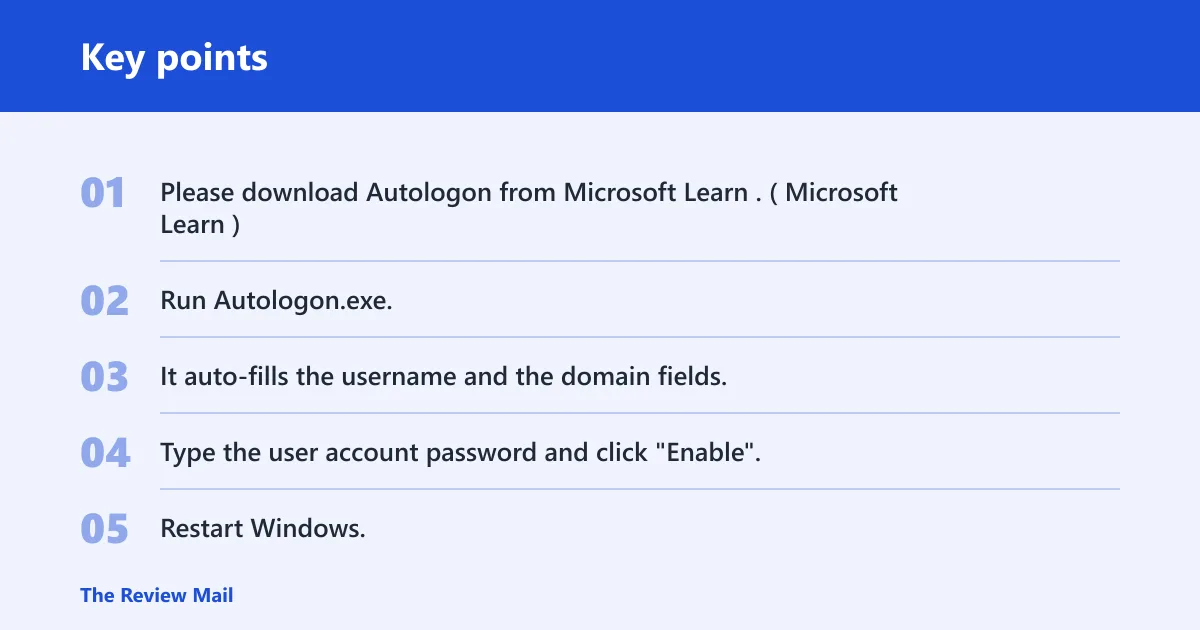
- Please download Autologon from Microsoft Learn. (Microsoft Learn)
- Run Autologon.exe.
- It auto-fills the username and the domain fields.
- Type the user account password and click “Enable”.
- Restart Windows.
Autologon decision table
| Device type | Symptom | Likely cause | Safest fix | 24H2 security hardening involved? |
|---|---|---|---|---|
| Home PC | Password prompt returns after restart, or netplwiz keeps reverting | Windows Hello requirements, Microsoft account behavior, or a missing Winlogon value | Check sign-in settings, verify the Winlogon values, and use Autologon if needed | Possibly |
| Domain-joined PC | Autologon works once, then fails after policy refresh | Domain policy or wrong domain fields in the autologon settings | Confirm the domain account path and test against policy outside normal refresh windows | Possibly |
| Kiosk or smart panel | Screen flash every 30 seconds, then sign-in loop | Auto-login account is being reset, or kiosk policy is overriding the stored sign-in data | Review kiosk policy, verify Winlogon values, and confirm the assigned account | Possible after a feature update |
| Managed device | Autologon disappears after compliance or lock-screen policy applies | Device management, EAS, DeviceLock, or screen-saver settings override local autologon | Check policy assignments and exclude the device only if the use case allows it | Possibly |
Why is netplwiz not working for automatic sign-in?
netplwiz can fail when Windows Hello or a device policy overrides the “Users must enter a user name and password” checkbox. It can also miss the right account if the password changed, the profile was converted, or a Microsoft account is involved. Treat it as one path, not the whole fix.
- Open netplwiz and confirm the correct account is selected.
- Clear and reapply the Users must enter a user name and password checkbox if it is present.
- Enter the current password again after any password change or account conversion.
- Open Settings > Accounts > Sign-in options and review Hello-related requirements.
- If the checkbox keeps reverting, check the Winlogon registry values below.
Suppose a laptop uses a Microsoft account and Windows Hello PIN sign-in is enabled. netplwiz may appear to accept the change, then the prompt returns after reboot because sign-in enforcement still wins. In that case, the account path matters more than the checkbox.
Check the Winlogon registry keys
The key path is HKEY_LOCAL_MACHINE\SOFTWARE\Microsoft\Windows NT\CurrentVersion\Winlogon. That path holds the values Windows uses for automatic sign-in: AutoAdminLogon, DefaultUserName, DefaultPassword, and ForceAutoLogon. Verify them after signing out and again after a restart if the setting does not stick.
- Open regedit as an administrator.
- Go to
HKEY_LOCAL_MACHINE\SOFTWARE\Microsoft\WindowsNT\CurrentVersion\Winlogon. - Set AutoAdminLogon to 1.
- Set DefaultUserName to the exact account name.
- Set DefaultPassword to the current password if your policy allows stored credentials.
- Set ForceAutoLogon to 1 if you need the system to keep trying to sign in automatically.
- Sign out, then sign back in or restart and check whether the values stayed in place.
A common mistake is setting Windows 11 autologon in Local Users and Groups instead of updating the correct registry values for the built-in sign-in screen.
Does Windows Hello block autologon?
Windows Hello can block auto login when sign-in requirements favor PIN, fingerprint, or face sign-in instead of password-based sign-in. That does not always mean Hello is broken. It often means the device is set to prefer Hello over password sign-in, which conflicts with stored-password autologon.
- Open Settings > Accounts > Sign-in options.
- Turn off any Windows Hello-only sign-in requirement if the device allows it.
- Temporarily remove the PIN, fingerprint, or face sign-in method for testing.
- Restart and see whether password-based autologon resumes.
- If it works, restore the Hello method only after confirming the device still signs in automatically.
For a home PC, removing the PIN for a short test is often enough to prove whether Hello is the blocker. On a managed device, policy may reapply the setting after the next sync.
Can 24H2 affect autologon?
A feature update can change how the sign-in path behaves on some devices, so compare the result across versions when possible. If the issue appears after an update, check whether the stored sign-in values still match the account and whether a policy changed at the same time.
- Compare the same device on 23H2 or 22H2 if you have a test machine.
- Check whether AutoAdminLogon or related values reset after sign-out.
- Review whether Credential Guard or LSA protection was enabled during the upgrade.
- If the device is managed, check whether policy changed at the same time as the feature update.
If a feature update changed the sign-in behavior, the next step is usually to confirm the autologon values again and then test the device under the same account and policy state.
What should you try next if it still fails?
If the basic checks fail, move to account type, boot behavior, policy conflict, and profile health. A Microsoft account can trigger restrictions, while a local account is often more reliable for autologon. Fast Startup can also interfere with the login flow on some systems.
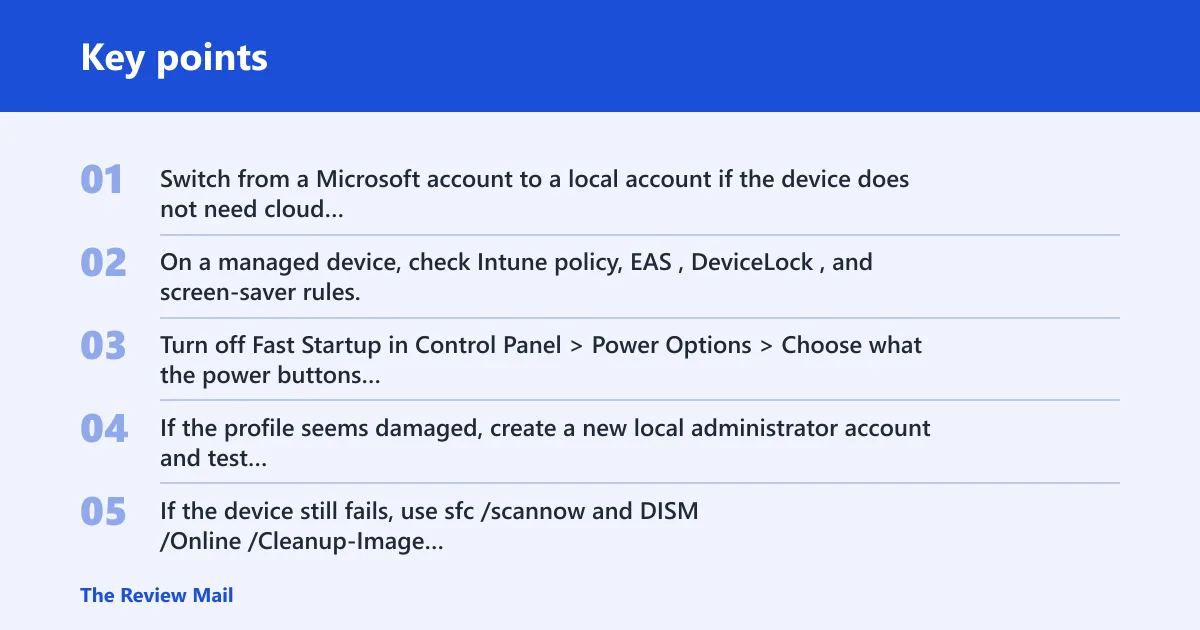
- Switch from a Microsoft account to a local account if the device does not need cloud sign-in.
- On a managed device, check Intune policy, EAS, DeviceLock, and screen-saver rules.
- Turn off Fast Startup in Control Panel > Power Options > Choose what the power buttons do.
- If the profile seems damaged, create a new local administrator account and test autologon there.
- If the device still fails, use
sfc /scannowandDISM /Online /Cleanup-Image /RestoreHealthbefore changing more settings.
On a domain PC, do not change the account model first. Check whether the domain policy is rewriting the setting after logon. On a kiosk, confirm the assigned account and screen-lock behavior before rebuilding the profile.
Still not working?
If the device still ignores autologon after the registry, Hello, account, and policy checks, the next escalation is a clean profile test or a managed-device policy review. For home PCs, a new local administrator account can show whether the original profile is corrupt. For domain, kiosk, or managed devices, involve the platform owner before changing security controls that protect stored credentials.
Prevention: After you get autologon working, record the exact Winlogon values, the account type, and any policy that applies. That makes future updates easier to check, especially after a feature upgrade.
Frequently asked questions
Why is autologon not working in Windows 11?
Most failures come from a mismatch between the stored password path and the device’s sign-in rules. Check Winlogon, Windows Hello, and the account type first. If the device is managed, policy may override local settings after the next sync or restart.
How do I fix auto login in Windows 11 after an update?
Start by rechecking HKEY_LOCAL_MACHINE\SOFTWARE\Microsoft\Windows NT\CurrentVersion\Winlogon after the update, then review Hello requirements and any policy changes. If the device moved to 24H2, compare behavior with a 23H2 or 22H2 machine when possible.
Why does netplwiz not work for automatic sign-in?
netplwiz can be ignored when Windows Hello requirements or a device policy take precedence. Re-enter the account password, then check Settings > Accounts > Sign-in options. If the checkbox still fails, use the registry path or the Microsoft Autologon tool instead of repeating the same toggle.
How do I stop Windows Hello from blocking autologon?
Temporarily disable the Hello-only requirement and remove PIN, fingerprint, or face sign-in for testing. If autologon starts working, restore those methods only after confirming the device can still use password-based sign-in where needed.
Is Windows 11 24H2 affecting autologon?
A feature update can change sign-in behavior on some machines, so compare the result against a known-good version when possible. Check whether the stored values still match the account and whether policy changed around the same time.
Does Intune compliance affect Windows autologin?
It can, especially when EAS, DeviceLock, or screen-saver policy is assigned to the device. Check the policy assignment first, then confirm whether the device is allowed to keep stored sign-in data. Excluding the device is only safe when the use case permits it.