Windows Network Reset Command
Use ipconfig /flushdns first for DNS-only problems, netsh winsock reset for app-level socket breakage, netsh int ip reset for broken TCP/IP stack settings, and netsh advfirewall reset only if firewall rules are the problem. A bad reset can wipe custom network settings, VPN access, or managed-PC policy changes and leave you offline. This guide tells you which Windows network reset command fits each failure, what each one changes, and what to save before you press Enter.
What a network reset changes
Windows network reset returns network-related settings to default values. On Windows 10 (1607+) and Windows 11, the Settings app version can remove and reinstall network adapters, clear saved Wi-Fi networks and passwords, delete VPN connections, and reset IP, DNS, Wi-Fi, and Ethernet settings.
That helps when corruption spreads across several layers. It also causes disruption. If only DNS lookup fails, a full reset goes further than you need.
Which settings may be removed?
Saved Wi-Fi profiles can disappear. VPN entries can disappear too. Static IP details, custom routes, and saved DNS values may also need to be entered again after a reset, especially on a system tuned for a home office, lab, or business network.
A common first-timer mistake is using a full reset for a simple name-resolution fault. If your browser loads one site by IP address but not by name, the likely issue is DNS cache or resolver trouble, not adapter corruption.
When a full reset is too much
If only one piece is broken, start with the least disruptive command. Flush DNS for name-resolution issues. Use Winsock repair for socket-layer problems. Use TCP/IP reset when the stack itself is misbehaving. Reserve netcfg -d for broad adapter rebuilds.
Windows network reset decision table
Use the symptom first. Then choose the smallest repair that matches it. The table below separates a light DNS fix from a stack repair, a catalog repair, and a full adapter reset.
| Symptom | Safest command to try first | Expected side effect | Reboot required? |
|---|---|---|---|
| DNS-only problems, such as sites failing by name but loading by IP | ipconfig /flushdns | Clears the DNS resolver cache | No, but a browser retry is sensible |
| Winsock corruption, proxy or socket errors, apps losing network access while the link still looks up | netsh winsock reset | Resets the Winsock catalog | Yes |
| Adapter corruption, broken IPv4 settings, or stack-level failures after driver changes | netsh int ip reset | Resets the TCP/IP v4 stack and related registry network parameters | Yes |
| Broad failure across Wi-Fi, Ethernet, and adapter detection | netcfg -d | Removes all network adapters, including some virtual adapters and WAN Miniports | Yes |
| Managed device, corporate VPN, or 802.1X wired login in a policy-controlled environment | Check policy before any broad reset | May remove adapters or profiles that are tied to management tools | Maybe; confirm with IT first |
Picture a laptop that can join Wi-Fi at home but fails on every company site and VPN login after a driver update. That is a case for caution, not a blind full reset. Managed settings may be tied to policy, certificate, or virtual adapter tools.
Which command should you run first?
Start with the lightest match for the symptom. If the issue is only DNS resolution, use ipconfig /flushdns. If programs cannot open sockets or connections behave as if Winsock is broken, use netsh winsock reset. If the TCP/IP stack itself looks damaged, use netsh int ip reset.
Start with ipconfig /flushdns for DNS trouble
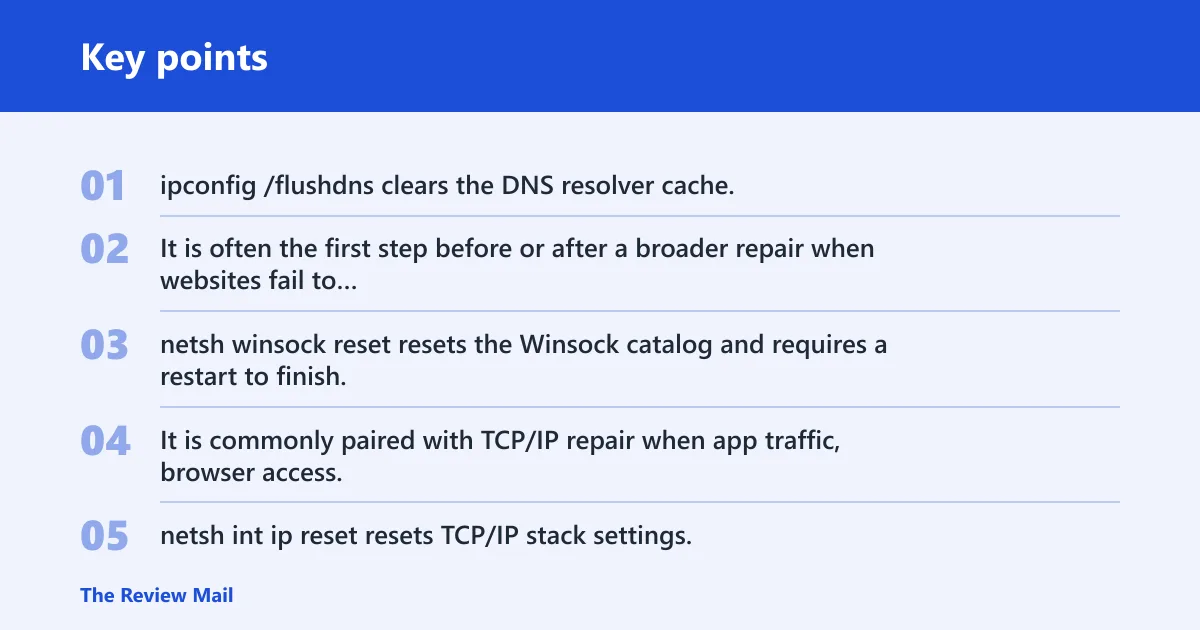
ipconfig /flushdns clears the DNS resolver cache. It is often the first step before or after a broader repair when websites fail to resolve, a name change has not propagated locally, or one machine keeps using stale lookup data.
Use netsh winsock reset for catalog repair
netsh winsock reset resets the Winsock catalog and requires a restart to finish. It is commonly paired with TCP/IP repair when app traffic, browser access, or VPN clients are failing even though the adapter still appears connected.
Use netsh int ip reset for TCP/IP repair
netsh int ip reset resets TCP/IP stack settings. It is the right next move when the PC has lost usable network behavior, received a bad change from a manual tweak, or shows broader stack trouble that a DNS flush does not fix.
Reserve netcfg -d for broad adapter rebuilds
netcfg -d removes all network adapters. It can also remove some virtual adapters and WAN Miniports. Use it only when you need a full adapter rebuild, because the fallout can be wider than a Winsock or TCP/IP repair.
How do you run the command in Command Prompt?
Open an elevated Command Prompt by right-clicking Start, choosing Windows Terminal (Admin) or Command Prompt (Admin), typing the command exactly, and restarting when Windows asks for it. This method works on Windows 10 and Windows 11. If the command completes without an obvious message, the reboot is still the part that finishes the change.
- Open Command Prompt as administrator.
- Type one command only:
ipconfig /flushdns,netsh winsock reset,netsh int ip reset, ornetcfg -d. - Press Enter and wait for the response.
- Restart if the command says to restart, or if you ran a repair that changes the stack.
Tip: If you are using the Windows Settings app instead of Command Prompt, the Network reset option is built in on Windows 10 and Windows 11. It restarts the PC automatically within about five minutes.
What should you back up first?
Before any reset, save the settings that take time and money to rebuild. That includes Wi-Fi profiles, static IP details, custom routes, and VPN settings. If you skip this step, you may get back online and still lose access to a mapped network, a split-tunnel VPN, or a reserved address.
- Save Wi-Fi profiles and passwords. Network reset can delete previously saved Wi-Fi networks, so re-entry may be required later.
- Record static IP settings. Note the IP address, subnet mask, gateway, and DNS servers if your device uses fixed network settings.
- Export or write down routes. Custom routes matter on lab PCs, routed office links, and devices that must reach more than one subnet.
- Note VPN client settings and profiles. Network reset can clear VPN connections, so keep server names, sign-in method, and special options.
Suppose a desktop uses a static address for printer access and a VPN profile for remote work. A full reset may restore general connectivity but still leave the machine unable to reach either resource until those values are re-entered.
What to check after the reset
After the reset, confirm the basics in a fixed order. Make sure WLAN AutoConfig is running for Wi-Fi, check the adapter and driver status, then reconnect to Wi-Fi and re-enter credentials if needed. If the PC still cannot reach the network, test the router, modem, and cable path.
Confirm WLAN AutoConfig is running
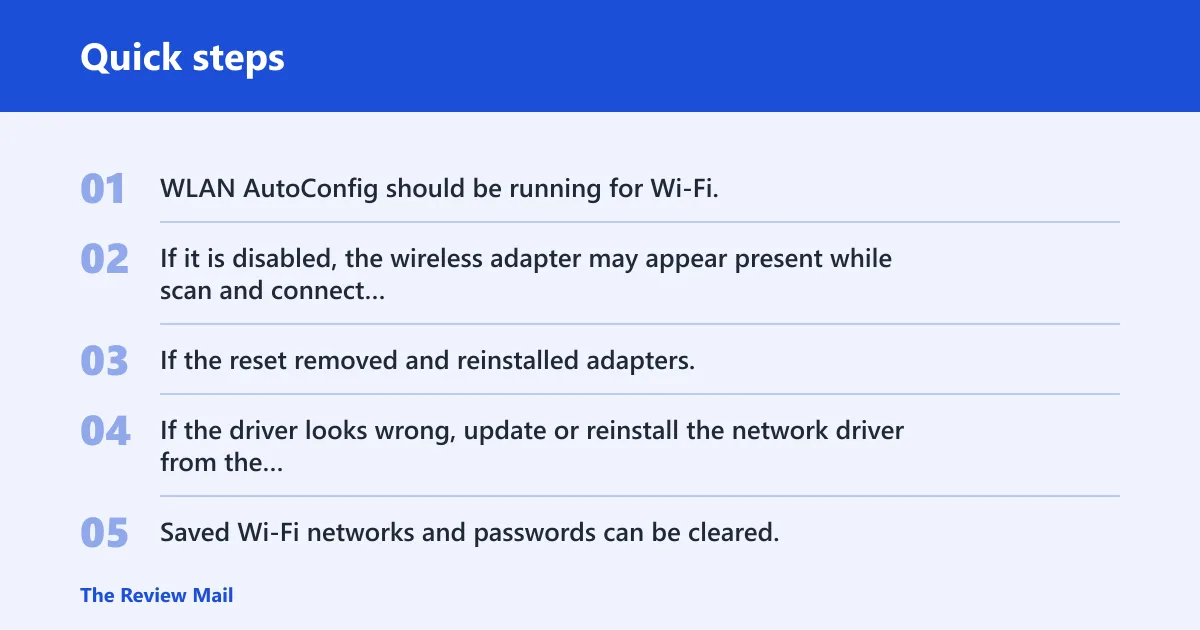
WLAN AutoConfig should be running for Wi-Fi, and it should be set to Automatic if it was stopped. If it is disabled, the wireless adapter may appear present while scan and connect behavior stays broken.
Check network driver status
If the reset removed and reinstalled adapters, verify that Windows shows a working device with no warning icons. If the driver looks wrong, update or reinstall the network driver from the manufacturer’s listing for your model.
Rejoin Wi-Fi and re-enter credentials
Saved Wi-Fi networks and passwords can be cleared. Rejoin the network, then check whether the PC is using the intended SSID and security key. If your router has separate 2.4 GHz and 5 GHz names, connect to the one you actually use.
Test router, modem, and cable links
If the PC still cannot connect, rule out the network hardware. Power-cycle the router and modem, check the Ethernet cable, and confirm that the router has internet service before chasing a Windows-only fix.
Wired AutoConfig is different. It matters for 802.1X-style wired authentication, not normal Ethernet use. If a business port needs authentication, check that service after a reset. If you are on plain home Ethernet, a missing Wired AutoConfig service is not the first place to look.
What does network reset do windows 10?
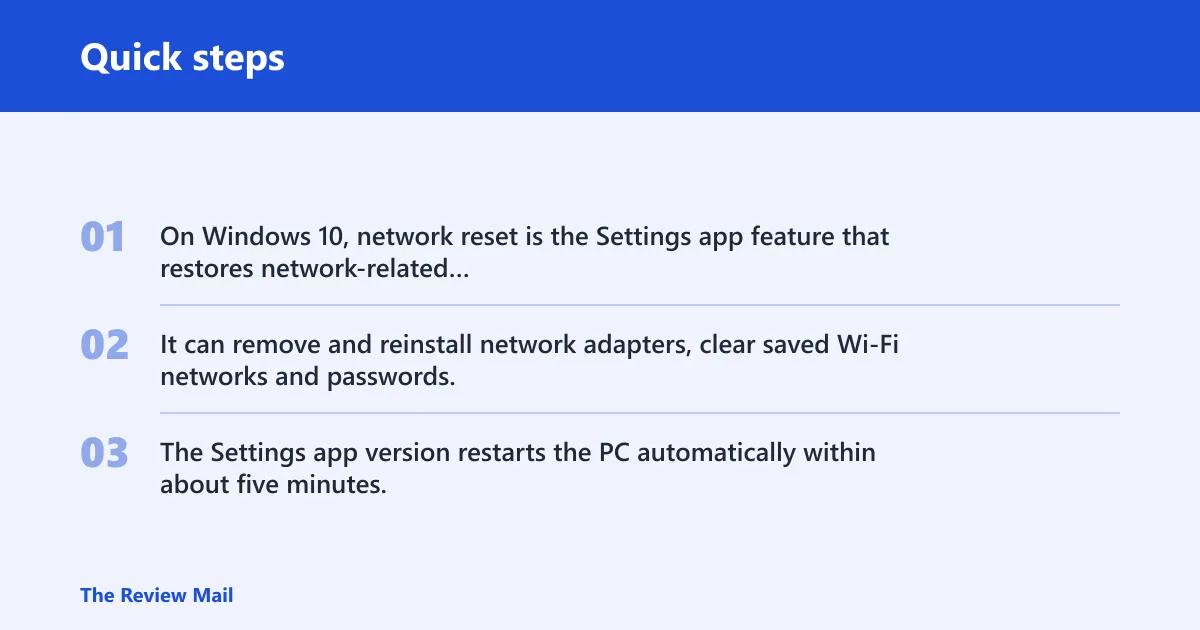
On Windows 10, network reset is the Settings app feature that restores network-related settings to default values. It can remove and reinstall network adapters, clear saved Wi-Fi networks and passwords, and delete VPN connections. The Settings app version restarts the PC automatically within about five minutes.
What is network reset windows 10?
It is a built-in repair in Settings for Windows 10 (1607+) and Windows 11. It is meant for broad network trouble, not a single site failure. Use it when adapter state, saved profiles, or layered network settings are more likely than a simple DNS cache issue.
Frequently asked questions
What is the Windows network reset command line?
The command-line route is a set of repairs run from Command Prompt with administrator privileges. The common commands are ipconfig /flushdns, netsh winsock reset, netsh int ip reset, and, for a broad rebuild, netcfg -d. Each one fixes a different layer.
How do I run a network reset from Command Prompt?
Open Command Prompt as administrator, type the command exactly, and press Enter. If you run netsh winsock reset or netsh int ip reset, restart afterward. If you use netcfg -d, expect a broader adapter rebuild and plan for a reboot.
What commands should I run before using network reset?
Start with ipconfig /flushdns if the problem is only name resolution. If that fails, move to netsh winsock reset for socket-layer issues or netsh int ip reset for stack problems. Keep netcfg -d for the cases where adapters themselves appear corrupted.
Will a network reset delete my Wi-Fi password?
Yes, it can. Saved Wi-Fi networks and passwords can be cleared during network reset, and VPN connections can be deleted too. Write down the SSID and password before you reset, especially if the network uses a long passphrase or multiple access points.
What should I do after a network reset fails?
If the reset does not fix the problem, check WLAN AutoConfig, review driver status, and test the router, modem, and cable path. On wired 802.1X setups, confirm Wired AutoConfig too. On managed devices, ask IT before trying netcfg -d again or changing policy-bound settings.
What does a network reset do on pc?
On a PC, network reset puts network-related settings back to defaults and may remove and reinstall adapters. It can also clear saved Wi-Fi, VPN, IP, DNS, and Ethernet settings. That is why backing up custom settings first matters.