Windows User Profile Could Not Be Loaded
If Windows shows “User Profile Service failed the sign-in” or “The user profile could not be loaded,” follow the branch that matches your symptom first:
- One account fails: try a second administrator account or Safe Mode next. If another account opens normally, the broken user profile is the likely fault and you can move to data backup and a new account.
- New accounts fail too: the default profile template is the stronger suspect. Skip casual file edits in C:\Users\Default and move to recovery tools or a repair path that restores the template safely.
- Started after update or restore: use System Restore first, or uninstall the latest quality update. If the timing matches, rollback is usually safer than replacing profile files.
This guide helps you identify which piece is broken and follow the right recovery steps. Windows sign-in errors like this are usually profile-load failures, not a simple slow login. The fastest path is to match the symptom to the right branch, protect your files, and avoid repairing the wrong folder.
Why Windows says the user profile cannot be loaded?
This points to a sign-in problem rather than a slow login. Windows is trying to load the local user profile folder tied to your account, and something in that load path is broken. A corrupt user file is one cited cause, and the User Profile Service is the Windows service involved in starting that profile at sign-in. Microsoft’s documentation also describes Safe Mode and recovery startup as ways to reach repair tools when normal sign-in fails.
What the message usually means
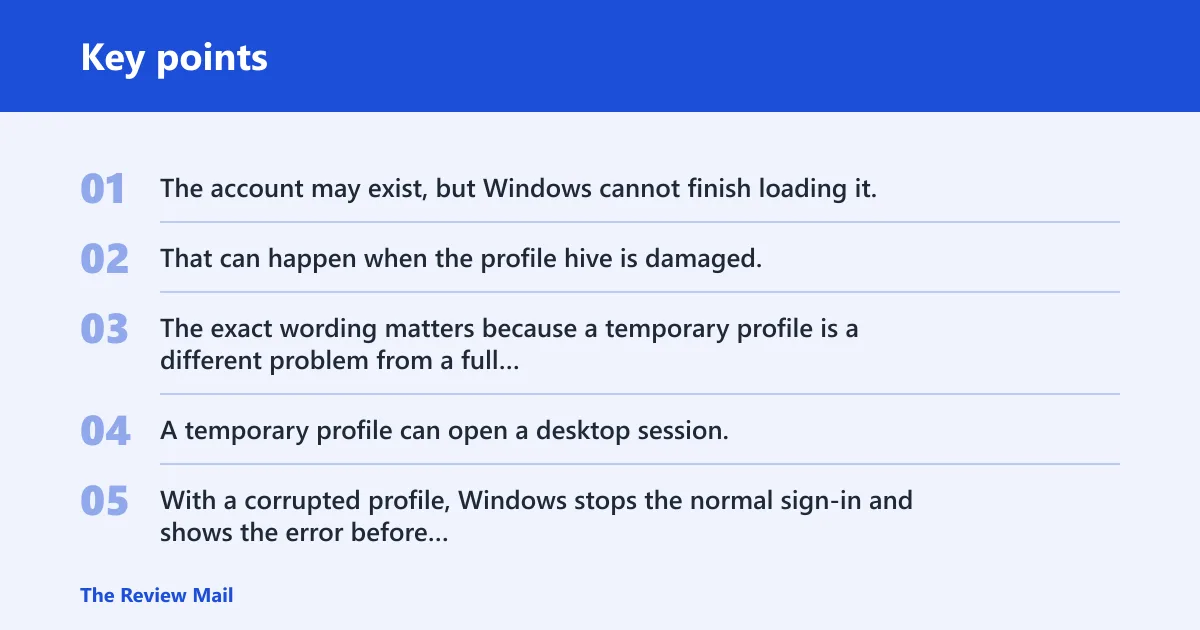
The account may exist, but Windows cannot finish loading it. That can happen when the profile hive is damaged, when the service that loads profiles fails to start, or when the default template for new accounts is broken. The exact wording matters because a temporary profile is a different problem from a full sign-in failure. A temporary profile can open a desktop session, but changes are not meant to persist the way they do in a normal profile.
How a corrupted profile differs from a temporary profile
With a corrupted profile, Windows stops the normal sign-in and shows the error before you get a usable desktop. With a temporary profile, Windows may let you reach the desktop, but changes do not stick after sign-out. That difference points you to different fixes, and it keeps you from repairing the wrong folder. If you can open the desktop but your settings disappear later, treat it as a temporary profile branch, not a full account rebuild.
Why a recent update or restore point can trigger the error
If the error started right after a Windows update, driver change, or restore, the profile may still be intact while the sign-in path is not. In that case, System Restore or removing the newest update is safer than replacing profile files first. Timing is one of the best clues you have, and Microsoft documents both System Restore and uninstalling recent updates as recovery options when a recent change causes a problem.
What to check first before any repair
Start with the least risky check: restart the PC and try to sign in again. If that fails, use Safe Mode only as an early diagnostic step, not as proof that the profile itself is fixed. Before changing anything, confirm the exact message and whether you are blocked at sign-in or dropped into a temporary desktop. Microsoft’s recovery guidance uses Safe Mode and Windows Recovery Environment (WinRE) specifically so you can reach troubleshooting tools without making the problem worse.
Restart, then read the symptom carefully
A plain reboot can clear a one-time service failure. If the same message appears again, read the wording exactly. “User Profile Service failed the sign-in” points to a load failure. “You’ve been signed in with a temporary profile” points to a different recovery path, usually after Windows creates a fallback session. That first sentence is the fastest clue to which branch you should follow.
Use Safe Mode as a test point
Safe Mode can help you reach recovery tools, alternate accounts, and update removal screens. It does not repair a damaged profile by itself. If Safe Mode also refuses to sign in with the same account, that is a stronger sign that the profile, default template, or recent change needs attention. Microsoft describes Safe Mode as a minimal startup mode used for troubleshooting, not as a permanent fix.
Identify the account type before you change files
If the account is a local profile, the data lives in its own user folder. If the issue also affects new accounts, the default profile may be damaged. If the issue started after system repair or reset, the problem may be with the recovery state rather than the old profile itself. That distinction decides whether you repair one account or recover the template used for all new accounts.
Profile recovery decision table
Use this table to choose the safest branch. Back up user data first whenever you still have access to any desktop, Safe Mode session, or alternate admin account. The goal is to protect Desktop, Documents, Downloads, Pictures, and any other folders that are not already in cloud backup. Microsoft’s profile behavior also depends on the default template in C:\Users\Default, so the branch you choose should reflect whether only one account failed or whether Windows cannot build new profiles at all.
| Likely fault | Fastest test | Safest fix | Back up first | Stop and create a new account when |
|---|---|---|---|---|
| Normal profile corrupted | Sign-in fails for one account, but another admin account works | Create a new user account, then move data over; only attempt profile repair if you still have a clear recovery path | Desktop, Documents, Downloads, Pictures, and any app data you still need from the broken profile | The same account still fails after Safe Mode, restore, and update removal, or the profile hive remains unreadable |
| Default profile corrupted | New accounts fail too, or Windows cannot create a fresh profile after reset or repair | Use Windows recovery tools or a repair install path that restores the default template; do not edit C:\Users\Default casually | Any existing user folders that still open, plus exported settings and documents from working accounts | Every newly created account fails or Windows keeps returning to the same sign-in error after recovery steps |
| Recent update or restore point issue | The error began right after a Windows update, restore, or reset | Run System Restore first; if needed, uninstall the newest update from Recovery or Settings | User files from any account you can still open before rolling back system changes | Rollback does not change the sign-in failure, or the account still cannot load after restart |
How do you sign in if the profile won’t load?
If the normal profile will not load, try an alternate admin account first. If none exists, use Safe Mode or the Windows Recovery Environment to reach recovery options and protect your files before you change the account. If the desktop you see says temporary profile, save what you need right away, because that session is not the same as a healthy sign-in.
Use Safe Mode and an alternate admin account
Safe Mode can let Windows load with a smaller set of drivers and services, which makes it easier to reach recovery tools. To open it from WinRE, go to Troubleshoot > Advanced options > Startup Settings > Restart, then choose the Safe Mode option that fits your need. If another administrator account exists, sign in there and back up the broken profile’s data. If no alternate account exists, use the recovery screen to reach troubleshooting options.
Back up the right folders before repair
Copy the folders that hold your personal data before you try fixes that replace or recreate the profile. Focus on Desktop, Documents, Downloads, Pictures, and any app-specific folders that store mail, exports, or projects. If the profile still opens at all, do not wait; copy first. Microsoft’s profile layout keeps user data inside the user profile folder, so your safest first move is to get those files out before any rollback or account rebuild.
Know when you are in a temporary profile
Suppose the desktop appears, but the wallpaper resets, files disappear after sign-out, and a message says Windows has signed you in with a temporary profile. That is not the same as a hard sign-in failure. Copy your files immediately and move to a proper repair path, because changes will not persist. If you are unsure whether you are on a real account or a temporary profile, the giveaway is that changes do not survive a sign-out.
Can Safe Mode, System Restore, or updates fix it?
Safe Mode is a way to reach tools, not a cure on its own. System Restore can roll back a recent change that broke sign-in, and uninstalling the newest Windows update can help when the timing matches. Use the option that fits the cause, then test sign-in again before doing anything deeper. Microsoft documentation supports Safe Mode for troubleshooting, System Restore for rolling back recent changes, and removing updates when an update caused the failure.
Use System Restore when the problem is recent
If the account worked yesterday and failed after a change today, System Restore is the cleaner first rollback. Open recovery options, choose System Restore, and pick a restore point from before the failure started. From WinRE, go to Troubleshoot > Advanced options > System Restore. That can reverse registry and service changes without forcing a new account right away. Microsoft’s System Restore guidance is meant for exactly this kind of recent-change rollback.
Uninstall the newest Windows update if the timing fits
If the error began right after an update, remove that update through recovery or Settings. In Windows 10 and Windows 11, you can usually reach update history from Settings if you can sign in, or use Advanced startup if you cannot. In WinRE, open Troubleshoot > Advanced options > Uninstall Updates, then choose the latest quality update first. Remove only the newest change first, then reboot and test the account.
Do not overread Safe Mode results
Safe Mode may let you sign in even when the normal boot path fails. That points to a startup-service or update problem, but it does not prove the profile itself is sound. If the profile still fails in normal boot after rollback, treat the account as damaged and move to a new one. Microsoft’s troubleshooting flow uses Safe Mode to isolate causes, not to declare the profile repaired.
When is the default profile the real problem?
C:\Users\Default matters because Windows uses it to create a new user profile. If that folder is damaged, new accounts can fail even when the old profile is not the main issue. Do not casually edit the Default folder or swap files inside it unless you are following a recovery path that restores it safely. (Wikipedia) Microsoft’s profile creation process depends on that default template when it builds a fresh user profile.
Why C:\Users\Default matters for new profile creation
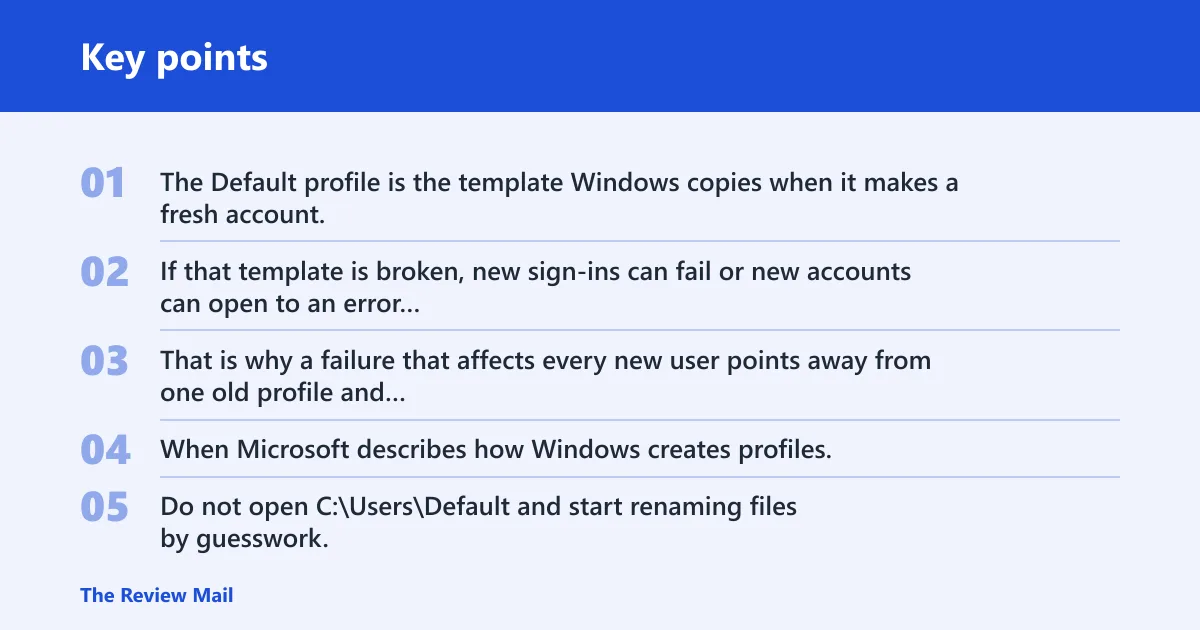
The Default profile is the template Windows copies when it makes a fresh account. If that template is broken, new sign-ins can fail or new accounts can open to an error instead of a usable desktop. That is why a failure that affects every new user points away from one old profile and toward the template. When Microsoft describes how Windows creates profiles, the default user folder is the source it uses to build a new one.
What not to do in the default profile folder
Do not open C:\Users\Default and start renaming files by guesswork. Do not replace NTUSER.dat or other profile files in that folder unless you are using a safe Microsoft recovery method that is meant for that purpose. A casual edit there can break profile creation for every future account. If you are already in the default template folder, stop and back out before making changes that could affect every new profile.
How to separate a bad default profile from a bad account
If one existing account fails but a different account works, the old profile is the main suspect. If every newly created account fails or Windows cannot finish creating a fresh account, the Default profile may be damaged. That distinction decides whether you repair one account or recover the template used for all new accounts. If the pattern is “old account bad, new account good,” focus on the single account. If the pattern is “every new account bad,” focus on the template.
When should you create a new account?
Create a new account when the old profile still fails after Safe Mode, System Restore, and update removal, or when the profile hive remains unreadable. At that point, the safer move is to stop repairing and move your files into a clean account. A broken profile can sometimes be salvaged, but it is not always worth the risk. Microsoft’s account and profile model is built so a new profile can replace one that will not load.
Move data before you abandon the old profile
Copy the user folders that still open, then sign in to the new account and move only the data you need. Keep the old profile until you confirm that Desktop, Documents, Downloads, Pictures, and any application data have been recovered. After that, you can decide whether to keep or remove the old account. If the old profile opens even briefly, use that window only for copying data out, not for deeper repairs.
Use the new account as the replacement path
Windows user profiles can be replaced by a new account when the old one is beyond repair. That is often the cleanest outcome after repeated sign-in failure. If the profile database or NTUSER.dat hive is still damaged after every recovery step, stop forcing the old account and move to the new one. The clean-account path is usually safer than trying to resurrect a profile that Windows cannot reliably load.
How to create a new local admin account from recovery or another admin
If you can sign in to another administrator account, open Settings > Accounts > Other users > Add account, then create a local account and change its account type to Administrator. If you cannot sign in normally, use WinRE to boot to Safe Mode with Command Prompt or reach an alternate admin session, then create the account from the elevated prompt before moving files. If none of those paths is available, back out and use recovery first rather than forcing account creation without a working admin path.
Frequently asked questions
Why user profile cannot be loaded
The most common reason is a damaged profile load path, often tied to a corrupt user file or a failed User Profile Service start. A recent Windows update, a restore point, or a broken default template can also trigger it. The exact message and timing point to the right fix. Microsoft’s recovery documentation treats those recent-change causes as the first things to test.
How do I tell the difference between a temporary profile and this error?
A temporary profile usually opens to a desktop but does not save changes after sign-out. The full error blocks normal sign-in before you reach a usable session. If the desktop appears yet files vanish later, that is temporary-profile behavior; if sign-in fails outright, it is the profile load error. The quickest proof is whether your changes survive a restart or sign-out.
Will Safe Mode fix the user profile cannot be loaded error?
Safe Mode usually does not fix the profile by itself. It helps you reach recovery tools, copy files, and test whether the issue came from a recent service or update. If Safe Mode works and normal boot does not, use that access point to roll back changes or create a new account. Microsoft uses Safe Mode to isolate the problem, not to replace a full repair.
Can a Windows update cause the user profile cannot be loaded error?
Yes. A recent update can change services, profile loading, or related registry settings in a way that blocks sign-in. If the error started right after Windows updated, uninstall the newest update first or try System Restore from a point before the change. The timing often makes the cause obvious, and Microsoft’s update-removal tools are designed for that kind of rollback.
Do I need to create a new account if my profile is corrupted?
Often, yes. If the profile keeps failing after Safe Mode, restore, and update rollback, a new account is the safest replacement. Copy your data out first, then sign in to the new account and move the files you need. That avoids chasing a profile that Windows cannot reliably load.
Can System Restore fix the user profile service failed the sign-in error?
It can, if the problem started after a recent change. System Restore rolls back system settings, services, and related registry changes that may have broken sign-in. It will not repair every damaged profile, though, so if the error survives the rollback, move to a new account or a deeper recovery path. Microsoft’s System Restore tool is the right place to start when the failure follows a recent change.