Microsoft Store Network Error
Microsoft Store doesn’t open. A common troubleshooting order is to start with the Microsoft Store app cache, then move to Windows network settings and Microsoft account sign-in. If the Store opens in a browser but not in the app, the app is the first fix. Focusing on the wrong layer can waste time, keep downloads stalled, and leave sign-in loops or network errors untouched. This guide separates Store faults, Windows networking problems, and account issues so you can fix the right one first.
Troubleshooting Microsoft Store connectivity issues
| Symptom | Most likely cause | Best next step |
|---|---|---|
| Browser works, Store app fails | Store cache or local app data | Run wsreset.exe, then open the Store again |
| Sign-in prompt loops or returns to the same screen | Microsoft account sign-in problem | Sign out, sign in again, and test sign-in in a browser first |
| Blank Store window or endless loading | Corrupted Store cache or app state | Use Repair first, then Reset if needed |
| Proxy is enabled | System proxy blocks Store traffic | Turn off the proxy under Network & Internet > Proxy |
| VPN is active | VPN routing blocks Store access | Disconnect the VPN and retest the Store without it |
| Clock is wrong | Certificate validation can fail | Turn on Set time automatically and sync the date and time |
| Error returns after updates or network changes | DNS cache or local network stack issue | Run ipconfig /flushdns, then try a known DNS server such as 8.8.8.8 |
| Office, school, or managed device cannot reach Store services | Proxy, firewall, or policy blocks Store endpoints | Test on an open network, then ask IT to review Store access rules |
Why is Microsoft Store not connecting?
The Store usually fails at one of three layers: its local cache, Windows networking, or Microsoft account sign-in. If the app opens in a browser but not in the Store, start with the app itself. This can apply on Windows 10 and Windows 11, where the same symptom may come from different settings pages or policy blocks.
Likely causes, from most common to less common
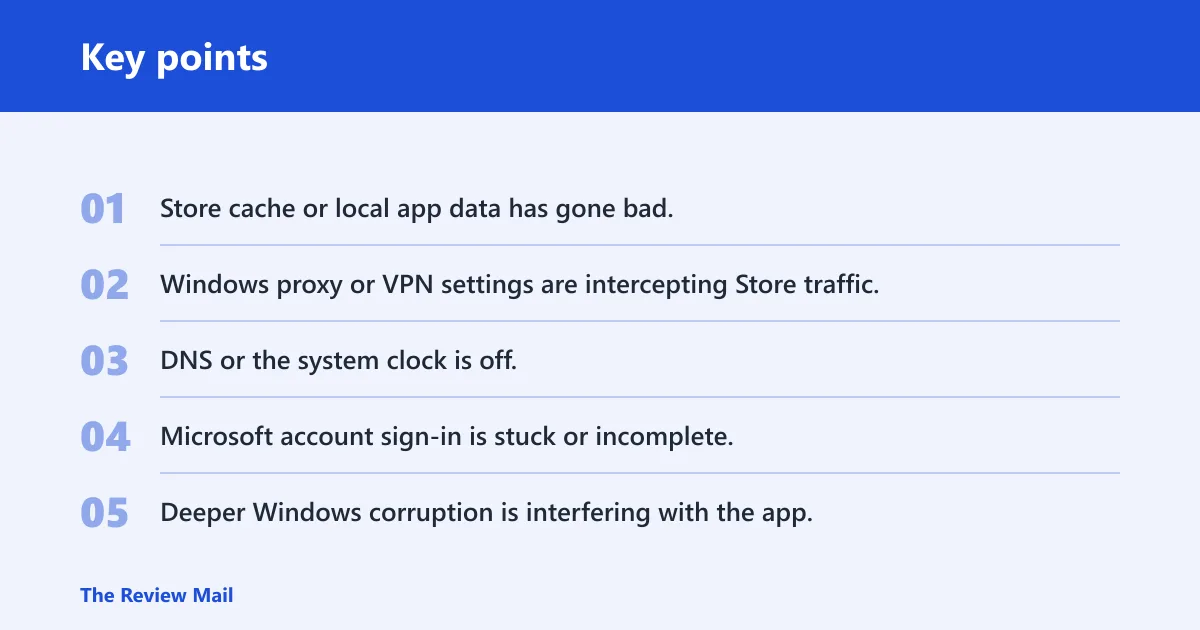
- Store cache or local app data has gone bad.
- Windows proxy or VPN settings are intercepting Store traffic.
- DNS or the system clock is off.
- Microsoft account sign-in is stuck or incomplete.
- Deeper Windows corruption is interfering with the app.
Say your browser loads a news site in two seconds, but the Store sits on a blank white panel. That points to the Store app or its local data, not your whole internet connection. If the Store opens, then asks you to sign in again every time you try to download an app, that points toward account sign-in rather than basic connectivity.
Clear the Store cache first
wsreset.exe clears Microsoft Store cache, and it is the fastest first fix when the app will not load correctly. The Store opens automatically after cache clearing. On many systems, that is enough to fix loading problems without touching the rest of Windows. This is a good first step on Windows 10 and Windows 11.
- Press Win+R.
- Type wsreset.exe and press Enter.
- Wait for the Store window to open on its own.
- Try the same page or download again.
If the Store opens normally after this, the problem was likely cached Store data rather than network access. If the same blank window or loading loop returns, move to repair the app.
Is Windows blocking the Store?
Proxy settings and VPNs can sometimes block Store traffic even when web browsing works. Windows stores proxy settings at the system level, so an older setting can keep interfering after a move, a work profile change, or a network change. A wrong DNS cache can also make the Store look offline when the rest of the web still works.
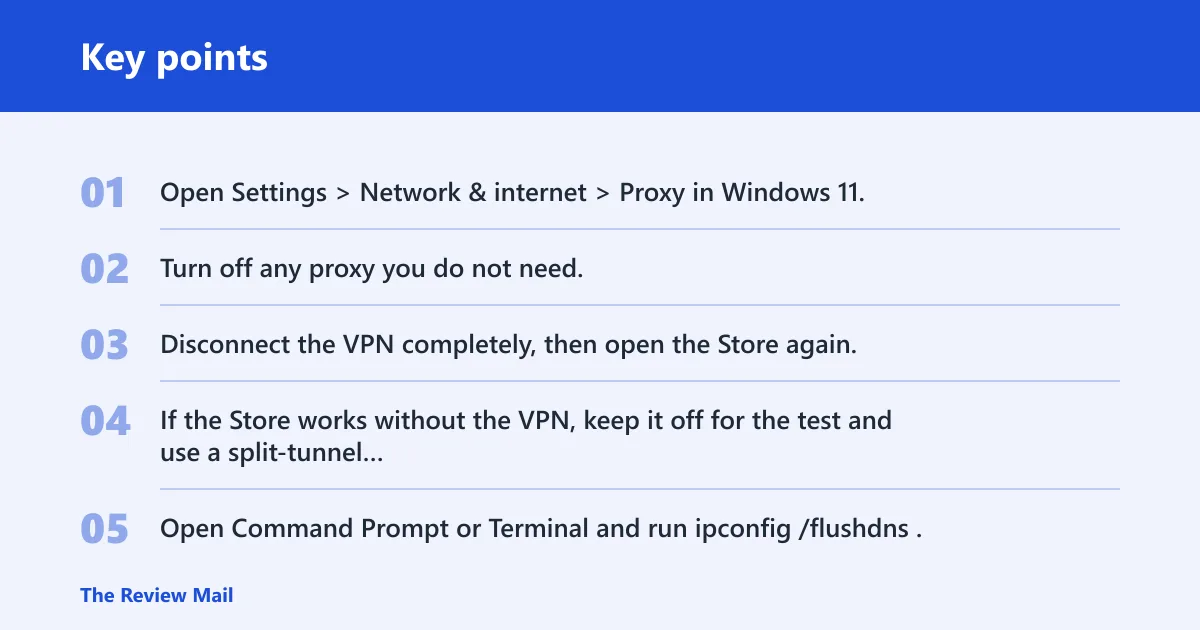
- Open Settings > Network & internet > Proxy in Windows 11, or Settings > Network & Internet > Proxy in Windows 10.
- Turn off any proxy you do not need.
- Disconnect the VPN completely, then open the Store again.
- If the Store works without the VPN, keep it off for the test and use a split-tunnel setup only if your workplace requires it.
- Open Command Prompt or Terminal and run
ipconfig /flushdns. - If you recently changed networks, set DNS to 8.8.8.8 in your adapter settings, then test the Store again.
ipconfig /flushdns
Does VPN break Microsoft Store? It can. If the Store works without VPN but fails with it, the VPN is the likely blocker. On managed networks, that can mean the VPN, proxy, or firewall is routing Store endpoints through a path the app cannot use.
Repair the app, then reset it
Repair keeps your app data in place and is the safer next step. Reset clears app data and sign-in state, so use it only after Repair does not help. The location differs by Windows version: Windows 11 uses Settings > Apps > Installed apps; Windows 10 usually uses Settings > Apps > Apps & features.
- Open Settings.
- Find Microsoft Store under the app list.
- Open Advanced options.
- Select Repair, then open the Store and test it.
- If the problem remains, return to Advanced options and select Reset.
- Open the Store again and sign in if prompted.
If you are on a Surface or a managed laptop and the Store still fails after Reset, stop repeating the same step. That usually means the blocker is outside the app, such as policy, proxy rules, or account sign-in.
Does your Microsoft account need attention?
The Store can browse without sign-in, but purchases, downloads, and account-linked actions can fail if the Microsoft account session is broken. A sign-in loop, repeated “connect to internet” prompts, or a browser sign-in that works while the Store sign-in fails all point to the account layer. Microsoft lists Error 400 as something that can come from an app, browser, device, or network issue. (Microsoft Support)
- Open the Store and sign out.
- Close the Store completely.
- Sign in again with the account used for purchases or downloads.
- Open the same Microsoft account in a browser and confirm it signs in there too.
- If the browser sign-in fails, fix the account session first, then return to the Store.
If that still fails, the account may not be the only issue. Go back to the network steps and confirm proxy, VPN, DNS, and clock settings before you keep retrying the sign-in.
Still not working?
If the Store still will not connect, move to deeper system repair. That usually means re-registering the Store with PowerShell, then running DISM and SFC. These are the right next steps when cache, proxy, VPN, DNS, and account sign-in have all been ruled out. Use them only after the earlier steps fail.
- Open Windows Terminal or PowerShell as administrator.
- Re-register the Store with the PowerShell command provided by your repair guide or IT support.
- Run
DISM /Online /Cleanup-Image /RestoreHealth. - Run
sfc /scannow. - Restart the PC and test the Store again.
Picture an office laptop that works on the home network but not on the company Wi-Fi. That often points to managed proxy or firewall rules, not a damaged Store app. On that kind of device, the right next step is to ask IT to review Store access rules rather than keep resetting the app.
Prevention: after you fix the issue, keep the system clock set to automatic and avoid leaving an unused proxy enabled after network changes.
Frequently asked questions
Why is Microsoft Store not working?
Most often, the Store is blocked by cache, proxy, VPN, DNS, clock, or account sign-in problems. Start with wsreset.exe, then check Settings > Network & internet > Proxy, disconnect any VPN, and confirm the date and time are correct. If the Store still fails, use Repair and then Reset.
Can’t connect to Microsoft Store
Check whether the Store opens in a browser first. If it does, the app layer is the more likely problem. Next, run wsreset.exe, flush DNS with ipconfig /flushdns, and test again with VPN off and proxy disabled. If sign-in fails after that, sign out and sign back in.
Why is Microsoft Store not opening?
A blank window or endless loading screen usually points to the Store cache or local app data. Run wsreset.exe from Win+R, then use Repair in the app’s Advanced options. If that does not help, use Reset and open the Store again.
How do I fix Microsoft Store network error?
Start with the Store cache, then move to Windows networking, then account sign-in. The practical sequence is wsreset.exe, Network & internet > Proxy, disconnect VPN, run ipconfig /flushdns, check date and time, and then repair or reset the Store app if needed.
Does VPN break Microsoft Store?
Yes, a VPN can block Store access by routing traffic in a way the app cannot use. Disconnect the VPN and open the Store again. If it works without the VPN, keep the test clean and ask IT about split-tunnel settings on a managed network.
Should I clear Microsoft Store cache?
Yes, if the Store will not load, spins on a blank screen, or works in a browser but not in the app. Run wsreset.exe from Win+R or Terminal. The Store opens automatically after the cache is cleared, which makes this the fastest first check.