Windows 11 Account Picture: Change, Remove, Fix
To change a Windows 11 account picture, open Settings > Accounts > Your info, choose an existing file or take a new photo. If the image does not change, the usual causes are cached files, a Microsoft account sync delay, or a work policy. A stale photo can keep showing on the sign-in screen, Start menu, and Microsoft services. This guide covers changing, deleting cached copies, and fixing updates that refuse to stick. (Microsoft Support)
What does a Windows account picture do?
A Windows account picture is the image tied to your sign-in identity on the PC. It can appear on the lock screen, sign-in screen, Start menu, and other Windows surfaces. If you use a Microsoft account, the same photo can also appear in Microsoft services that use that account.
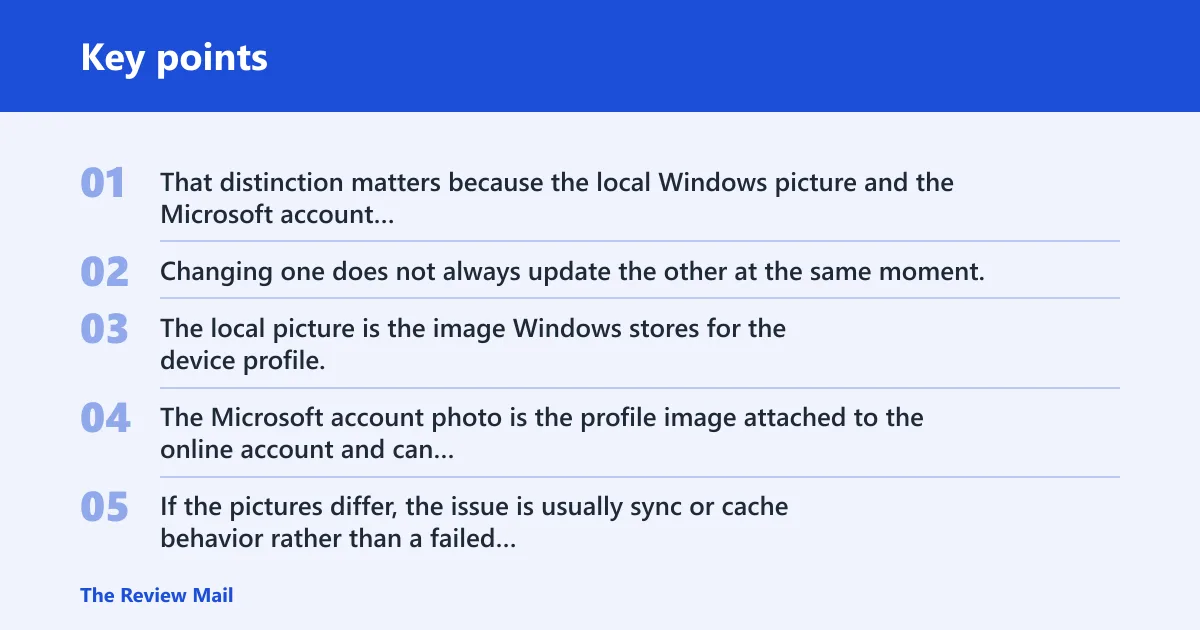
That distinction matters because the local Windows picture and the Microsoft account profile photo are related but not identical. Changing one does not always update the other at the same moment, which is why an old photo can linger after you save a new one.
Local picture vs Microsoft account photo
The local picture is the image Windows stores for the device profile. The Microsoft account photo is the profile image attached to the online account and can sync back to Windows when you sign in. If the pictures differ, the issue is usually sync or cache behavior rather than a failed change.
How do you change it in Settings?
The supported path is Settings > Accounts > Your info. From there, you can select an existing image or take a new one with the camera. Microsoft uses this Settings location for Windows 11 and Windows 10, so the steps are the same on both versions.
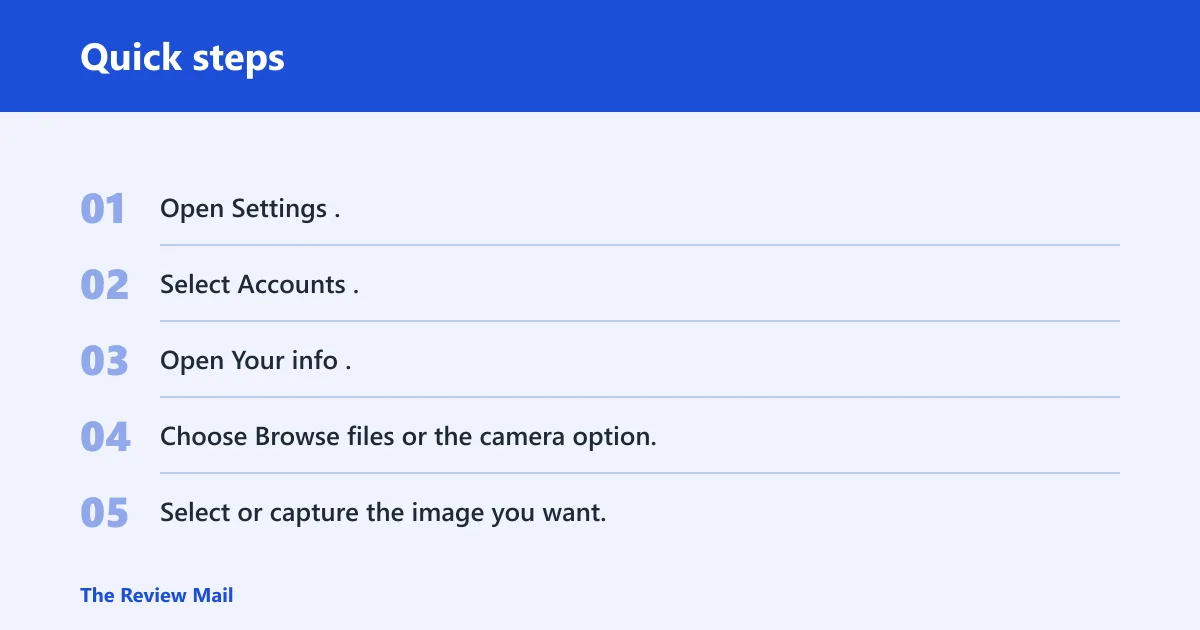
Change the picture from Your info
- Open Settings.
- Select Accounts.
- Open Your info.
- Choose Browse files or the camera option.
- Select or capture the image you want.
- Wait for Windows to apply it.
If the photo is already on your PC, use the file picker. If you want a new image, use the camera option and save the result from the same page. Afterward, Windows may need a moment to refresh the visible picture across the shell and sign-in surfaces.
What changed across Windows versions
Older Windows guides often point to Control Panel or other legacy menus, but Microsoft’s current documentation centers on Settings > Accounts > Your info. That path is the one to use when you want a predictable change on current Windows 11 builds.
How do you remove or delete the Windows 11 account picture?
Deleting the picture can mean three different things: changing the visible local photo, clearing the recent picture cache, or updating the Microsoft account profile photo. Windows supports the first two on the PC itself, while the Microsoft account photo must be managed through the online account.
Change the visible local photo
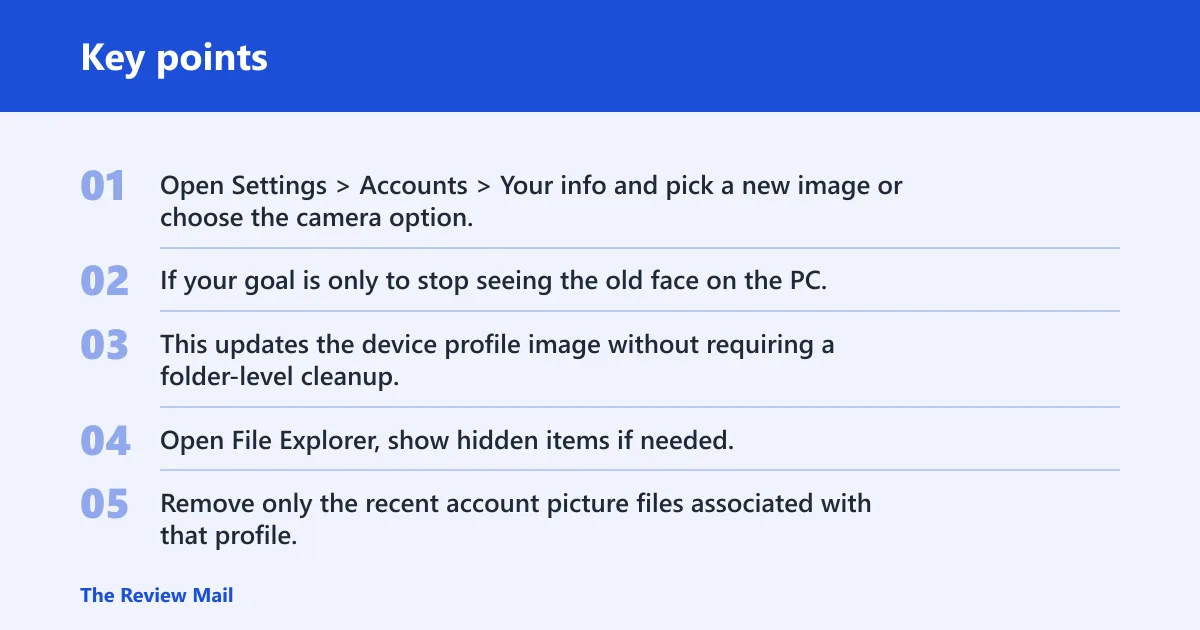
Open Settings > Accounts > Your info and pick a new image or choose the camera option. If your goal is only to stop seeing the old face on the PC, replacing the local photo is the cleanest fix. This updates the device profile image without requiring a folder-level cleanup.
Clear the recent AccountPictures cache
Open File Explorer, show hidden items if needed, then browse to C:\Users\yourname\AppData\Roaming\Microsoft\Windows\AccountPictures. Remove only the recent account picture files associated with that profile. This clears the local cache Windows uses for recent images, which is the usual reason an old picture keeps resurfacing.
Update or remove the Microsoft account profile photo
If you sign in with a Microsoft account, update the account photo from https://account.microsoft.com/profile in the Your info or profile section of your Microsoft account. That photo can reappear on the PC after sync, so changing only the local Windows image may not be enough. If the online photo remains unchanged, Windows can keep pulling the same image back down.
What does the troubleshooting table show?
This table maps the most common picture problems to the fastest fix. Use it when the image will not change, the file path is hidden, or the photo keeps coming back after you remove it from one place.
| Symptom | Likely cause | Exact fix |
|---|---|---|
| Local account picture changes in Settings, but the old image still appears on sign-in | Cached copies have not refreshed | Sign out, restart, then return to Settings > Accounts > Your info and reselect the image |
| Microsoft account photo does not match the Windows profile picture | Microsoft account sync lag | Update the Microsoft account photo separately, then wait for Windows to sync the new image |
| You cannot find the AccountPictures folder | AppData is hidden by default | Enable hidden items in File Explorer, then open C:\Users\yourname\AppData\Roaming\Microsoft\Windows\AccountPictures |
| The old picture keeps reappearing after deletion | A recent local cache file is still present or the online photo has not changed | Clear the recent AccountPictures cache, then update the Microsoft account photo if you use one |
| The picture option is blocked or greyed out on a managed PC | Work or school policy | Use the device within the organization’s rules or ask the admin to change the policy |
| The wrong photo comes back when you try to undo the change | Windows is still showing a previously used image | Use Your info to select a different local image or replace the Microsoft account photo |
Where are account pictures stored?
Microsoft documents the user-profile location as C:\Users\yourname\AppData\Roaming\Microsoft\Windows\AccountPictures. That is the main path to check when you need to inspect or clear recent local account photos. AppData is hidden by default, so you may need to enable hidden items in File Explorer first.
There is also a system location used for default user images. Those default images are not the same as the recent pictures tied to your profile, so the safest cleanup target is the user-profile cache first, not the system defaults.
Why AppData is hidden
AppData is hidden in File Explorer on purpose, which is why many users think the folder is missing. Once hidden items are visible, the full AccountPictures path becomes available. That is the normal place to look when a picture seems stuck on an old image.
What each folder means
AccountPictures is the user-profile cache for account images. The default picture location is separate and is used as a fallback by Windows. Keep those roles separate when cleaning up, because deleting the wrong folder can remove fallback images you still need.
Why will the picture not update?
The usual reasons are cache delay, Microsoft account sync lag, or a policy restriction on the device. A local Windows picture can update while the Microsoft account photo still shows the old image, or the reverse can happen if Windows is still using a cached copy.
If the photo looks correct in one place but not another, that points to sync or caching, not a bad image file. The fix is usually to revisit Settings > Accounts > Your info, update the online Microsoft account photo if needed, and restart or sign out so Windows can refresh. If it still does not update after a short time and a restart or sign-out, check whether the device is managed or contact the account administrator or Microsoft support.
Sync delay and stale cache
Windows may keep showing a stored version of the account photo until it refreshes the local cache. Microsoft account photos can also take some time to propagate across services. That is why a new picture can appear in one spot while an older one remains visible somewhere else.
Work or school policy
On managed work or school devices, a policy can block picture changes or revert them after sign-in. If the option is missing, greyed out, or undone automatically, the device may be controlled by organization settings rather than by Windows itself.
What files are safe to delete?
Safe cleanup is narrow. Remove only the recent local account picture files inside C:\Users\yourname\AppData\Roaming\Microsoft\Windows\AccountPictures when you are trying to clear a stale image. Leave Windows defaults alone unless you are intentionally replacing the system fallback image set.
Recent picture cache files
The files in AccountPictures are the user-specific cache for recent account images. If the wrong photo keeps returning after you change it, this is the first folder to check. Focus on the files tied to the current account rather than deleting other images elsewhere on the PC.
Default profile image files
Default image files belong to Windows’ fallback set, not your personal recent photo history. The default image folder is separate from AccountPictures, and removing files there can leave the system without a standard image to display for accounts that need one. For most troubleshooting, the recent cache is enough.
Frequently asked questions
Where are windows 11 account pictures stored?
The main user-profile path is C:\Users\yourname\AppData\Roaming\Microsoft\Windows\AccountPictures. Microsoft notes that AppData can be hidden, so you may need to show hidden items first. Windows also keeps default image files in a separate system location.
Why is my windows 11 profile picture not showing?
The most likely causes are cache delay, Microsoft account sync lag, or a work or school policy that blocks the update. Start by checking Settings > Accounts > Your info, then restart or sign out. If the device is managed, the admin may need to change the policy.
Can I reset my windows 11 account picture to default?
No simple built-in reset exists in Your info for restoring the default account picture. If you want to move away from a custom image, replace it with another local photo or clear the recent cache if the old one still appears. If you use a Microsoft account, also update the online profile photo so Windows does not sync the same image back again.
How do I remove picture from microsoft account windows 10?
Windows 10 uses the same basic identity model: the Microsoft account photo and the local Windows picture are separate. Remove or replace the photo in the Microsoft account profile settings first, then return to Settings > Accounts > Your info on the PC so the device can sync the update.
Windows 11 pictures vs Gallery
Windows 11 account pictures are identity images for sign-in and Microsoft services. Gallery is a file-viewing or photo-browsing area, not the account photo setting. If you are trying to change the avatar that appears on the lock screen, use Settings > Accounts > Your info, not Gallery.