Fix Out of Memory Error Windows 11
Fix a Windows 11 out-of-memory error by checking whether virtual memory, physical RAM, or a 32-bit app hit the limit, then apply the smallest matching fix: close apps, enlarge the page file, or add RAM. If you fix the wrong limit, crashes, freezes, and low-memory popups can keep coming back. This guide shows how to identify the limit and choose the right fix.
What to check first
Start with Task Manager. Press Ctrl + Shift + Esc, then look at Processes for the apps using the most memory and at Performance for how close the system is to the limit. If only one app fails, treat it as an app problem first. If the whole desktop slows down, treat it as a system memory problem.
Task Manager also helps you separate runaway background load from a page file problem. If RAM sits near full while disk activity rises and the warning mentions low virtual memory, the paging file needs attention. If one app alone fails while the rest of Windows stays responsive, the app may have hit its own address-space limit or has a bug.
📊 Microsoft says Windows 11 can use Windows Security for malware scans. Source: Microsoft. (Microsoft Support)
Likely causes, from most to least common
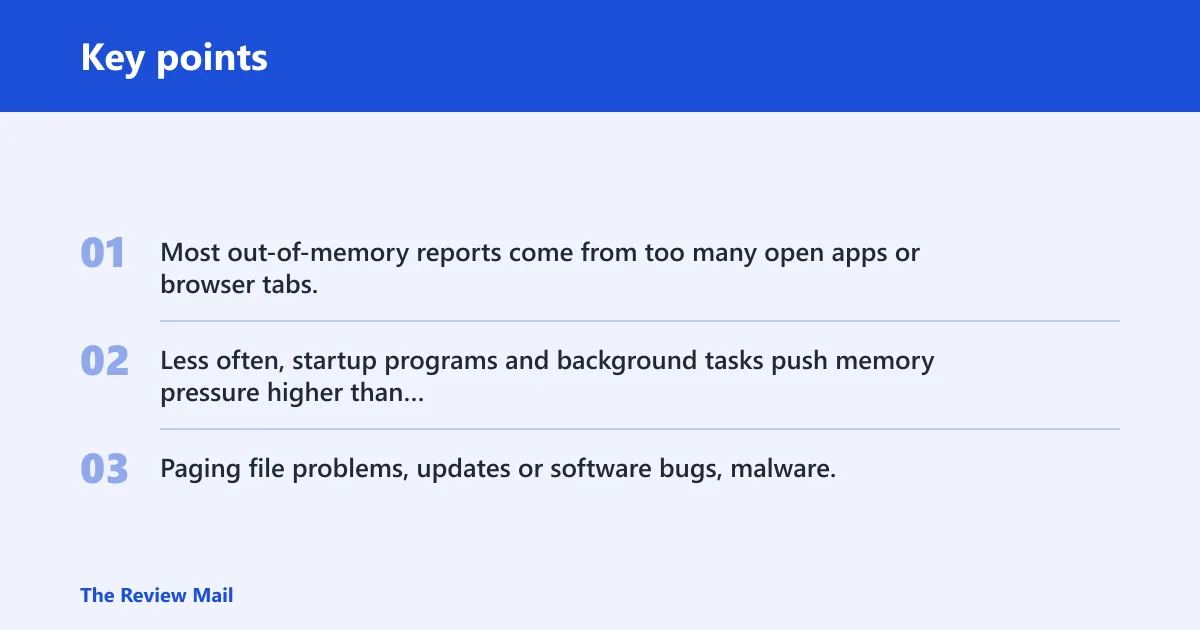
Most out-of-memory reports come from too many open apps or browser tabs, especially with memory-hungry workloads such as games, virtual machines, and creative apps. Less often, startup programs and background tasks push memory pressure higher than expected. Paging file problems, updates or software bugs, malware, and faulty or insufficient RAM come later in the list.
| Symptom | Likely cause | What to check in Task Manager | Change paging file? | Run a memory test? | Next action |
|---|---|---|---|---|---|
| One app crashes with an out-of-memory message | App limit, corrupt app files, or too many tabs in that app | Processes tab for that app’s memory use | No, unless Windows also warns about low virtual memory | Not first | Close heavy tabs, restart the app, then repair or reset it if needed |
| Whole system slows, stutters, or freezes | RAM exhaustion or startup overload | Performance tab and Startup apps | Check it if physical memory is near full | Only after software checks fail | Close apps, trim startup items, and restart Windows Explorer if the shell is unstable |
| Low virtual memory warning appears | Paging file disabled, too small, or misconfigured | Performance tab for memory pressure | Yes | No, unless the warning persists after paging file fixes | Verify the page file on the system drive, then use system-managed size |
| Issue starts after a Windows update or app update | Bug, leak, or corrupted system/app files | Processes tab for a suddenly growing process | Usually no | Only if symptoms point to hardware | Install pending updates, reboot, then repair or reset the app if needed |
| Random crashes continue after software fixes | Bad or insufficient RAM | Watch for repeated faults across different apps | No | Yes | Run a memory test and then inspect the module or slot if errors appear |
How do you fix it fast?
Close the apps using the most memory first, then check whether Windows Explorer needs a restart. This is the fastest path when memory pressure comes from too many open programs or a stuck shell. If the warning only appears in one app, also save work and relaunch that app before changing system settings.
- Press Ctrl + Shift + Esc to open Task Manager.
- In Processes, sort by Memory.
- Close browsers with dozens of tabs, games, virtual machines, and editing apps you do not need right now.
- If the desktop is acting oddly, go to Processes, select Windows Explorer, and choose Restart.
- Reopen the app and check whether the warning returns.
Say your browser has 40 tabs open, a game launcher is running, and a video editor is exporting. Closing the editor and half the tabs may clear the problem without touching system settings. Suppose the Start menu is unresponsive too; restarting Windows Explorer can recover the desktop shell while leaving your open windows in place.
How do you fix startup memory load?
Startup overload is common. Do not disable everything at once. Keep security, audio, touchpad, and hardware items that you actually need. Remove only the apps that consume memory without helping the PC start cleanly.
- Open Task Manager with Ctrl + Shift + Esc.
- Select Startup apps.
- Sort by Startup impact or memory-related load where available.
- Right-click one unnecessary app and choose Disable.
- Restart the PC and see whether memory pressure improves.
If the problem improves, leave the disabled items off and test the next one later. If it does not, re-enable only what you need. Startup cleanup works best as a narrow change, not a blanket one.
How do you fix virtual memory?
Windows 11 virtual memory uses disk space as extra memory when RAM is exhausted. It matters when physical memory is low, and it can be misconfigured or turned off. Check it before assuming the machine needs new RAM.
- Open Settings > System > About.
- Select Advanced system settings.
- Under Performance, choose Settings, then open the Advanced tab.
- Under Virtual memory, choose Change.
- Verify that the paging file is enabled on the system drive, then select System managed size first.
- Restart the PC.
If Windows still warns about low virtual memory, increase the paging file size after checking available disk space on the system drive. Do not leave it disabled. If the page file is already system-managed and the warning continues, the bottleneck may be physical RAM or a process that keeps leaking memory.
Windows 11 memory fix steps
Install pending updates next. Windows Update can fix bugs and memory leaks, and restarting the PC first may help with blocked install or removal issues. After updates finish, reboot again so the fixes fully load.
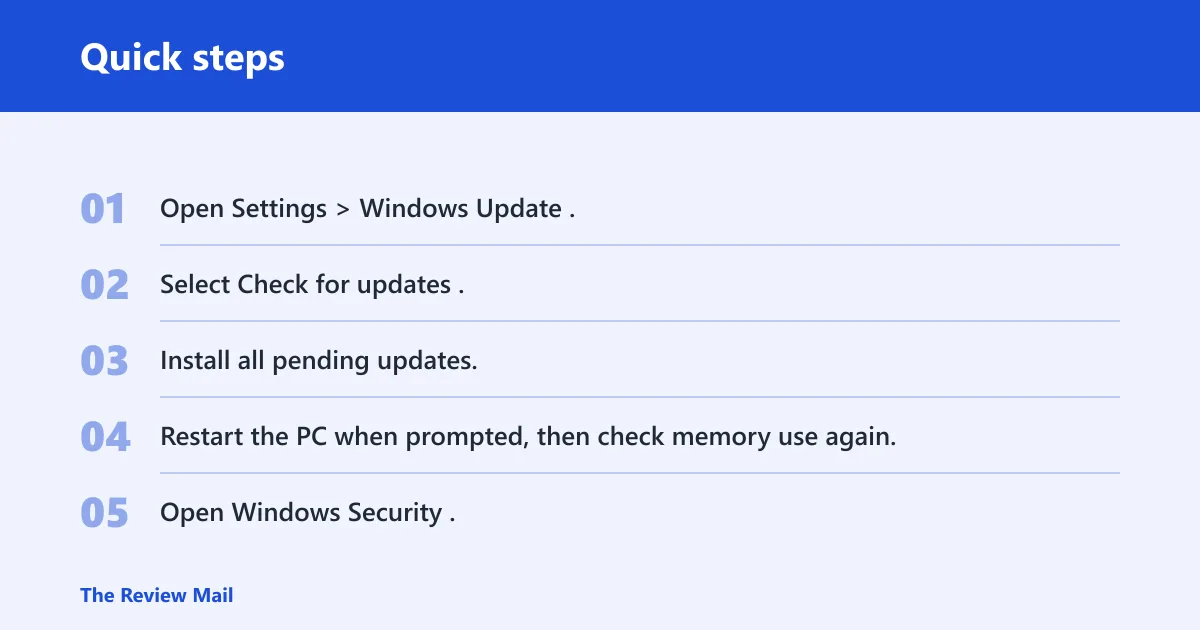
- Open Settings > Windows Update.
- Select Check for updates.
- Install all pending updates.
- Restart the PC when prompted, then check memory use again.
Next, run a malware check. Microsoft says Windows 11 can use Windows Security for malware scans, and a Quick scan is a good first pass.
- Open Windows Security.
- Select Virus & threat protection.
- Choose Quick scan.
- If threats appear, remove or quarantine them, then reboot.
If memory pressure started after a bad update or a broken system file, use the built-in repair tools next. If Windows cannot start normally, move to Safe Mode or WinRE.
- Open Command Prompt as administrator.
- Run
sfc /scannow. - If needed, run
DISM /Online /Cleanup-Image /RestoreHealth. - If Windows will not boot normally, start Safe Mode or open WinRE and use startup repair or recovery options.
Still not working?
If software fixes do not change the pattern, suspect bad or insufficient RAM. A memory test belongs here, not at the start, because RAM faults are less common than app load, startup pressure, or a mis-set paging file.
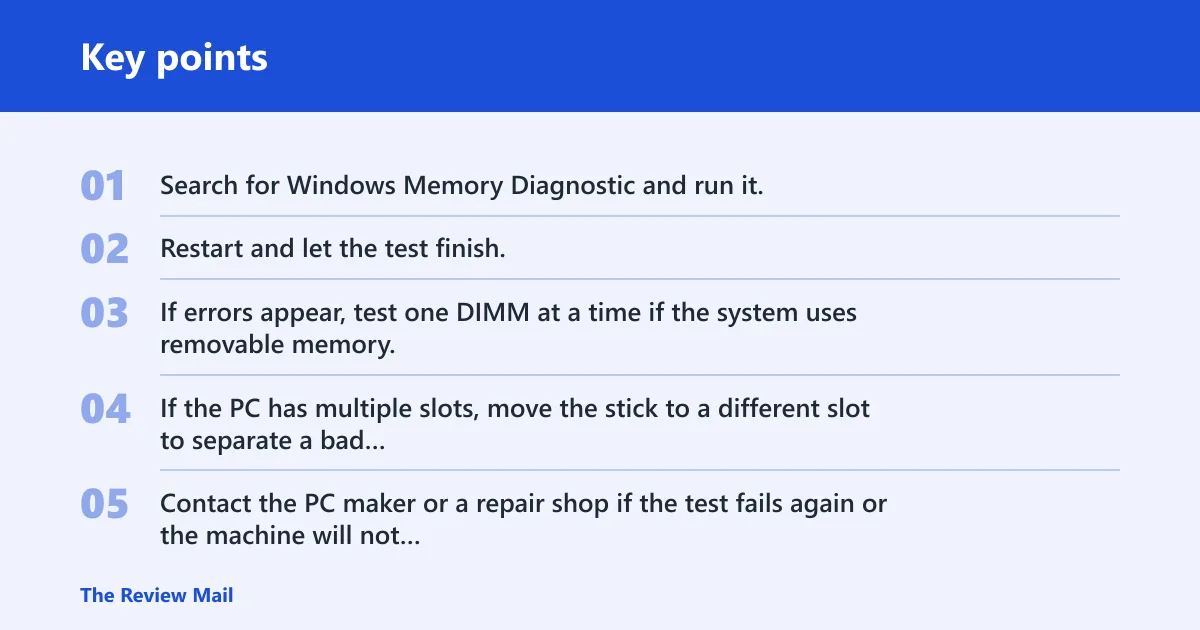
- Search for Windows Memory Diagnostic and run it.
- Restart and let the test finish.
- If errors appear, test one DIMM at a time if the system uses removable memory.
- If the PC has multiple slots, move the stick to a different slot to separate a bad module from a bad slot.
- Contact the PC maker or a repair shop if the test fails again or the machine will not stay stable enough to test.
Keep the paging file enabled, avoid opening heavy apps all at once, and trim startup items that you do not need at boot.
Frequently asked questions
How do I fix out of memory error in Windows 11?
Start with Task Manager, close the largest memory users, and check whether Windows Explorer needs a restart. Then verify the paging file under Advanced system settings and run Windows Update. If the warning remains after those steps, run sfc /scannow and a Quick scan in Windows Security.
How do I fix out of memory error?
Match the fix to the symptom. An app-only crash usually means you should close that app, reduce open tabs, or repair it. A whole-system warning means you should inspect RAM pressure and the paging file. If the issue survives those checks, move to startup cleanup, updates, and then a memory test.
How to fix out of memory error in Windows 11
Use this order: close heavy apps, restart Windows Explorer if the desktop is unstable, check Startup apps, and confirm that the paging file is set to System managed size. After that, install pending updates and reboot. That sequence addresses the most common causes before you touch hardware.
Why does Windows 11 say out of memory?
Most often, Windows says that when RAM is near full, the paging file is too small or disabled, or one app has hit its own limit. Browsers with many tabs, games, virtual machines, and creative apps can push the system there quickly. A buggy update or malware can also raise memory use.
How do I increase virtual memory in Windows 11?
Open Settings > System > About > Advanced system settings > Performance > Settings > Advanced > Virtual memory > Change. Turn on the paging file on the system drive, choose System managed size first, and restart. Increase it only if Windows still warns about low virtual memory.
What should I do if Windows 11 runs out of memory while gaming?
Close browsers, launchers, overlays, and recording tools before you start the game. Then check Task Manager for other memory-heavy apps that auto-start with Windows. If the game alone still fails, reduce texture settings, install updates, and verify the page file is enabled before you assume the RAM is bad.