Fix Memory Problems Windows 11
To fix memory problems in Windows 11, start by checking whether the issue comes from bad RAM, a small pagefile, or an app memory leak. If memory climbs after boot, or one process keeps growing, that usually points to the cause. Missing the wrong cause can lead to crashes, freezes, and repeated low-memory warnings. This guide shows how to read Task Manager, test RAM, adjust virtual memory, and isolate leaking apps in the right order.
What the symptom means
Low-memory warnings usually mean Windows has run short of available RAM, virtual memory, or both. The fastest first move is to close unused apps and browser tabs, then restart the PC. If the warning appears after sign-in, restart Windows Explorer instead.
Likely causes
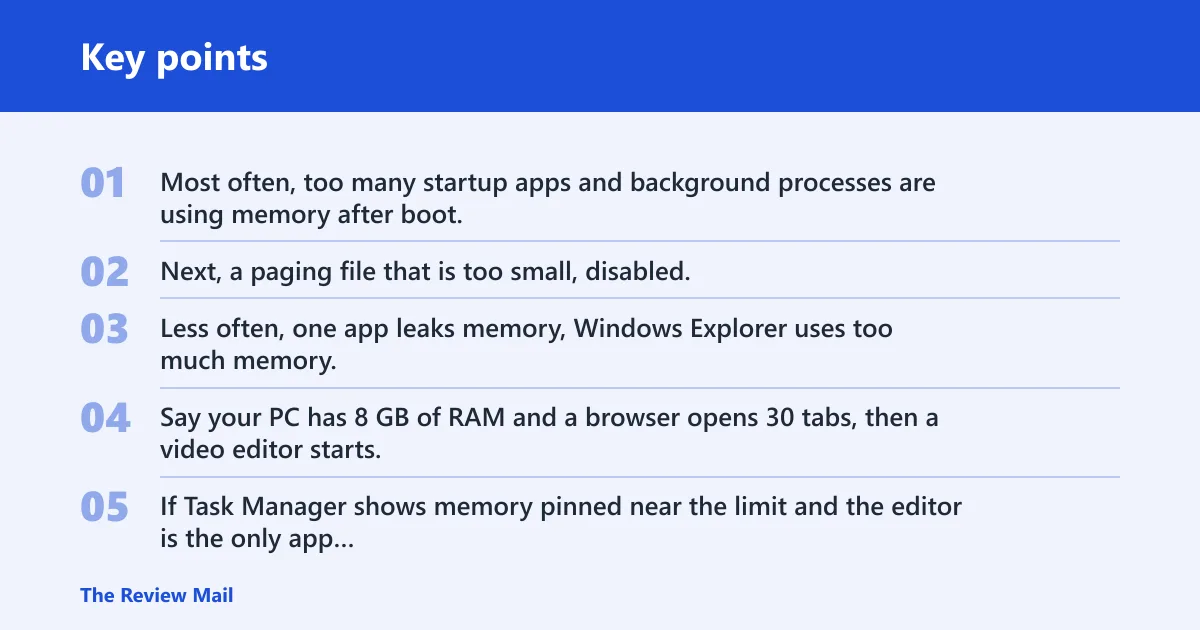
Most often, too many startup apps and background processes are using memory after boot. Next, a paging file that is too small, disabled, or misconfigured can exhaust commit space. Less often, one app leaks memory, Windows Explorer uses too much memory, system files are damaged, malware is present, or RAM itself is failing.
Memory problems diagnosis matrix
| Symptom pattern | Most likely cause | Best next step |
|---|---|---|
| out of memory message | RAM or virtual memory ran low | Close apps, check the paging file, then restart |
| slow after startup | Startup programs or background processes | Open Task Manager and disable unneeded startup items |
| one app crashes | App memory leak or app-specific corruption | Update, repair, or reinstall that app |
| high commit charge | Paging file limit or heavy system-wide memory use | Set Windows-managed virtual memory or raise the paging file |
| memory integrity cannot be turned on | Driver conflict or compatibility block | Update or remove the conflicting driver, then try again |
Say your PC has 8 GB of RAM and a browser opens 30 tabs, then a video editor starts. If Task Manager shows memory pinned near the limit and the editor is the only app crashing, the issue is more likely app pressure or a leak than failing hardware.
Suppose startup feels slow, but memory settles down once desktop apps finish loading. That points to startup programs or background processes, not a dead RAM stick. The fix is different, so the symptom matters.
How do you fix virtual memory issues?
Virtual memory is extra space from the drive that Windows uses like additional RAM. If the paging file is disabled, too small, or set incorrectly, Windows can run out of commit space even when physical RAM is still available. Increase it only as a workaround when RAM is tight or the pagefile is misconfigured.
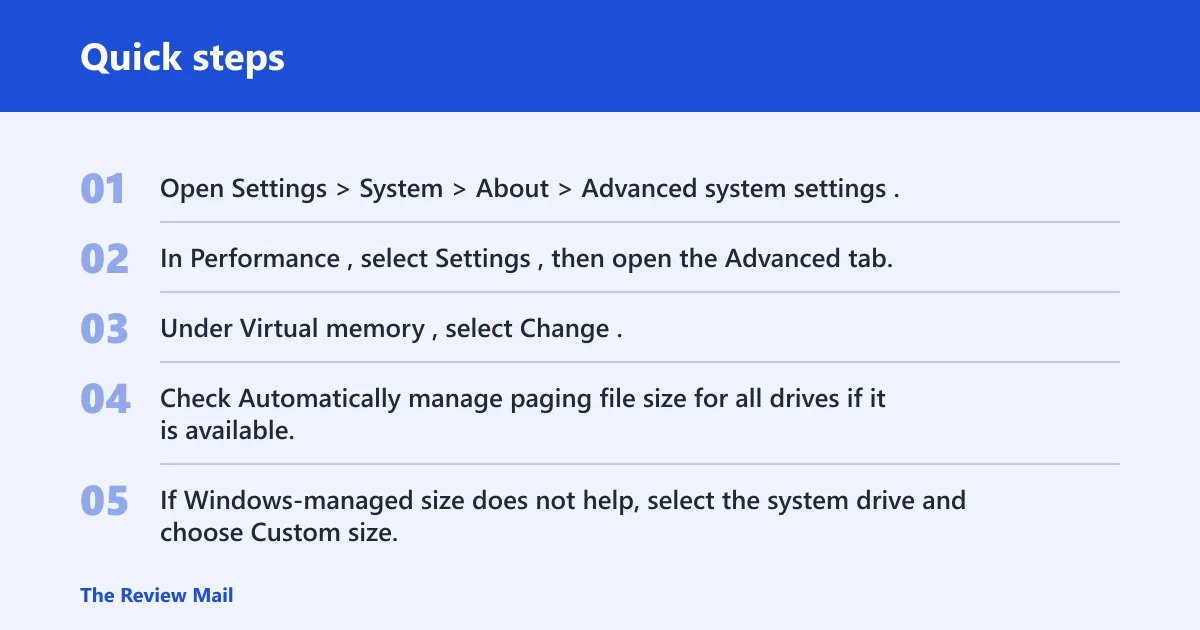
- Open Settings > System > About > Advanced system settings.
- In Performance, select Settings, then open the Advanced tab.
- Under Virtual memory, select Change.
- Check Automatically manage paging file size for all drives if it is available.
- If Windows-managed size does not help, select the system drive and choose Custom size, then set a larger initial and maximum size.
- Restart the PC and check whether the low-memory warning returns.
If the warning appears only after a large project, game, or browser session, a larger paging file may help. If the warning returns at idle, the cause is usually elsewhere.
How do you cut startup memory use?
Startup programs run automatically at boot and can consume memory before you open anything. Background processes can keep using memory after boot too, and common offenders include Windows Update and antivirus programs. If memory stays high after sign-in, this is the section to try first.
- Press Ctrl + Shift + Esc to open Task Manager.
- Select Startup apps.
- Right-click items you do not need at boot and choose Disable.
- Go to the Processes tab and sort by Memory.
- If Windows Explorer is using unusually high memory, right-click it and choose Restart.
- Restart the PC and check whether startup memory use drops.
Windows Explorer can use a lot of memory after repeated file browsing or shell activity. Restarting it from Task Manager can free memory without closing the whole session.
Can malware or corrupted files cause this?
Yes. Malware can consume memory in the background, and damaged system files can trigger unstable behavior that looks like a RAM problem. Run a Quick scan in Windows Security first, then use Windows Update and System File Checker to clean up common software causes before moving to hardware tests.
- Open Windows Security and select Virus & threat protection.
- Choose Quick scan.
- Install pending updates from Settings > Windows Update.
- Open Terminal or Command Prompt as administrator.
- Run
sfc /scannowand let System File Checker finish. - Restart and check whether the memory errors return.
If antivirus or Windows Update itself is busy, memory use can rise during the scan or update process. That is normal for a short period. If the problem persists after the system is idle again, keep going down the ladder.
How do you fix RAM problems on Windows 11?
Move to hardware only after software causes are ruled out. Bad or insufficient RAM can trigger repeated errors, but many users jump to replacement too early. If one app fails while others behave normally, a leak or app corruption is more likely. If crashes spread across the system, hardware becomes more suspect.
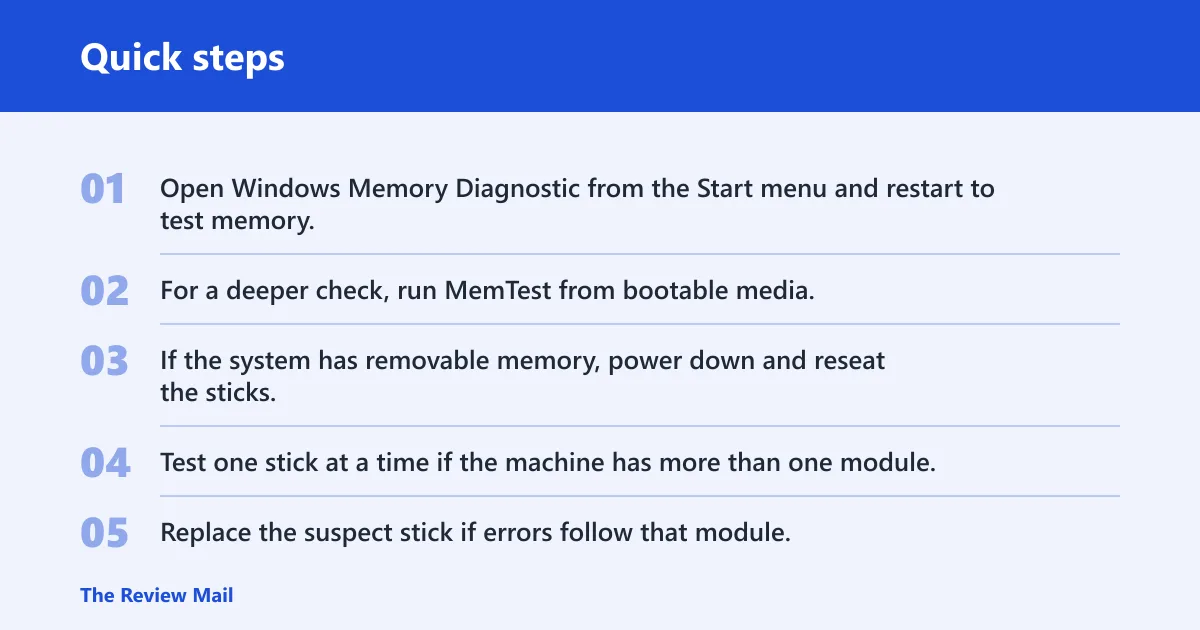
- Open Windows Memory Diagnostic from the Start menu and restart to test memory.
- For a deeper check, run MemTest from bootable media.
- If the system has removable memory, power down and reseat the sticks.
- Test one stick at a time if the machine has more than one module.
- Replace the suspect stick if errors follow that module.
- If errors continue with known-good memory, consider motherboard or slot issues and contact the vendor.
Why does my RAM keep failing? Often the answer is not “keep failing” in the literal sense. The same crash can come from a leaking app, a bad driver, unstable overclock settings, or genuinely faulty memory. Use the test results to separate those cases.
When Memory Integrity will not turn
Memory Integrity is a Windows security component that helps protect against malware violations and kernel-level attacks. If it will not turn on, a blocked driver or compatibility issue is usually the reason. Treat that as a driver conflict first, not proof that RAM is bad.
- Open Windows Security > Device security > Core isolation details.
- Read the blocked-driver message if Windows shows one.
- Update the driver in Device Manager, or remove the conflicting device software.
- Run Windows Update again to pick up compatible fixes.
- Turn Memory Integrity back on after the conflict is cleared.
- If the setting still fails and the machine uses old hardware drivers, check the vendor’s support page for updated packages.
Memory Integrity is one of several possible conflict points, and a clean installation of Windows is sometimes suggested as a remedy. That is a last step, not a first step.
If that did not work, try this next
Check Event Viewer for repeated app, driver, or memory-related errors if the basic fixes do not change anything. Then retest with minimal startup items and one browser window only. If the same failures continue, the problem is more likely hardware or a driver stack issue than a simple settings problem.
- Open Event Viewer and review Windows Logs > System for repeated warnings or errors around the crash time.
- Disconnect nonessential peripherals and reboot.
- Boot with the fewest startup items possible.
- Run the RAM test again if errors continue.
- Back up important files before any reset or replacement step.
Should you increase virtual memory on Windows 11? Yes, if the paging file is too small or disabled and the errors are commit-space related. No, if memory problems persist with low startup load and clean software checks; that points you toward RAM, drivers, or a specific app.
Frequently asked questions
How do I fix memory problems on Windows 11?
Start with Task Manager, close memory-heavy apps, and check whether the paging file is enabled. Then run a Windows Security Quick scan, install Windows Update, and use sfc /scannow. If the issue remains, test RAM with Windows Memory Diagnostic or MemTest before replacing hardware.
How do I fix virtual memory issues on Windows 11?
Open Advanced system settings, go to Virtual memory, and turn on Windows-managed paging file size if possible. If commit space is still tight, raise the paging file on the system drive, then restart. If the issue only happens in one app, the app may need a different fix.
How do I solve low memory problems in Windows 11?
Close unused tabs and apps, disable startup programs, and restart the PC. If memory stays high, look at Task Manager for a background process or Windows Explorer using too much memory. If the problem comes back after a reboot, check the paging file and run a malware scan.
Can malware cause memory problems in Windows 11?
Yes. Malware can run in the background and keep memory use high, which can look like a system shortage. Run Windows Security Quick scan first, then install pending updates and use System File Checker. If the issue remains after cleanup, move on to driver and RAM checks.
What causes out of memory errors on Windows 11?
The usual causes are low available RAM, a small or disabled paging file, too many background processes, or one app that leaks memory. Less often, corrupted system files, driver conflicts, malware, or faulty RAM are responsible. The error text and timing usually point to the right branch.