Memory Repair Windows 11: Diagnose and Fix It
On Windows 11, start with Windows Memory Diagnostic and check the page file before you replace RAM. Crashes, freezes, or a MEMORY_MANAGEMENT stop code can come from bad sticks, low virtual memory, corrupted performance counters, or a driver/OS problem. The fastest fix is to identify which one fits the symptom pattern before changing hardware.
Memory repair Windows 11: what is actually failing?
Memory problems in Windows 11 usually fall into three buckets: physical RAM faults, low virtual memory, or a Windows component that is reporting the wrong thing. You need to sort those apart first, because a paging shortage can feel like bad memory, while a driver or counter issue can make troubleshooting tools look broken.
Physical RAM versus virtual memory
RAM is the hardware memory module. When it fails, you can see crashes, freezes, read/write errors, and file corruption. Virtual memory is Windows paging support on disk, so low paging space can slow the system or trigger warnings without meaning the RAM sticks are defective. Microsoft’s pagefile guidance explains that Windows uses the paging file to help manage committed memory when physical RAM is tight.
That distinction matters. A pagefile problem can make apps stall under load, but it usually does not create the same pattern as a true read/write fault in memory.
Why software bugs can look like memory faults
Memory Management BSODs, update failures, and boot issues can overlap with memory symptoms. Corrupted system files, disk errors, broken counters, and drivers can all make Windows 11 behave as if RAM is bad, even when the modules themselves are fine. Microsoft documents MEMORY_MANAGEMENT as a Windows stop error that can be tied to memory management failures, but not only to defective RAM.
Picture a laptop that freezes during an update and then shows a MEMORY_MANAGEMENT stop code on the next boot. That does not prove the RAM failed. It only means memory addressing broke somewhere in the chain.
Common symptom clusters to sort first
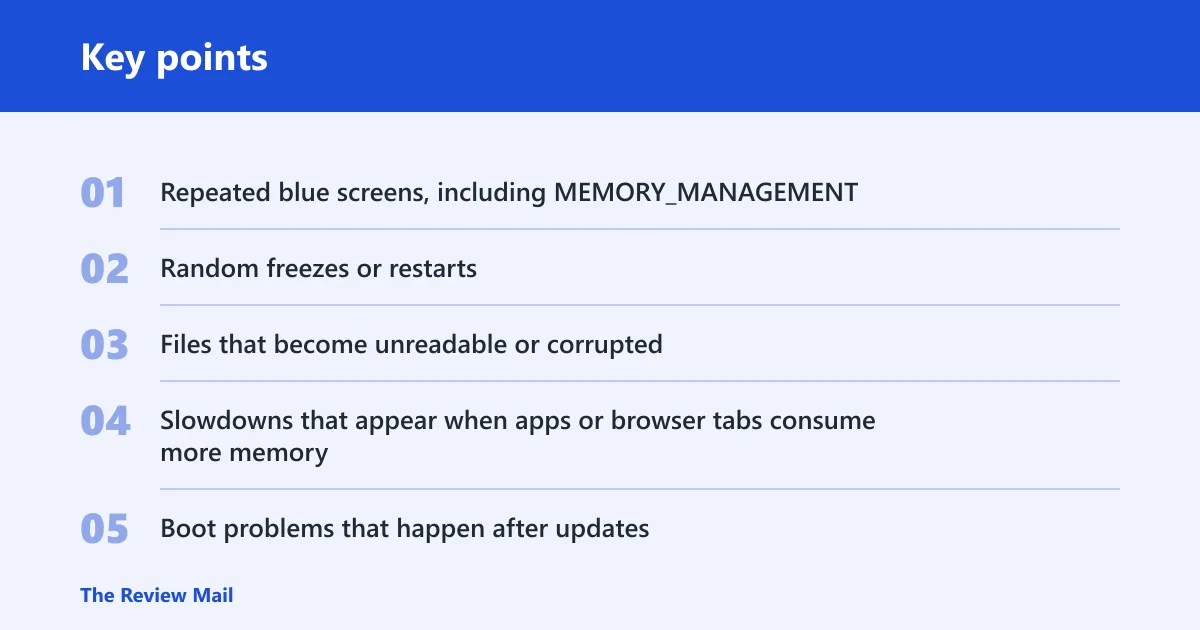
- Repeated blue screens, including MEMORY_MANAGEMENT
- Random freezes or restarts
- Files that become unreadable or corrupted
- Slowdowns that appear when apps or browser tabs consume more memory
- Boot problems that happen after updates
How do you run Windows Memory Diagnostic?
Windows 11 includes Windows Memory Diagnostic, also called mdsched.exe. It requires a restart and cannot run while Windows is live, so save your work first. After the reboot, the tool tests RAM outside the running operating system and reports results on the next boot. Microsoft’s support guidance for Windows Memory Diagnostic describes this restart-based workflow.
Open it with mdsched.exe
- Open the Start menu.
- Type mdsched.exe.
- Open Windows Memory Diagnostic.
- Choose to restart now or schedule the test for the next restart.
Choose a test and restart
The interface may offer Basic, Standard, and Extended modes. Basic is the quickest check. Standard is the usual middle ground. Extended takes longer and is better when symptoms are persistent or the first pass does not explain the issue.
A RAM test can take 15–30 minutes. Longer modes can take more time, and system speed and memory size can stretch that further. Save your work before you begin, because the tool cannot run until Windows restarts.
Find the results after reboot
Results usually appear after Windows loads again. If Windows reports no memory errors, that is useful, but it does not close the case. Intermittent faults and non-RAM issues can still produce the same crashes.
Memory repair decision table
Use this table to match symptoms to the most likely cause, the next test, and the right escalation step. It is meant to narrow the problem before you replace hardware or change settings.
| Symptom | Likely cause | Test to run | Escalation action |
|---|---|---|---|
| MEMORY_MANAGEMENT blue screen after a long stable period | RAM or driver/OS issue | Run Windows Memory Diagnostic, then check recent driver and update changes | Run MemTest86 if the built-in test is clear; roll back suspect drivers if crashes match a recent change |
| Freezes during heavy multitasking, no BSOD | Virtual memory or RAM | Check paging file size and Task Manager memory pressure | Increase or restore the pagefile first; test RAM only if symptoms continue |
| Unreadable files or random app corruption | RAM | Run Windows Memory Diagnostic in Standard or Extended mode | Reseat sticks, test one module at a time, and replace the module that follows the fault |
| perfmon / report fails or gives incomplete data | Performance counters | Run lodctr /r from an elevated Command Prompt | Delete stale PerfLogs files if needed, then rerun the report |
| Boot issues after updates | OS or disk issue | Check Startup Repair and CHKDSK | Treat as a broader Windows repair unless RAM faults also appear |
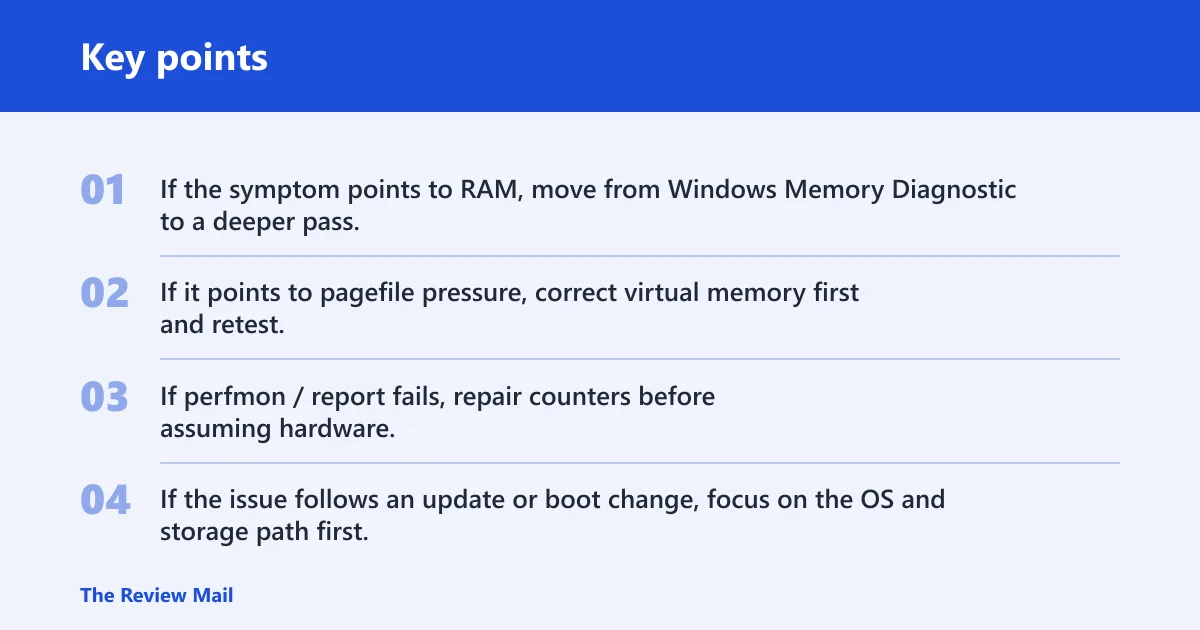
If the symptom points to RAM, move from Windows Memory Diagnostic to a deeper pass, then to one-stick-at-a-time testing. If it points to pagefile pressure, correct virtual memory first and retest. If perfmon / report fails, repair counters before assuming hardware. If the issue follows an update or boot change, focus on the OS and storage path first.
What does a Memory Management BSOD mean?
A Memory Management BSOD often points to an addressing failure in the way Windows is handling memory, but it does not point to one cause every time. It can come from bad RAM, a bad driver, a damaged system file, or a disk problem that breaks what Windows expects to load. Microsoft’s stop-code documentation treats MEMORY_MANAGEMENT as a broad Windows memory-management failure, not a single hardware verdict.
Common stop codes and patterns
MEMORY_MANAGEMENT is often one of the first stop codes people see. Repeated blue screens during boot, during updates, or under heavy load make memory faults more likely, but the pattern still needs a test. One crash after a driver install is a different case from repeated failures across several boots.
When the crash points to RAM
If the BSOD keeps returning after the same modules are moved or swapped, and the error follows a particular stick or slot, RAM becomes the stronger suspect. Faulty modules can trigger read/write errors and can leave files unreadable.
When to suspect a driver or OS fault
If the crash started right after an update, a storage change, or a new driver, look at software first. EaseUS notes that boot repair issues can involve missing or corrupted system files and disk errors, which means a broader repair path may be needed before you blame the DIMMs.
How do you tell bad RAM from low virtual memory?
Bad RAM and low virtual memory can feel similar, but they behave differently. Low virtual memory usually shows up as slow paging, warning dialogs, or sluggish app switching. Bad RAM is more likely to produce crashes, freezes, and corruption even when paging space is available. Microsoft’s virtual memory guidance recommends letting Windows manage the paging file in most cases.
Low-memory warnings and paging slowdowns
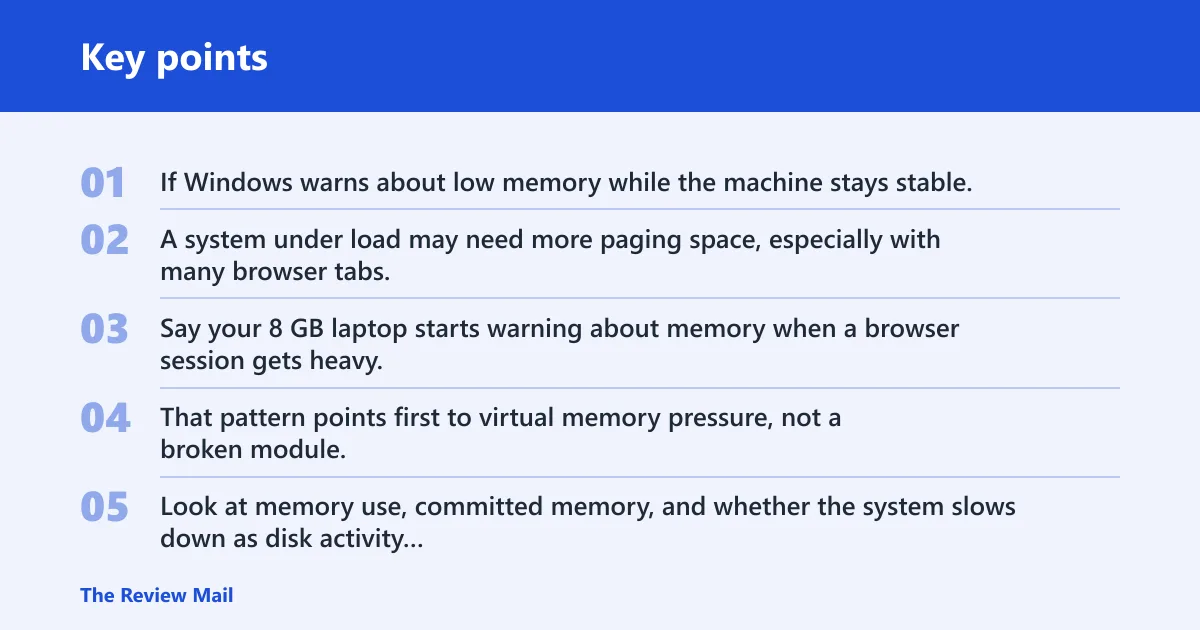
If Windows warns about low memory while the machine stays stable, check the pagefile before anything else. A system under load may need more paging space, especially with many browser tabs, large images, or virtual machines open.
Say your 8 GB laptop starts warning about memory when a browser session gets heavy, but it does not blue-screen or corrupt files. That pattern points first to virtual memory pressure, not a broken module.
What Task Manager and paging behavior mean
Look at memory use, committed memory, and whether the system slows down as disk activity rises. When paging climbs and the machine becomes sluggish, that is a memory pressure problem. When crashes appear with no obvious pressure pattern, hardware becomes more likely.
When to adjust the pagefile
If the pagefile is disabled, too small, or on a drive with errors, fix that before chasing RAM. Restore system-managed paging unless a special configuration is required. Then retest the same workload. If the symptoms remain, move on to RAM diagnostics.
What to do if the built-in test finds nothing
If Windows Memory Diagnostic reports no errors but the symptoms continue, do not stop there. Use MemTest86 next, then test sticks one at a time and check the motherboard slots. That sequence helps separate a flaky module from a bad slot or a Windows issue.
Run MemTest86
MemTest86 is the more powerful next step when the built-in tool is not enough. It is third-party and more comprehensive than the Windows test. Use it when crashes continue, when the built-in result is clean but suspicious, or when you need a deeper check.
Test one module at a time
- Save your work and power down.
- Remove power and discharge the system fully.
- Reseat the RAM stick or sticks.
- Test one module in one slot.
- Swap the same module to another slot.
- Repeat with the next module.
This order matters. If a fault follows one stick, the stick is the stronger suspect. If the fault follows a slot, the motherboard slot or board path may be at fault instead.
Decide when to replace RAM
Replace the RAM when errors are confirmed. If one stick fails in multiple slots, or the same errors reappear in MemTest86, the hardware case is strong. If every stick passes and the system still crashes, move back to drivers, storage, or OS repair.
Why can perfmon / report fail?
perfmon / report can fail when performance counters are corrupted. Microsoft’s performance-counters documentation and the built-in diagnostics tools both point to counter corruption as a common cause of incomplete reports. That is a Windows reporting problem, not a RAM diagnosis by itself.
Repair counters with lodctr /r
Run lodctr /r from an elevated Command Prompt to rebuild performance counter registry data. After that, retry the report. If counters were the issue, performance reporting often starts working again. Microsoft documents lodctr as the utility for managing performance counter names and registry settings, and rebuilding them is the standard recovery step.
When counter repair is not enough
Delete stale PerfLogs files if needed, then try the report again. If perfmon / report still fails after counter repair and log cleanup, treat the issue as broader Windows damage, not a memory fault by default.
Frequently asked questions
How do I fix memory problems in Windows 11?
Start by separating RAM faults from paging issues. Run Windows Memory Diagnostic, check the pagefile, and look for repeated BSODs or file corruption. If the built-in test is clean but symptoms continue, use MemTest86, then test sticks one at a time before replacing hardware.
How do I run the Windows Memory Diagnostic tool?
Open Start, type mdsched.exe, and launch Windows Memory Diagnostic. Pick a restart option, save your work, and let Windows reboot. The test runs outside the live desktop and reports results after the next boot.
What causes memory management BSODs in Windows 11?
MEMORY_MANAGEMENT often points to a memory addressing failure, but the cause can be RAM, a driver, a damaged system file, or a disk problem. If the crash repeats across boots, test RAM first, then check for recent driver or update changes.
Is there a built-in way to test RAM on Windows 11?
Yes. Windows 11 includes Windows Memory Diagnostic, and it requires a restart to run. It is a quick first pass, but it does not catch every fault. Use it as the first filter, not the final word.
What should I do if Windows 11 is running low on virtual memory?
Check the pagefile before assuming the RAM is bad. Restore system-managed paging if it was changed, or increase it if a workload regularly hits memory pressure. If the machine stays slow or starts crashing after that, move on to RAM testing.
Should I use MemTest86 if Windows Memory Diagnostic finds nothing?
Yes, if the symptoms continue. MemTest86 is the more powerful next step when the built-in test is inconclusive. It gives you a deeper pass on the modules and helps confirm whether a clean Windows result was a false sense of safety.
Can corrupted performance counters affect memory troubleshooting?
Yes. Broken counters can make perfmon / report fail, which can confuse troubleshooting if you think the reporting tool itself proves a memory fault. Use lodctr /r from an elevated Command Prompt to rebuild the counter registry data first.
How long should a RAM test run before you trust the result?
Long enough to complete at least one full pass in the built-in tool, and longer if the failure is intermittent. Short tests can miss flaky faults. If symptoms are severe, repeat the test in a deeper mode or move to MemTest86 for a more thorough check.
What are the signs that RAM is actually failing?
Falling RAM usually causes repeating blue screens, random freezes, sudden reboots, corrupted files, or errors that follow one specific module. If the problem stays tied to one stick or one slot after retesting, hardware becomes much more likely than a Windows setting.
How can I tell bad RAM from a Windows setting problem?
Bad RAM tends to cause instability even after you restore the pagefile, update Windows, and roll back recent drivers. A Windows setting problem usually improves when you fix virtual memory, counters, or the offending update. If the symptom disappears after a settings change, RAM is less likely.
When should I stop troubleshooting and replace hardware?
Replace RAM when multiple tests point to the same stick or when errors return in more than one slot. If the built-in test and MemTest86 both agree, the hardware case is strong enough to stop guessing and swap the module.