Extremely Slow Boot Up Windows 11
An extremely slow Windows 11 boot often points to storage, startup drivers, or an update problem; if the delay passes about 60 seconds before sign-in, check the bottleneck before changing settings at random. Ignore it and you can waste hours on fixes that do nothing, or miss a failing SSD, corrupted update, or broken startup service. This guide matches the symptom pattern to the likely cause, then shows the exact fix for each failure mode.
Slow boot triage table
Start with the symptom, not the settings. Black screen, spinning dots, welcome screen delay, and post-login desktop lag point to different bottlenecks, and the fastest fix depends on which stage is slow.
| Symptom | Likely bottleneck | Quick confirmation check | First fix |
|---|---|---|---|
| Black screen before the logo | BIOS/UEFI boot order, firmware delay, or hardware POST time | Count the delay before the manufacturer logo appears; enter BIOS/UEFI and compare boot order | Review boot order, disable unused boot devices, and check firmware settings |
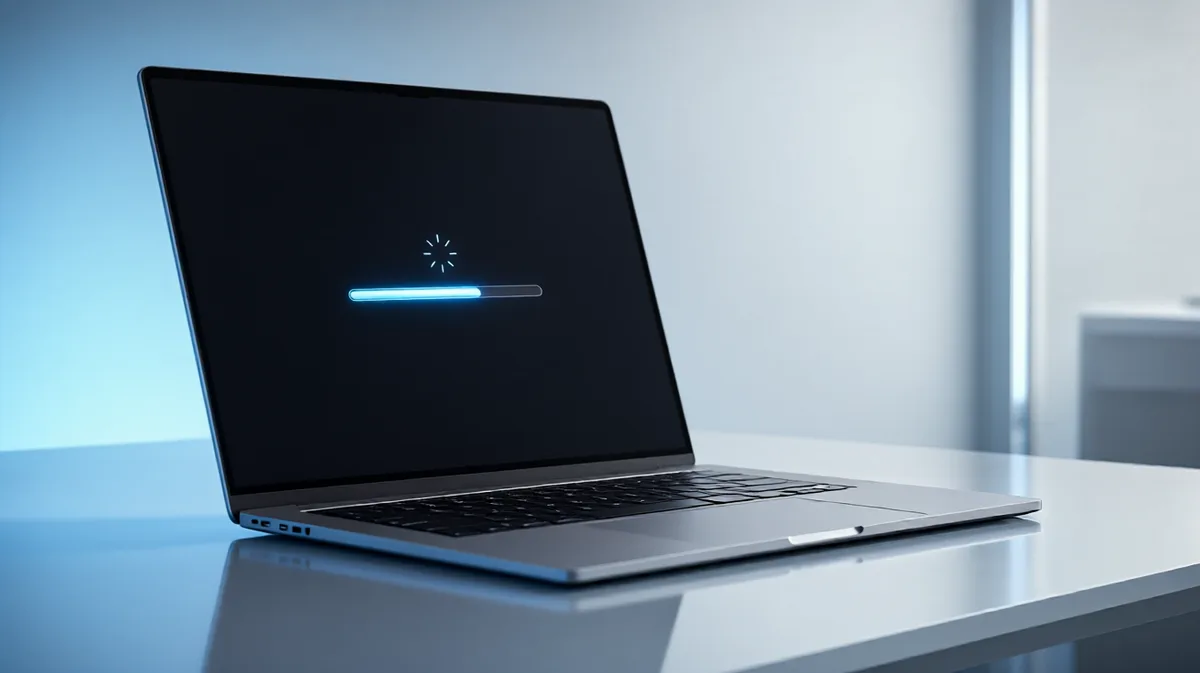
| Spinning dots for 1+ minute | Storage slowdown, driver load delay, or Windows boot repair work | See whether the dots stay on-screen long after power-on with no desktop activity | Check drive health, then update storage and chipset drivers |
| Welcome screen hang | User profile load delay, startup app conflict, or a pending update task | Watch whether the sign-in screen appears but takes a long time to pass through | Disable high-impact startup apps and check for pending Windows Update items |
| Desktop unusable after login | Post-logon startup apps, background services, or an update finishing in the background | Taskbar loads, but clicks lag and disk or CPU stays busy | Trim startup apps, then look for update or driver activity |
| Slow boot only after update | Update tasks, driver mismatch, or a compatibility problem after reboot | Delay began right after a cumulative or feature update | Pause new updates, review the latest driver change, and roll back if needed |
| Boot speed worsening over months | Accumulating startup apps, storage wear, low free space, or drive aging | Startup gets slower without one obvious change | Check free space, health warnings, and startup impact in Task Manager |
| Boot slow with disk activity | HDD bottleneck, failing SSD, file repair, or background indexing | Disk light stays busy while the system is still loading | Inspect drive health and storage errors first |
| Boot slow with startup apps disabled already | Drivers, firmware, system files, or storage issues | Task Manager startup list is already clean, but boot is still long | Run SFC and DISM, then check drivers and boot settings |
Is it slow before or after sign-in?
That split matters more than most quick fixes. A delay before the logo points to firmware, boot order, or storage initialization; a delay after sign-in usually points to startup apps, drivers, or background tasks loading after the desktop appears.
Pre-logon delay points to firmware, storage, or boot order
If the screen stays black before the logo, Windows has not started loading in the usual way. Check BIOS/UEFI boot order, unplug any unnecessary USB storage, and look for a long POST sequence from a device the system tries first. A misordered network boot or old external drive can add dead time before Windows begins.
Post-logon lag points to startup apps, drivers, or background tasks
If sign-in appears quickly but the desktop is unusable, the delay is usually inside Windows. Task Manager startup apps, driver services, or a large update task are the common suspects. A common first-timer mistake is to blame Windows itself when the desktop is actually waiting on one heavy launcher.
How long a normal Windows 11 boot usually takes
A healthy Windows startup is typically 10–60 seconds. NVMe SSD systems are often in the 10–20 second range, SATA SSD systems often land around 15–40 seconds, and HDD systems may need 1–3 minutes. Older PCs with low RAM or older CPUs may require 2+ minutes, but that is still slow rather than normal.
If a system takes longer than about a minute to reach sign-in, do not guess. Match the delay to the stage where it appears, then apply the first fix that fits that stage.
Fast Startup and startup apps
These are the first two settings to check when the delay happens after power-on but before or just after desktop load. Fast Startup can reduce boot time on some systems, but it can also slow startup on others. Startup apps are the easiest place to remove unnecessary launchers that keep Windows busy after sign-in.
Turn off fast startup in Control Panel power Options
Open Control Panel > Power Options, then go to Choose what the power buttons do and look for Turn on fast startup. If the PC has a slower boot after shutdown, disabling it is a useful test. If the delay gets worse after turning it off, turn it back on and move to the next bottleneck.
Fast Startup stores part of the kernel state so Windows can resume faster, but that can backfire on some hardware and driver combinations. Driver and power-state issues are one reason a machine may boot slowly with the feature enabled or disabled. (Microsoft Learn)
Use Task Manager startup apps to disable launchers with high impact
Open Task Manager > Startup apps and sort by Startup impact. Disable the launchers you do not need at sign-in, especially cloud sync tools, game launchers, printer helpers, chat clients, and tray-only utilities. The feature is available in Windows 11 and Windows 10, so the same check can also apply if you are fixing slow boot in Windows 10.
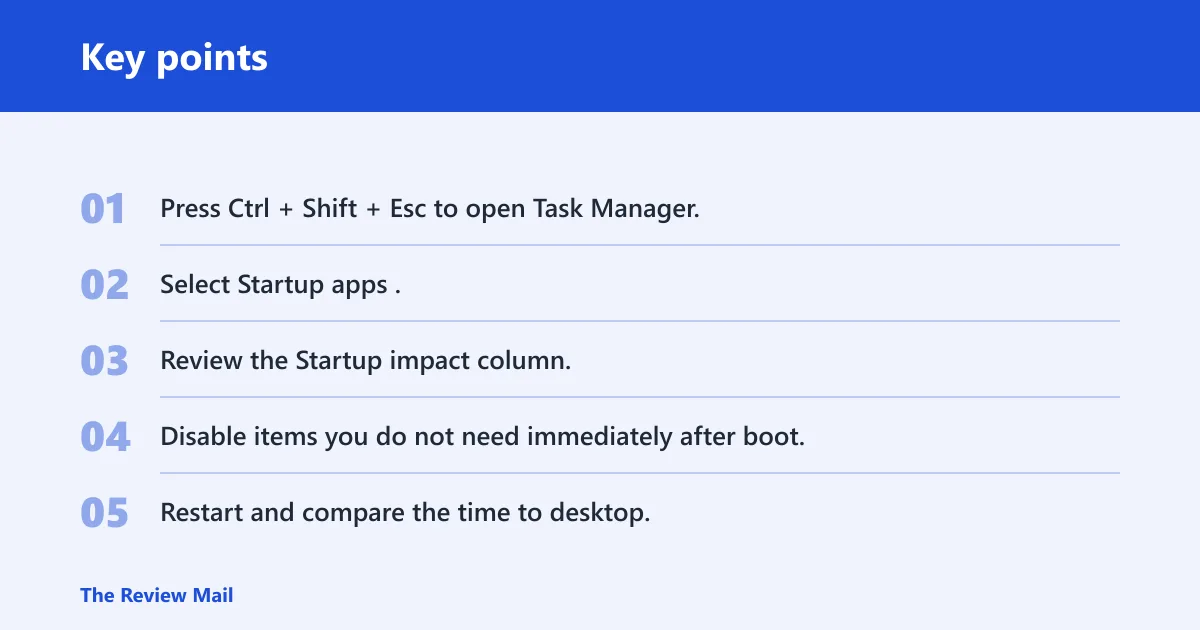
- Press Ctrl + Shift + Esc to open Task Manager.
- Select Startup apps.
- Review the Startup impact column.
- Disable items you do not need immediately after boot.
- Restart and compare the time to desktop.
If a PC has three high-impact launchers and a password manager set to start automatically, disable the launchers first, then retest. If the desktop becomes usable much sooner, the bottleneck was post-logon startup load rather than Windows itself.
When startup apps are not the real bottleneck
If startup apps are already disabled and the system still takes more than 60 seconds, move on. That is a strong sign the cause is storage, drivers, Windows files, or firmware timing. Do not keep trimming startup items when the problem is earlier in the chain.
Repair Windows system files
When startup apps and Fast Startup do not explain the delay, repair the Windows image. Use these commands from an elevated Command Prompt, because both are repair commands for Windows system files and they need administrator access. They are often used together.
Run SFC /scannow from elevated Command Prompt
SFC /scannow checks Windows system files and repairs common corruption. Open Command Prompt as administrator, then run the command and let it finish. Use it when boot delay seems tied to damaged Windows files, missing components, or odd behavior that started without a hardware change.
Run DISM /Online /Cleanup-Image /RestoreHealth
DISM /Online /Cleanup-Image /RestoreHealth repairs the Windows image that SFC relies on. Run it from an elevated Command Prompt when SFC reports it cannot fix everything, or when you suspect the component store itself is damaged. After DISM finishes, run SFC again.
When to run DISM before SFC
Run DISM first if SFC returns repair failures, Windows Update has been broken for a while, or the machine shows repeated file-integrity trouble. Then run SFC again so it can use the repaired image. That sequence is often more effective than repeating SFC alone.
Is Windows Update slowing startup?
Yes. Pending updates can slow startup, and a reboot after a feature or driver update can trigger extra setup work before the system settles. If the slowdown started right after a restart, an update task or compatibility issue deserves attention before you change unrelated settings.
Check for pending updates and reboot tasks
Open Windows Update and look for installs waiting to finish, restarts pending, or update history entries that line up with the day the slowdown began. If Windows is finishing a background setup, the boot can stay sluggish for a few restarts even though the machine itself is healthy.
Rollback or pause when the slowdown started after an update
If the timing lines up with a specific cumulative update or driver update, try pausing updates briefly, then review installed updates or the latest driver change. A clean rollback is often the fastest proof that the update, not the hardware, introduced the slowdown.
Use this path when the problem began after a driver or feature update
Driver changes matter as much as Windows patches. Storage and chipset drivers are priority targets because they affect how quickly the system reaches the desktop and how smoothly the disk controller initializes. If the boot changed right after one of those updates, treat it as a compatibility check, not a generic lag problem.
Check storage, drivers, and boot settings
This is where extreme delays are often explained. HDDs are slow at boot, SSD upgrades are a common fix, and drive health warnings can point to a failing disk. Drivers and firmware matter too, especially when the delay happens before the logo or when disk activity stays high.
SSD vs HDD and why HDDs boot slowly
An HDD can take 1–3 minutes to boot a Windows 11 system that would start much faster on an SSD. If the machine still uses an HDD, the hardware itself may be the bottleneck. On older PCs, moving to an SSD is often the clearest improvement available.
Check drive health and storage errors
Look for SMART-style warnings, storage errors in Event Viewer, or repeated disk warnings from the system. A failing SSD may not act like an HDD; it can show intermittent stalls, long black-screen pauses, or sudden boot slowdowns after months of normal use. Check free space too, because the Windows drive should keep at least 15–20% free.
If a 512 GB SSD shows repeated storage warnings and the PC now takes over a minute to reach the desktop, that pattern points to drive trouble more than to startup apps. At that point, a backup comes before any further tweaking.
Update storage and chipset drivers
Outdated or corrupted drivers can delay boot, and storage plus chipset drivers are the ones to check first. Use the system maker’s support package or Windows Update if it offers the relevant driver. If the delay began after a driver install, test a rollback.
Review BIOS/UEFI boot order and POST delay
When the delay happens before the logo, review BIOS/UEFI settings. Remove unused boot entries, disable PXE or network boot if you do not need it, and confirm the system starts from the correct internal drive first. A wrong boot order can waste time before Windows even begins loading.
Slow boot recovery steps
Use these after the main bottleneck check, not before it. They are useful when the cause is still unclear, or when the problem seems to come from third-party software rather than Windows itself.
Try a clean boot to isolate third-party conflicts
A clean boot disables non-Microsoft services and startup items so you can see whether a third-party tool is holding startup back. If the machine boots normally in a clean boot, restore items in small groups until the slowdown returns.
Run a malware scan if the slowdown is new or erratic
If boot time changed suddenly, or the PC is randomly slow after login, run a malware scan. Malicious or unwanted software can hook into startup and delay the desktop, and it may hide inside a launcher you did not expect to matter.
Replace failing storage or move from HDD to SSD
If drive health is poor, replacement beats repeated repairs. If the system still uses an HDD and the boot delay is severe, an SSD upgrade is the practical hardware fix. That change also reduces the chance that Windows Update, indexing, or startup apps will turn a slow boot into a long one.
Use reset or reinstall only after the main bottleneck is ruled out
Reset or reinstall is the last resort, not the first move. If the boot delay is tied to a failing drive, broken firmware settings, or a bad driver, reinstalling Windows will not solve the root cause. Back up data first, then use reset only if repairs, driver checks, and storage checks do not explain the slowdown.
Frequently asked questions
Why is my Windows 11 booting so slowly?
The usual causes are storage, startup drivers, pending updates, or a firmware delay before Windows loads. If the slowdown takes more than about 60 seconds, note whether it happens before the logo, at sign-in, or after desktop load. That stage tells you which fix to try first.
How do I fix extremely slow boot up in Windows 11?
Start with the symptom pattern, then check Fast Startup, Task Manager startup apps, Windows Update, drive health, and BIOS/UEFI boot order. If startup apps are already clean, move to SFC, DISM, and driver checks. Only after those should you consider reset or reinstall.
What causes very slow boot time in Windows 11
The most common causes are high-impact startup apps, HDDs, failing or busy SSDs, driver problems, corrupted system files, pending updates, and BIOS/UEFI misconfiguration. The cause is different if the delay is before the logo versus after sign-in, so the stage of the delay matters.
Should I disable fast startup if Windows 11 boots slowly?
Yes, if the slowdown happens after shutdown and Fast Startup looks suspicious, turn it off in Control Panel > Power Options and test again. It can help on some systems and hurt on others, so treat it as a test, not a permanent assumption.
How do I check if my SSD or HDD is causing slow startup?
Look for drive warnings, storage errors, and slow boot behavior that matches the hardware. HDDs commonly need about 1–3 minutes, while NVMe SSDs are often much faster. If the system has SMART-style alerts, repeated disk errors, or sudden stalls, inspect the drive before changing software settings.
Can corrupted system files make Windows 11 boot slowly?
Yes. Corrupted Windows files can slow boot or break the startup sequence. Run SFC /scannow from an elevated Command Prompt, and if needed follow with DISM /Online /Cleanup-Image /RestoreHealth. DISM repairs the Windows image, and SFC checks the system files that depend on it.