
Svchost DCOMLaunch High CPU: How to Fix It Safely
svchost DCOMLaunch high CPU usually means the DCOM Server Process Launcher host is busy because a dependent service or COM component is looping; begin with the child service, and do not disable anything yet. If you pick the wrong service, you can break Windows services, hide the real fault, or waste hours on the wrong process. This guide shows a safe isolate-check-repair sequence for Windows 10 and 11, from Task Manager and Event Viewer to service repair.
Understanding svchost and DCOM functions
When CPU use rises under an svchost.exe instance tied to DCOM Launch, the spike often comes from a hosted service, not from svchost itself. The process is the Windows Service Host and can run multiple instances. The main job is to identify the active service group before you change anything.
Why multiple svchost.exe processes are normal
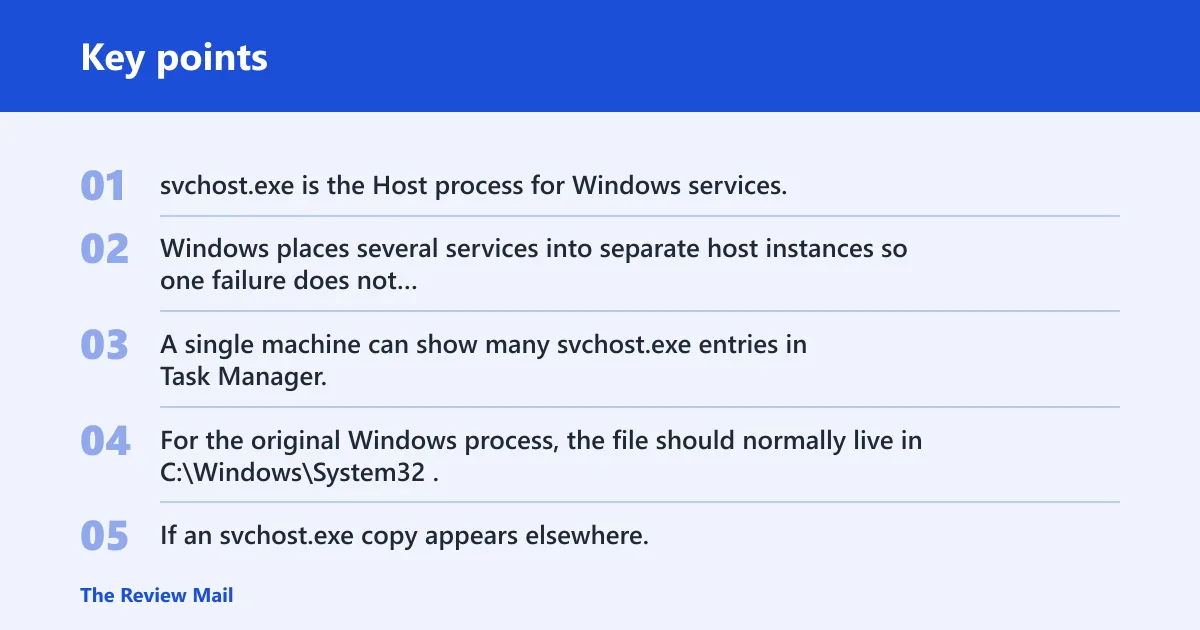
svchost.exe is the Host process for Windows services. Windows places several services into separate host instances so one failure does not always take down the rest. A single machine can show many svchost.exe entries in Task Manager, and that is usually normal behavior.
For the original Windows process, the file should normally live in C:\Windows\System32. If an svchost.exe copy appears elsewhere, treat it as suspicious until you confirm the path and signature.
What DCOM Launch is doing inside Windows
DCOM Launch is a service context tied to Distributed COM activity. In practice, it often appears inside svchost-based service groups that support software activation, service calls, or dependent components. When one of those dependencies misbehaves, the host can spike while trying to keep the call chain alive.
That is why a DCOM-related spike is usually a dependency problem first. The fix is often in Windows Update, SysMain, WMI, or a scheduled task that keeps retrying.
When high CPU is normal and when it is not
A short CPU burst after boot, after Windows Update, or during a maintenance task can be normal. A sustained spike that returns after reboot, stays high while the machine is idle, or shifts from one svchost instance to another is more likely a service fault, task loop, or malware issue.
Suppose a laptop jumps to 25% CPU right after sign-in and then settles within a few minutes. That can fit normal update or indexing work. If the same svchost instance sits near the top of the Details tab for an hour, keep tracing the hosted service instead of disabling random entries.
How to find the service behind the spike
Task Manager gives you the quickest first pass, but it is not enough on its own. Use the Details tab to map the exact svchost.exe instance, then pair that with Resource Monitor for service names, modules, and files. That sequence keeps you from stopping the wrong thing.
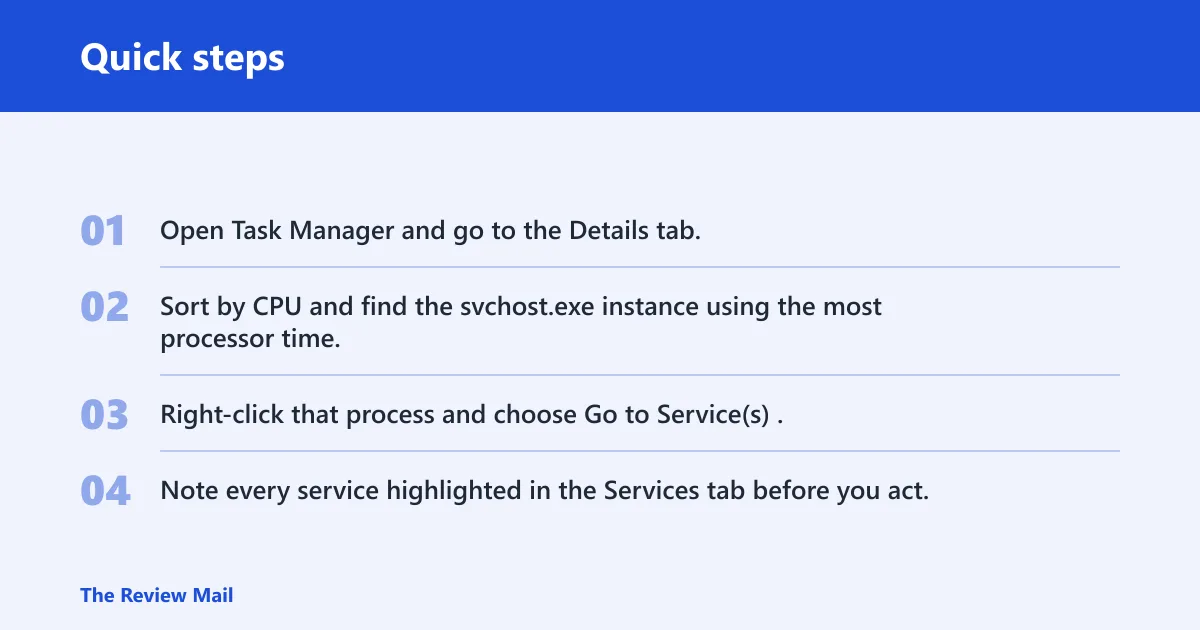
Use Task Manager Details and go to service(s)
- Open Task Manager and go to the Details tab.
- Sort by CPU and find the svchost.exe instance using the most processor time.
- Right-click that process and choose Go to Service(s).
- Note every service highlighted in the Services tab before you act.
This is the quickest way to connect a busy svchost.exe process to the services it hosts. Driver Talent’s guide also points to the same Go to Service(s) action, which is a useful sign that the method is standard, not a guess.
Check Resource Monitor for services and modules
Resource Monitor can add detail that Task Manager does not show. Open it by typing resmon in Run, then check the CPU tab. There you can inspect services, modules, and associated files tied to the active svchost process.
If the spike follows a Windows component, Resource Monitor often shows the same file or service repeatedly waking up. That makes it easier to decide whether the problem is update-related, task-related, or tied to a damaged system file.
Confirm the file path before changing anything
Before stopping services, confirm that svchost.exe is running from C:\Windows\System32. That check matters because malware often copies the name of trusted Windows processes. ThinkMobiles also notes that svchost.exe can be affected by viruses because of its importance.
If the path is wrong, do not start by disabling DCOM Launch or RPC. Move straight to a malware scan and investigate the file location, signature, and startup behavior.
Which services usually cause the spike?
Common triggers are Windows Update, SysMain, WMI, and scheduled tasks under Application Experience. These are the first places to check because they often sit behind svchost CPU spikes on Windows 11 and older builds. Stop the hosted service, not the whole host process.
Windows Update and related components
Windows Update service, or wuauserv, is one of the most common svchost CPU culprits. It can retry downloads, scan metadata, or loop on a failed update. Related components such as BITS can also keep the same host busy even when the update screen looks idle.
SysMain and background activity
SysMain, formerly Superfetch, is another common cause of high CPU. You can stop it and disable it in Services for a test. If CPU drops after you stop it, you have a clean test result. If nothing changes, SysMain was probably not the source.
WMI, Compatibility Appraiser, and scheduled tasks
WMI activity can keep svchost busy when a management query or monitoring tool misfires. Task Scheduler can also trigger spikes through Task Scheduler Library > Microsoft > Windows > Application Experience. That location contains Microsoft Compatibility Appraiser, plus related tasks such as ProgramDataUpdater and StartupAppTask.
These tasks can cause memory or resource spikes, especially during compatibility assessment or startup analysis. If the spike appears after boot and returns every day at the same time, the schedule itself may be the trigger.
Svchost CPU troubleshooting matrix
| Symptom | Likely host/service | Safe first action | Verification method | Rollback step |
|---|---|---|---|---|
| High CPU after update checks or download retries | Windows Update service (wuauserv), sometimes BITS | Stop Windows Update temporarily, then recheck CPU | Task Manager Details tab and Resource Monitor CPU tab | Start the service again after the test, or set it back to Manual/Automatic as needed |
| High CPU with disk churn or background readiness work | SysMain | Stop SysMain, then disable it only for the test window | CPU drop in Task Manager and lower activity in Resource Monitor | Re-enable SysMain in Services if the spike is not tied to it |
| High CPU tied to management queries or device inventory | WMI | Check recent admin tools, monitoring tools, or scripts before changing services | Event logs plus Resource Monitor module view | Undo any test changes and restart the monitoring app only if needed |
| Spike appears after boot or at a set time | Windows Compatibility Appraiser, ProgramDataUpdater, StartupAppTask | Review Application Experience tasks in Task Scheduler | Task Scheduler history and run times | Re-enable tasks one by one after testing, if you disabled them temporarily |
| CPU remains high, path is wrong, or behavior looks off | Possible malware masquerading as svchost.exe | Check file path and run a full malware scan | File location, signature, and scan results | Quarantine or remove the threat, then reboot and recheck |
How do you fix it without breaking Windows?
Fix it by changing one thing at a time and checking the same svchost instance after each step. Stop one service, wait for the CPU reading to settle, and reboot only when the test is complete. If the spike returns, move to the next likely service instead of disabling more components at random.
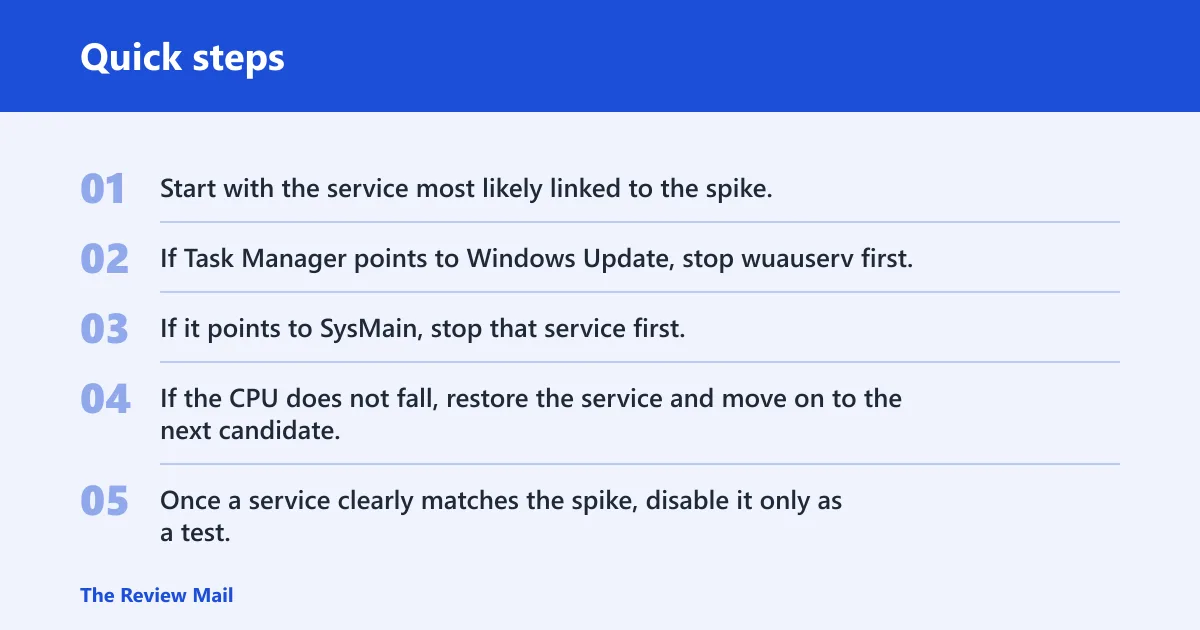
Stop one service at a time and recheck CPU
Start with the service most likely linked to the spike. If Task Manager points to Windows Update, stop wuauserv first. If it points to SysMain, stop that service first. If the CPU does not fall, restore the service and move on to the next candidate.
Temporarily disable only the confirmed culprit
Once a service clearly matches the spike, disable it only as a test, not as a permanent fix. Windows Update-related services can be stopped temporarily, and SysMain can be disabled in Services for a clean comparison. That keeps the system stable while you confirm the cause.
A common first-timer mistake is disabling DCOM Launch or RPC because they are named in Task Manager. Do not do that first. Those are core Windows services, and stopping them can break logon, networking, or service control itself.
Reboot and verify the spike does not return
After each change, reboot and recheck CPU usage. Some service faults only appear during startup, and some scheduled tasks fire again after a restart. If the problem comes back, that is useful information: the issue is persistent and still tied to the same service chain.
Repair Windows files and image
If the service mapping is unclear or the same svchost instance keeps misbehaving after a clean service test, move to file repair. SFC is the first repair pass. DISM comes next when the Windows image itself needs repair.
Run SFC first
Use sfc /scannow to check and repair corrupted system files. Driver Talent’s guide recommends that exact command, and it fits this workflow well because damaged protected files can cause service loops or repeated restarts inside svchost.
Use DISM next
If SFC reports problems it cannot fully fix, run DISM /Online /Cleanup-Image /RestoreHealth. That command repairs the component store that SFC relies on. After DISM finishes, run SFC again if needed, then recheck the same svchost instance.
Recheck the same process after repair
Do not assume the repair worked just because the command finished. Return to Task Manager Details, locate the same svchost.exe instance, and compare CPU use before and after the repair. If the spike is gone, the issue was likely file or image corruption rather than a live service loop.
Should you worry about malware?
Yes, if the file path, signature, or behavior looks wrong. No, if the process is in the right system folder and the spike lines up with a known Windows service or scheduled task. Treat malware as a separate branch of the decision tree, not as the default answer.
Check the svchost.exe path and signature
svchost.exe should normally point to C:\Windows\System32. If it runs from a user folder, a temp location, or another drive, that is not normal. An odd signature or an unsigned file is another reason to stop treating the spike as a routine Windows service issue.
Look for suspicious startup or scheduled task behavior
Malware often causes recurring CPU spikes by relaunching itself through startup items or scheduled tasks. If Task Scheduler shows a task you do not recognize, or if the same svchost instance keeps returning after reboot with no matching Windows service, investigate that chain before making more service changes.
Run a full malware scan if the path is wrong
If the file is outside System32 or the behavior is clearly off, run a full malware scan before any further repair work. That keeps you from repairing the wrong thing while a hostile process stays active. A clean scan result lets you return to Windows service troubleshooting with more confidence.
Frequently asked questions
Why is svchost using so much cpu?
Usually because one hosted service inside the svchost.exe container is looping, retrying, or waiting on a dependent component. Common causes include Windows Update, SysMain, WMI, and scheduled tasks under Application Experience. The fastest fix is to map the instance to its hosted service before changing settings.
Why is svchost.exe running so high?
High CPU from svchost.exe usually points to a Windows service problem, not the host process itself. Multiple instances are normal, so the key is which one is busy and what it hosts. Use Task Manager Details and Go to Service(s), then confirm with Resource Monitor.
What does svchost dcomlaunch mean in Task Manager?
It means the DCOM Server Process Launcher context is active inside an svchost-based service group. That does not mean DCOM Launch itself is the bug. It often means a dependent service or COM component is misbehaving and forcing the host to work harder than normal.
How do I tell which service is causing svchost high CPU?
Open Task Manager, go to Details, find the hot svchost.exe entry, and use Go to Service(s). Then check Resource Monitor on the CPU tab for the same process, services, and files. If the spike is tied to a scheduled task, review Task Scheduler too.
Should I disable DCOM Launch or RPC when svchost is high?
No, not as a first move. DCOM Launch and RPC are core Windows services, and stopping them can break service control, logon, or dependent components. Find the hosted service behind the spike first, then test Windows Update, SysMain, WMI, or the relevant scheduled task.
How do I fix svchost high cpu without breaking Windows?
Start with service mapping, not random disabling. Stop one likely culprit at a time, recheck CPU, and reboot after each test. If that does not solve it, run SFC, then DISM, and check for malware if the file path is wrong or the behavior looks suspicious.
What services usually trigger svchost cpu spikes on Windows 11
Windows Update, SysMain, WMI, BITS, and tasks under Application Experience are common triggers. Windows 11 can group services differently from older builds, so the same symptom may move between svchost instances. The fix still starts with the exact host and the exact service, not with broad service shutdowns.